


Python实现微信消息撤回查看功能

发布时间:2026-10-13 |
5人浏览过
本文介绍如何使用Python的itchat库实现微信消息撤回查看功能。通过安装itchat并运行特定脚本,可以监控文本、图片、视频等消息的撤回状态,并将撤回内容转发至文件助手。文章提供了详细的安装步骤和代码实现过程,帮助开发者快速掌握相关技术。
本文分享了利用Python实现微信消息撤回查看的具体代码方案,供读者参考。
第一步:安装itchat库
itchat是一个开源的Python微信接口库,支持发送文字、图片、视频、地图、名片及文件等多种消息类型,并具备自动回复等高级功能。
参考了一份不错的技术文档。
1)首先确保已安装Python,可从官网下载对应版本。
2)安装完成后,进入包含pip3.exe的目录。
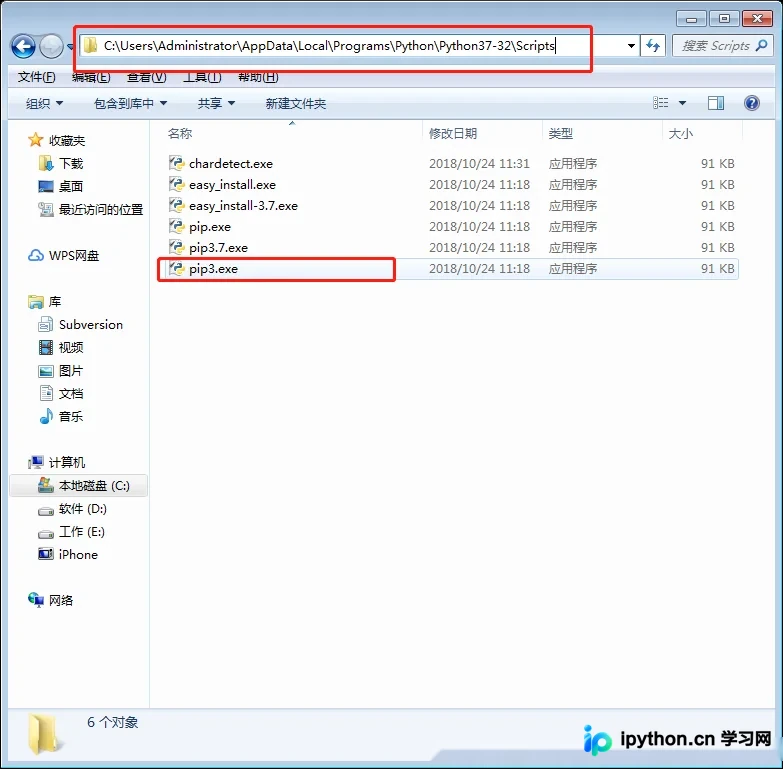
执行命令安装itchat:pip3.exe install itchat。如下图所示,若已安装则无需重复操作(注意:需使用Python 3及以上版本执行)。
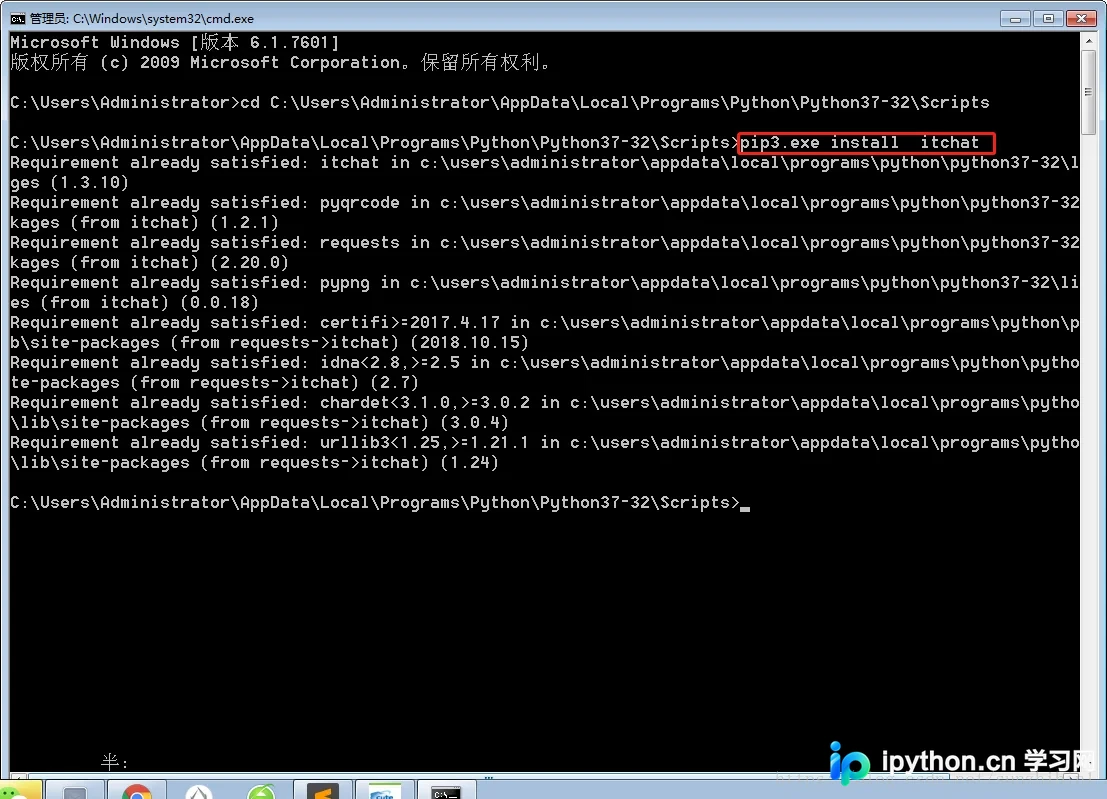
3)打开CMD命令行窗口,将pip3.exe拖入窗口后按回车键执行安装。
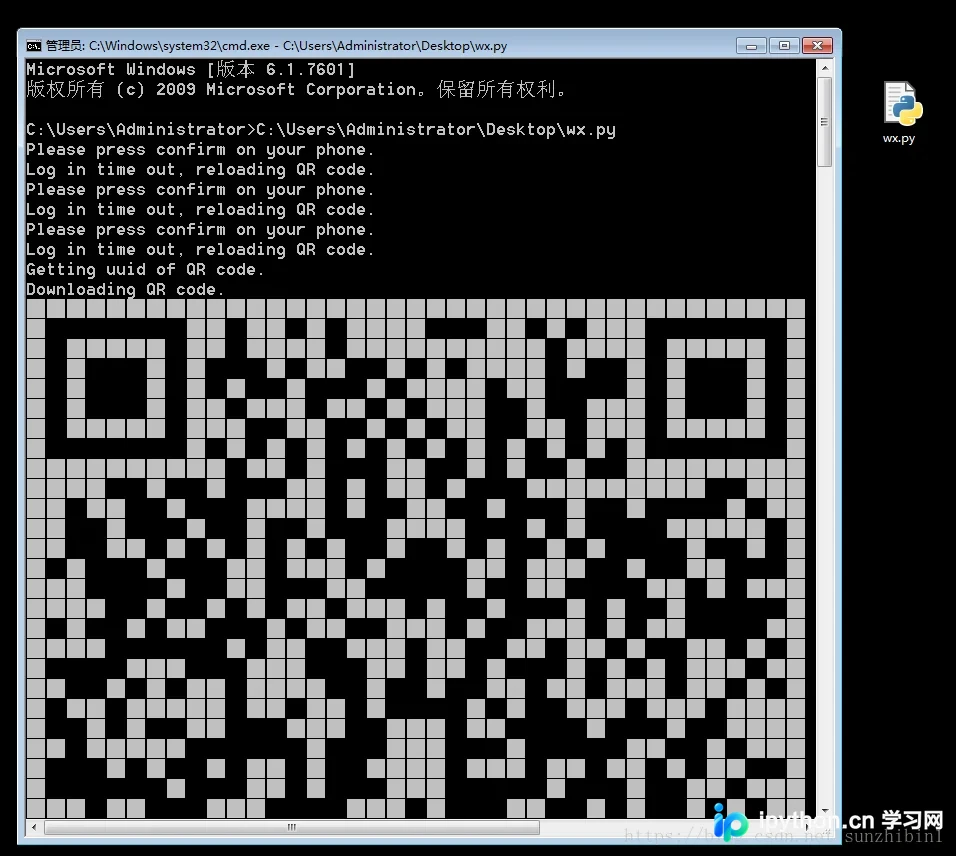
代码实现部分
新建一个名为wx.py的文件,并将以下代码导入其中。
# -*-encoding:utf-8-*-
import os
import re
import shutil
import time
import itchat
from itchat.content import *

# 说明:可以撤回的有文本文字、语音、视频、图片、位置、名片、分享、附件

# {msg_id:(msg_from,msg_to,msg_time,msg_time_rec,msg_type,msg_content,msg_share_url)}
msg_dict = {}

# 文件存储临时目录
rev_tmp_dir = "/RevDir/"
if not os.path.exists(rev_tmp_dir): os.mkdir(rev_tmp_dir)

# 表情有一个问题 | 接受信息和接受note的msg_id不一致 巧合解决方案
face_bug = None


# 将接收到的消息存放在字典中,当接收到新消息时对字典中超时的消息进行清理 | 不接受不具有撤回功能的信息
# [TEXT, PICTURE, MAP, CARD, SHARING, RECORDING, ATTACHMENT, VIDEO, FRIENDS, NOTE]
@itchat.msg_register([TEXT, PICTURE, MAP, CARD, SHARING, RECORDING, ATTACHMENT, VIDEO])
def handler_receive_msg(msg):
  global face_bug
  # 获取的是本地时间戳并格式化本地时间戳 e: 2017-04-21 21:30:08
  msg_time_rec = time.strftime("%Y-%m-%d %H:%M:%S", time.localtime())
  # 消息ID
  msg_id = msg['MsgId']
  # 消息时间
  msg_time = msg['CreateTime']
  # 消息发送人昵称 | 这里也可以使用RemarkName备注 但是自己或者没有备注的人为None
  msg_from = (itchat.search_friends(userName=msg['FromUserName']))["NickName"]
  # 消息内容
  msg_content = None
  # 分享的链接
  msg_share_url = None
  if msg['Type'] == 'Text' \
      or msg['Type'] == 'Friends':
    msg_content = msg['Text']
  elif msg['Type'] == 'Recording' \
      or msg['Type'] == 'Attachment' \
      or msg['Type'] == 'Video' \
      or msg['Type'] == 'Picture':
    msg_content = r"" + msg['FileName']
    # 保存文件
    msg['Text'](rev_tmp_dir + msg['FileName'])
  elif msg['Type'] == 'Card':
    msg_content = msg['RecommendInfo']['NickName'] + r" 的名片"
  elif msg['Type'] == 'Map':
    x, y, location = re.search(
      "<location x=\"(.*?)\" y=\"(.*?)\".*label=\"(.*?)\".*", msg['OriContent']).group(1, 2, 3)
    if location is None:
      msg_content = r"纬度->" + x.__str__() + " 经度->" + y.__str__()
    else:
      msg_content = r"" + location
  elif msg['Type'] == 'Sharing':
    msg_content = msg['Text']
    msg_share_url = msg['Url']
  face_bug = msg_content
  # 更新字典
  msg_dict.update(
    {
      msg_id: {
        "msg_from": msg_from, "msg_time": msg_time, "msg_time_rec": msg_time_rec,
        "msg_type": msg["Type"],
        "msg_content": msg_content, "msg_share_url": msg_share_url
      }
    }
  )


# 收到note通知类消息,判断是不是撤回并进行相应操作
@itchat.msg_register([NOTE])
def send_msg_helper(msg):
  global face_bug
  if re.search(r"\<\!\[CDATA\[.*撤回了一条消息\]\]\>", msg['Content']) is not None:
    # 获取消息的id
    old_msg_id = re.search("\<msgid\>(.*?)\<\/msgid\>", msg['Content']).group(1)
    old_msg = msg_dict.get(old_msg_id, {})
    if len(old_msg_id) < 11:
      itchat.send_file(rev_tmp_dir + face_bug, toUserName='filehelper')
      os.remove(rev_tmp_dir + face_bug)
    else:
      msg_body = "爱你蕾蕾 ⇣" + "\n" \
            + old_msg.get('msg_from') + " 撤回了 " + old_msg.get("msg_type") + " 消息" + "\n" \
            + old_msg.get('msg_time_rec') + "\n" \
            + "内容 ⇣" + "\n" \
            + r"" + old_msg.get('msg_content')
      # 如果是分享存在链接
      if old_msg['msg_type'] == "Sharing": msg_body += "\n就是这个链接➣ " + old_msg.get('msg_share_url')

      # 将撤回消息发送到文件助手
      itchat.send(msg_body, toUserName='filehelper')
      # 有文件的话也要将文件发送回去
      if old_msg["msg_type"] == "Picture" \
          or old_msg["msg_type"] == "Recording" \
          or old_msg["msg_type"] == "Video" \
          or old_msg["msg_type"] == "Attachment":
        file = '@fil@%s' % (rev_tmp_dir + old_msg['msg_content'])
        itchat.send(msg=file, toUserName='filehelper')
        os.remove(rev_tmp_dir + old_msg['msg_content'])
      # 删除字典旧消息
      msg_dict.pop(old_msg_id)


if __name__ == '__main__':
  itchat.auto_login(hotReload=True,enableCmdQR=1)
  itchat.run()
打开CMD命令行,将wx.py文件拖入窗口即可运行。
以上就是本文的全部内容,希望对各位的学习有所帮助,欢迎大家继续支持本站。
本站声明
本文内容仅供参考,不代表本站观点。转载或引用请注明出处。如发现内容问题,请通过联系我们页面反馈。















