


Python使用Matplotlib进行时间序列数据可视化的完整指南

本文详解如何利用Python的Matplotlib库对时间序列数据进行可视化分析。内容涵盖从Tushare获取指数及股票数据,处理日期索引,绘制单序列折线图并自定义样式与细节。此外,还介绍了移动平均通道线的构建方法,以及通过面积图和子图布局实现多时间序列数据的对比展示,帮助读者掌握金融数据探索的核心可视化技巧。

Python时间序列可视化概述
时间序列数据广泛应用于数据科学及量化金融领域,常用于分析价格走势、预测未来行情以及探索价格行为模式。
掌握时间序列数据的可视化技术,有助于更直观地探索数据特征,发现其中潜在的规律与趋势。
本文将结合具体实例,演示如何使用Python中的库进行时间序列可视化。Matplotlib是一个用于生成出版级质量图表的桌面绘图包(2D绘图库),也是Python中最基础的可视化工具。
【工具】Python 3
【数据源】Tushare
【注】本示例侧重于方法讲解,请读者根据实际需求灵活调整。
单个时间序列数据可视化
1. 单个时间序列可视化
首先,我们从tushare.pro接口获取指数日线行情数据,并检查数据类型。
import tushare as ts
import pandas as pd
pd.set_option('expand_frame_repr', False) # 显示所有列
ts.set_token('your token')
pro = ts.pro_api()
df = pro.index_daily(ts_code='399300.SZ')[['trade_date', 'close']]
df.sort_values('trade_date', inplace=True)
df.reset_index(inplace=True, drop=True)
print(df.head())
 trade_date  close
0  20050104 982.794
1  20050105 992.564
2  20050106 983.174
3  20050107 983.958
4  20050110 993.879
print(df.dtypes)
trade_date   object
close     float64
dtype: object 交易时间列'trade_date' 并非时间类型,且未设置为索引,因此需要先进行转换处理。
df['trade_date'] = pd.to_datetime(df['trade_date'])
df.set_index('trade_date', inplace=True)
print(df.head())
       close
trade_date
2005-01-04 982.794
2005-01-05 992.564
2005-01-06 983.174
2005-01-07 983.958
2005-01-10 993.879 接下来开始绘图,我们需要导入matplotlib.pyplot【2】,并通过设置set_xlabel()和set_xlabel()分别为x轴和y轴添加标签。
import matplotlib.pyplot as plt
ax = df.plot(color='')
ax.set_xlabel('trade_date')
ax.set_ylabel('399300.SZ close')
plt.show()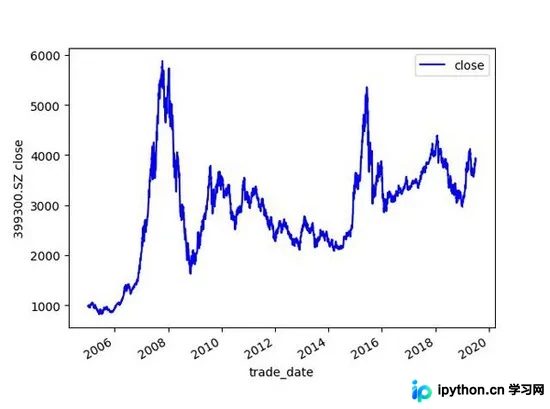
Matplotlib库提供了多种内置图表样式,通过打印plt.style.available可以查看具体有哪些选项,应用时直接调用plt.style.use('fivethirtyeight')即可切换样式。
print(plt.style.available)
['bmh', 'classic', 'dark_background', 'fast', 'fivethirtyeight', 'ggplot', 'grayscale', 'seaborn-bright', 'seaborn-colorblind', 'seaborn-dark-palette', 'seaborn-dark', 'seaborn-darkgrid', 'seaborn-deep', 'seaborn-muted', 'seaborn-notebook', 'seaborn-paper', 'seaborn-pastel', 'seaborn-poster', 'seaborn-talk', 'seaborn-ticks', 'seaborn-white', 'seaborn-whitegrid', 'seaborn', 'Solarize_Light2', 'tableau-colorblind10', '_classic_test']
 plt.style.use('fivethirtyeight')
ax1 = df.plot()
ax1.set_title('FiveThirtyEight Style')
plt.show()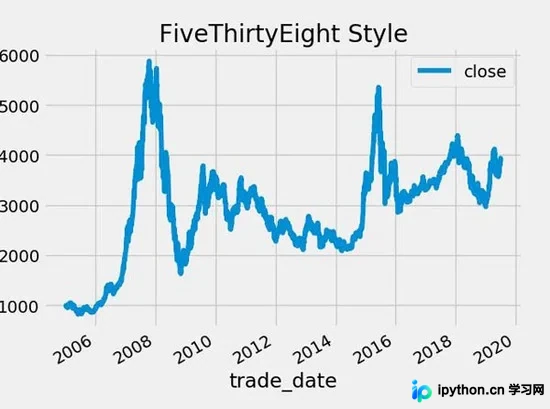
图表细节定制与样式设置
2. 设置图表更多细节
上述代码绘制的是基础折线图,实际上可以在plot()函数中通过设置不同参数来添加更多细节,使图表更美观、清晰。
使用figsize(width, height)设设置图的大小,通过linewidth设置线的宽度,fontsize设置字体大小。随后,调用set_title()方法设置图表标题。
ax = df.plot(color='blue', figsize=(8, 3), linewidth=2, fontsize=6)
ax.set_title('399300.SZ close from 2005-01-04 to 2019-07-04', fontsize=8)
plt.show()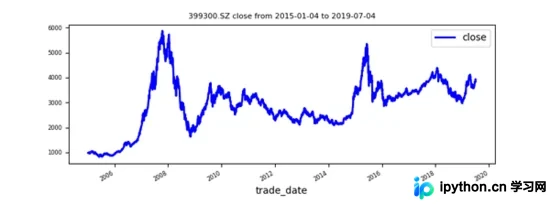
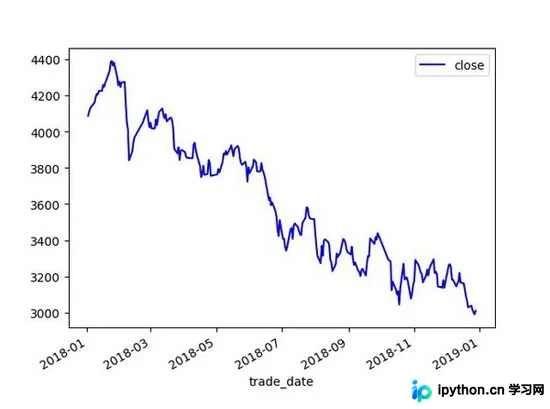
若需查看特定时间段内的折线变化,可直接截取该时间段的数据再绘图,例如df['2018-01-01': '2019-01-01']。
dfdf_subset_1 = df['2018-01-01':'2019-01-01']
ax = df_subset_1.plot(color='blue', fontsize=10)
plt.show()
若需突出显示图中的特定日期或观察值,可以调用.axvline()和.axhline()方法添加垂直和水平参考线。
ax = df.plot(color='blue', fontsize=6)
ax.axvline('2019-01-01', color='red', linestyle='--')
ax.axhline(3000, color='green', linestyle='--')
plt.show()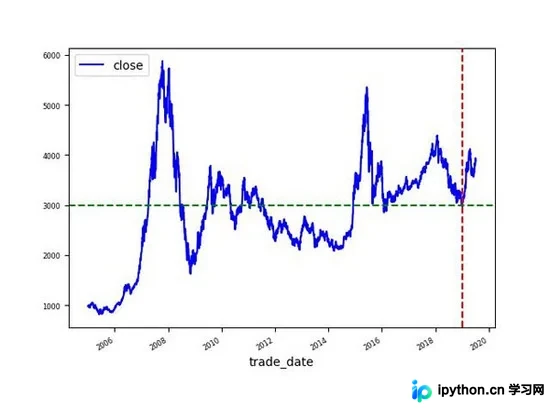
此外,还可以调用axvspan()方法为特定时间段添加阴影标注,其中alpha参数用于设置阴影透明度,0表示完全透明,1表示不透明。
ax = df.plot(color='blue', fontsize=6)
ax.axvspan('2018-01-01', '2019-01-01', color='red', alpha=0.3)
ax.axhspan(2000, 3000, color='green', alpha=0.7)
plt.show()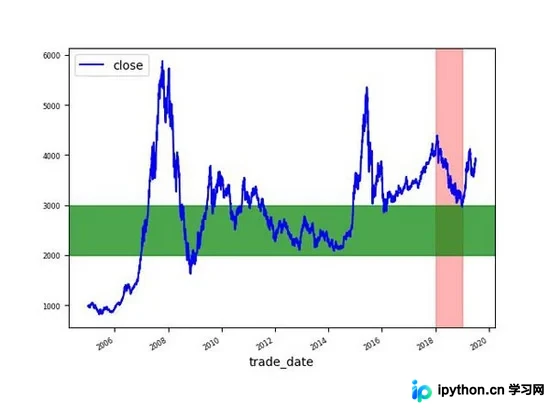
移动平均线与通道线绘制
3. 移动平均时间序列
有时我们需要观察特定窗口期的移动平均值趋势,可通过调用窗口函数rolling来实现。以下实例展示了以250天为窗口期的移动平均线close,以及与移动标准差的关系构建的上下两个通道线upper和lower。
ma = df.rolling(window=250).mean()
mstd = df.rolling(window=250).std()
ma['upper'] = ma['close'] + (mstd['close'] * 2)
ma['lower'] = ma['close'] - (mstd['close'] * 2)
ax = ma.plot(linewidth=0.8, fontsize=6)
ax.set_xlabel('trade_date', fontsize=8)
ax.set_ylabel('399300.SZ close from 2005-01-04 to 2019-07-04', fontsize=8)
ax.set_title('Rolling mean and variance of 399300.SZ cloe from 2005-01-04 to 2019-07-04', fontsize=10)
plt.show()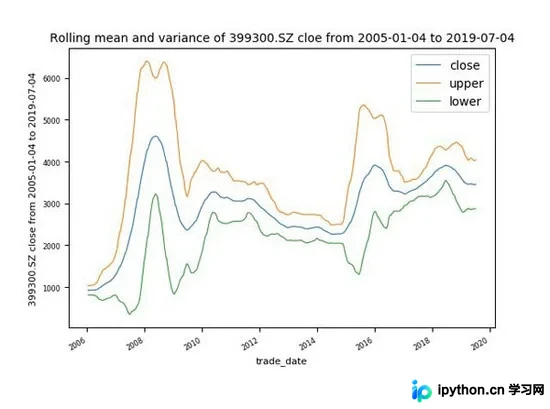
多时间序列数据对比可视化
4. 多个时间序列可视化
若需可视化多个时间序列数据,可直接调用plot()方法。示例中我们从tushare.pro获取三只股票的日线行情数据进行分析。
# 获取数据
code_list = ['000001.SZ', '000002.SZ', '600000.SH']
data_list = []
for code in code_list:
  print(code)
  df = pro.daily(ts_code=code, start_date='20180101', end_date='20190101')[['trade_date', 'close']]
  df.sort_values('trade_date', inplace=True)
  df.rename(columns={'close': code}, inplace=True)
  df.set_index('trade_date', inplace=True)
  data_list.append(df)
df = pd.concat(data_list, axis=1)
print(df.head())
000001.SZ
000002.SZ
600000.SH
      000001.SZ 000002.SZ 600000.SH
trade_date
20180102    13.70   32.56   12.72
20180103    13.33   32.33   12.66
20180104    13.25   33.12   12.66
20180105    13.30   34.76   12.69
20180108    12.96   35.99   12.68
# 画图
ax = df.plot(linewidth=2, fontsize=12)
ax.set_xlabel('trade_date')
ax.legend(fontsize=15)
plt.show()
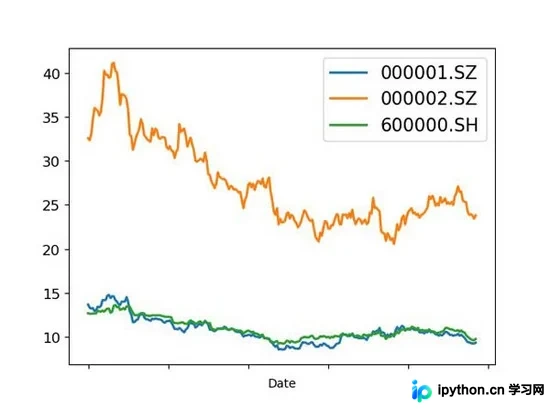
调用.plot.area()方法可以生成时间序列数据的面积图,以显示累计的总数。
ax = df.plot.area(fontsize=12)
ax.set_xlabel('trade_date')
ax.legend(fontsize=15)
plt.show()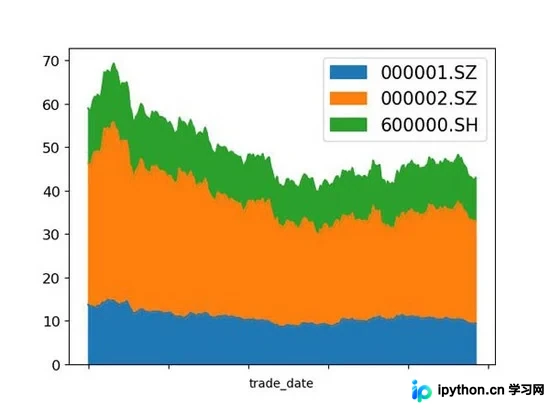
若要在不同子图中单独显示每一个时间序列,可通过设置参数subplots=True来实现。layout指定要使用的行列数,sharex和sharey用于设置是否共享行和列,colormap='viridis' 为每条线设置不同的颜色。
df.plot(subplots=True,
     layout=(2, 2),
     sharex=False,
     sharey=False,
     colormap='viridis',
     fontsize=7,
     legend=False,
     linewidth=0.3)
plt.show()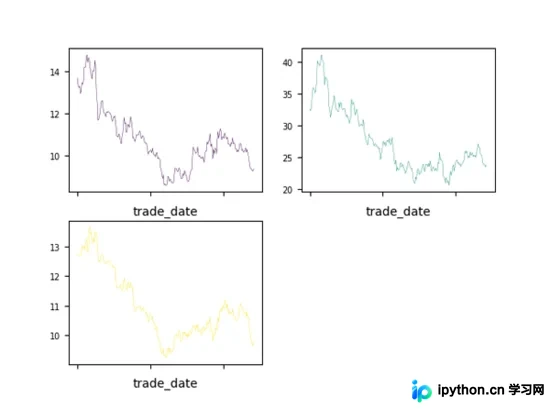
5. 总结
本文主要介绍了如何利用Python中的Matplotlib库对时间序列数据进行简单的可视化操作,包括可视化单个时间序列并设置图中的细节,可视化移动平均时间序列和多个时间序列。
以上所述是小编给大家介绍的Python实现时间序列可视化的方法,希望对大家有所帮助。如果大家有任何疑问请给我留言,小编会及时回复大家的。在此也非常感谢大家对本站网站的支持! 如果你觉得本文对你有帮助,欢迎转载,烦请注明出处,谢谢!
本站声明
本文内容仅供参考,不代表本站观点。转载或引用请注明出处。如发现内容问题,请通过联系我们页面反馈。















