


Python Tkinter简易计算器实现教程

本文详细介绍如何使用Python的Tkinter库开发一个简易图形界面计算器。通过创建主窗口、标签显示框及数字与运算符按钮,利用全局变量存储表达式,并结合eval函数实现实时计算。文章包含完整的Python代码示例,涵盖界面布局、事件绑定及颜色切换功能,适合Python初学者学习GUI开发基础。
Python Tkinter简易计算器实现教程
本教程主要依赖Python标准库中的Tkinter模块来构建图形用户界面。
该实现方案逻辑简单,易于理解。
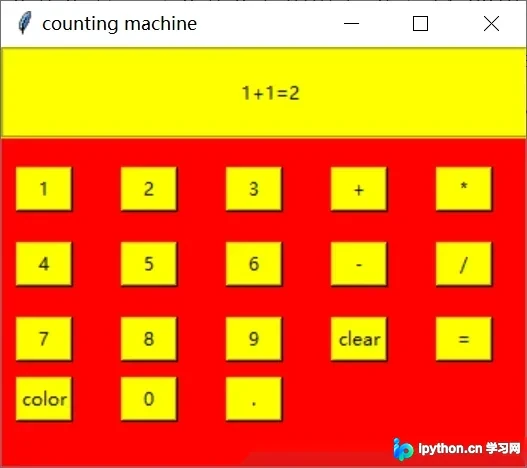
接下来直接展示计算器的图形界面效果及对应的源代码。
初始化窗口与界面布局
首先需要导入Tkinter库以使用其提供的组件。
from tkinter import *
接着初始化并创建主窗口对象,用于承载整个应用程序界面。
window=Tk() #设置窗口对象
window.title('counting machine')
window.geometry("350x280")
window['bg']='red'
在窗口中创建一个标签框架(LabelFrame)及标签控件,用于显示用户输入的运算字符串及计算结果。
frame=LabelFrame(window,bg='yellow',width=350,height=50)
frame.pack()
frame.place(x=0,y=0)
label=Label(frame,text="1+1=2",height=3,width=50,bg='yellow')
label.pack() #显示框
核心计算逻辑与变量处理
程序定义一个全局字符串变量s,用于累积用户点击按钮输入的运算符和数字。每次点击按钮,对应的字符将追加到字符串s中,最终通过Python内置的eval函数对字符串表达式进行解析和计算。
global s
s=""
数字与运算符按钮实现
以下是数字按钮0-9以及小数点按钮的具体实现逻辑,各按钮功能实现思路基本一致。
#按钮.
def figure_dot():
  global s
  s=s+"."
  label.config(text=s)
btn0=Button(window,text=".",width=4,command=figure_dot,bg='yellow')
btn0.place(x=150,y=220) #按钮.
#按钮0
def figure_0():
  global s
  s=s+"0"
  label.config(text=s)
btn0=Button(window,text="0",width=4,command=figure_0,bg='yellow')
btn0.place(x=80,y=220) #按钮0
#按钮1
def figure_1():
  global s
  s=s+"1"
  label.config(text=s)
btn1=Button(window,text="1",width=4,command=figure_1,bg='yellow')
btn1.place(x=10,y=80) #按钮1
#按钮2
def figure_2():
  global s
  s=s+"2"
  label.config(text=s)
btn2=Button(window,text="2",width=4,command=figure_2,bg='yellow')
btn2.place(x=80,y=80)#按钮2
#按钮3
def figure_3():
  global s
  s=s+"3"
  label.config(text=s)
btn3=Button(window,text="3",width=4,command=figure_3,bg='yellow')
btn3.place(x=150,y=80)#按钮3
#按钮4
def figure_4():
  global s
  s=s+"4"
  label.config(text=s)
btn4=Button(window,text="4",width=4,command=figure_4,bg='yellow')
btn4.place(x=10,y=130)#按钮4
#按钮5
def figure_5():
  global s
  s=s+"5"
  label.config(text=s)
btn5=Button(window,text="5",width=4,command=figure_5,bg='yellow')
btn5.place(x=80,y=130)#按钮5
#按钮6
def figure_6():
  global s
  s=s+"6"
  label.config(text=s)
btn6=Button(window,text="6",width=4,command=figure_6,bg='yellow')
btn6.place(x=150,y=130)#按钮6
#按钮7
def figure_7():
  global s
  s=s+"7"
  label.config(text=s)
btn7=Button(window,text="7",width=4,command=figure_7,bg='yellow')
btn7.place(x=10,y=180)#按钮7
#按钮8
def figure_8():
  global s
  s=s+"8"
  label.config(text=s)
btn8=Button(window,text="8",width=4,command=figure_8,bg='yellow')
btn8.place(x=80,y=180)#按钮8
#按钮9
def figure_9():
  global s
  s=s+"9"
  label.config(text=s)
btn9=Button(window,text="9",width=4,command=figure_9,bg='yellow')
btn9.place(x=150,y=180)#按钮9
运算符号的实现(±*/)

#加法按钮
def figure_addition():
  global s
  s=s+"+"
  label.config(text=s)
btn_add=Button(window,text="+",width=4,command=figure_addition,bg='yellow')
btn_add.place(x=220,y=80)#加法按钮
#减法按钮
def figure_subtraction():
  global s
  s=s+"-"
  label.config(text=s)
btn_sub=Button(window,text="-",width=4,command=figure_subtraction,bg='yellow')
btn_sub.place(x=220,y=130)#减法按钮
#乘法按钮
def figure_multiplication():
  global s
  s=s+"*"
  label.config(text=s)
btn_multi=Button(window,text="*",width=4,command=figure_multiplication,bg='yellow')
btn_multi.place(x=290,y=80)#乘法按钮
#除法按钮
def figure_division():
  global s
  s=s+"/"
  label.config(text=s)
btn_divi=Button(window,text="/",width=4,command=figure_division,bg='yellow')
btn_divi.place(x=290,y=130)#除法按钮
清空与结果输出功能
实现清空窗口内容的按钮功能,用于重置计算状态。
#清空按钮
def figure_clear():
  global s
  s=""
  label.config(text=s)
btn_clear=Button(window,text="clear",width=4,command=figure_clear,bg='yellow')
btn_clear.place(x=220,y=180)#清空按钮
实现结果输出功能,核心逻辑是调用eval函数处理字符串s中的表达式并显示结果。
#结果按钮
def figure_value():
  global s
  x=eval(s)
  s=str(x)
  label.config(text=s)
btn_value=Button(window,text="=",width=4,command=figure_value,bg='yellow')
btn_value.place(x=290,y=180)
界面交互与扩展功能
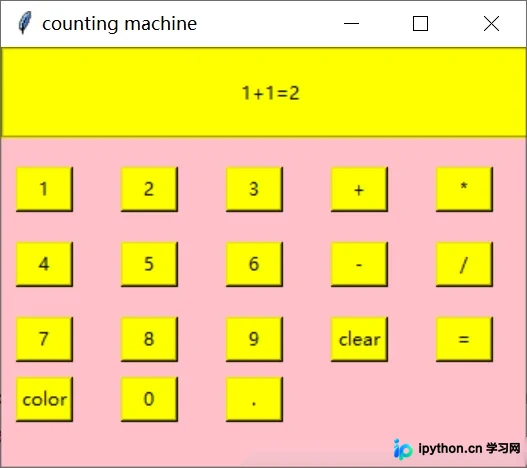
演示通过代码改变窗口背景颜色的功能,例如将红色背景变为粉色。
def figure_colorchange():
  window.config(bg="pink")
btn_value=Button(window,text="color",width=4,command=figure_colorchange,bg='yellow')
btn_value.place(x=10,y=220)#改变颜色
window.mainloop()
执行颜色变换后的界面效果展示。
至此,这个简易计算器已实现基本功能。用户可根据需求扩展其他功能,例如添加开方、乘幂等数学运算支持。
总结部分回顾了整个开发过程。
以上内容为Python简易计算器制作方法的详细代码解析,希望能对读者有所帮助。如有任何疑问,欢迎留言交流,作者将及时回复。感谢大家对本站的支持! 如果您觉得本文内容对您有帮助,欢迎转载,请注明出处,谢谢!
本站声明
本文内容仅供参考,不代表本站观点。转载或引用请注明出处。如发现内容问题,请通过联系我们页面反馈。















