


Python使用Bokeh与GeoJSON绘制伦敦地图实战

本文介绍如何使用Python的Bokeh库结合GeoJSON数据绘制伦敦地图。从安装Bokeh开始,演示如何读取英国地图数据并过滤出伦敦区域,通过添加轮廓线、颜色填充及交互图注美化地图,最终生成完整的交互式地图代码。
Bokeh库简介与安装
近期需要绘制伦敦地区的地图,经过多方资料查阅,最终决定采用Python的Bokeh库配合伦敦区域的GeoJSON数据来完成绘图任务。Bokeh是一款基于Python的交互式绘图工具,支持生成多种图表类型,并具备直接读取和绘制GeoJSON数据的功能。
安装Bokeh库
通过pip命令进行安装:$ pip install bokeh
软件版本信息
Python版本为3.7.7,Bokeh版本为2.0.0。
数据来源与英国地图绘制
数据来源说明
伦敦地图数据源自Highmaps地图数据集,具体下载的是包含英国全域数据的united-kindom.geo.json文件。为了仅展示伦敦地区,必须对获取的数据进行预处理,这需要理解GeoJSON的数据格式。在深入处理数据前,先演示如何绘制完整的英国地图。
绘制英国地图示例
from bokeh.plotting import curdoc, figure
from bokeh.models import GeoJSONDataSource

# 读入英国地图数据并传给GeoJSONDataSource
with open("united-kindom.geo.json", encoding="utf8") as f:
  geo_source = GeoJSONDataSource(geojson=f.read())
# 设置一张画布
p = figure(width=500, height=500)
# 使用patches函数以及geo_source绘制地图
p.patches(xs='xs', ys='ys', source=geo_source)

curdoc().add_root(p)
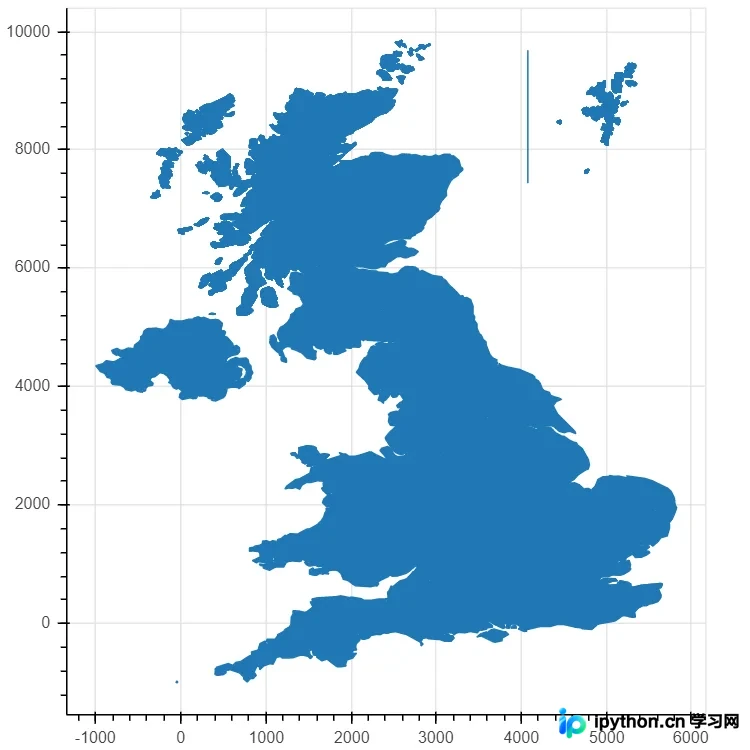
上述代码能够成功绘制出英国地图。将代码保存为test.py文件后,在终端执行以下命令:
$ bokeh serve --show test.py
执行该命令后,系统会自动打开浏览器并显示生成的英国地图。运行效果如图所示:
伦敦数据过滤与地图美化
获取伦敦地区数据
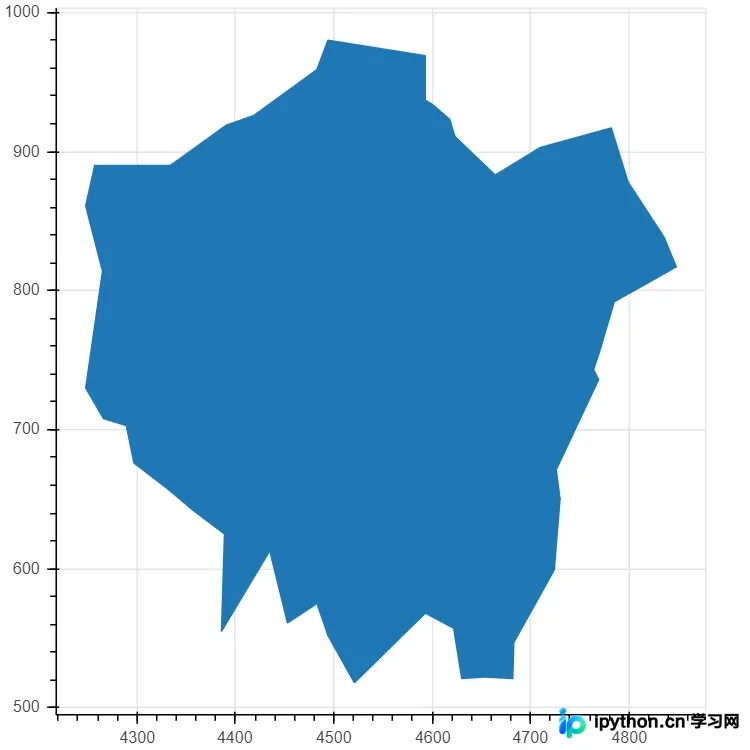
提取伦敦地区数据有两种方式:一是手动从united-kingdom.geo.json文件中筛选出属于伦敦的数据;二是先使用Python脚本对数据进行过滤,再将处理后的数据传递给Bokeh进行绘制。这要求对GeoJSON文件格式有基本了解,此处不再赘述具体格式细节。
from bokeh.plotting import curdoc, figure
from bokeh.models import GeoJSONDataSource
import json

# 用json库读取数据
with open("united-kindom.geo.json", encoding="utf8") as f:
  data = json.loads(f.read())
# 判断是不是伦敦地区数据
def isInLondon(district):
  if 'type' in district['properties'] and 'london borough' in district['properties']['type'].lower():
    return True
  if 'type-en' in district['properties'] and 'london borough' in district['properties']['type'].lower():
    return True
  if 'woe-name' in district['properties'] and 'city of london' in district['properties']['woe-name'].lower():
    return True
  return False
# 过滤数据
data['features'] = list(filter(isInLondon, data['features']))
#
geo_source = GeoJSONDataSource(geojson=json.dumps(data))
p = figure(width=500, height=500)
p.patches(xs='xs', ys='ys', source=geo_source)

curdoc().add_root(p)
处理后的伦敦地图运行结果如图所示:
地图美化处理
此前的伦敦地图仅呈现大致轮廓,接下来将为地图添加多项功能以增强视觉效果。
添加各区轮廓线
p.patches(xs='xs', ys='ys', fill_alpha=0.7, # 画轮廓线
    line_color='white', # 线的颜色
    line_width=0.5,   # 线的宽度
    source=geo_source)
添加轮廓线后,地图区域的边界变得清晰可见。
添加颜色填充
# 为每一个地区增加一个color属性
for i in range(len(data['features'])):
  data['features'][i]['properties']['color'] = ['blue', 'red', 'yellow', 'orange', 'gray', 'purple'][i % 6]
p.patches(xs='xs', ys='ys', fill_alpha=0.7,
    line_color='white',
    line_width=0.5,
    color="color",  # 增加颜色属性,这里的"color"对应每个地区的color属性
    source=geo_source)
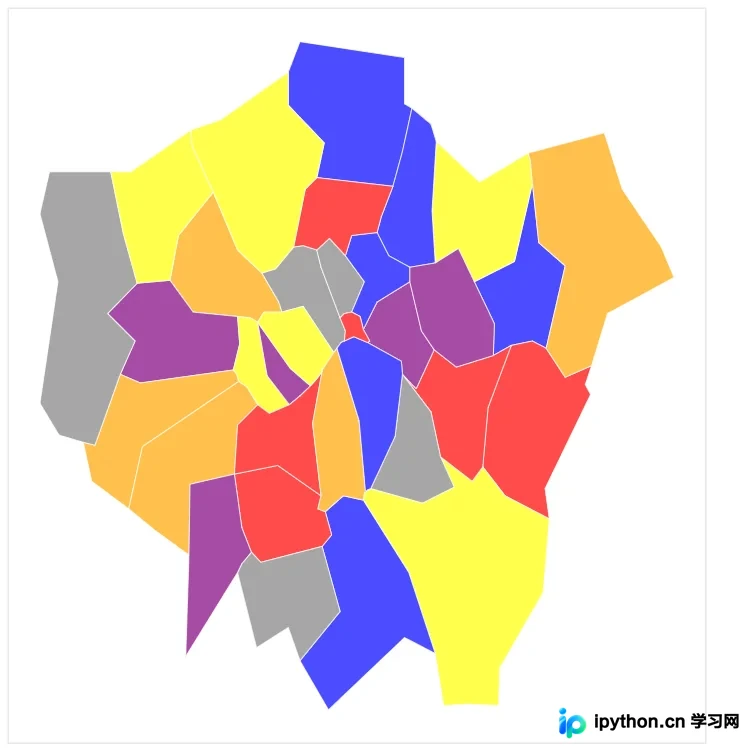
为地图添加颜色后,各区域呈现出不同的色彩。
增加交互图注
import random
# 随机产生数据用于展示
for i in range(len(data['features'])):
  data['features'][i]['properties']['number'] = random.randint(0, 20_000)
p = figure(width=500, height=500,
    tooltips="@name, number: @number" # 使用tooltips生成图注,@+属性名称,这里的name是数据中原本有的,number是新近添加的。
  )
配置后,当鼠标悬停在某个区域时,会显示包含“区域名, number: 数字”信息的提示框。
去除坐标轴与背景网格线
p.axis.axis_label = None p.axis.visible = False p.grid.grid_line_color = None
最终完整代码
from bokeh.plotting import curdoc, figure
from bokeh.models import GeoJSONDataSource
import json
import random
with open("united-kindom.geo.json", encoding="utf8") as f:
  data = json.loads(f.read())

def isInLondon(district):
  if 'type' in district['properties'] and 'london borough' in district['properties']['type'].lower():
    return True
  if 'type-en' in district['properties'] and 'london borough' in district['properties']['type'].lower():
    return True
  if 'woe-name' in district['properties'] and 'city of london' in district['properties']['woe-name'].lower():
    return True
  return False

data['features'] = list(filter(isInLondon, data['features']))
for i in range(len(data['features'])):
  data['features'][i]['properties']['color'] = ['blue', 'red', 'yellow', 'orange', 'gray', 'purple'][i % 6]
  data['features'][i]['properties']['number'] = random.randint(0, 20_000)

geo_source = GeoJSONDataSource(geojson=json.dumps(data))
p = figure(width=500, height=500,
    tooltips="@name, number: @number")
p.patches(xs='xs', ys='ys', fill_alpha=0.7,
    line_color='white',
    line_width=0.5,
    color="color",
    source=geo_source)

p.axis.axis_label = None
p.axis.visible = False
p.grid.grid_line_color = None

curdoc().add_root(p)
至此,伦敦地图绘制完成。
总结与工具对比
总结
最初尝试使用pyecharts库,但因该库缺乏伦敦地图数据而放弃。经过一番折腾,最终选择自行寻找GeoJSON数据来绘制地图。
在探索过程中发现了许多地图数据和工具,例如前文提到的Highmap数据集,以及DataV.altas。后者可以可视化地提取中国区域的地图数据,但相比之下,绘制中国地图时直接使用pyecharts更为便捷。
数据是地图绘制中最关键的部分。
以上就是本文的全部内容,希望对读者的学习有所帮助,也欢迎大家继续支持本站。
本站声明
本文内容仅供参考,不代表本站观点。转载或引用请注明出处。如发现内容问题,请通过联系我们页面反馈。















