


Python 调用 ADB 控制 Android 手机:从手动点击到自动化发送 WhatsApp

本文详细介绍如何利用 Python 结合 ADB 工具实现对 Android 手机的自动化控制。通过 subprocess 调用命令行,实现屏幕点击、截图及基于 OpenCV 模板匹配的智能坐标定位。此外,文章提供了滑动、通话、文件传输及屏幕录制等实用功能,并重点演示了无需付费 API 即可通过 WhatsApp 链接发送消息的完整代码实现。
此前,我曾尝试使用 Python 通过 WhatsApp 发送消息。经过网络搜索,我发现了 Twilio 方案,但该方案并非免费,且需要购买特定的 Twilio 号码。更关键的是,当时互联网上缺乏稳定可用的 WhatsApp API。因此,我放弃了依赖第三方 API 的思路,转而利用 Android Studio 连接手机进行开发。在应用构建过程中,我萌生了利用手机自身自动发送 WhatsApp 消息的想法。经过调研,我发现了一个名为 ADB(Android Debug Bridge)的命令行工具,它允许用户在无需物理接触手机的情况下,通过电脑控制手机操作。
准备工作
- 具备 Python 基础知识
- 预留充足时间阅读本教程
环境安装
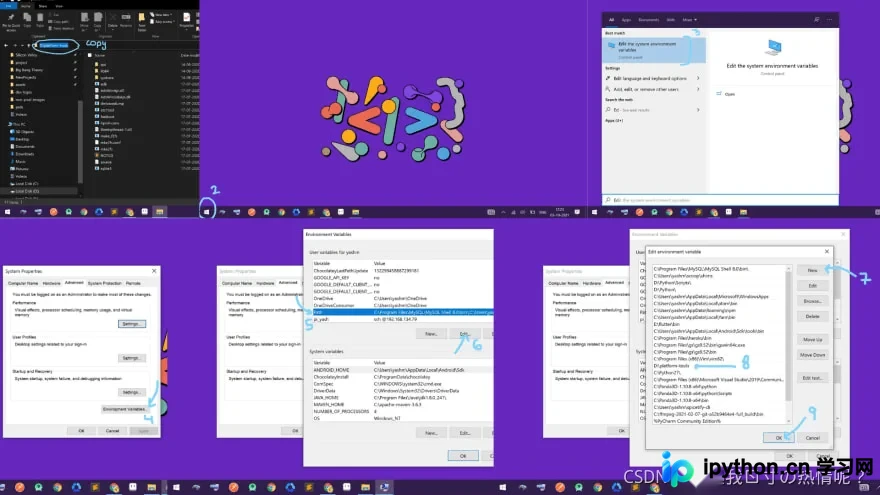
首先,访问官方链接下载 ADB 工具并解压至本地系统目录。随后,需将 ADB 路径添加至系统环境变量中,具体配置步骤如下所示。
- 在 Android 手机设置中启用“USB 调试”模式,并通过 USB 数据线将手机连接至电脑。
- 打开命令提示符(CMD),输入命令 `adb devices` 以验证连接状态。若列表中显示您的设备序列号,则表明连接成功。
- 连接确认后,即可打开代码编辑器开始编写脚本。本教程以 Visual Studio Code 为例进行演示。
代码实现
首先,导入脚本所需的依赖库。您可以使用 pip 工具进行安装。
import cv2
import subprocess
我们将引入 `subprocess` 模块以通过命令行调用 ADB 并获取执行结果,同时引入 `cv2`(OpenCV)用于图像处理,以便 Python 能执行屏幕点击或其他视觉任务。接下来,定义一个基础的 `adb` 函数。
def adb(command):
    proc = subprocess.Popen(command.split(' '), stdout=subprocess.PIPE, shell=True)
    (out, _) = proc.communicate()
    return out.decode('utf-8')
上述函数通过 subprocess 模块执行 ADB 命令,并返回解码后的字符串输出,供后续逻辑调用。
屏幕点击
接下来编写点击屏幕的代码。我们将创建一个名为 `tap` 的函数,用于在屏幕指定坐标位置执行点击操作。
def tap(tap_x, tap_y):
    adb("adb shell input tap {} {}".format(tap_x, tap_y))
tap(100,100)
该示例代码会在距离左上角 X 轴 100 像素、Y 轴 100 像素的位置执行点击。显然,为每条命令硬编码坐标不仅繁琐,且设备分辨率变化时会导致失效。因此,在下一节中,我们将引入图像处理技术,自动检测目标坐标。
屏幕截图
def take_screenshot(final):
    adb(f"adb exec-out screencap -p > ./images/{final}.png")
截图功能实现简单,我们编写了一个函数,用于保存手机内部图像目录的屏幕截图。在调用该函数时,可传入保存的图像文件名。
高级点击:模板匹配
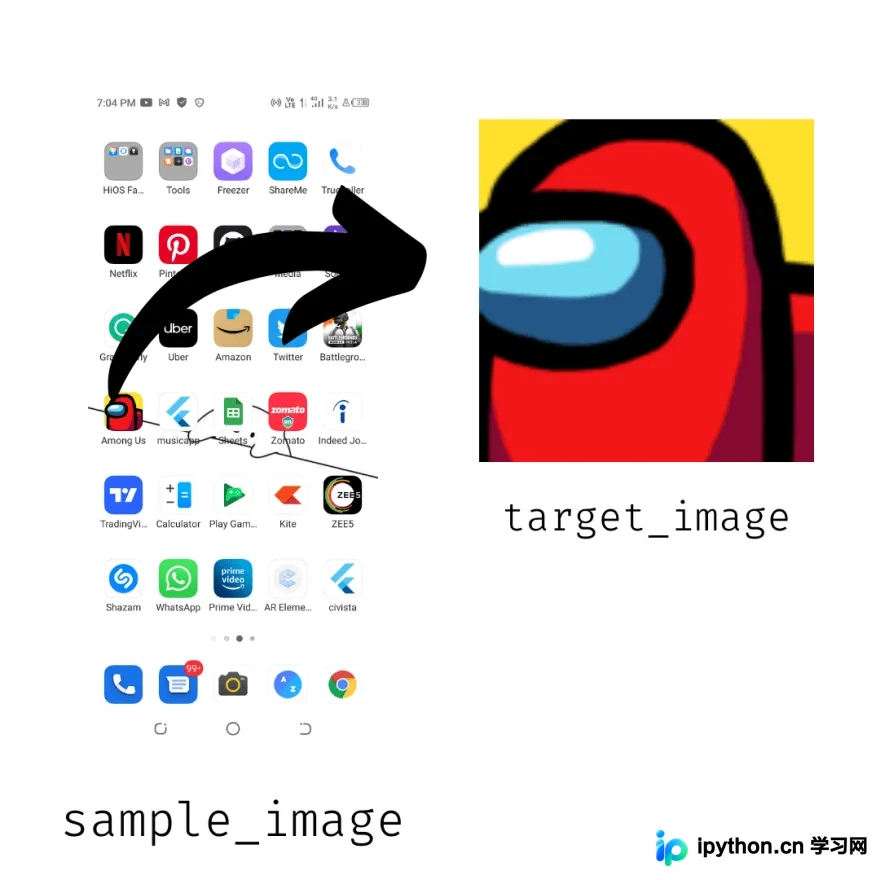
为了实现自动化,我们不再手动传递坐标,而是利用目标图像自动检测位置。以打开“Among Us”游戏为例,流程如下:截取当前屏幕 -> 使用模板匹配计算游戏图标的坐标 -> 执行点击。
模板匹配实现
ef image_position(small_image, big_image):
    img_rgb = cv2.imread(big_image)
    img_gray = cv2.cvtColor(img_rgb, cv2.COLOR_BGR2GRAY)
    template = cv2.imread(small_image, 0)
    height, width = template.shape[::]
    res = cv2.matchTemplate(img_gray, template, cv2.TM_SQDIFF)
    _, _, top_left, _ = cv2.minMaxLoc(res)
    bottom_right = (top_left[0] + width, top_left[1] + height)
    return (top_left[0]+bottom_right[0])//2, (top_left[1]+bottom_right[1])//2

screen="screen"
take_screenshot(screen)
x, y  = image_position("images/among_us_icon.png", f"images/{screen}")
click(x,y)
# WOWWW Python successfully opened among us app.
借助上述代码,即使手机屏幕上游戏图标的位置发生变化,Python 脚本仍能准确识别并打开游戏。

其他可用功能
结合 ADB 与 Python,还可以实现更多操作。以下列举部分常用功能。
屏幕滑动
def swipe(start_x, start_y, end_x, end_y, duration_ms):
    adb("adb shell input swipe {} {} {} {} {}".format(start_x, start_y, end_x, end_y, duration_ms))
拨打电话
def call(number):
    adb(f"adb shell am start -a android.intent.action.CALL -d tel:{number}")
call('+91xxxxxxxxxx') # +[CODE][NUMBER]
从手机下载文件至电脑
此处插入图片描述
def download(path, output_path):
    adb(f"adb pull {path} {output_path}")
从手机中删除文件
def remove(path):
    adb(f"adb shell rm {path}") #/sdcard/...
手机屏幕录制
# name is the video_file name and time is the seconds you want to record
def screen_record(name, time):
    adb(f"adb shell screenrecord /sdcard/{name} --time-limit {time}")
    download(f"/sdcard/{name}",f"./mobile/{name}")
    remove(f"/sdcard/{name}")
控制手机开关机
def switch_phone_on_off():
    adb("adb shell input keyevent 26")
此外还有类似第 26 项的关键事件操作。如需了解更多,可访问相关文档链接。
打开网页链接
def open_url(url):
    adb(f'adb shell am start -a android.intent.action.VIEW -d {url}')
open_url("https://www.google.co.in/")
发送 WhatsApp 消息
综上所述,通过掌握上述基础操作,我们成功解决了最初的核心问题:无需二维码扫描,也无需依赖 Twilio 等付费服务,即可通过 Python 发送 WhatsApp 消息。虽然实现过程稍显复杂,但已在我的设备上验证可行,希望也能帮助您解决问题。
def send_whatsapp_message(phone, message):
    adb(f'adb shell am start -a android.intent.action.VIEW -d "https://api.whatsapp.com/send?phone={phone}"') # Opening whatsapp url
    adb('ping 127.0.0.1 -n 2 > nul') # delay
    adb(f'adb shell input text "{message}"')  # entering message
    adb('adb shell keyevent 22') # Right arrow
    adb('adb shell keyevent 22') # Right arrow
    adb('adb shell input keyevent 22') # Right arrow
    adb('adb shell input keyevent 22') # Right arrow
    adb('adb shell input keyevent 66') # Enter Key

send_whatsapp_message('+91xxxxxxxxxx', 'blah blah blah')
消息发送成功!

本文关于通过 Python 实现控制手机的详细教程到此结束。如需了解更多 Python 控制手机的相关内容,请搜索本站历史文章或继续浏览后续教程。感谢大家的支持!
本站声明
本文内容仅供参考,不代表本站观点。转载或引用请注明出处。如发现内容问题,请通过联系我们页面反馈。















