


Python图形用户界面开发:easygui常用对话框详解

发布时间:2026-10-16 |
3人浏览过
本文介绍Python中easygui库的常用图形界面组件,包括msgbox消息提示、ccbox确认取消、buttonbox按钮选择及图片显示、choicebox和multchoicebox列表选择功能,通过代码示例展示各函数的参数用法与实现方式。
Python图形用户界面
本文主要介绍Python中easygui库的常用对话框组件,包括msgbox、ccbox、buttonbox(含图片添加)、choicebox以及multchoicebox的使用方法。
msgbox的使用
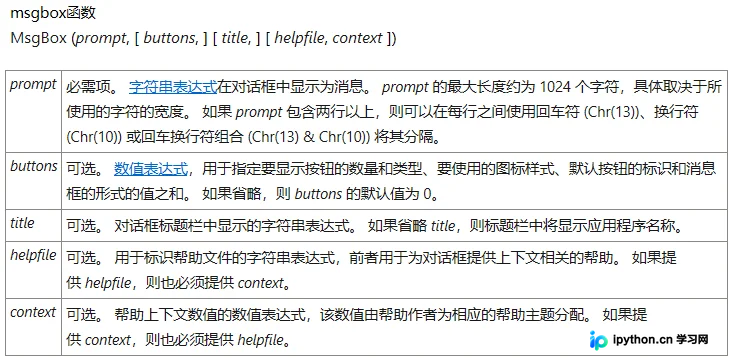
msgbox()函数用于显示一条消息并提供一个“OK”按钮。
import easygui as AX
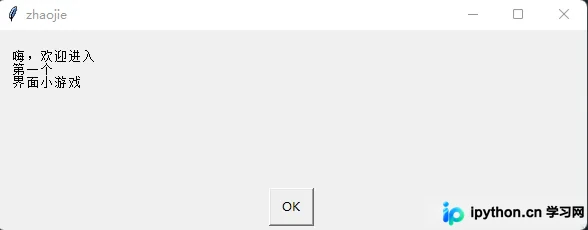
AX.msgbox("嗨,欢迎进入\n第一个\n界面小游戏","zhaojie")
ccbox的使用
ccbox()函数提供两个选项:C[o]ntinue(继续)或C[a]ncel(取消)。按下键盘上的“o”或“a”键可代替鼠标点击,方括号内的字母即为对应的快捷键。用户也可根据需求自定义选项文本。
示例2:
import easygui as AX
import sys

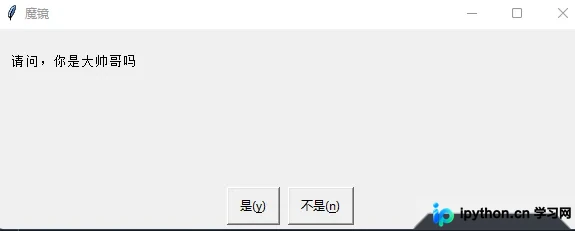
msg = "请问,你是大帅哥吗"
title = "魔镜"
choices = ('是([y])','不是([n])')
AX.ccbox(msg ,title,choices)
buttonbox的使用
buttonbox()函数的基本用法如下:
buttonbox(msg = '',title = '',choices = ('button[1]','butthon[2]','button[3]'),image=None,default_choice=None,cancel_choice=None,callback=None,run=True)
示例3:
import easygui as AX
import sys
###写法1###
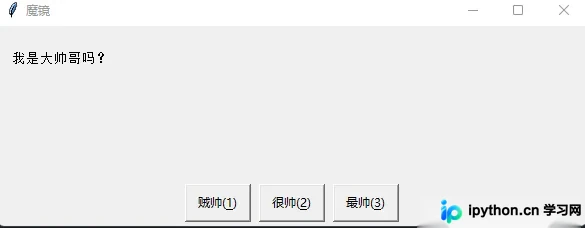
msg = '我是大帅哥吗?'
title = '魔镜'
choices = ('贼帅([1])','很帅([2])','最帅([3])')

AX.buttonbox(msg,title,choices)
###写法2###
AX.buttonbox(msg = '我是大帅哥吗?',title = '魔镜',choices = ('贼帅([1])','很帅([2])','最帅([3])'),image=None,default_choice=None,cancel_choice=None,callback=None,run=True)
buttonbox添加图片
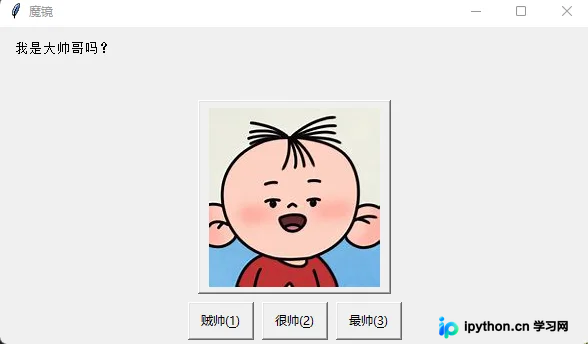
在buttonbox中显示图片:注意到上述buttonbox函数定义中image参数默认为None,只需将其替换为对应的图片路径即可实现图片显示。
import easygui as AX
import sys

####写法1####
msg = '我是大帅哥吗?'
title = '魔镜'
choices = ('贼帅([1])','很帅([2])','最帅([3])')
image = 'OIP-C.jpg'
AX.buttonbox(msg,title,choices,image)

###写法2###
AX.buttonbox(msg = '我是大帅哥吗?',title = '魔镜',choices = ('贼帅([1])','很帅([2])','最帅([3])'),image='OIP-C.jpg',default_choice=None,cancel_choice=None,callback=None,run=True)
choicebox的使用
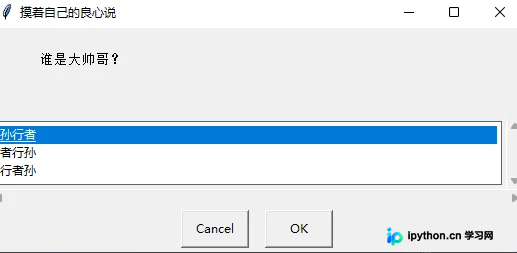
choicebox的使用方法:
choicebox(msg='',title='',choices=[],preselect=0,callback=None,run=True)
choicebox()函数提供一个可供选择的列表,

import easygui as AX
import sys
AX.choicebox(msg='谁是大帅哥?',title='摸着自己的良心说',choices=["孙行者","者行孙","行者孙"],preselect=0,callback=None,run=True)
multchoicebox的使用
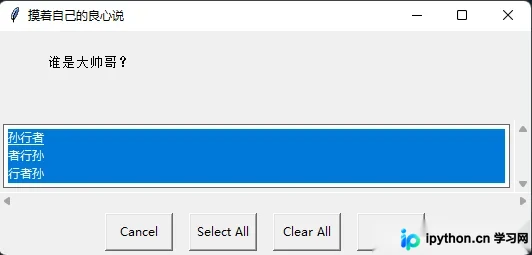
multchoicebox的用法与choicebox类似,但支持多项选择。
import easygui as AX
import sys
AX.multchoicebox(msg='谁是大帅哥?',title='摸着自己的良心说',choices=["孙行者","者行孙","行者孙"],preselect=0,callback=None,run=True)
总结
本文介绍了Python图形用户界面相关组件的使用,更多Python图形界面内容可参考本站其他文章。
本站声明
本文内容仅供参考,不代表本站观点。转载或引用请注明出处。如发现内容问题,请通过联系我们页面反馈。















