


PyQt5结合QLabel与QTimer实现视频播放详解

本文介绍如何在PyQt5中使用QLabel控件配合QTimer定时器实现视频文件的实时播放。详细讲解了QLabel的基本属性与信号,以及QTimer的初始化与启动方法,并提供了完整的Python代码示例,展示如何通过定时读取视频帧并在标签中刷新图像来模拟播放效果。
PyQt5在PyCharm中的安装与配置指南:详细步骤说明如何在PyCharm环境中正确安装PyQt5库及相关环境配置。
一、简介
QLabel作为界面中的标签组件,继承自QFrame类,主要用于显示文本或图像,属于一种展示型控件。
QLabel对象能够显示不可编辑的文本或图片,支持嵌入GIF动画,也可作为其他控件的提示标记使用。
该控件支持显示纯文本、超链接或富文本格式内容。
二、基本用法
2.1 QLabel控件
setAlignment():该方法用于按固定值方式对齐文本,支持以下对齐方式:
Qt.AlignLeft(水平方向靠左对齐)、Qt.AlignRight(水平方向靠右对齐)、Qt.AlignCenter(水平方向居中对齐)、Qt.AlignJustify(水平方向调整间距两端对齐)、Qt.AlignTop(垂直方向靠上对齐)、Qt.AlignBottom(垂直方向靠下对齐)、Qt.AlignVCenter(垂直方向居中对齐)。
- setIndent():用于设置文本的缩进值。
- setPixmap():用于将QLabel设置为显示Pixmap图片。
- text():用于获取QLabel中显示的文本内容。
- setText():用于设置QLabel的文本内容。
- selectedText():返回当前选中的字符内容。
- setBuddy():用于设置伙伴关系。
- setWordWrap():用于设置是否允许文本自动换行。
2.2 QLabel常用的信号(事件)
1.linkHovered:当鼠标指针滑过标签中嵌入的超链接时触发,需通过槽函数与该信号进行绑定处理。
2.linkActivated:当单击标签中嵌入的超链接时触发,若希望在新窗口中打开该超链接,必须将setOpenExternalLinks特性设置为true。
三、QLabel播放视频
使用QLabel实现视频播放的核心在于结合定时器QTimer。
当程序中需要显示时间或需要周期性执行某项操作时,通常会使用定时器机制。
3.1 QTimer
导入QTimer模块:
from PyQt5.QtCore import QTimer初始化定时器实例。
self.timer_camera = QTimer()启动计时器并连接槽函数。
self.timer_camera.start(1000)   # 1000ms == 1s
self.timer_camera.timeout.connect(self.openFrame)  # 连接槽函数openFrame
注意:当QTimer的父对象被销毁时,该定时器也会被自动销毁。
3.2 代码
UI界面设计部分。
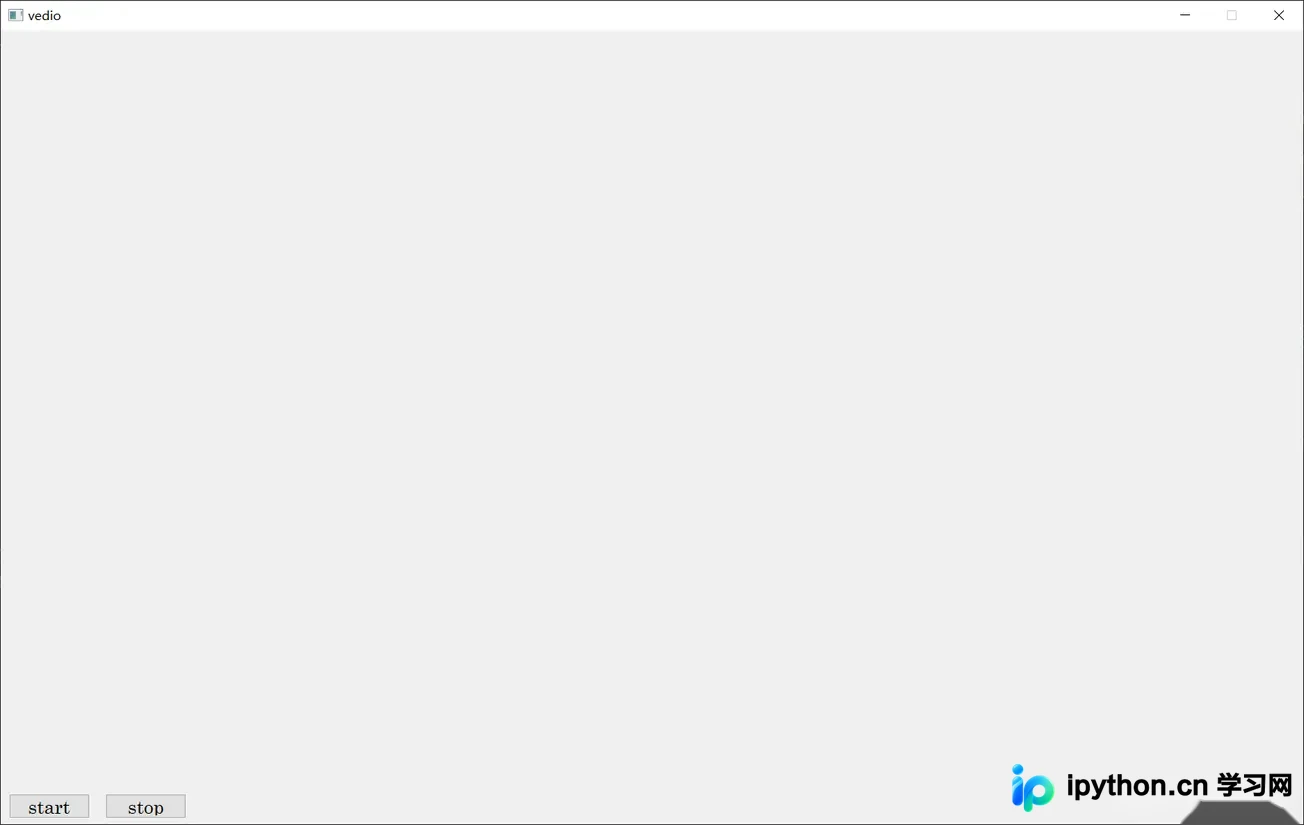
Python程序实现代码。
from PyQt5.QtGui import *
from PyQt5.QtWidgets import *
from PyQt5.QtCore import *
from PyQt5.uic import loadUiType
import cv2
import sys
vedio_ui, _ = loadUiType('./UI/vedio.ui')

class VedioGui(QMainWindow, vedio_ui):
    # 定义构造方法
    def __init__(self):
        QMainWindow.__init__(self)
        self.setupUi(self)
        self.timer_camera = QTimer()
        self.handle_buttons()
        self.open_vedio()
    # 所有Button的消息与槽的通信
    def handle_buttons(self):
        self.btn_Start.clicked.connect(self.Btn_Start)
        self.btn_Stop.clicked.connect(self.Btn_Stop)
    def Btn_Start(self):
        # 定时器开启,每隔一段时间,读取一帧
        self.timer_camera.start(100)
        self.timer_camera.timeout.connect(self.OpenFrame)
    def Btn_Stop(self):
        # self.cap.release()
        self.timer_camera.stop()
    def open_vedio(self):
        """选取视频文件"""
        # 这里以mp4和avi视频播放为例
        openfile_name = QFileDialog.getOpenFileName(self, 'chose files', '', 'Image files(*.mp4 *.avi)')  # 打开文件选择框选择文件
        self.file_name = openfile_name[0]  # 获取图片名称

        # 得到文件后缀名  需要根据情况进行修改
        suffix = self.file_name.split("/")[-1][self.file_name.split("/")[-1].index(".") + 1:]
        # print(self.file_name, suffix)
        if self.file_name == '':
            pass
        elif suffix == "mp4" or suffix == "avi":
            self.cap = cv2.VideoCapture(self.file_name)
    def OpenFrame(self):
        ret, image = self.cap.read()
        if ret:
            if len(image.shape) == 3:
                image = cv2.cvtColor(image, cv2.COLOR_BGR2RGB)
                vedio_img = QImage(image.data, image.shape[1], image.shape[0], QImage.Format_RGB888)
            elif len(image.shape) == 1:
                vedio_img = QImage(image.data, image.shape[1], image.shape[0], QImage.Format_Indexed8)
            else:
                vedio_img = QImage(image.data, image.shape[1], image.shape[0], QImage.Format_RGB888)
            self.vedio_label.setPixmap(QPixmap(vedio_img))
            self.vedio_label.setScaledContents(True)  # 自适应窗口
        else:
            self.cap.release()
            self.timer_camera.stop()

    # 界面关闭事件,询问用户是否关闭
    def closeEvent(self, event):
        reply = QMessageBox.question(self, '退出', "是否要退出该界面?",
                                     QMessageBox.Yes | QMessageBox.No, QMessageBox.No)
        if reply == QMessageBox.Yes:
            self.close()
            event.accept()
        else:
            event.ignore()

if __name__ == "__main__":
    app = QApplication(sys.argv)
    window = VedioGui()
    window.show()
    sys.exit(app.exec_())
视频播放成功后的显示效果。
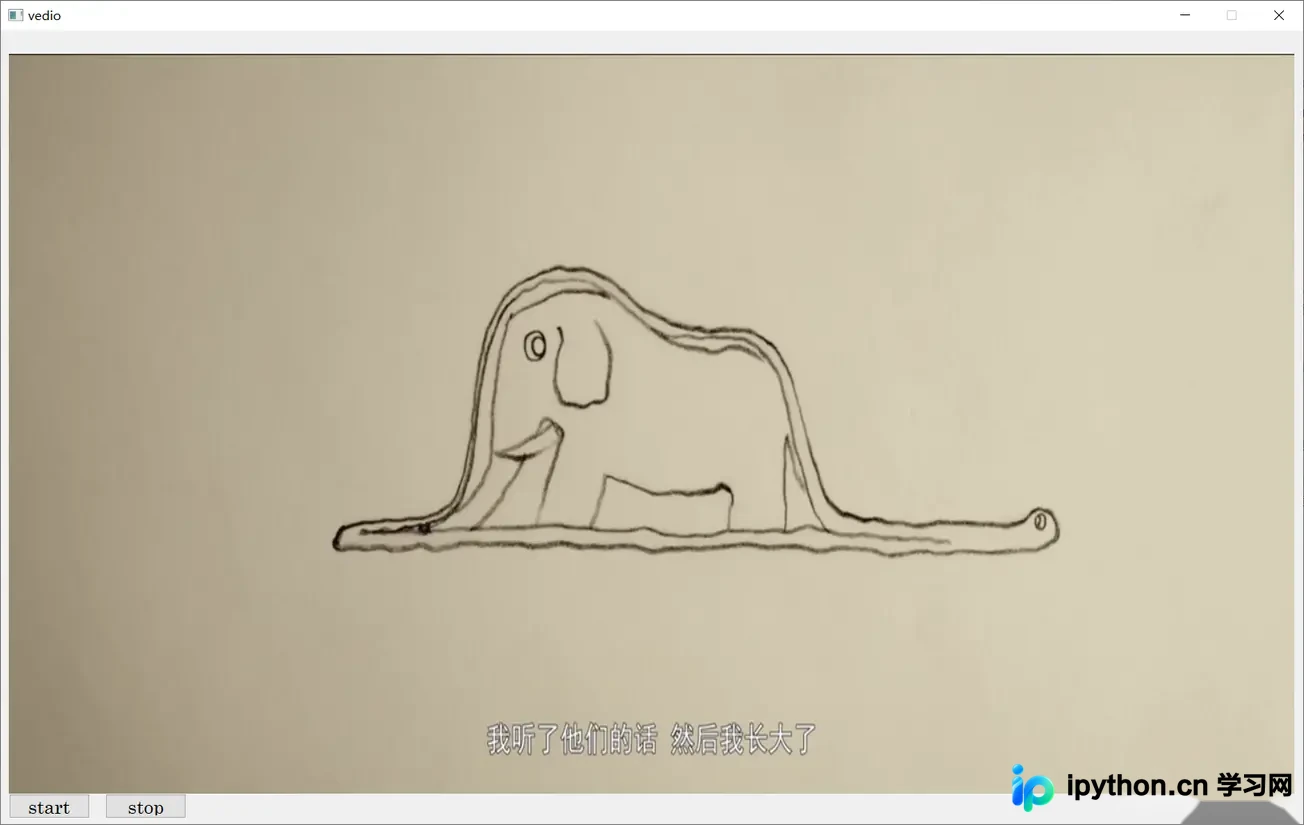
注:当前实现方式仅播放视频画面,不包含声音。
到此这篇关于python中Pyqt5使用Qlabel实现标签进行视频播放的文章就介绍到这了,更多相关Qlabel实现视频播放内容请搜索本站以前的文章或继续浏览下面的相关文章希望大家以后多多支持本站!
本站声明
本文内容仅供参考,不代表本站观点。转载或引用请注明出处。如发现内容问题,请通过联系我们页面反馈。















