


Python读取CSV文件并进行数据可视化绘图

本文介绍如何使用Python读取CSV格式的天气数据,并利用Matplotlib库进行可视化绘图。通过实例演示从基础最高温绘图到包含最低温的复杂图表生成,重点讲解在数据缺失情况下如何通过异常处理机制确保程序稳定运行,最终输出包含最高温和最低温的完整天气趋势图。
Python读取CSV文件与Matplotlib数据可视化实战教程
本节介绍如何读取阿拉斯加州锡特卡2018年1月1日的天气数据文件 sitka_weather_07-2018_simple.csv,该文件记录了当天的最高和最低温度。数据文件位于 data 文件夹下,接下来将使用Python读取这些数据,并基于读取到的数据进行可视化绘图(具体细节请参考代码注释)。
sitka_highs.py
import csv  # 导入csv模块
from datetime import datetime
import matplotlib.pyplot as plt
filename = 'data/sitka_weather_07-2018_simple.csv'
with open(filename) as f:
    reader = csv.reader(f)
    header_row = next(reader)  # 返回文件的下一行,在这便是首行,即文件头
  # for index, column_header in enumerate(header_row):  # 对列表调用了 enumerate()来获取每个元素的索引及其值,方便我们提取需要的数据列
  #     print(index, column_header)

    # 从文件中获取最高温度
    dates, highs = [], []
    for row in reader:
        current_date = datetime.strptime(row[2], '%Y-%m-%d')
        high = int(row[5])
        dates.append(current_date)
        highs.append(high)

# 根据最高温度绘制图形
plt.style.use('seaborn')
fig, ax = plt.subplots()
ax.plot(dates, highs, c='red')
# 设置图形的格式
ax.set_title("2018年7月每日最高温度", fontproperties="SimHei", fontsize=24)
ax.set_xlabel('', fontproperties="SimHei", fontsize=16)
fig.autofmt_xdate()
ax.set_ylabel("温度(F)", fontproperties="SimHei", fontsize=16)
ax.tick_params(axis='both', which='major', labelsize=16)
plt.show()
运行上述代码后,结果如下所示:
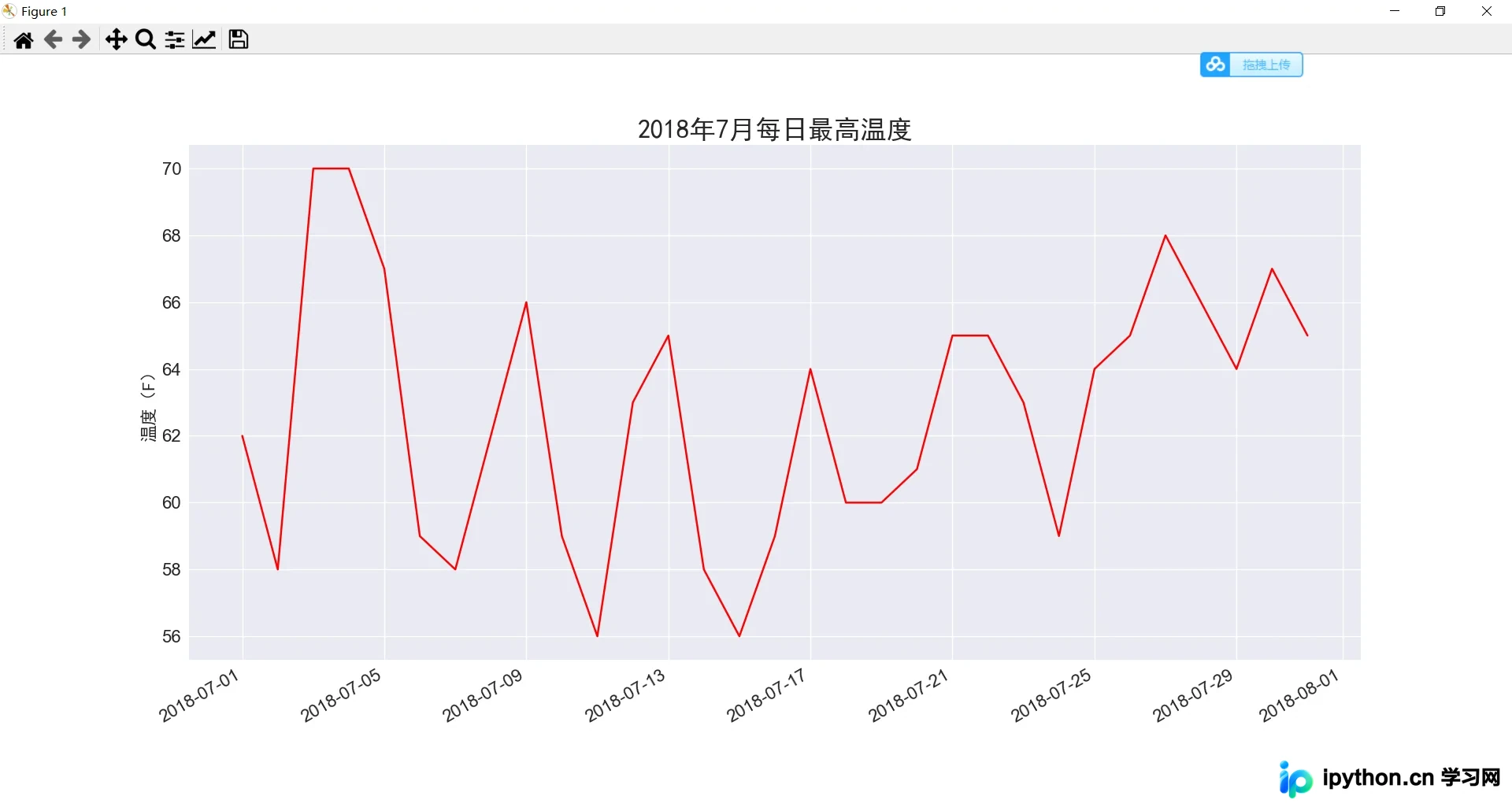
在设置好基础图标后,我们引入更多数据以生成更复杂的锡特卡天气图。将 sitka_weather_2018_simple.csv 数据文件放置于 data 文件夹中,该文件包含了锡特卡一整年的天气数据。
对代码进行相应修改:
sitka_highs.py
import csv  # 导入csv模块
from datetime import datetime
import matplotlib.pyplot as plt
filename = 'data/sitka_weather_2018_simple.csv'
with open(filename) as f:
    reader = csv.reader(f)
    header_row = next(reader)  # 返回文件的下一行,在这便是首行,即文件头

  # for index, column_header in enumerate(header_row):  # 对列表调用了 enumerate()来获取每个元素的索引及其值,方便我们提取需要的数据列
  #     print(index, column_header)

    # 从文件中获取最高温度
    dates, highs = [], []
    for row in reader:
        current_date = datetime.strptime(row[2], '%Y-%m-%d')
        high = int(row[5])
        dates.append(current_date)
        highs.append(high)

# 根据最高温度绘制图形
plt.style.use('seaborn')
fig, ax = plt.subplots()
ax.plot(dates, highs, c='red')
# 设置图形的格式
ax.set_title("2018年每日最高温度", fontproperties="SimHei", fontsize=24)
ax.set_xlabel('', fontproperties="SimHei", fontsize=16)
fig.autofmt_xdate()
ax.set_ylabel("温度(F)", fontproperties="SimHei", fontsize=16)
ax.tick_params(axis='both', which='major', labelsize=16)
plt.show()
修改后的代码运行结果如下:
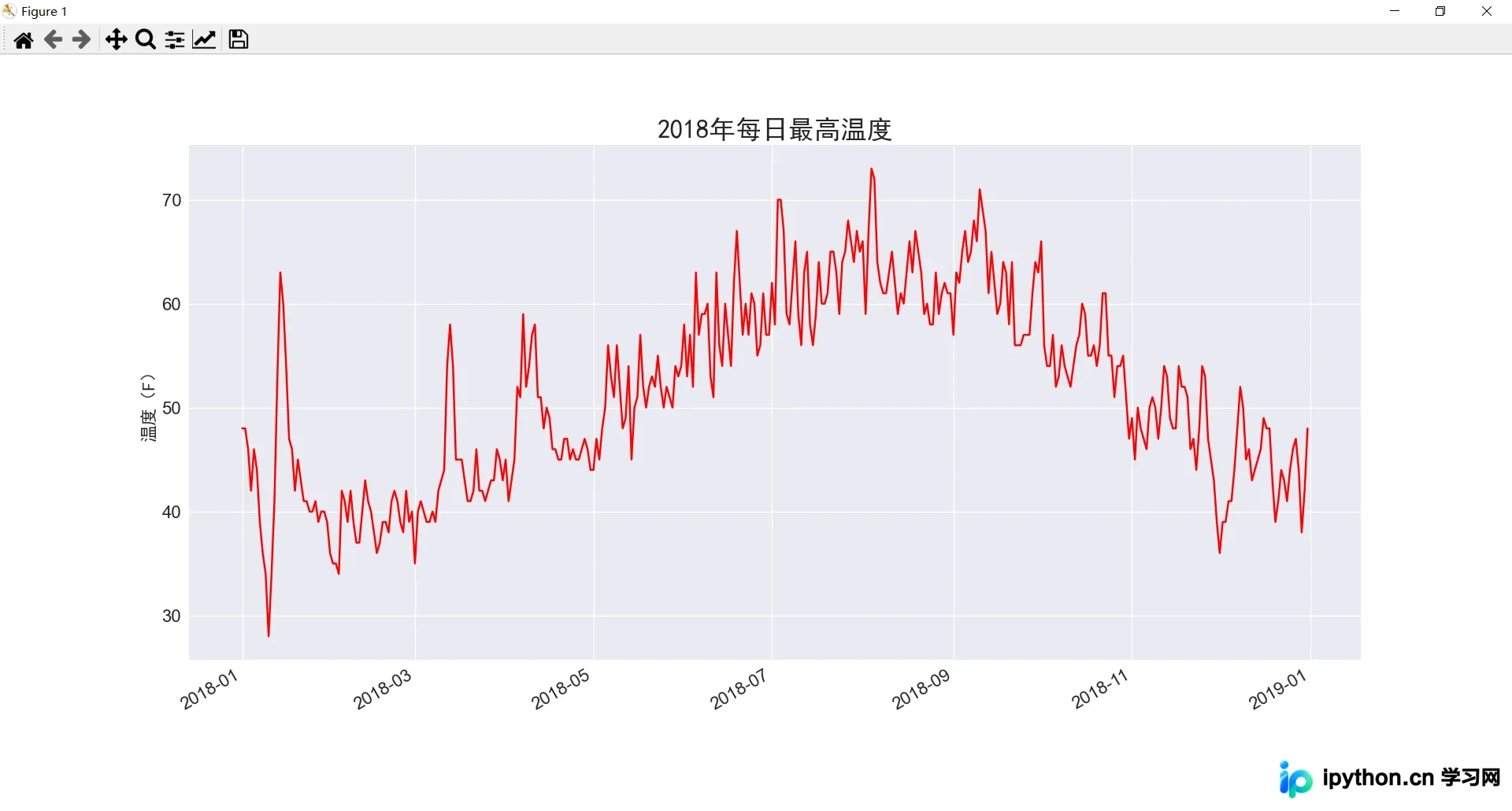
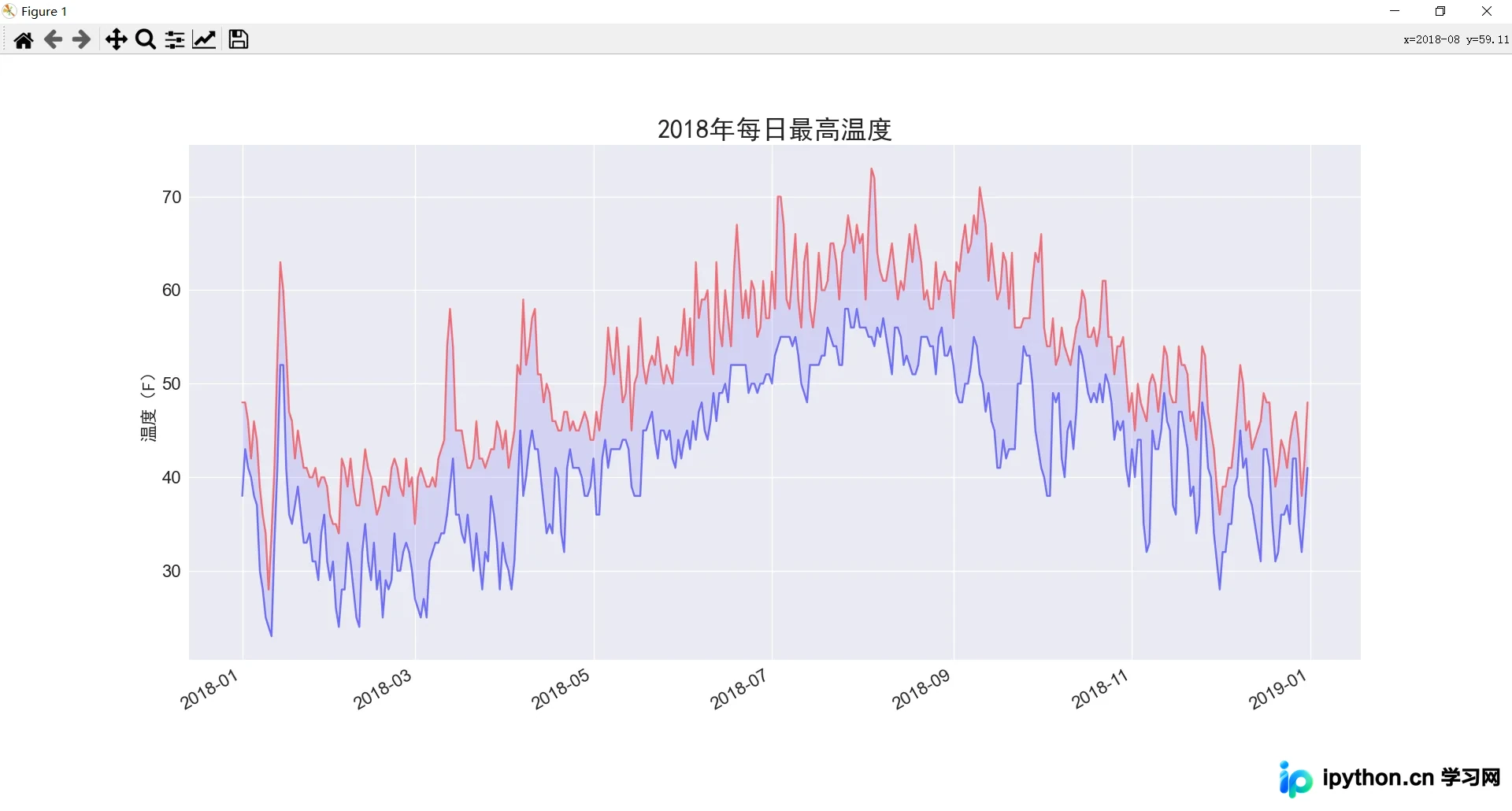
尽管上图已展示了丰富的数据,但为了提升图表的信息量,我们可以进一步添加最低温度数据。
对代码进行如下修改:
sitka_highs_lows.py
import csv  # 导入csv模块
from datetime import datetime
import matplotlib.pyplot as plt
filename = 'data/sitka_weather_2018_simple.csv'
with open(filename) as f:
    reader = csv.reader(f)
    header_row = next(reader)  # 返回文件的下一行,在这便是首行,即文件头

  # for index, column_header in enumerate(header_row):  # 对列表调用了 enumerate()来获取每个元素的索引及其值,方便我们提取需要的数据列
  #     print(index, column_header)

    # 从文件中获取日期、最高温度和最低温度
    dates, highs, lows = [], [], []
    for row in reader:
        current_date = datetime.strptime(row[2], '%Y-%m-%d')
        high = int(row[5])
        low = int(row[6])
        dates.append(current_date)
        highs.append(high)
        lows.append(low)

# 根据最高温度和最低温度绘制图形
plt.style.use('seaborn')
fig, ax = plt.subplots()
ax.plot(dates, highs, c='red', alpha=0.5)  # alpha指定颜色的透明度,0为完全透明
ax.plot(dates, lows, c='blue', alpha=0.5)
ax.fill_between(dates, highs, lows, facecolor='blue',alpha=0.1)

# 设置图形的格式
ax.set_title("2018年每日最高温度", fontproperties="SimHei", fontsize=24)
ax.set_xlabel('', fontproperties="SimHei", fontsize=16)
fig.autofmt_xdate()
ax.set_ylabel("温度(F)", fontproperties="SimHei", fontsize=16)
ax.tick_params(axis='both', which='major', labelsize=16)
plt.show()
运行结果如下:
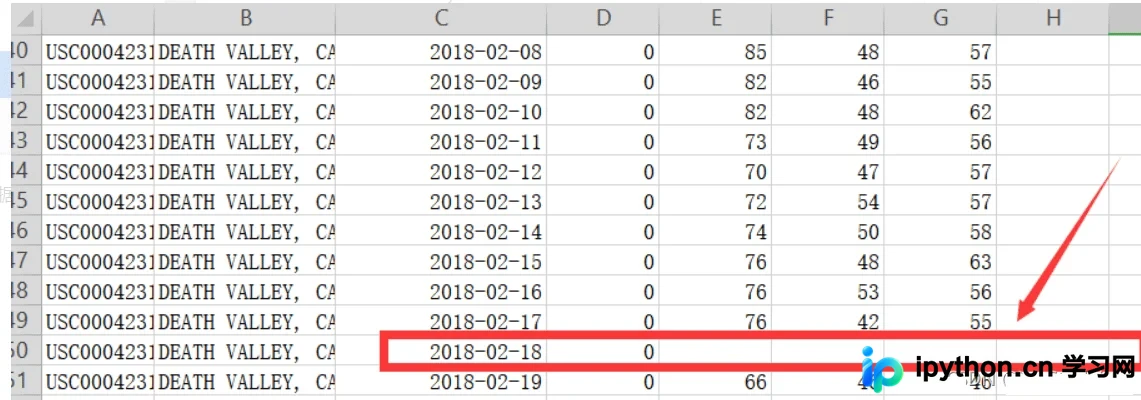
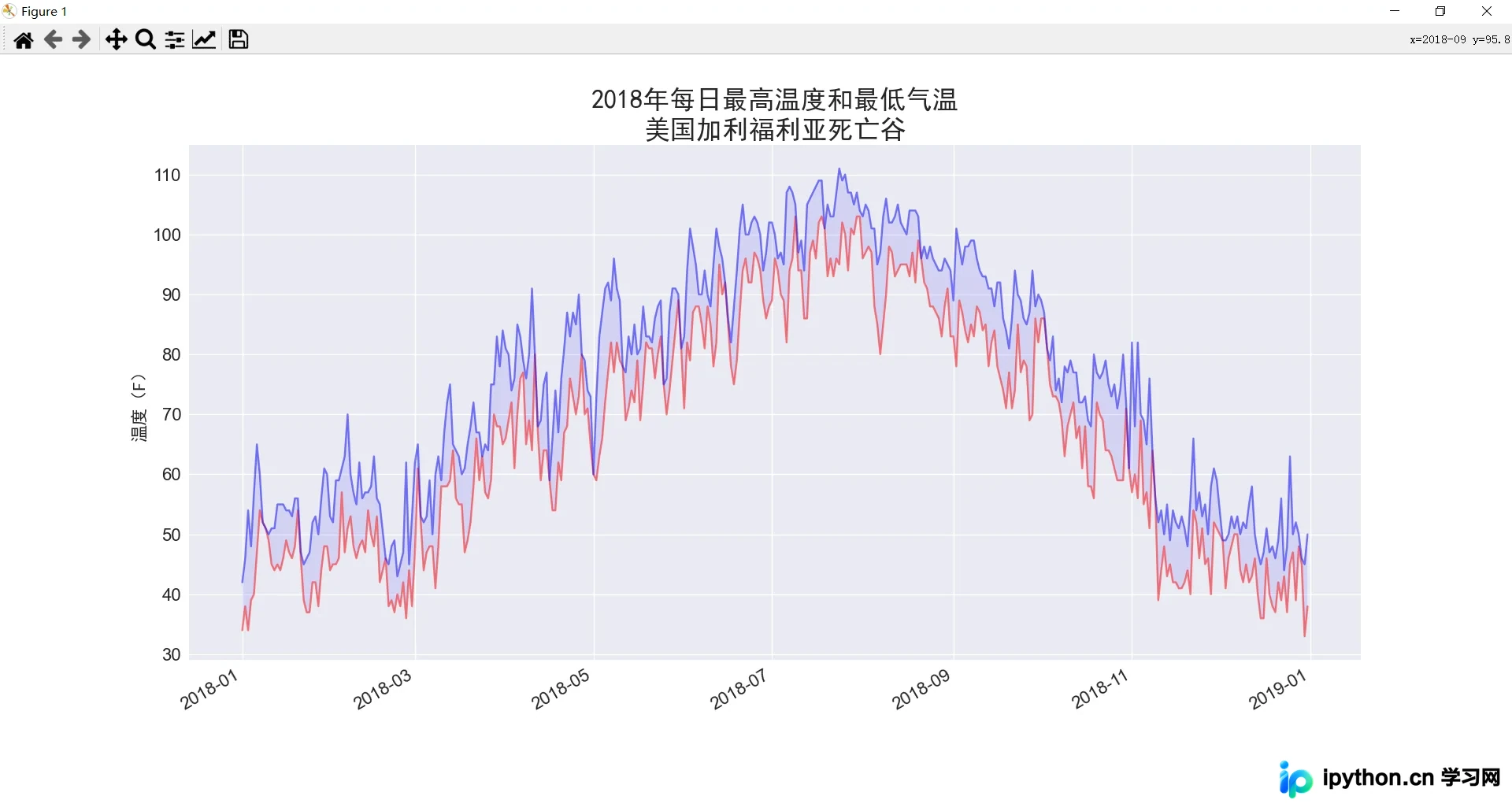
此外,在读取CSV文件的过程中,可能会遇到数据缺失的情况,这会导致程序报错甚至崩溃。因此,在从CSV文件读取值时,需要执行错误检查代码以处理可能的异常。我们将数据文件更换为包含缺失值的 death_valley_2018_simple.csv。
对代码进行如下修改:
death_valley_highs_lows.py
import csv  # 导入csv模块
from datetime import datetime
import matplotlib.pyplot as plt
filename = 'data/death_valley_2018_simple.csv'
with open(filename) as f:
    reader = csv.reader(f)
    header_row = next(reader)  # 返回文件的下一行,在这便是首行,即文件头

  # for index, column_header in enumerate(header_row):  # 对列表调用了 enumerate()来获取每个元素的索引及其值,方便我们提取需要的数据列
  #     print(index, column_header)

    # 从文件中获取日期、最高温度和最低温度
    dates, highs, lows = [], [], []
    for row in reader:
        current_date = datetime.strptime(row[2], '%Y-%m-%d')
        try:
            high = int(row[5])
            low = int(row[6])
        except ValueError:
            print(f"Missing data for {current_date}")
        else:
            dates.append(current_date)
            highs.append(high)
            lows.append(low)

# 根据最高温度和最低温度绘制图形
plt.style.use('seaborn')
fig, ax = plt.subplots()
ax.plot(dates, highs, c='red', alpha=0.5)  # alpha指定颜色的透明度,0为完全透明
ax.plot(dates, lows, c='blue', alpha=0.5)
ax.fill_between(dates, highs, lows, facecolor='blue',alpha=0.1)
# 设置图形的格式
ax.set_title("2018年每日最高温度和最低气温\n美国加利福利亚死亡谷", fontproperties="SimHei", fontsize=24)
ax.set_xlabel('', fontproperties="SimHei", fontsize=16)
fig.autofmt_xdate()
ax.set_ylabel("温度(F)", fontproperties="SimHei", fontsize=16)
ax.tick_params(axis='both', which='major', labelsize=16)
plt.show()
如果现在运行 death_valley_highs_lows.py,会发现缺失数据的日期仅有一个:
Missing data for 2018-02-18 00:00:00在妥善处理后,代码能够生成图形并自动忽略缺失数据的那一天。运行结果如下:
至此,关于Python读取CSV文件并进行数据可视化绘图的介绍已完成。如需了解更多Python读取CSV的相关内容,请搜索本站历史文章或继续浏览后续文章,感谢大家的支持!
本站声明
本文内容仅供参考,不代表本站观点。转载或引用请注明出处。如发现内容问题,请通过联系我们页面反馈。















