


Python读写Excel (.xls)文件完整指南:xlwt与xlrd实战

发布时间:2026-10-12 |
2人浏览过
本文详细介绍如何使用Python的xlwt和xlrd库读写旧版Excel (.xls)文件。通过完整代码示例,演示如何设置单元格样式、处理合并单元格以及格式化日期数据,帮助开发者快速掌握基础Excel操作。
环境准备与模块安装
在Python中处理旧版Excel文件(.xls格式),主要依赖两个第三方库:xlwt用于写入,xlrd用于读取。首先需要通过pip命令安装这两个模块:
pip install xlrd
pip install xlwt

写入Excel文件 (.xls)
使用 xlwt 创建Excel文件时,需要处理工作簿(Workbook)、工作表(Sheet)以及单元格样式。以下代码展示了如何设置字体、对齐方式、列宽以及处理合并单元格。
import xlrd
import xlwt
import datetime

def set_style(name,height,format,bold=False):
  style = xlwt.XFStyle()
  if format.strip()!='':
    style.num_format_str =format
  font = xlwt.Font()
  font.name=name
  font.bold=bold
  font.color_index=4
  font.height=height
  alignment = xlwt.Alignment()
  #HORZ_GENERAL, HORZ_LEFT, HORZ_CENTER, HORZ_RIGHT, HORZ_FILLED, HORZ_JUSTIFIED, HORZ_CENTER_ACROSS_SEL, HORZ_DISTRIBUTED
  alignment.horz = xlwt.Alignment.HORZ_CENTER
  #VERT_TOP, VERT_CENTER, VERT_BOTTOM, VERT_JUSTIFIED, VERT_DISTRIBUTED
  alignment.vert = xlwt.Alignment.VERT_CENTER
  style.alignment = alignment
  style.font=font
  return style
def set_colstyle(sheet,cindex):
  col=sheet.col(cindex)
  col.width =256*20
  #col.height =100
def writeXls(path):
  wb = xlwt.Workbook()
  sheet = wb.add_sheet('测试',cell_overwrite_ok=True)
  set_colstyle(sheet,3)
  #标题
  heads=['姓名','学科','分数','日期']
  for h in range(0,len(heads)):
    sheet.write(0,h,heads[h],set_style('Arial',300,'',True))
  #数据
  sheet.write_merge(1,2,0,0,'张三',set_style('Arial',300,'',False))
  sheet.write(1,1,'语文',set_style('Arial',240,'',False))
  sheet.write(1,2,85,set_style('Arial',240,'',False))
  sheet.write(1,3,datetime.date.today(),set_style('Arial',240,'yyyy/mm/dd',False))
  sheet.write(2,1,'数学',set_style('Arial',240,'',False))
  sheet.write(2,2,85,set_style('Arial',240,'',False))
  sheet.write(2,3,datetime.date.today(),set_style('Arial',240,'yyyy/mm/dd',False))
  sheet.write_merge(3,4,0,0,'李四',set_style('Arial',300,'',False))
  sheet.write(3,1,'语文',set_style('Arial',240,'',False))
  sheet.write(3,2,95,set_style('Arial',240,'',False))
  sheet.write(3,3,datetime.date.today(),set_style('Arial',240,'yyyy/mm/dd',False))
  sheet.write(4,1,'数学',set_style('Arial',240,'',False))
  sheet.write(4,2,95,set_style('Arial',240,'',False))
  sheet.write(4,3,datetime.date.today(),set_style('Arial',240,'yyyy/mm/dd',False))
  wb.save(path)
关键操作说明
- 样式设置:通过
set_style函数定义字体名称、高度、颜色及对齐方式。 - 合并单元格:使用
sheet.write_merge(r1, r2, c1, c2, value, style)实现单元格合并,例如将“张三”跨越两行。 - 日期格式化:在样式中指定
'yyyy/mm/dd'格式,确保日期正确显示。
读取Excel文件 (.xls)
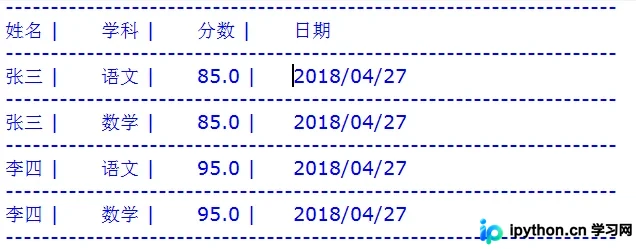
使用 xlrd 读取文件时,需要处理合并单元格的特殊逻辑。合并单元格在读取时,只有左上角的单元格包含有效数据,其他合并单元格返回空值。因此,需要遍历合并单元格列表(merged_cells)来正确获取数据。
def ismerge(sheet,merge,r,c):
  #merge=sheet.merged_cells
  for m in merge:
    if r>=m[0] and r<m[1] and c==m[2]:
      r=m[0]
      c==m[2]
      break
  return r,c
def readXls(path):
  wb=xlrd.open_workbook(path,formatting_info=True)
  #sheetname=wb.sheet_names()[0]
  sheet=wb.sheet_by_index(0)
  rows=sheet.nrows
  cols=sheet.ncols
  merge=sheet.merged_cells
  #merged_cells返回的这四个参数的含义是:(row,row_range,col,col_range),
  #其中[row,row_range)包括row,不包括row_range
  print('--------------------------------------------------------------------')
  for r in range(0,rows):
    listStr = []
    for c in range(0,cols):
      merg=ismerge(sheet,merge,r,c)
      if (sheet.cell(merg[0],merg[1]).ctype==3):
        data_value=xlrd.xldate_as_tuple(sheet.cell_value(merg[0],merg[1]),wb.datemode)
        #print(datetime.date(*data_value[:3]).strftime('%Y/%m/%d'))
        listStr.append(datetime.date(*data_value[:3]).strftime('%Y/%m/%d'))
      else:
        #print(sheet.cell_value(merg[0],merg[1]))
        listStr.append(sheet.cell_value(merg[0],merg[1]))
      #print(sheet.cell(merg[0],merg[1]).value)
      #print(sheet.cell(r,c).ctype)
    print(' |\t'.join(str(s) for s in listStr if s not in [None]))
    print('--------------------------------------------------------------------')
读取逻辑解析
- 获取合并信息:通过
sheet.merged_cells获取所有合并单元格的范围。 - 坐标修正:在
ismerge函数中,判断当前行列是否属于某个合并单元格。如果是,则将其坐标修正为合并单元格的左上角坐标。 - 数据类型处理:检查单元格类型(ctype),若为日期类型(ctype==3),则使用
xlrd.xldate_as_tuple转换为元组并格式化为字符串。
完整运行示例
将写入和读取功能结合,可以验证Excel文件的读写是否正确。以下代码演示了如何调用上述函数:
if __name__ == '__main__':
  #writeXls('H:\测试.xls')
  readXls('H:\测试.xls')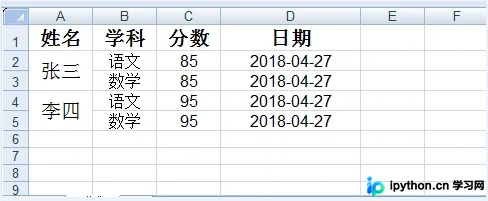
总结
通过 xlwt 和 xlrd,Python可以高效地处理旧版Excel文件。掌握样式设置、合并单元格处理以及日期格式化,是进行Excel自动化操作的基础。以上就是Python简单读写Xls格式文档的方法示例的详细内容,更多关于Python Excel操作、xlwt与xlrd库使用的资料请关注本站其它相关文章!
本站声明
本文内容仅供参考,不代表本站观点。转载或引用请注明出处。如发现内容问题,请通过联系我们页面反馈。















