


Python Tkinter实现五元素剪刀石头布游戏教程

本文详细介绍如何使用Python 3和Tkinter库开发一款包含五个元素(石头、纸、剪刀、蜥蜴、史波克)的交互式小游戏。教程涵盖从环境配置、图像与声音资源加载,到核心逻辑函数编写及界面布局的全过程,帮助开发者掌握Tkinter在图形界面应用中的实际用法。
编写剪刀石头布游戏
接下来,我们将利用Python 3结合Tkinter库来构建这一游戏。我们可以将其命名为“石头-纸-剪刀-蜥蜴-史波克”(Rock-Paper-Scissors-Lizard-Spock)。
规则和玩法
- 石头压碎剪刀
- 石头压死蜥蜴
- 纸覆盖石头
- 纸证伪史波克
- 剪刀剪开纸
- 剪刀斩断蜥蜴
- 蜥蜴毒死史波克
- 蜥蜴吃掉纸
- 史波克砸碎剪刀
- 史波克汽化石头
- 若双方选择相同元素,则判定为平局
程序演练
当用户启动程序后,需从五个可用选项中点击其中一个:
- 石头(Rock)
- 纸(Paper)
- 剪刀(Scissors)
- 蜥蜴(Lizard)
- 史波克(Spock)
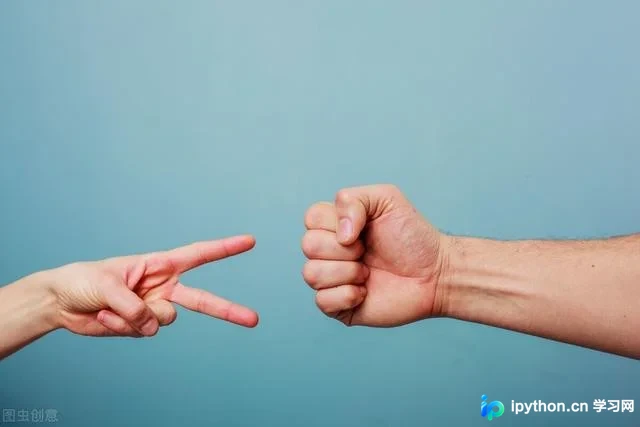
一旦用户选定元素,程序将随机选取一个元素进行比对。随后,系统依据既定规则判定用户是获胜、失败还是平局,结果会显示在应用界面的第二行。
当用户点击任意按钮时,游戏即可重新开始。若用户希望退出游戏,可点击关闭按钮。游戏初始状态下,界面显示代表各元素的手形符号。当用户做出选择后,该符号将转换为对应的图形图像。同时,程序也会随机选择一个元素并显示其图形图像。
用Python实现(10个步骤)
明确了游戏规则后,让我们逐步解析Python代码的实现过程。
1.导入所需的库
#Import the required libraries :
from tkinter import *
import random
import simpleaudio as sa
- tkinter:用于在应用程序中添加各种小部件。
- random:用于生成随机数,实现计算机的随机选择。
- simpleaudio:用于播放声音文件,增强交互体验。
2.创建tkinter主窗口
root = Tk()
root.configure(bg="#000000")
root.geometry('+0+0')
root.iconbitmap("Game.ico")
root.title("Rock-Paper-Scissor-Lizard-Spock")
root.resizable(width=False,height=False)
- root = Tk():用于初始化Tkinter模块,创建主窗口对象。
- root.configure():用于指定应用程序的背景颜色。在此示例中,背景色设置为黑色。
- root.geometry():用于指定应用程序窗口打开的位置。此处设置为在屏幕左上角打开。
- root.iconbitmap():用于设置应用程序窗口标题栏中的图标。该功能仅接受.ico格式的图标文件。
- root.title():用于设置应用程序窗口的标题文本。
- root.resizable():在此处使用该方法禁止用户调整主窗口的大小,保持界面固定。
3.导入声音文件
#To play sound files :
start = sa.WaveObject.from_wave_file("Start.wav")
Win = sa.WaveObject.from_wave_file("Win.wav")
Lose = sa.WaveObject.from_wave_file("Lose.wav")
Draw = sa.WaveObject.from_wave_file("Draw.wav")

start.play()
接下来,我们将加载一些将在不同事件触发时播放的声音文件。程序启动时会播放开场音效;当用户获胜、失败或平局时,则分别播放对应的三种音效文件。
需注意,该库仅接受.wav格式的声音文件。首先,需将声音文件加载到对象中,随后即可通过.play()方法在需要时播放声音。
4.为我们的应用程序加载图像
应用程序中将使用多种图像资源。首先需将这些图像加载到程序中。此处我们将使用PhotoImage类来加载图像文件。
#Hand images :
rockHandPhoto = PhotoImage(file="Rock_1.png")
paperHandPhoto = PhotoImage(file="Paper_1.png")
scissorHandPhoto = PhotoImage(file="Scissor_1.png")
lizardHandPhoto = PhotoImage(file="Lizard_1.png")
spockHandPhoto = PhotoImage(file="Spock_1.png")

#Graphical images :
rockPhoto = PhotoImage(file="Rock_P.png")
paperPhoto = PhotoImage(file="Paper_P.png")
scissorPhoto = PhotoImage(file="Scissor_P.png")
lizardPhoto = PhotoImage(file="Lizard_P.png")
spockPhoto = PhotoImage(file="Spock_P.png")

#Decision image :
decisionPhoto = PhotoImage(file="Decision_Final.png")

#Result images :
winPhoto = PhotoImage(file="G_WIN.png")
losePhoto = PhotoImage(file="G_LOST.png")
tiePhoto = PhotoImage(file="G_DRAW.png")
首先,我们准备代表各元素的手部图像。游戏开始时,界面将向用户展示全部五个图像。用户必须从这些图像中选择一个作为自己的出拳。
当用户点击某个图像后,程序将显示该元素的图形化图像。此时,必须确定用户的选择,同时程序也会随机选择一个元素。随后,程序仅显示这两个选中的图形图像,其余未选中的图像将隐藏。
此外,我们显示一个初始的决策图像,当结果生成时,该图像会更新为最终的结果图像。结果包含不同的图像状态:
- 如果用户获胜
- 如果用户输了
- 如果是平局
5.添加Tkinter小部件
#Initialize the button variables :
rockHandButton = " "
paperHandButton = " "
scissorHandButton = " "
lizardHandButton= " "
spockHandButton = " "

#Create the result button :
resultButton = Button(root,image=decisionPhoto)

#Set the variable to True
click = True
- 初始化五个按钮的变量,用于后续绑定图像和事件。
- 在此处,我们创建了结果按钮,用于最终显示游戏结果。
- 我们将click变量初始化为True,以确保程序在未被设置为False之前持续运行。在后续步骤中,我们将看到更多关于此变量的应用。
6. Play()功能
def play():
 global rockHandButton,paperHandButton,scissorHandButton,lizardHandButton,spockHandButton

 #Set images and commands for buttons :
 rockHandButton = Button(root,image = rockHandPhoto, command=lambda:youPick("Rock"))
 paperHandButton = Button(root,image = paperHandPhoto, command=lambda:youPick("Paper"))
 scissorHandButton = Button(root,image = scissorHandPhoto, command=lambda:youPick("Scissor"))
 lizardHandButton = Button(root,image= lizardHandPhoto,command=lambda:youPick("Lizard"))
 spockHandButton = Button(root,image= spockHandPhoto,command=lambda:youPick("Spock"))

 #Place the buttons on window :
 rockHandButton.grid(row=0,column=0)
 paperHandButton.grid(row=0,column=1)
 scissorHandButton.grid(row=0,column=2)
 lizardHandButton.grid(row=0,column=3)
 spockHandButton.grid(row=0,column=4)

 #Add space :
 root.grid_rowconfigure(1, minsize=50)

 #Place result button on window :
 resultButton.grid(row=2,column=0,columnspan=5)
在此部分,我们为各个元素创建按钮。我们将为按钮设置相应的图像,当按钮被按下时,将调用youPick()函数并传入所选对象的字符串名称。
随后,使用.grid()方法将按钮排列在主窗口上。在此处,我们在第一行添加了一个空格(通过.grid_rowconfigure())。接着,将结果按钮放置在第二行,并使用columnspan使结果按钮居中显示。
7.轮到计算机了
计算机将从五个可用元素中随机选择一个,并返回对应的字符串值。
def computerPick():
 choice = random.choice(["Rock","Paper","Scissor","Lizard","Spock"])
 return choice
8.主要功能: youPick()
在此功能中,程序将显示用户所选元素的图形图像,并移除其余元素图像。同时,系统将应用一组规则来生成游戏结果。
def youPick(yourChoice):
 global click
  compPick = computerPick()
  if click==True:
我们将计算机的选择存储在compPick变量中,并利用它来确定最终结果。
用户选择Rock:
如果用户选择Rock,则执行此代码块。play()函数中的命令沿字符串传递,该字符串代表用户选择的对象,我们将其存储在yourChoice变量中。此时,计算机有五种可能的选择。
接下来,我们必须为每种规则制定逻辑。请注意,当用户和计算机选定对象后,不允许再次更改。因此,我们将click变量更改为False以锁定选择。
由于用户已选择Rock,我们希望第一张图像变为岩石的图形图像。如果计算机也选择Rock,则希望第二张图像变为对应的图形图像。要更改按钮的图像,我们使用.configure()方法。
我们希望其余三个图像消失。为了实现这一点,我们使用.grid_forget()方法。同时,程序还将播放平局音效。随后,我们为其余对象开发类似的规则逻辑。
def computerPick():choice = random.choice(["Rock","Paper","Scissor","Lizard","Spock"])return choice
用户选择纸张:
请参考上述规则,以了解用户选择“纸张”时的处理逻辑。查看下方的代码,该部分遵循与Rock相同的规则逻辑。
elif yourChoice == "Paper":rockHandButton.configure(image=paperPhoto)if compPick == "Rock":paperHandButton.configure(image=rockPhoto)resultButton.configure(image=losePhoto)scissorHandButton.grid_forget()lizardHandButton.grid_forget()spockHandButton.grid_forget()Lose.play()click = Falseelif compPick == "Paper":paperHandButton.configure(image=paperPhoto)resultButton.configure(image=tiePhoto)scissorHandButton.grid_forget()lizardHandButton.grid_forget()spockHandButton.grid_forget()Draw.play()click = Falseelif compPick == "Scissor":paperHandButton.configure(image=scissorPhoto)resultButton.configure(image=losePhoto)scissorHandButton.grid_forget()lizardHandButton.grid_forget()spockHandButton.grid_forget()Lose.play()click = Falseelif compPick =="Lizard":paperHandButton.configure(image=lizardPhoto)resultButton.configure(image=losePhoto)scissorHandButton.grid_forget()lizardHandButton.grid_forget()spockHandButton.grid_forget()Lose.play()click = Falseelse :paperHandButton.configure(image=spockPhoto)resultButton.configure(image=winPhoto)scissorHandButton.grid_forget()lizardHandButton.grid_forget()spockHandButton.grid_forget()Win.play()click = False
用户选择剪刀:
请参考上方规则,以了解用户选择剪刀时的处理逻辑。查看下方的代码,该部分遵循与Rock和Paper相同的规则逻辑。
elif yourChoice=="Scissor":rockHandButton.configure(image=scissorPhoto)if compPick == "Rock":paperHandButton.configure(image=rockPhoto)resultButton.configure(image=losePhoto)scissorHandButton.grid_forget()lizardHandButton.grid_forget()spockHandButton.grid_forget()Lose.play()click = Falseelif compPick == "Paper":paperHandButton.configure(image=paperPhoto)resultButton.configure(image=winPhoto)scissorHandButton.grid_forget()lizardHandButton.grid_forget()spockHandButton.grid_forget()Win.play()click = Falseelif compPick=="Scissor":paperHandButton.configure(image=scissorPhoto)resultButton.configure(image=tiePhoto)scissorHandButton.grid_forget()lizardHandButton.grid_forget()spockHandButton.grid_forget()Draw.play()click = Falseelif compPick == "Lizard":paperHandButton.configure(image=lizardPhoto)resultButton.configure(image=winPhoto)scissorHandButton.grid_forget()lizardHandButton.grid_forget()spockHandButton.grid_forget()Win.play()click = Falseelse:paperHandButton.configure(image=spockPhoto)resultButton.configure(image=losePhoto)scissorHandButton.grid_forget()lizardHandButton.grid_forget()spockHandButton.grid_forget()Lose.play()click = False
用户选择"Lizard"
请参考上方规则,以了解用户选择蜥蜴时的处理逻辑。查看下方的代码,该部分遵循与其他代码相同的规则逻辑。
elif yourChoice=="Lizard":rockHandButton.configure(image=lizardPhoto)if compPick == "Rock":paperHandButton.configure(image=rockPhoto)resultButton.configure(image=losePhoto)scissorHandButton.grid_forget()lizardHandButton.grid_forget()spockHandButton.grid_forget()Lose.play()click = Falseelif compPick == "Paper":paperHandButton.configure(image=paperPhoto)resultButton.configure(image=winPhoto)scissorHandButton.grid_forget()lizardHandButton.grid_forget()spockHandButton.grid_forget()Win.play()click = Falseelif compPick=="Scissor":paperHandButton.configure(image=scissorPhoto)resultButton.configure(image=losePhoto)scissorHandButton.grid_forget()lizardHandButton.grid_forget()spockHandButton.grid_forget()Lose.play()click = Falseelif compPick == "Lizard":paperHandButton.configure(image=lizardPhoto)resultButton.configure(image=tiePhoto)scissorHandButton.grid_forget()lizardHandButton.grid_forget()spockHandButton.grid_forget()Draw.play()click = Falseelse:paperHandButton.configure(image=spockPhoto)resultButton.configure(image=winPhoto)scissorHandButton.grid_forget()lizardHandButton.grid_forget()spockHandButton.grid_forget()Win.play()click = False
用户选择Spock:
请参考上方规则,以了解用户选择Spock时的处理逻辑。查看下方的代码,该部分遵循与其他代码相同的规则逻辑。
elif yourChoice=="Spock":rockHandButton.configure(image=spockPhoto)if compPick == "Rock":paperHandButton.configure(image=rockPhoto)resultButton.configure(image=winPhoto)scissorHandButton.grid_forget()lizardHandButton.grid_forget()spockHandButton.grid_forget()Win.play()click = Falseelif compPick == "Paper":paperHandButton.configure(image=paperPhoto)resultButton.configure(image=losePhoto)scissorHandButton.grid_forget()lizardHandButton.grid_forget()spockHandButton.grid_forget()Lose.play()click = Falseelif compPick=="Scissor":paperHandButton.configure(image=scissorPhoto)resultButton.configure(image=winPhoto)scissorHandButton.grid_forget()lizardHandButton.grid_forget()spockHandButton.grid_forget()Win.play()click = Falseelif compPick == "Lizard":paperHandButton.configure(image=lizardPhoto)resultButton.configure(image=losePhoto)scissorHandButton.grid_forget()lizardHandButton.grid_forget()spockHandButton.grid_forget()Lose.play()click = Falseelse:paperHandButton.configure(image=spockPhoto)resultButton.configure(image=tiePhoto)scissorHandButton.grid_forget()lizardHandButton.grid_forget()spockHandButton.grid_forget()Draw.play()click = False
9.再玩一次
获得结果后,若用户希望再次游戏,只需点击任意按钮。界面将恢复为原始的手部图像状态。此时,我们需要重新显示之前隐藏的图像。我们将click变量的值设置为True,并播放开场声音文件,以便在用户开始新游戏时播放音频。
else:
  #To reset the game :
  if yourChoice=="Rock" or yourChoice=="Paper" or yourChoice=="Scissor" or yourChoice=="Lizard" or yourChoice=="Spock":
   rockHandButton.configure(image=rockHandPhoto)
   paperHandButton.configure(image=paperHandPhoto)
   scissorHandButton.configure(image=scissorHandPhoto)
   lizardHandButton.configure(image=lizardHandPhoto)
   spockHandButton.configure(image=spockHandPhoto)
   resultButton.configure(image=decisionPhoto)

   #Get back the deleted buttons :
   scissorHandButton.grid(row=0,column=2)
   lizardHandButton.grid(row=0,column=3)
   spockHandButton.grid(row=0,column=4)

   #Set click = True :
   click=True

   #Play the sound file :
   start.play()
10.调用函数
现在,我们调用play函数,它将在内部处理其余逻辑。若要关闭应用程序,只需点击标题栏上的关闭按钮即可。
#Calling the play function :
play()

#Enter the main loop :
root.mainloop()
放在一起
查看此Python Tkinter游戏的完整代码实现。
#Import the required libraries :
from tkinter import *
import random
import simpleaudio as sa

root = Tk()
root.configure(bg="#000000")
root.geometry('+0+0')
root.iconbitmap("Game.ico")
root.title("Rock-Paper-Scissor-Lizard-Spock")
root.resizable(width=False,height=False)

#To play sound files :
start = sa.WaveObject.from_wave_file("Start.wav")
Win = sa.WaveObject.from_wave_file("Win.wav")
Lose = sa.WaveObject.from_wave_file("Lose.wav")
Draw = sa.WaveObject.from_wave_file("Draw.wav")

start.play()

#Hand images :
rockHandPhoto = PhotoImage(file="Rock_1.png")
paperHandPhoto = PhotoImage(file="Paper_1.png")
scissorHandPhoto = PhotoImage(file="Scissor_1.png")
lizardHandPhoto = PhotoImage(file="Lizard_1.png")
spockHandPhoto = PhotoImage(file="Spock_1.png")

#Graphical images :
rockPhoto = PhotoImage(file="Rock_P.png")
paperPhoto = PhotoImage(file="Paper_P.png")
scissorPhoto = PhotoImage(file="Scissor_P.png")
lizardPhoto = PhotoImage(file="Lizard_P.png")
spockPhoto = PhotoImage(file="Spock_P.png")

#Decision image :
decisionPhoto = PhotoImage(file="Decision_Final.png")

#Result images :
winPhoto = PhotoImage(file="G_WIN.png")
losePhoto = PhotoImage(file="G_LOST.png")
tiePhoto = PhotoImage(file="G_DRAW.png")

#Initialize the button variables :
rockHandButton = " "
paperHandButton = " "
scissorHandButton = " "
lizardHandButton= " "
spockHandButton = " "

#Create the result button :
resultButton = Button(root,image=decisionPhoto)

#Set the variable to True
click = True

def play():
 global rockHandButton,paperHandButton,scissorHandButton,lizardHandButton,spockHandButton

 #Set images and commands for buttons :
 rockHandButton = Button(root,image = rockHandPhoto, command=lambda:youPick("Rock"))
 paperHandButton = Button(root,image = paperHandPhoto, command=lambda:youPick("Paper"))
 scissorHandButton = Button(root,image = scissorHandPhoto, command=lambda:youPick("Scissor"))
 lizardHandButton = Button(root,image= lizardHandPhoto,command=lambda:youPick("Lizard"))
 spockHandButton = Button(root,image= spockHandPhoto,command=lambda:youPick("Spock"))

 #Place the buttons on window :
 rockHandButton.grid(row=0,column=0)
 paperHandButton.grid(row=0,column=1)
 scissorHandButton.grid(row=0,column=2)
 lizardHandButton.grid(row=0,column=3)
 spockHandButton.grid(row=0,column=4)

 #Add space :
 root.grid_rowconfigure(1, minsize=50)

 #Place result button on window :
 resultButton.grid(row=2,column=0,columnspan=5)

def computerPick():
 choice = random.choice(["Rock","Paper","Scissor","Lizard","Spock"])
 return choice

def youPick(yourChoice):
 global click

 compPick = computerPick()

 if click==True:

  if yourChoice == "Rock":

   rockHandButton.configure(image=rockPhoto)

   if compPick == "Rock":
    paperHandButton.configure(image=rockPhoto)
    resultButton.configure(image=tiePhoto)
    scissorHandButton.grid_forget()
    lizardHandButton.grid_forget()
    spockHandButton.grid_forget()
    Draw.play()
    click = False

   elif compPick == "Paper":
    paperHandButton.configure(image=paperPhoto)
    scissorHandButton.grid_forget()
    resultButton.configure(image=losePhoto)
    lizardHandButton.grid_forget()
    spockHandButton.grid_forget()
    Lose.play()

    click = False

   elif compPick == "Scissor":
    paperHandButton.configure(image=scissorPhoto)
    scissorHandButton.grid_forget()
    resultButton.configure(image=winPhoto)
    lizardHandButton.grid_forget()
    spockHandButton.grid_forget()
    Win.play()
    click = False

   elif compPick =="Lizard":
    paperHandButton.configure(image=lizardPhoto)
    scissorHandButton.grid_forget()
    resultButton.configure(image=winPhoto)
    lizardHandButton.grid_forget()
    spockHandButton.grid_forget()
    Win.play()
    click = False

   else :
    paperHandButton.configure(image=spockPhoto)
    scissorHandButton.grid_forget()
    resultButton.configure(image=losePhoto)
    lizardHandButton.grid_forget()
    spockHandButton.grid_forget()
    Lose.play()
    click = False

  elif yourChoice == "Paper":
   rockHandButton.configure(image=paperPhoto)

   if compPick == "Rock":
    paperHandButton.configure(image=rockPhoto)
    resultButton.configure(image=losePhoto)
    scissorHandButton.grid_forget()
    lizardHandButton.grid_forget()
    spockHandButton.grid_forget()
    Lose.play()
    click = False

   elif compPick == "Paper":
    paperHandButton.configure(image=paperPhoto)
    resultButton.configure(image=tiePhoto)
    scissorHandButton.grid_forget()
    lizardHandButton.grid_forget()
    spockHandButton.grid_forget()
    Draw.play()
    click = False

   elif compPick == "Scissor":
    paperHandButton.configure(image=scissorPhoto)
    resultButton.configure(image=losePhoto)
    scissorHandButton.grid_forget()
    lizardHandButton.grid_forget()
    spockHandButton.grid_forget()
    Lose.play()
    click = False

   elif compPick =="Lizard":
    paperHandButton.configure(image=lizardPhoto)
    resultButton.configure(image=losePhoto)
    scissorHandButton.grid_forget()
    lizardHandButton.grid_forget()
    spockHandButton.grid_forget()
    Lose.play()
    click = False

   else :
    paperHandButton.configure(image=spockPhoto)
    resultButton.configure(image=winPhoto)
    scissorHandButton.grid_forget()
    lizardHandButton.grid_forget()
    spockHandButton.grid_forget()
    Win.play()
    click = False

  elif yourChoice=="Scissor":
   rockHandButton.configure(image=scissorPhoto)
   if compPick == "Rock":
    paperHandButton.configure(image=rockPhoto)
    resultButton.configure(image=losePhoto)
    scissorHandButton.grid_forget()
    lizardHandButton.grid_forget()
    spockHandButton.grid_forget()
    Lose.play()
    click = False

   elif compPick == "Paper":
    paperHandButton.configure(image=paperPhoto)
    resultButton.configure(image=winPhoto)
    scissorHandButton.grid_forget()
    lizardHandButton.grid_forget()
    spockHandButton.grid_forget()
    Win.play()
    click = False

   elif compPick=="Scissor":
    paperHandButton.configure(image=scissorPhoto)
    resultButton.configure(image=tiePhoto)
    scissorHandButton.grid_forget()
    lizardHandButton.grid_forget()
    spockHandButton.grid_forget()
    Draw.play()
    click = False

   elif compPick == "Lizard":
    paperHandButton.configure(image=lizardPhoto)
    resultButton.configure(image=winPhoto)
    scissorHandButton.grid_forget()
    lizardHandButton.grid_forget()
    spockHandButton.grid_forget()
    Win.play()
    click = False

   else:
    paperHandButton.configure(image=spockPhoto)
    resultButton.configure(image=losePhoto)
    scissorHandButton.grid_forget()
    lizardHandButton.grid_forget()
    spockHandButton.grid_forget()
    Lose.play()
    click = False

  elif yourChoice=="Lizard":
   rockHandButton.configure(image=lizardPhoto)
   if compPick == "Rock":
    paperHandButton.configure(image=rockPhoto)
    resultButton.configure(image=losePhoto)
    scissorHandButton.grid_forget()
    lizardHandButton.grid_forget()
    spockHandButton.grid_forget()
    Lose.play()
    click = False

   elif compPick == "Paper":
    paperHandButton.configure(image=paperPhoto)
    resultButton.configure(image=winPhoto)
    scissorHandButton.grid_forget()
    lizardHandButton.grid_forget()
    spockHandButton.grid_forget()
    Win.play()
    click = False

   elif compPick=="Scissor":
    paperHandButton.configure(image=scissorPhoto)
    resultButton.configure(image=losePhoto)
    scissorHandButton.grid_forget()
    lizardHandButton.grid_forget()
    spockHandButton.grid_forget()
    Lose.play()
    click = False

   elif compPick == "Lizard":
    paperHandButton.configure(image=lizardPhoto)
    resultButton.configure(image=tiePhoto)
    scissorHandButton.grid_forget()
    lizardHandButton.grid_forget()
    spockHandButton.grid_forget()
    Draw.play()
    click = False

   else:
    paperHandButton.configure(image=spockPhoto)
    resultButton.configure(image=winPhoto)
    scissorHandButton.grid_forget()
    lizardHandButton.grid_forget()
    spockHandButton.grid_forget()
    Win.play()
    click = False

  elif yourChoice=="Spock":
   rockHandButton.configure(image=spockPhoto)
   if compPick == "Rock":
    paperHandButton.configure(image=rockPhoto)
    resultButton.configure(image=winPhoto)
    scissorHandButton.grid_forget()
    lizardHandButton.grid_forget()
    spockHandButton.grid_forget()
    Win.play()
    click = False

   elif compPick == "Paper":
    paperHandButton.configure(image=paperPhoto)
    resultButton.configure(image=losePhoto)
    scissorHandButton.grid_forget()
    lizardHandButton.grid_forget()
    spockHandButton.grid_forget()
    Lose.play()
    click = False

   elif compPick=="Scissor":
    paperHandButton.configure(image=scissorPhoto)
    resultButton.configure(image=winPhoto)
    scissorHandButton.grid_forget()
    lizardHandButton.grid_forget()
    spockHandButton.grid_forget()
    Win.play()
    click = False

   elif compPick == "Lizard":

    paperHandButton.configure(image=lizardPhoto)
    resultButton.configure(image=losePhoto)
    scissorHandButton.grid_forget()
    lizardHandButton.grid_forget()
    spockHandButton.grid_forget()
    Lose.play()
    click = False

   else:
    paperHandButton.configure(image=spockPhoto)
    resultButton.configure(image=tiePhoto)
    scissorHandButton.grid_forget()
    lizardHandButton.grid_forget()
    spockHandButton.grid_forget()
    Draw.play()
    click = False

 else:
  #To reset the game :
  if yourChoice=="Rock" or yourChoice=="Paper" or yourChoice=="Scissor" or yourChoice=="Lizard" or yourChoice=="Spock":
   rockHandButton.configure(image=rockHandPhoto)
   paperHandButton.configure(image=paperHandPhoto)
   scissorHandButton.configure(image=scissorHandPhoto)
   lizardHandButton.configure(image=lizardHandPhoto)
   spockHandButton.configure(image=spockHandPhoto)
   resultButton.configure(image=decisionPhoto)

   #Get back the deleted buttons :
   scissorHandButton.grid(row=0,column=2)
   lizardHandButton.grid(row=0,column=3)
   spockHandButton.grid(row=0,column=4)

   #Set click = True :
   click=True

   #Play the sound file :
   start.play()

#Calling the play function :
play()

#Enter the main loop :
root.mainloop()
到此这篇关于使用Python Tkinter实现剪刀石头布小游戏功能的文章就介绍到这了,更多相关Python Tkinter剪刀石头布小游戏内容请搜索本站以前的文章或继续浏览下面的相关文章希望大家以后多多支持本站!
本站声明
本文内容仅供参考,不代表本站观点。转载或引用请注明出处。如发现内容问题,请通过联系我们页面反馈。















