


C#中使用PrintDocument实现自定义报表打印

发布时间:2026-10-14 |
1人浏览过
在C# Windows Forms应用程序中,当需要生成格式复杂的自定义打印文档(如钢板入库单、特定业务报表)时,直接使用标准报表控件可能不够灵活。本文将演示如何通过 PrintDocument 组件结合 e.Graphics 对象,手动控制字体、坐标、线条来绘制完整的打印页面。
结果或目标
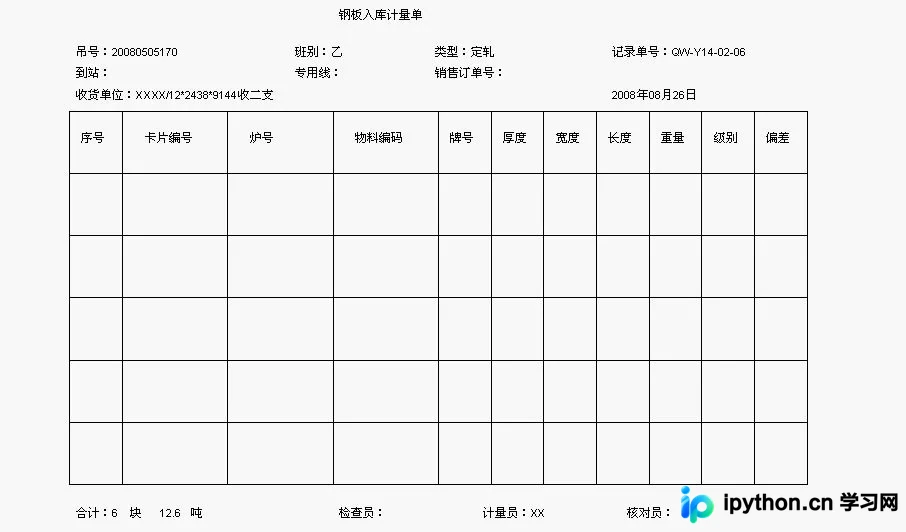
最终实现一个能够预览并打印的自定义报表功能,报表包含固定格式的标题(如单据号、日期)、明细数据表格以及底部的签名栏。所有元素的位置、大小和样式均由代码精确控制。
准备条件
- 开发环境:Visual Studio,支持 C# WinForms 项目。
- 核心组件:
PrintDocument(负责驱动打印作业)、PrintPreviewDialog(用于预览效果)。 - 命名空间:确保引入
System.Drawing.Printing、System.Drawing、System.Windows.Forms。
真实操作顺序
第1步:初始化打印参数与表单构造器
目的:设置打印页的纸张尺寸,避免内容被截断。
入口:窗体构造函数(Form())。
动作:实例化 PaperSize 对象并赋值给 DefaultPageSettings。
// 假设在设计器中已拖入 printDocument1 和 printPreviewDialog1
public Form1()
{
    InitializeComponent();
    // 设置自定义纸张大小,单位通常为千分之一英寸,这里设为宽1023高614
    PaperSize paperSize = new PaperSize("DataOrder", 1023, 614);
    printDocument1.DefaultPageSettings.PaperSize = paperSize;
}
第2步:绑定打印事件与触发预览
目的:将自定义的绘制逻辑绑定到打印文档,并允许用户先查看效果。
入口:按钮点击事件(如 button1_Click)。
重要参数:PrintPageEventHandler。
步骤:
- 订阅
printDocument1.PrintPage事件。 - 将
PrintDocument实例关联到PrintPreviewDialog。 - 显示对话框并调用
Print()。
private void button1_Click(object sender, EventArgs e)
{
    // 注册打印页绘制事件
    printDocument1.PrintPage += MyPrintDoc_PrintPage;

    try
    {
        printPreviewDialog1.Document = printDocument1;
        printPreviewDialog1.FormBorderStyle = FormBorderStyle.Fixed3D;
        printPreviewDialog1.ShowDialog();

        // 若用户在预览窗口点击打印,此处无需再次调用,但若需静默打印则保留
        // printDocument1.Print();
    }
    catch (Exception ex)
    {
        MessageBox.Show("请检查打印机状态或安装驱动\n" + ex.Message, "错误", MessageBoxButtons.OK, MessageBoxIcon.Error);
    }
}
第3步:执行具体的页面绘图逻辑
目的:在 MyPrintDoc_PrintPage 事件中,使用 GDI+ 绘制文字、表格线和边框。
入口:自定义绘制事件处理程序。
动作:
- 初始化画笔与字体:设定
Font、Brush和StringFormat。 - 绘制标题文本:使用
e.Graphics.DrawString指定绝对坐标 (X, Y)。 - 绘制表格框架:使用
e.Graphics.DrawLine绘制外框和内部分割线。 - 填充单元格内容:根据行列计算坐标,写入表头和数据。
protected void MyPrintDoc_PrintPage(object sender, PrintPageEventArgs e)
{
    // 1. 基础样式设置
    Font drawFont = new Font("Arial", 8);
    SolidBrush drawBrush = new SolidBrush(Color.Black);
    StringFormat drawFormat = new StringFormat { FormatFlags = StringFormatFlags.NoWrap };
    Pen line = new Pen(drawBrush, 1);

    // 2. 定义坐标基准
    float x = 0F, y = 0F;
    int num = 6; // 示例数据块数
    float tableWidth = 770F;
    float tableHeight = 393F;
    float leftMargin = 120F;
    float topMargin = 152F;

    // 3. 绘制标题区域 (静态文本)
    e.Graphics.DrawString("钢板入库计量单", drawFont, drawBrush, 400, 45, drawFormat);
    e.Graphics.DrawString("吊号:20080505170", drawFont, drawBrush, 125, 83, drawFormat);
    e.Graphics.DrawString("班别:乙", drawFont, drawBrush, 354, 83, drawFormat);
    e.Graphics.DrawString("收货单位:XXXX/12*2438*9144收二支", drawFont, drawBrush, 125, 129, drawFormat);

    // 4. 绘制表格外围矩形
    e.Graphics.DrawLine(line, leftMargin, topMargin, leftMargin + tableWidth, topMargin);
    e.Graphics.DrawLine(line, leftMargin, topMargin + tableHeight, leftMargin + tableWidth, topMargin + tableHeight);
    e.Graphics.DrawLine(line, leftMargin, topMargin, leftMargin, topMargin + tableHeight);
    e.Graphics.DrawLine(line, leftMargin + tableWidth, topMargin, leftMargin + tableWidth, topMargin + tableHeight);

    // 5. 绘制内部竖线 (列分割)
    float cellW1 = 55F, cellW2 = 110F;
    for (int i = 1; i <= 8; i++)
    {
        float currentX = leftMargin;
        if (i == 1) currentX += cellW1;
        else if (i >= 2) currentX += cellW1 + (cellW2 * (i - 1));

        e.Graphics.DrawLine(line, currentX, topMargin, currentX, topMargin + tableHeight);
    }

    // 6. 绘制表头行 (
本站声明
本文内容仅供参考,不代表本站观点。转载或引用请注明出处。如发现内容问题,请通过联系我们页面反馈。















