


使用Python开发一个内置函数大全解析工具(附源码)

本文详细介绍一款基于Python开发的内置函数解析与交互浏览工具。该工具收录了69个常用内置函数,按数学运算、类型转换等六大类进行系统化整理,提供图形界面(GUI)与命令行双模式查询。借助tkinter构建的操作面板,支持按名称实时检索、按类别筛选浏览以及一键运行代码演示,帮助开发者高效查阅函数语法、参数说明并验证调用结果。
工具架构与功能特性
本工具采用纯Python编写,不依赖第三方扩展库,核心功能聚焦于内置函数的结构化展示与交互式验证。系统按功能维度将函数划分为数学运算、类型转换、序列操作、迭代器、输入输出及对象操作六大板块,共计覆盖69个标准内置函数。每个条目均附带标准描述、调用语法、参数解析、返回值类型及可执行示例代码。
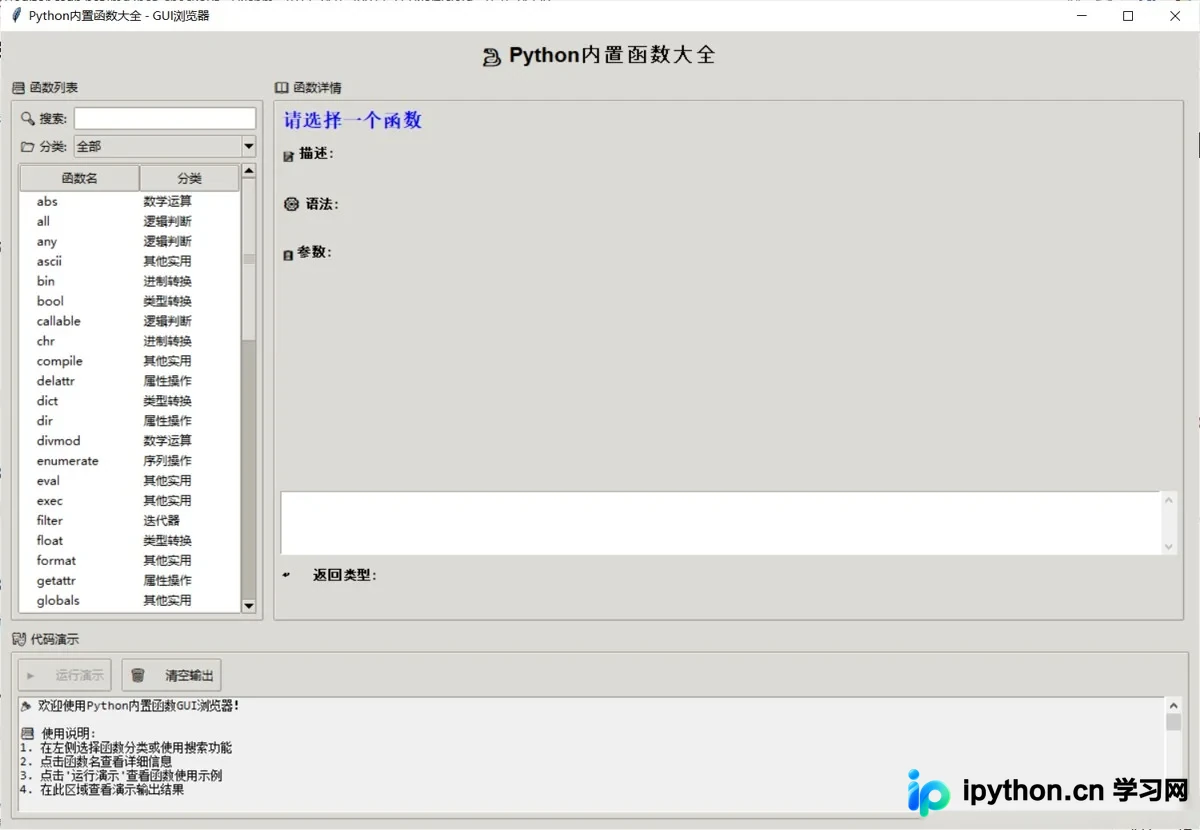
程序提供两种交互形态:interactive_builtin_explorer.py 面向终端用户,支持文本指令检索与统计信息调取;gui_builtin_explorer.py 基于 tkinter 搭建图形窗口,提供可视化的树状列表、详情面板与实时输出区域,降低查阅门槛。
运行环境与前置条件
运行该解析工具仅需标准 Python 3 环境,无需额外安装 pip 包。由于源码中使用了面向对象的数据封装设计,需在工程目录下提前准备好数据源模块:
- 确认操作系统已安装 Python 3.6 及以上版本。
- 在脚本同级目录下放置
python_builtin_functions.py文件,该文件负责维护所有函数的元数据字典(包含名称、分类、描述、示例等)。 - 确保终端具备基础读写权限,用于捕获和刷新演示代码的运行日志。
启动与交互操作
以下为图形界面版本的标准化操作流程,适用于日常查阅与代码验证:
第1步:启动图形浏览器
进入工具存放目录,打开命令行终端执行以下指令启动主程序:
python gui_builtin_explorer.py程序初始化后会自动加载全部函数数据,弹出默认尺寸为 1200x800 的窗口。若未配置自定义图标,系统会安全忽略异常并继续加载界面样式。
第2步:检索与分类过滤
通过左侧面板的快速定位功能缩小查找范围:
- 关键词搜索:在
🔍 搜索:输入框键入函数名关键字(如map),列表将自动实时过滤匹配项。 - 分类下拉筛选:点击
📂 分类:下拉菜单,可选择“全部”或指定如“数学运算”、“类型转换”等子分类,刷新对应函数节点。
第3步:查看详情与运行演示
当需要深入了解特定函数机制时,执行以下组合操作:
- 在左侧树形列表中单击目标函数名,右侧
📖 函数详情区域即刻渲染该函数的中文释义、标准语法、参数列表及返回类型说明。 - 确认信息无误后,点击下方
▶️ 运行演示按钮。工具将拦截标准输出流,执行预置的示例代码,并将执行结果同步至底部的🎭 代码演示滚动文本框中。 - 若需重新验证其他用例,可随时点击
🗑️ 清空输出恢复初始状态,或直接切换下一函数触发重跑。
内置函数分类覆盖范围
系统依据函数底层行为特征进行归类,完整索引表如下:
- 数学运算 (13个):
abs(),divmod(),max(),min(),pow(),round(),sum(),bin(),hex(),oct(),complex(),float(),int() - 类型转换 (8个):
bool(),bytes(),str(),list(),tuple(),set(),dict(),frozenset() - 序列操作 (8个):
len(),sorted(),reversed(),enumerate(),zip(),slice(),range(),memoryview() - 迭代器 (6个):
iter(),next(),filter(),map(),all(),any() - 输入输出 (3个):
print(),input(),open() - 对象操作 (31个):涵盖
type(),isinstance(),hasattr(),getattr(),setattr(),delattr(),dir(),vars(),locals(),globals(),callable(),id(),hash(),chr(),ord(),ascii(),repr(),format(),eval(),exec(),compile(),classmethod(),staticmethod(),property(),super(),object(),bytearray(),help(),__import__(),reload()等核心反射与元数据函数。
完整实现代码
以下为 gui_builtin_explorer.py 的核心工程代码。该脚本采用模块化设计,直接依赖上层数据字典驱动 UI 渲染与日志捕获逻辑。
#!/usr/bin/env python3
# -*- coding: utf-8 -*-
"""
Python内置函数GUI浏览器

基于tkinter的图形界面工具,提供直观的函数浏览和学习体验。
用户可以通过点击函数名查看详细信息和示例代码。

功能特性:
- 分类浏览内置函数
- 点击查看函数详细信息
- 实时代码演示
- 搜索功能
- 美观的GUI界面

作者: AI助手
创建时间: 2024
"""

import tkinter as tk
from tkinter import ttk, scrolledtext, messagebox
import sys
import io
from contextlib import redirect_stdout, redirect_stderr
from python_builtin_functions import PythonBuiltinFunctions

class BuiltinFunctionGUI:
    """
    Python内置函数GUI浏览器

    提供图形界面来浏览和学习Python内置函数
    """

    def __init__(self, root):
        self.root = root
        self.parser = PythonBuiltinFunctions()
        self.current_function = None

        # 设置窗口
        self.setup_window()

        # 创建界面
        self.create_widgets()

        # 加载数据
        self.load_functions()

    def setup_window(self):
        """
        设置主窗口
        """
        self.root.title("Python内置函数大全 - GUI浏览器")
        self.root.geometry("1200x800")
        self.root.minsize(1000, 600)

        # 设置图标和样式
        try:
            self.root.iconbitmap(default="python.ico")
        except:
            pass  # 如果没有图标文件就忽略

        # 配置样式
        style = ttk.Style()
        style.theme_use('clam')

    def create_widgets(self):
        """
        创建界面组件
        """
        # 主框架
        main_frame = ttk.Frame(self.root, padding="10")
        main_frame.grid(row=0, column=0, sticky=(tk.W, tk.E, tk.N, tk.S))

        # 配置网格权重
        self.root.columnconfigure(0, weight=1)
        self.root.rowconfigure(0, weight=1)
        main_frame.columnconfigure(1, weight=2)
        main_frame.rowconfigure(1, weight=1)

        # 标题
        title_label = ttk.Label(main_frame, text="🐍 Python内置函数大全",
                               font=('Arial', 16, 'bold'))
        title_label.grid(row=0, column=0, columnspan=3, pady=(0, 10))

        # 左侧面板 - 函数列表
        self.create_function_list_panel(main_frame)

        # 右侧面板 - 详细信息
        self.create_detail_panel(main_frame)

        # 底部面板 - 代码演示
        self.create_demo_panel(main_frame)

    def create_function_list_panel(self, parent):
        """
        创建函数列表面板
        """
        # 左侧框架
        left_frame = ttk.LabelFrame(parent, text="📚 函数列表", padding="5")
        left_frame.grid(row=1, column=0, sticky=(tk.W, tk.E, tk.N, tk.S), padx=(0, 5))
        left_frame.columnconfigure(0, weight=1)
        left_frame.rowconfigure(2, weight=1)

        # 搜索框
        search_frame = ttk.Frame(left_frame)
        search_frame.grid(row=0, column=0, sticky=(tk.W, tk.E), pady=(0, 5))
        search_frame.columnconfigure(1, weight=1)

        ttk.Label(search_frame, text="🔍 搜索:").grid(row=0, column=0, padx=(0, 5))
        self.search_var = tk.StringVar()
        self.search_var.trace('w', self.on_search_change)
        search_entry = ttk.Entry(search_frame, textvariable=self.search_var)
        search_entry.grid(row=0, column=1, sticky=(tk.W, tk.E))

        # 分类选择
        category_frame = ttk.Frame(left_frame)
        category_frame.grid(row=1, column=0, sticky=(tk.W, tk.E), pady=(0, 5))
        category_frame.columnconfigure(1, weight=1)

        ttk.Label(category_frame, text="📂 分类:").grid(row=0, column=0, padx=(0, 5))
        self.category_var = tk.StringVar()
        self.category_combo = ttk.Combobox(category_frame, textvariable=self.category_var,
                                          state="readonly")
        self.category_combo.grid(row=0, column=1, sticky=(tk.W, tk.E))
        self.category_combo.bind('<<ComboboxSelected>>', self.on_category_change)

        # 函数列表
        list_frame = ttk.Frame(left_frame)
        list_frame.grid(row=2, column=0, sticky=(tk.W, tk.E, tk.N, tk.S))
        list_frame.columnconfigure(0, weight=1)
        list_frame.rowconfigure(0, weight=1)

        # 创建Treeview
        self.function_tree = ttk.Treeview(list_frame, columns=('category',), show='tree headings')
        self.function_tree.heading('#0', text='函数名')
        self.function_tree.heading('category', text='分类')
        self.function_tree.column('#0', width=120)
        self.function_tree.column('category', width=100)

        # 滚动条
        tree_scroll = ttk.Scrollbar(list_frame, orient="vertical", command=self.function_tree.yview)
        self.function_tree.configure(yscrollcommand=tree_scroll.set)

        self.function_tree.grid(row=0, column=0, sticky=(tk.W, tk.E, tk.N, tk.S))
        tree_scroll.grid(row=0, column=1, sticky=(tk.N, tk.S))

        # 绑定选择事件
        self.function_tree.bind('<<TreeviewSelect>>', self.on_function_select)

    def create_detail_panel(self, parent):
        """
        创建详细信息面板
        """
        # 右侧框架
        right_frame = ttk.LabelFrame(parent, text="📖 函数详情", padding="5")
        right_frame.grid(row=1, column=1, sticky=(tk.W, tk.E, tk.N, tk.S), padx=5)
        right_frame.columnconfigure(0, weight=1)
        right_frame.rowconfigure(5, weight=1)

        # 函数名
        self.func_name_var = tk.StringVar(value="请选择一个函数")
        func_name_label = ttk.Label(right_frame, textvariable=self.func_name_var,
                                   font=('Arial', 14, 'bold'), foreground='blue')
        func_name_label.grid(row=0, column=0, sticky=(tk.W, tk.E), pady=(0, 10))

        # 描述
        ttk.Label(right_frame, text="📝 描述:", font=('Arial', 10, 'bold')).grid(row=1, column=0, sticky=tk.W)
        self.description_var = tk.StringVar()
        description_label = ttk.Label(right_frame, textvariable=self.description_var,
                                     wraplength=400, justify=tk.LEFT)
        description_label.grid(row=2, column=0, sticky=(tk.W, tk.E), pady=(0, 10))

        # 语法
        ttk.Label(right_frame, text="⚙️ 语法:", font=('Arial', 10, 'bold')).grid(row=3, column=0, sticky=tk.W)
        self.syntax_var = tk.StringVar()
        syntax_label = ttk.Label(right_frame, textvariable=self.syntax_var,
                                font=('Consolas', 9), foreground='darkgreen',
                                wraplength=400, justify=tk.LEFT)
        syntax_label.grid(row=4, column=0, sticky=(tk.W, tk.E), pady=(0, 10))

        # 参数说明
        ttk.Label(right_frame, text="📋 参数:", font=('Arial', 10, 'bold')).grid(row=5, column=0, sticky=(tk.W, tk.N))

        # 参数文本框
        param_frame = ttk.Frame(right_frame)
        param_frame.grid(row=6, column=0, sticky=(tk.W, tk.E, tk.N, tk.S), pady=(0, 10))
        param_frame.columnconfigure(0, weight=1)
        param_frame.rowconfigure(0, weight=1)

        self.param_text = scrolledtext.ScrolledText(param_frame, height=4, wrap=tk.WORD,
                                                   font=('Arial', 9))
        self.param_text.grid(row=0, column=0, sticky=(tk.W, tk.E, tk.N, tk.S))

        # 返回类型
        ttk.Label(right_frame, text="↩️ 返回类型:", font=('Arial', 10, 'bold')).grid(row=7, column=0, sticky=tk.W)
        self.return_type_var = tk.StringVar()
        return_type_label = ttk.Label(right_frame, textvariable=self.return_type_var,
                                     font=('Arial', 9), foreground='purple')
        return_type_label.grid(row=8, column=0, sticky=(tk.W, tk.E), pady=(0, 10))

    def create_demo_panel(self, parent):
        """
        创建代码演示面板
        """
        # 底部框架
        bottom_frame = ttk.LabelFrame(parent, text="🎭 代码演示", padding="5")
        bottom_frame.grid(row=2, column=0, columnspan=2, sticky=(tk.W, tk.E, tk.N, tk.S), pady=(10, 0))
        bottom_frame.columnconfigure(0, weight=1)
        bottom_frame.rowconfigure(1, weight=1)

        # 按钮框架
        button_frame = ttk.Frame(bottom_frame)
        button_frame.grid(row=0, column=0, sticky=(tk.W, tk.E), pady=(0, 5))

        # 运行演示按钮
        self.demo_button = ttk.Button(button_frame, text="▶️ 运行演示",
                                     command=self.run_demo, state='disabled')
        self.demo_button.grid(row=0, column=0, padx=(0, 10))

        # 清空输出按钮
        clear_button = ttk.Button(button_frame, text="🗑️ 清空输出",
                                 command=self.clear_output)
        clear_button.grid(row=0, column=1)

        # 示例代码标签
        self.example_var = tk.StringVar()
        example_label = ttk.Label(button_frame, textvariable=self.example_var,
                                 font=('Consolas', 9), foreground='darkblue')
        example_label.grid(row=0, column=2, padx=(20, 0))

        # 输出文本框
        output_frame = ttk.Frame(bottom_frame)
        output_frame.grid(row=1, column=0, sticky=(tk.W, tk.E, tk.N, tk.S))
        output_frame.columnconfigure(0, weight=1)
        output_frame.rowconfigure(0, weight=1)

        self.output_text = scrolledtext.ScrolledText(output_frame, height=8, wrap=tk.WORD,
                                                    font=('Consolas', 9), bg='#f0f0f0')
        self.output_text.grid(row=0, column=0, sticky=(tk.W, tk.E, tk.N, tk.S))

    def load_functions(self):
        """
        加载函数数据
        """
        # 获取所有分类
        categories = set()
        for info in self.parser.functions_info.values():
            categories.add(info['category'])

        # 设置分类下拉框
        category_list = ['全部'] + sorted(list(categories))
        self.category_combo['values'] = category_list
        self.category_combo.set('全部')

        # 加载所有函数
        self.refresh_function_list()

    def refresh_function_list(self, search_text='', category='全部'):
        """
        刷新函数列表

        Args:
            search_text: 搜索文本
            category: 选择的分类
        """
        # 清空现有项目
        for item in self.function_tree.get_children():
            self.function_tree.delete(item)

        # 过滤函数
        filtered_functions = []
        for func_name, info in self.parser.functions_info.items():
            # 分类过滤
            if category != '全部' and info['category'] != category:
                continue

            # 搜索过滤
            if search_text and search_text.lower() not in func_name.lower():
                continue

            filtered_functions.append((func_name, info))

        # 按函数名排序
        filtered_functions.sort(key=lambda x: x[0])

        # 添加到树形控件
        for func_name, info in filtered_functions:
            self.function_tree.insert('', 'end', text=func_name,
                                     values=(info['category'],), tags=(func_name,))

    def on_search_change(self, *args):
        """
        搜索文本变化事件
        """
        search_text = self.search_var.get()
        category = self.category_var.get()
        self.refresh_function_list(search_text, category)

    def on_category_change(self, event):
        """
        分类选择变化事件
        """
        search_text = self.search_var.get()
        category = self.category_var.get()
        self.refresh_function_list(search_text, category)

    def on_function_select(self, event):
        """
        函数选择事件
        """
        selection = self.function_tree.selection()
        if not selection:
            return

        item = selection[0]
        func_name = self.function_tree.item(item, 'text')

        if func_name in self.parser.functions_info:
            self.show_function_details(func_name)

    def show_function_details(self, func_name):
        """
        显示函数详细信息

        Args:
            func_name: 函数名
        """
        self.current_function = func_name
        info = self.parser.functions_info[func_name]

        # 更新界面
        self.func_name_var.set(f"{func_name}()")
        self.description_var.set(info['description'])
        self.syntax_var.set(info['syntax'])
        self.return_type_var.set(info['return_type'])
        self.example_var.set(f"示例: {info['example']}")

        # 更新参数说明
        self.param_text.delete(1.0, tk.END)
        self.param_text.insert(1.0, info['parameters'])

        # 启用演示按钮
        self.demo_button.config(state='normal')

    def run_demo(self):
        """
        运行函数演示
        """
        if not self.current_function:
            return

        try:
            # 捕获输出
            stdout_capture = io.StringIO()
            stderr_capture = io.StringIO()

            with redirect_stdout(stdout_capture), redirect_stderr(stderr_capture):
                self.parser._run_demonstration(self.current_function)

            stdout_output = stdout_capture.getvalue()
            stderr_output = stderr_capture.getvalue()

            # 显示输出
            self.output_text.insert(tk.END, f"\n=== {self.current_function}() 演示 ===\n")

            if stdout_output:
                self.output_text.insert(tk.END, stdout_output)

            if stderr_output:
                self.output_text.insert(tk.END, f"错误输出:\n{stderr_output}")

            self.output_text.insert(tk.END, "\n" + "="*50 + "\n")

            # 滚动到底部
            self.output_text.see(tk.END)

        except Exception as e:
            self.output_text.insert(tk.END, f"\n演示运行出错: {str(e)}\n")
            self.output_text.see(tk.END)

    def clear_output(self):
        """
        清空输出
        """
        self.output_text.delete(1.0, tk.END)
        self.output_text.insert(1.0, "📋 输出区域已清空,点击'运行演示'查看函数演示结果\n")


def main():
    """
    主函数
    """
    # 创建主窗口
    root = tk.Tk()

    # 创建应用
    app = BuiltinFunctionGUI(root)

    # 设置初始提示
    app.output_text.insert(1.0,
        "🎉 欢迎使用Python内置函数GUI浏览器!\n\n"
        "📚 使用说明:\n"
        "1. 在左侧选择函数分类或使用搜索功能\n"
        "2. 点击函数名查看详细信息\n"
        "3. 点击'运行演示'查看函数使用示例\n"
        "4. 在此区域查看演示输出结果\n\n"
        "💡 提示: 选择一个函数开始探索吧!\n"
        "="*50 + "\n"
    )

    # 运行主循环
    root.mainloop()


if __name__ == "__main__":
    main()
常见问题与排错
- 提示
ModuleNotFoundError:脚本强依赖python_builtin_functions.py。请检查当前工作目录是否完整包含该数据源文件,或通过sys.path指向正确的模块路径。 - 窗口显示乱码或布局错位:部分老旧操作系统终端对 Unicode 字符支持有限。建议升级终端软件或手动修改字体配置为
Sans-Serif系列。 - 演示输出空白:若选中的函数示例本身未产生标准输出(例如仅返回布尔值或内部状态更改),
ScrolledText区域可能显示为空。此时可结合左侧参数说明核对预期行为。
总结
该解析工具以轻量级架构实现了 Python 标准库入口的快速检索与即时验证,有效填补了官方文档在离线查阅与交互式学习场景中的空白。开发者可直接复用其 MVC 分层逻辑搭建更多语言特性参考桌面端应用。以上就是使用Python开发一个内置函数大全解析工具的详细内容,更多关于Python内置函数解析工具的资料请关注本站其它相关文章!
本站声明
本文内容仅供参考,不代表本站观点。转载或引用请注明出处。如发现内容问题,请通过联系我们页面反馈。















