


Python绘制混淆矩阵实战:代码解析与可视化指南

发布时间:2026-10-13 |
6人浏览过
本文详细介绍如何利用Python和sklearn绘制混淆矩阵以分析分类问题。通过读取真实标签与预测标签文件,计算并可视化归一化混淆矩阵,帮助开发者直观评估模型性能并制定调参策略。
混淆矩阵绘制概述
Summary
在处理分类问题时,我们常需借助混淆矩阵的可视化结果来深入分析实验表现,从而梳理出模型优化的方向。本文将展示如何使用Python绘制混淆矩阵(confusion_matrix),主要提供带有必要注释的核心代码供参考。
Code
Python实现代码解析
# -*-coding:utf-8-*-
from sklearn.metrics import confusion_matrix
import matplotlib.pyplot as plt
import numpy as np

#labels表示你不同类别的代号,比如这里的demo中有13个类别
labels = ['A', 'B', 'C', 'F', 'G', 'H', 'I', 'J', 'K', 'L', 'M', 'N', 'O']


'''
具体解释一下re_label.txt和pr_label.txt这两个文件,比如你有100个样本
去做预测,这100个样本中一共有10类,那么首先这100个样本的真实label你一定
是知道的,一共有10个类别,用[0,9]表示,则re_label.txt文件中应该有100
个数字,第n个数字代表的是第n个样本的真实label(100个样本自然就有100个
数字)。
同理,pr_label.txt里面也应该有1--个数字,第n个数字代表的是第n个样本经过
你训练好的网络预测出来的预测label。
这样,re_label.txt和pr_label.txt这两个文件分别代表了你样本的真实label和预测label,然后读到y_true和y_pred这两个变量中计算后面的混淆矩阵。当然,不一定非要使用这种txt格式的文件读入的方式,只要你最后将你的真实
label和预测label分别保存到y_true和y_pred这两个变量中即可。
'''
y_true = np.loadtxt('../Data/re_label.txt')
y_pred = np.loadtxt('../Data/pr_label.txt')

tick_marks = np.array(range(len(labels))) + 0.5

def plot_confusion_matrix(cm, title='Confusion Matrix', cmap=plt.cm.binary):
  plt.imshow(cm, interpolation='nearest', cmap=cmap)
  plt.title(title)
  plt.colorbar()
  xlocations = np.array(range(len(labels)))
  plt.xticks(xlocations, labels, rotation=90)
  plt.yticks(xlocations, labels)
  plt.ylabel('True label')
  plt.xlabel('Predicted label')
  cm = confusion_matrix(y_true, y_pred)
  np.set_printoptions(precision=2)

cm_normalized = cm.astype('float') / cm.sum(axis=1)[:, np.newaxis]
print cm_normalized
plt.figure(figsize=(12, 8), dpi=120)

ind_array = np.arange(len(labels))
x, y = np.meshgrid(ind_array, ind_array)

for x_val, y_val in zip(x.flatten(), y.flatten()):
  c = cm_normalized[y_val][x_val]
  if c > 0.01:
    plt.text(x_val, y_val, "%0.2f" % (c,), color='red', fontsize=7, va='center', ha='center')
# offset the tick
plt.gca().set_xticks(tick_marks, minor=True)
plt.gca().set_yticks(tick_marks, minor=True)
plt.gca().xaxis.set_ticks_position('none')
plt.gca().yaxis.set_ticks_position('none')
plt.grid(True, which='minor', linestyle='-')
plt.gcf().subplots_adjust(bottom=0.15)

plot_confusion_matrix(cm_normalized, title='Normalized confusion matrix')
# show confusion matrix
plt.savefig('../Data/confusion_matrix.png', format='png')
plt.show()
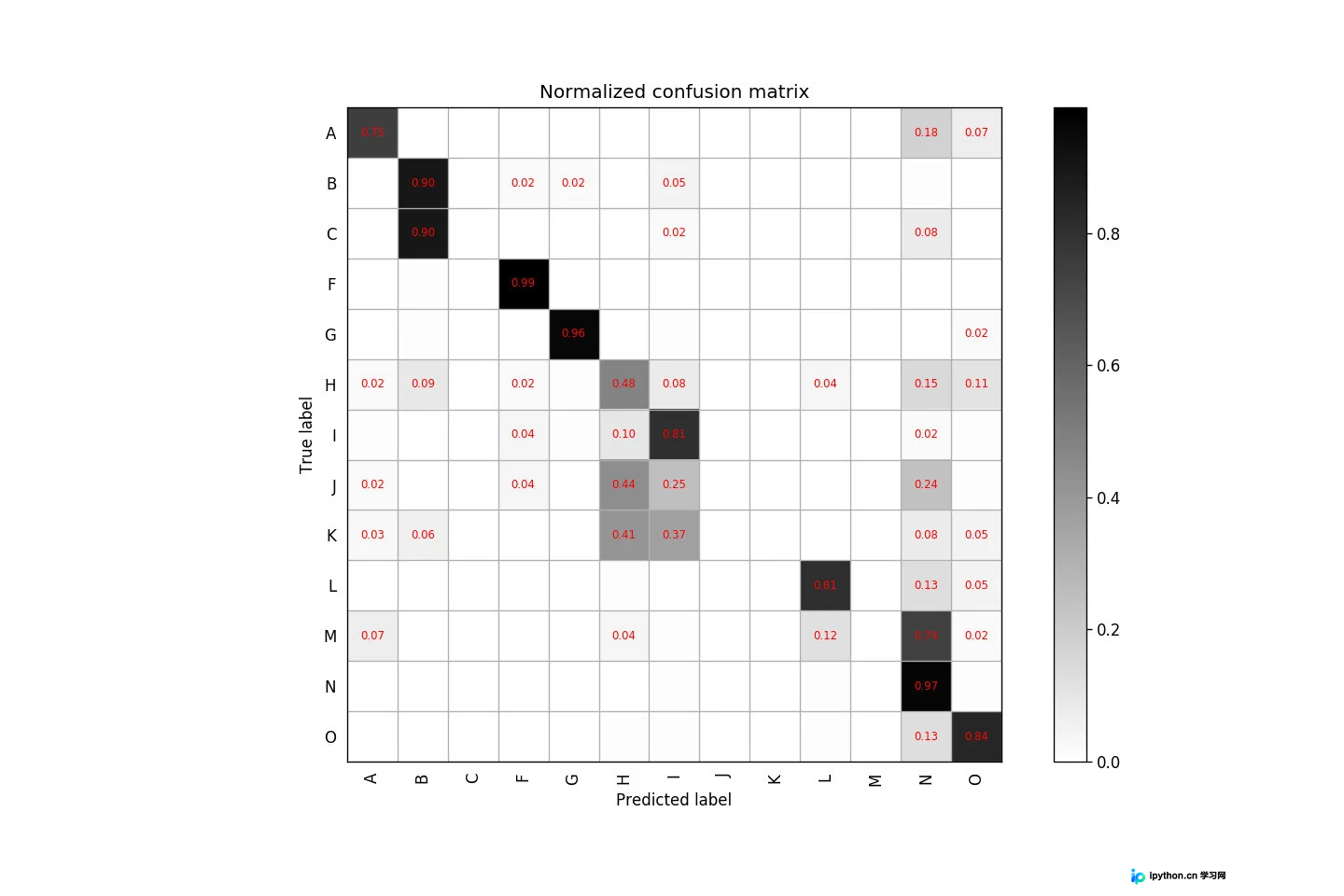
可视化结果展示
Result
以上就是本文的全部内容,希望对大家的学习有所帮助,也希望大家多多支持本站。
本站声明
本文内容仅供参考,不代表本站观点。转载或引用请注明出处。如发现内容问题,请通过联系我们页面反馈。















