


Python数据可视化实战:散点图与折线图绘制详解

发布时间:2026-10-13 |
3人浏览过
本文详细解析Python中使用Matplotlib库绘制散点图和折线图的方法。内容涵盖从TXT、CSV等文件读取数据并处理,到绘制双轴散点图、带数据标签的单条折线图以及多条对比折线图。通过具体代码示例,展示如何配置中文字体、调整图形参数及保存结果,为数据分析可视化提供参考。
Python数据可视化概述
本文深入解析Python中散点图与折线图的绘制流程,通过详细的示例代码展示具体实现步骤,旨在为读者的学习或实际工作提供具有参考价值的技术指南。
在数据分析环节,数据可视化是核心需求之一,其中散点图和折线图是最为常用且基础的两种图表类型。
环境配置与数据预处理
执行绘图操作前,需导入必要的外部依赖包,主要包括用于绘图的Matplotlib模块以及用于处理中文字体显示的FontProperties模块。
import matplotlib.pyplot as plt
from matplotlib.font_manager import FontProperties
在正式绘图前,需先从TXT、XML、CSV或Excel等文本文件中读取所需数据,并将其整理保存至列表(list)中以便后续处理。
def GetFeatureList(full_path_file):
  file_name = full_path_file.split('\\')[-1][0:4]
  # print(file_name)
  # print(full_name)
  K0_list = []
  Area_list = []
  all_lines = []
  f = open(full_path_file,'r')
  all_lines = f.readlines()
  lines_num = len(all_lines)
  # 数据清洗
  if lines_num > 5000:
    for i in range(3,lines_num-1):
      temp_k0 = int(all_lines[i].split('\t')[1])
      if temp_k0 == 0:
        K0_list.append(ComputK0(all_lines[i]))
      else:
        K0_list.append(temp_k0)
      Area_list.append(float(all_lines[i].split('\t')[15]))
    # K0_Scatter(K0_list,Area_list,file_name)
  else:
    print('{} 该样本量少于5000'.format(file_name))
  return K0_list, Area_list,file_name
散点图绘制实现
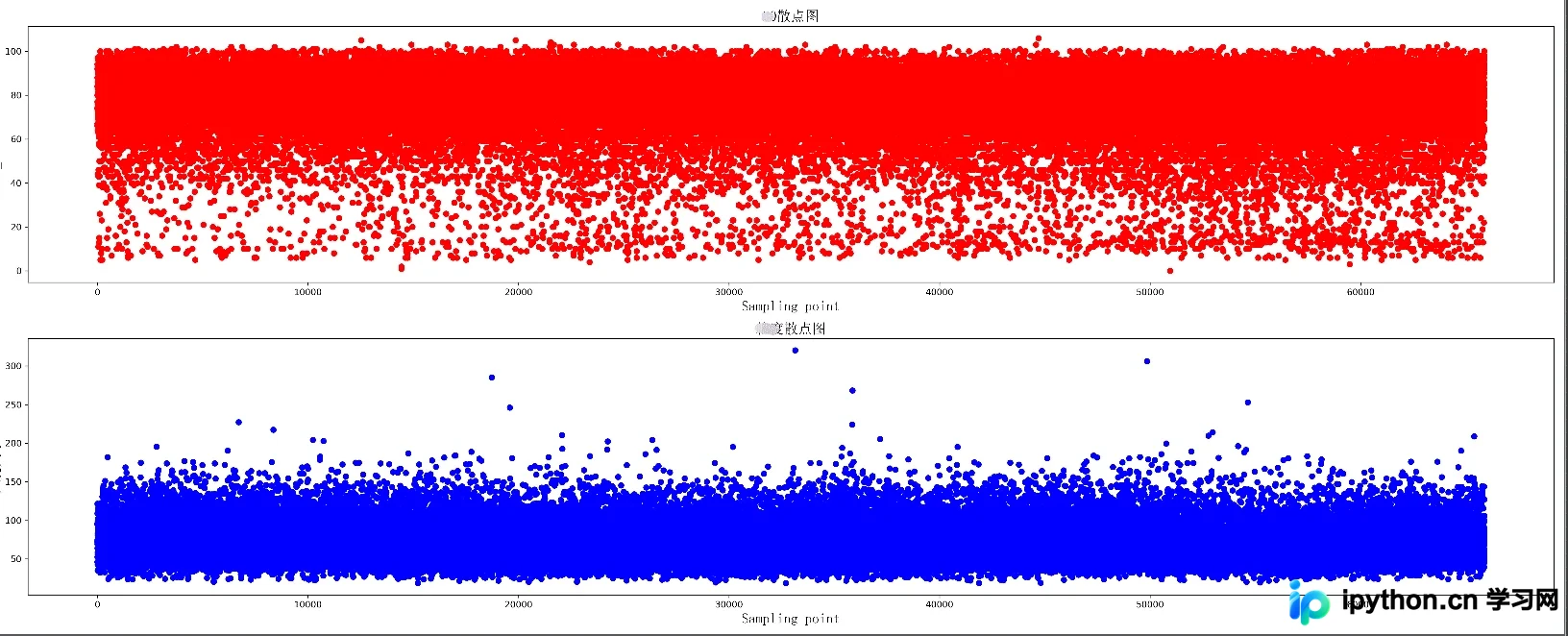
针对两组数据绘制散点图时,可将两个散点图上下排列在同一个图像窗口中,实现对比展示。
def K0_Scatter(K0_list, area_list, pic_name):
  plt.figure(figsize=(25, 10), dpi=300)
  # 导入中文字体,及字体大小
  zhfont = FontProperties(fname='C:/Windows/Fonts/simsun.ttc', size=16)
  ax = plt.subplot(211)
  # print(K0_list)
  ax.scatter(range(len(K0_list)), K0_list, c='r', marker='o')
  plt.title(u'散点图', fontproperties=zhfont)
  plt.xlabel('Sampling point', fontproperties=zhfont)
  plt.ylabel('K0_value', fontproperties=zhfont)
  ax = plt.subplot(212)
  ax.scatter(range(len(area_list)), area_list, c='b', marker='o')
  plt.xlabel('Sampling point', fontproperties=zhfont)
  plt.ylabel(u'大小', fontproperties=zhfont)
  plt.title(u'散点图', fontproperties=zhfont)
  # imgname = 'E:\\' + pic_name + '.png'
  # plt.savefig(imgname, bbox_inches = 'tight')
  plt.show()
通过上述代码逻辑,即可生成对应的散点图视觉效果。
折线图及标签添加
绘制单条折线图时,可以为每个数据点增加具体的数值标签,以增强图表的信息密度和可读性。
def K0_Plot(X_label, Y_label, pic_name):
  plt.figure(figsize=(25, 10), dpi=300)
  # 导入中文字体,及字体大小
  zhfont = FontProperties(fname='C:/Windows/Fonts/simsun.ttc', size=16)
  ax = plt.subplot(111)
  # print(K0_list)
  ax.plot(X_label, Y_label, c='r', marker='o')
  plt.title(pic_name, fontproperties=zhfont)
  plt.xlabel('coal_name', fontproperties=zhfont)
  plt.ylabel(pic_name, fontproperties=zhfont)
  # ax.xaxis.grid(True, which='major')
  ax.yaxis.grid(True, which='major')
  for a, b in zip(X_label, Y_label):
    str_label = a + str(b) + '%'
    plt.text(a, b, str_label, ha='center', va='bottom', fontsize=10)
  imgname = 'E:\\' + pic_name + '.png'
  plt.savefig(imgname, bbox_inches = 'tight')
  # plt.show()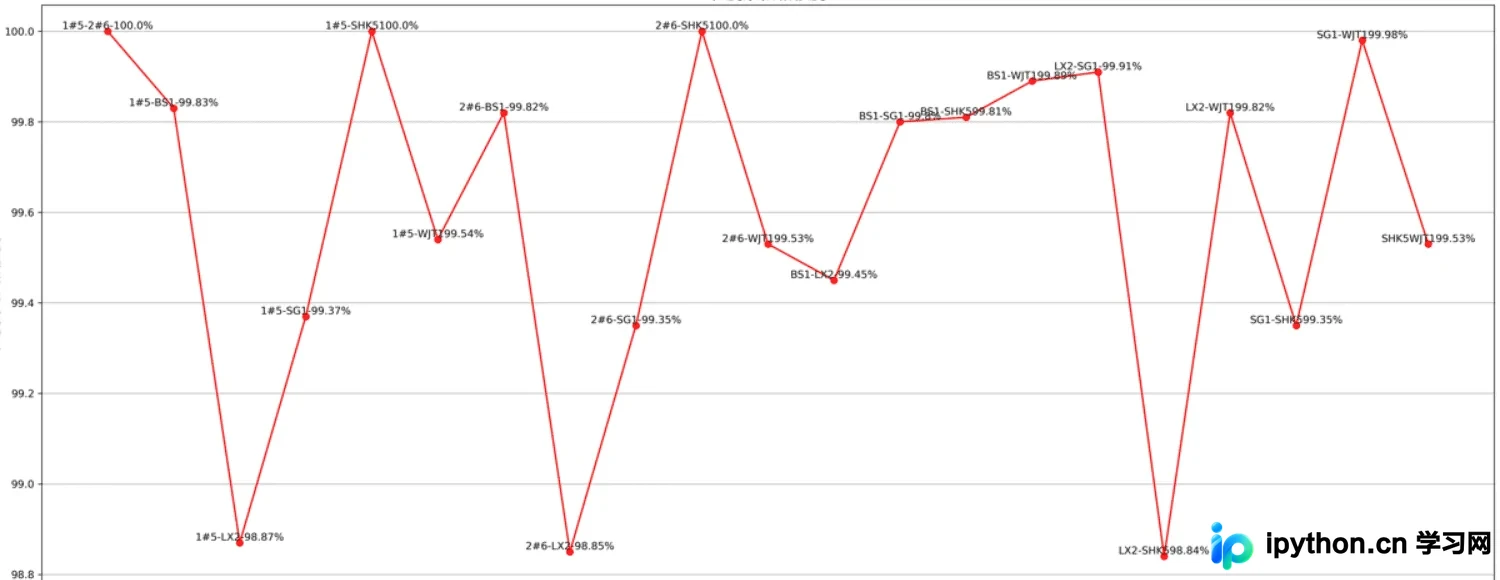
多折线图对比绘制
若需展示多组数据的趋势对比,可绘制多条折线图于同一坐标系中,并区分不同线条的特征。
def K0_MultPlot(dis_name, dis_lsit, pic_name):
  plt.figure(figsize=(80, 10), dpi=300)
  # 导入中文字体,及字体大小
  zhfont = FontProperties(fname='C:/Windows/Fonts/simsun.ttc', size=16)
  ax = plt.subplot(111)
  X_label = range(len(dis_lsit[1]))
  p1 = ax.plot(X_label, dis_lsit[1], c='r', marker='o',label='Euclidean Distance')
  p2 = ax.plot(X_label, dis_lsit[2], c='b', marker='o',label='Manhattan Distance')
  p3 = ax.plot(X_label, dis_lsit[4], c='y', marker='o',label='Chebyshev Distance')
  p4 = ax.plot(X_label, dis_lsit[5], c='g', marker='o',label='weighted Minkowski Distance')
  plt.legend()
  plt.title(pic_name, fontproperties=zhfont)
  plt.xlabel('coal_name', fontproperties=zhfont)
  plt.ylabel(pic_name, fontproperties=zhfont)
  # ax.xaxis.grid(True, which='major')
  ax.yaxis.grid(True, which='major')
  for a, b,c in zip(X_label, dis_lsit[5],dis_name):
    str_label = c + '_'+ str(b)
    plt.text(a, b, str_label, ha='center', va='bottom', fontsize=5)
  imgname = 'E:\\' + pic_name + '.png'
  plt.savefig(imgname,bbox_inches = 'tight')
  # plt.show()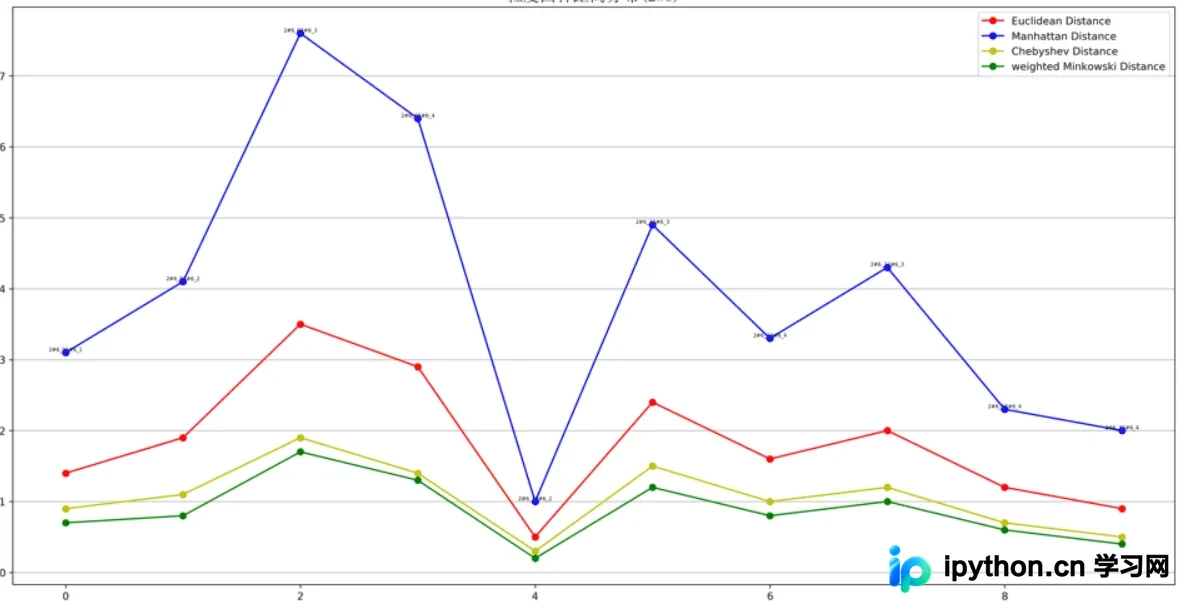
图表优化技巧
图形展示效果可通过多种技巧进一步优化,例如定制坐标轴刻度、添加网格线等,从而提升可视化的专业度和美观性。
以上内容即为本文的全部介绍,希望能为读者的学习带来帮助,同时也欢迎大家对本站给予支持。
本站声明
本文内容仅供参考,不代表本站观点。转载或引用请注明出处。如发现内容问题,请通过联系我们页面反馈。















