


Python实现树莓派网页版小车控制:局域网远程操控方案

发布时间:2026-10-13 |
5人浏览过
本文介绍基于Python实现树莓派四驱小车的网页端控制方案。通过搭建本地HTTP服务器,结合MJPG-Streamer视频流,用户可在同一局域网内通过浏览器实时查看画面并发送前后左右指令。文章详细解析了服务端代码逻辑、前端HTML交互及具体部署步骤,适用于基础机器人远程交互场景。
树莓派网页控制方案概述
此前文章已详细阐述了树莓派四驱小车的运动方向控制及摄像头转向控制方法,感兴趣者可查阅往期内容。本文档在此基础上,进一步探讨如何利用已有的Python控制模块,实现更便捷的网页端交互控制。
本文核心在于展示如何通过网页界面实现对小车的远程控制。目前的实现方案较为简朴,主要适用于控制端(如PC)与树莓派处于同一局域网环境下的场景。若后续有精力,计划对该方案进行优化升级。
基本控制思路
1. 基本思路
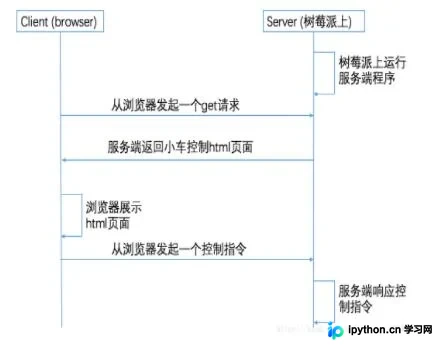
服务端程序实现
2. 服务端控制程序server.py
server.py核心代码解析
# --coding:utf-8--
from http.server import BaseHTTPRequestHandler, HTTPServer
import time
import socket
import urllib
from car_controler import FourWheelDriveCar
from camera_controler import Camera


class CarServer(BaseHTTPRequestHandler):

  carControler = FourWheelDriveCar()
  cameraControler = Camera()

  def get_host_ip(self):
    '''
    This method is used for getting local ip address
    The car server will deploy on this ip
    '''
    try:
      serverSocket = socket.socket(socket.AF_INET, socket.SOCK_DGRAM)
      serverSocket.connect(("8.8.8.8", 80))
      localIP = serverSocket.getsockname()[0]
    finally:
      return localIP

  def do_GET(self):
    '''
    Define the car control GUI for client
    For the first edition, it will only return direction contol GUI
    '''
    localIP = CarServer.get_host_ip(self)

    # When this GET method is called, then should init the car
    self.carControler.reset()

    # Read control page html file from control.html
    controlPageFile = open("control.html")
    controlPageGUI = controlPageFile.read()
    controlPageFile.close()
    controlPageGUI = controlPageGUI.replace(
      "requestAddress", "http://" + localIP + ":9090/")
    controlPageGUI = controlPageGUI.replace(
      "cameraAddress", "http://" + localIP + ":8080/")

    self.send_response(200)
    self.send_header("Content-type", "text/html")
    self.end_headers()
    self.wfile.write(controlPageGUI.encode())

  def do_POST(self):
    length = int(self.headers['Content-Length'])
    qs = self.rfile.read(length)
    direction = qs.decode()
    print(direction)

    cameraDirection = ['HR', 'HL', 'VU', 'VD', 'RESET']
    if direction in cameraDirection:
      # This is used to control the camera
      self.cameraControler.cameraRotate(direction)
    else:
      # This is used to control the car
      self.carControler.carMove(direction)

    self.send_response(200)


if __name__ == "__main__":
  raspCarServer = CarServer
  hostIP = raspCarServer.get_host_ip(raspCarServer)
  hostPort = 9090
  myServer = HTTPServer((hostIP, hostPort), raspCarServer)

  print(time.asctime(), "Server Starts - %s:%s" % (hostIP, hostPort))

  try:
    myServer.serve_forever()
  except KeyboardInterrupt:
    pass
前端控制页面设计
3. 服务端返回的页面control.html
几点说明:
- HTML文件中包含两个地址占位符,这些地址在server.py运行时会进行动态替换。因此,客户端发起请求后,浏览器将获得实际的服务器地址,最终均指向树莓派的IP地址。
- 页面中设有监控视频显示区域,可直接使用提供的示例代码。前提条件是用户同样使用MJPG-Streamer服务来获取摄像头的实时监控画面。
- 小车控制功能目前仅支持前后左右四个方向的运动,未包含后退时的转向控制。如有需要,用户可自行扩展相关功能。
- 关键交互在于点击按钮后向服务端发送请求,具体实现可参考<script>标签内的JavaScript代码逻辑。
control.html交互逻辑
<html>
<script>
  function directionBtnDown(direction) {
    var url = "requestAddress"
    var request = new XMLHttpRequest();
    request.open("POST", url);

    request.send(direction)
  }

  function directionBtnUp() {
    var url = "requestAddress"
    var request = new XMLHttpRequest();
    request.open("POST", url);
    request.send("S")
  }
</script>
<style type="text/css">
  span.car {
    position: absolute;
    margin-top: 30%;
    height: 480px;
  }

  span.camera {
    position: absolute;
    margin-top: 5%;
    margin-left: 290px;
    height: 480px;
    width: 640px;
    background-color: blue
  }

  span.camera_control {
    position: absolute;
    margin-top: 30%;
    margin-left: 950px;
    height: 480px;
    background-color: blue
  }


  button.top {
    position: absolute;
    height: 50px;
    width: 90px;
    margin-left: 90px
  }

  button.left {
    position: absolute;
    height: 50px;
    width: 90px;
    margin-top: 50px;
  }

  button.right {
    position: absolute;
    height: 50px;
    width: 90px;
    margin-top: 50px;
    margin-left: 180px
  }

  button.bottom {
    position: absolute;
    height: 50px;
    width: 90px;
    margin-top: 100px;
    margin-left: 90px
  }
</style>

<head>
  <title>control page</title>
</head>

<body>
  <span id="car_control" class="car">
    <button class="top drectionBtn" id="F" οnmοusedοwn="directionBtnDown('F')" οnmοuseup="directionBtnUp()">F</button>
    <button class="left drectionBtn" id="L" οnmοusedοwn="directionBtnDown('L')" οnmοuseup="directionBtnUp()">L</button>
    <button class="right drectionBtn" id="R" οnmοusedοwn="directionBtnDown('R')" οnmοuseup="directionBtnUp()">R</button>
    <button class="bottom drectionBtn" id="B" οnmοusedοwn="directionBtnDown('B')" οnmοuseup="directionBtnUp()">B</button>
  </span>
  <span id="camera_view" class="camera">
    <img id="view" src="cameraAddress?action=stream" />
  </span>
  <span id="camera_control" class="camera_control">
    <button class="top drectionBtn" id="VU" οnmοusedοwn="directionBtnDown('VU')">Up</button>
    <button class="left drectionBtn" id="HL" οnmοusedοwn="directionBtnDown('HL')">Left</button>
    <button class="right drectionBtn" id="HR" οnmοusedοwn="directionBtnDown('HR')">Right</button>
    <button class="bottom drectionBtn" id="VD" οnmοusedοwn="directionBtnDown('VD')">Down</button>
  </span>

</body>

</html>
部署与使用指南
4. 使用方式简介
- 首先,在树莓派设备上启动MJPG-Streamer服务。
- 其次,在树莓派上运行服务端控制程序server.py。
- 最后,在同一局域网内的PC端打开浏览器,访问服务端地址,例如 http://192.168.1.101:9090。其中,IP地址为树莓派的局域网IP,端口号9090为server.py中预设的端口,用户可根据需要自行修改。
以上即为本文的全部内容,希望对读者的学习有所帮助,也欢迎大家继续支持本站。
本站声明
本文内容仅供参考,不代表本站观点。转载或引用请注明出处。如发现内容问题,请通过联系我们页面反馈。















