


Windows下将JupyterLab配置为后台服务运行指南

本文详细介绍如何在Windows系统中将JupyterLab配置为后台服务,解决命令行窗口依赖问题。通过编写Python服务脚本、安装pywin32库及配置jupyter_notebook_config.py,实现JupyterLab的静默启动与Token认证关闭,支持自定义端口,确保服务稳定运行。
JupyterLab服务化背景与优势
具备数据分析、数据挖掘以及机器学习和深度学习实践经验的读者,通常对Jupyter Notebook这款工具并不陌生。作为其升级版本,JupyterLab提供了更具扩展性和高度可定制化的功能选项,能够更好地满足复杂项目的需求。
JupyterLab的安装与启动流程与Jupyter Notebook保持一致,操作十分简便。
应用安装
pip install jupyterlab应用启动
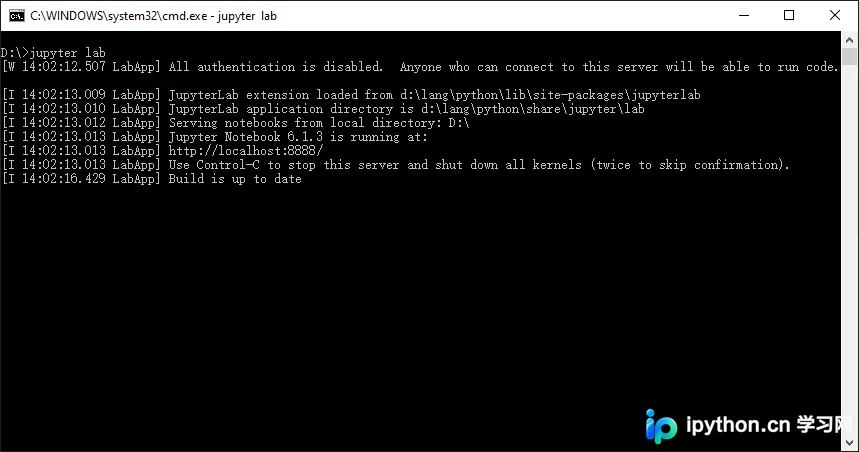
jupyter lab然而,这种常规操作方式存在一个明显的局限性:在通过浏览器打开JupyterLab界面时,必须保持命令行窗口始终处于打开状态。具体表现如下图所示:
Windows Service服务配置步骤
为了解决这一依赖问题,我们需要将JupyterLab配置为以Windows Service(Windows服务)的形式运行。
在Windows系统中,若要通过Python代码创建服务,需要依赖win32serviceutil类库。
类库安装
pip install pywin32服务代码
请将以下代码保存为jupyterlabservice.py文件,并将其放置在配置目录下,例如C:\Users\Ken\.jupyter。
import inspect
import logging
import os
import win32serviceutil
from jupyterlab.labapp import JupyterApp, LabApp

current_file = os.path.abspath(inspect.getfile(inspect.currentframe()))
os.chdir(os.path.dirname(current_file))


class JupyterLabService(win32serviceutil.ServiceFramework):

  _svc_name_ = "JupyterLab"
  _svc_display_name_ = "Jupyter Lab Service"
  _svc_description_ = "Jupyter Lab Service"

  def __init__(self, args):
    super().__init__(args)
    self.app = LabApp()

  def _init_lab(self):
    JupyterApp.initialize(self.app)
    self.app.init_configurables()
    self.app.init_components()
    self.app.init_webapp()
    self.app.init_terminals()
    self.app.init_server_extensions()
    self.app.init_mime_overrides()
    self.app.init_shutdown_no_activity()

  def SvcDoRun(self):
    self.app.config_dir = "."
    self._init_lab()
    self.app.start()

  def SvcStop(self):
    self.app.stop()

  def SvcShutdown(self):
    self.SvcStop()


if __name__ == '__main__':
  win32serviceutil.HandleCommandLine(JupyterLabService)
服务安装
python .\jupyterlabservice.py install服务启动
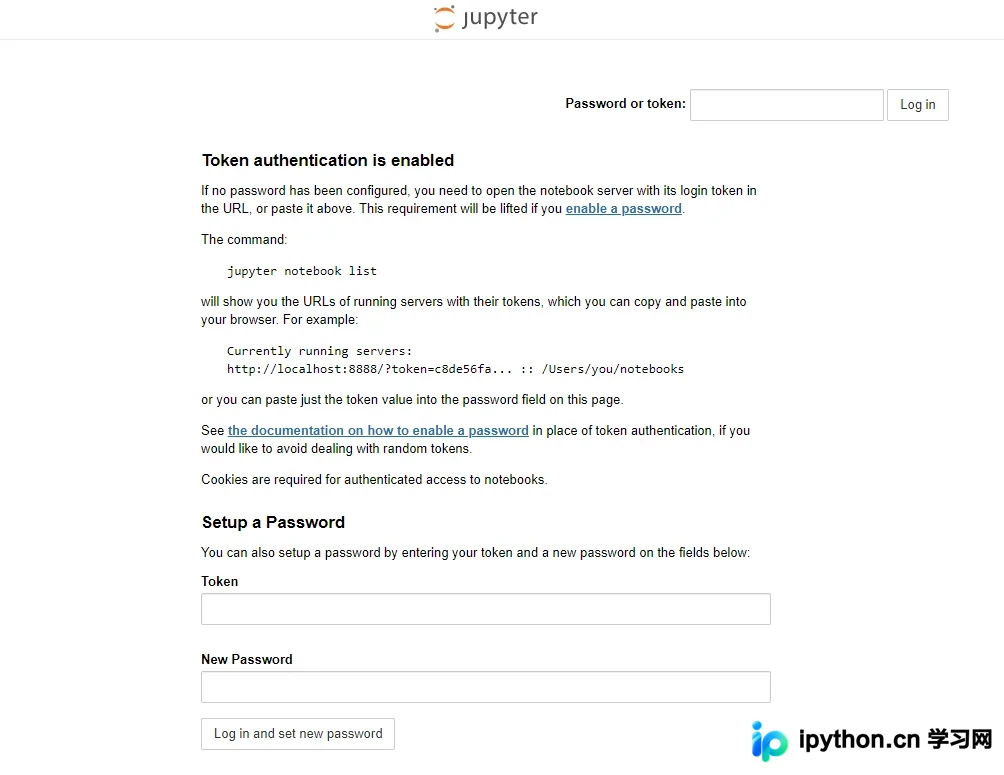
python .\jupyterlabservice.py start访问localhost:8888网址,即可在浏览器中打开JupyterLab应用。但此时系统会提示需要进行Token认证,具体界面如下图所示:
Token认证配置与端口自定义
解决该认证问题的方法在于修改配置文件中的token参数设置。
首先,在配置目录中查找jupyter_notebook_config.py文件;如果该文件不存在,可以通过执行以下命令来生成。
jupyter lab --generate-config
接着,定位到c.NotebookApp.token配置项,并将其值修改为空字符串。
## Token used for authenticating first-time connections to the server. # # The token can be read from the file referenced by JUPYTER_TOKEN_FILE or set # directly with the JUPYTER_TOKEN environment variable. # # When no password is enabled, the default is to generate a new, random token. # # Setting to an empty string disables authentication altogether, which is NOT # RECOMMENDED. c.NotebookApp.token = ''
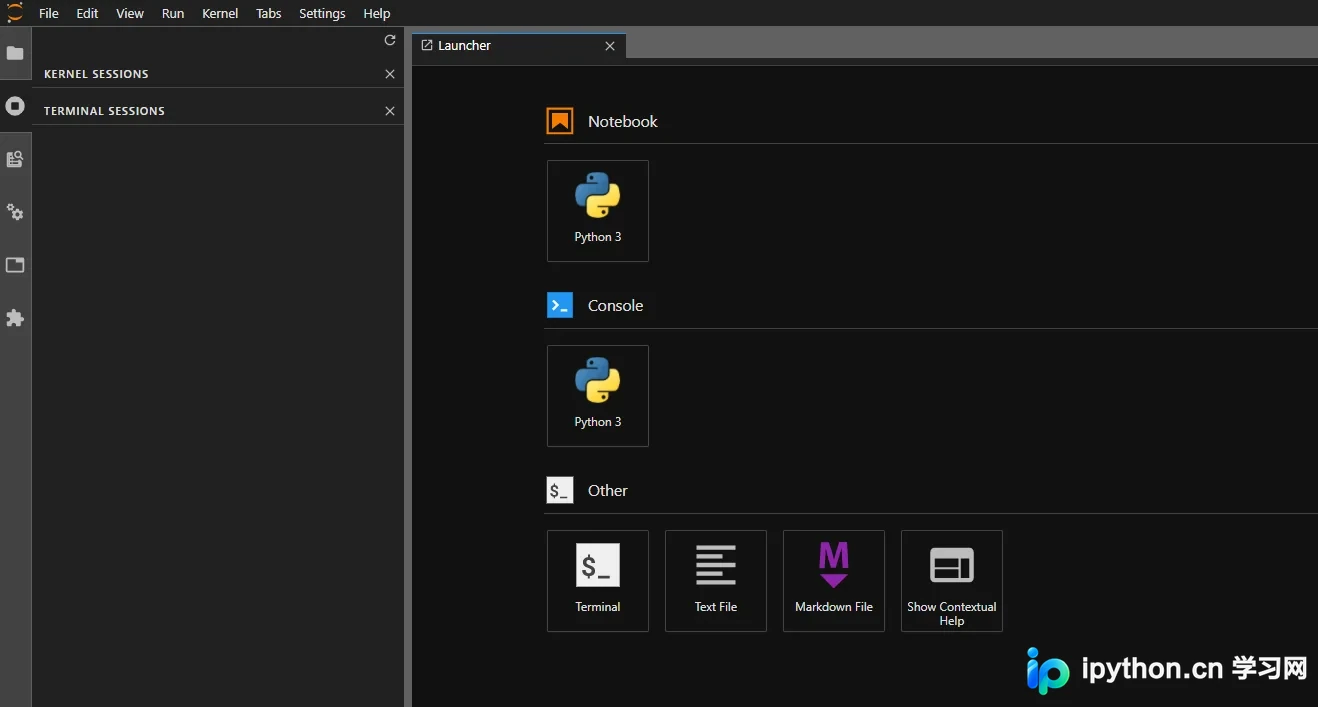
重启相关服务后,再次访问localhost:8888网址,即可正常访问而无需输入Token。
若不希望使用默认的8888端口,还可以通过修改c.NotebookApp.port选项的值,将其更改为指定的端口号。
## The port the notebook server will listen on (env: JUPYTER_PORT). c.NotebookApp.port = 9999
再次重启服务后,现在可以通过访问localhost:9999来使用JupyterLab应用。
作者:Ken.W 出处:http://www.cnblogs.com/kenwoo
以上即为在Windows Service模式下运行JupyterLab的完整步骤,更多关于运行JupyterLab的详细信息,欢迎查阅本站其他相关文章!
本站声明
本文内容仅供参考,不代表本站观点。转载或引用请注明出处。如发现内容问题,请通过联系我们页面反馈。















