


Python 实现基于 Tkinter 的图片裁剪小工具

发布时间:2026-10-14 |
3人浏览过
本文介绍如何使用 Python 的 Tkinter 和 PIL 库开发一个简单的图片裁剪工具。通过监听鼠标左键按下、移动和释放事件,在画布上实时绘制选区矩形,并调用 Image 模块截取指定区域保存为新图片。文章包含完整代码逻辑及运行效果展示,适合初学者学习 GUI 交互与图像处理基础。
项目源码获取与简介
完整项目源码及示例文件可在 GitHub 仓库 rainbow 中下载,具体路径为 rainbows 目录下的裁剪图片文件夹:https://github.com/rainbow-tan/rainbow/tree/master/%E8%A3%81%E5%89%AA%E5%9B%BE%E7%89%87
核心交互逻辑实现
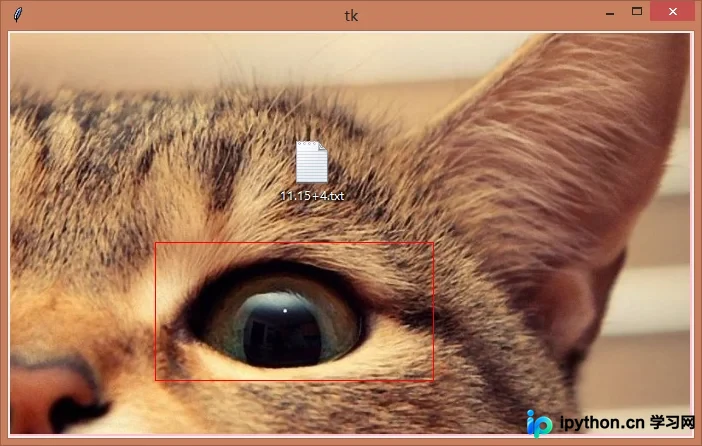
核心功能实现依赖于 Tkinter 库。程序在画布组件中加载并显示原始图片,通过绑定鼠标左键的按下、移动及释放事件,实时响应用户的拖拽操作,从而完成截图区域的选取与裁剪逻辑。
关键代码解析
# -*- encoding=utf-8 -*-
import os
import tkinter as tk

from PIL import Image
from PIL import ImageTk

left_mouse_down_x = 0
left_mouse_down_y = 0
left_mouse_up_x = 0
left_mouse_up_y = 0
sole_rectangle = None


def left_mouse_down(event):
  # print('鼠标左键按下')
  global left_mouse_down_x, left_mouse_down_y
  left_mouse_down_x = event.x
  left_mouse_down_y = event.y


def left_mouse_up(event):
  # print('鼠标左键释放')
  global left_mouse_up_x, left_mouse_up_y
  left_mouse_up_x = event.x
  left_mouse_up_y = event.y
  corp_img(img_path, 'img/one_corp.png', left_mouse_down_x, left_mouse_down_y,
       left_mouse_up_x, left_mouse_up_y)


def moving_mouse(event):
  # print('鼠标左键按下并移动')
  global sole_rectangle
  global left_mouse_down_x, left_mouse_down_y
  moving_mouse_x = event.x
  moving_mouse_y = event.y
  if sole_rectangle is not None:
    canvas.delete(sole_rectangle) # 删除前一个矩形
  sole_rectangle = canvas.create_rectangle(left_mouse_down_x, left_mouse_down_y, moving_mouse_x,
                       moving_mouse_y, outline='red')


def right_mouse_down(event):
  # print('鼠标右键按下')
  pass


def right_mouse_up(event):
  # print('鼠标右键释放')
  pass


def corp_img(source_path, save_path, x_begin, y_begin, x_end, y_end):
  if x_begin < x_end:
    min_x = x_begin
    max_x = x_end
  else:
    min_x = x_end
    max_x = x_begin
  if y_begin < y_end:
    min_y = y_begin
    max_y = y_end
  else:
    min_y = y_end
    max_y = y_begin
  save_path = os.path.abspath(save_path)
  if os.path.isfile(source_path):
    corp_image = Image.open(source_path)
    region = corp_image.crop((min_x, min_y, max_x, max_y))
    region.save(save_path)
    print('裁剪完成,保存于:{}'.format(save_path))
  else:
    print('未找到文件:{}'.format(source_path))


if __name__ == '__main__':
  pass
  win = tk.Tk()
  frame = tk.Frame()
  frame.pack()
  screenwidth = win.winfo_screenwidth()
  screenheight = win.winfo_screenheight()
  img_path = 'img/one.png'
  # img_path = 'img/bg.jpg'
  # img_path = 'img/test.jpg'
  # img_path = 'img/pic.gif'
  image = Image.open(img_path)
  image_x, image_y = image.size
  if image_x > screenwidth or image_y > screenheight:
    print('The picture size is too big,max should in:{}x{}, your:{}x{}'.format(screenwidth,
                                          screenheight,
                                          image_x,
                                          image_y))
  img = ImageTk.PhotoImage(image)
  canvas = tk.Canvas(frame, width=image_x, height=image_y, bg='pink')
  i = canvas.create_image(0, 0, anchor='nw', image=img)
  canvas.pack()
  canvas.bind('<Button-1>', left_mouse_down) # 鼠标左键按下
  canvas.bind('<ButtonRelease-1>', left_mouse_up) # 鼠标左键释放
  canvas.bind('<Button-3>', right_mouse_down) # 鼠标右键按下
  canvas.bind('<ButtonRelease-3>', right_mouse_up) # 鼠标右键释放
  canvas.bind('<B1-Motion>', moving_mouse) # 鼠标左键按下并移动
  win.mainloop()
运行步骤与结果展示
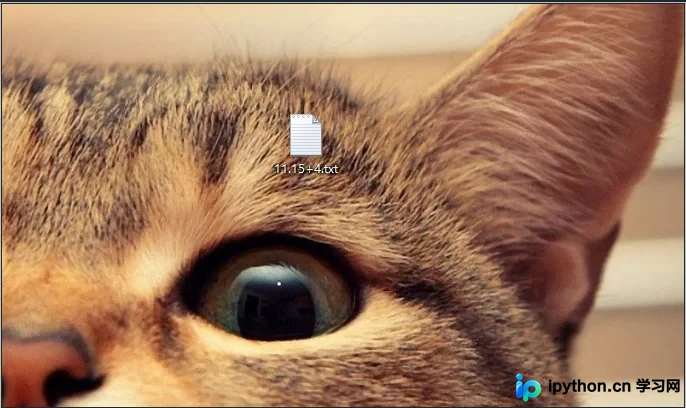
待处理的原始图像文件名为 one.png。
编译并运行上述 Python 脚本,启动图形界面窗口。

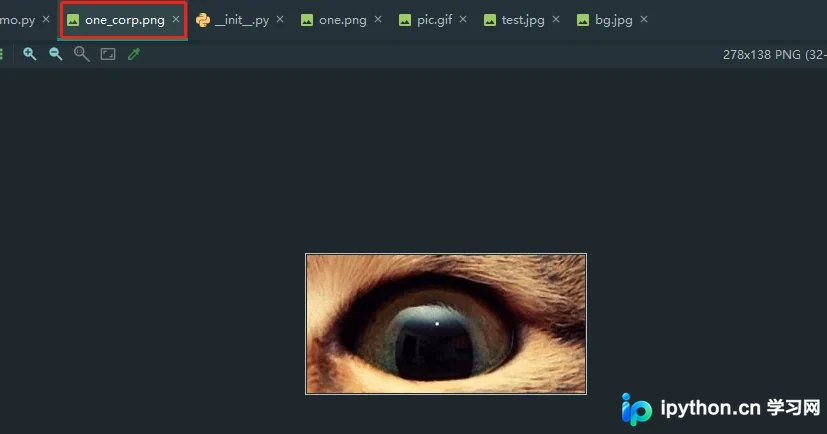
裁剪操作完成后,生成的目标图像文件保存为 one_corp.png。
以上即为利用 Python 实现图片裁剪小工具的完整流程与细节说明。如需获取更多关于 Python 图片处理的相关资源,建议关注本站发布的其他技术文章。
本站声明
本文内容仅供参考,不代表本站观点。转载或引用请注明出处。如发现内容问题,请通过联系我们页面反馈。















