


Python OpenCV鼠标交互画点:cv2.drawMarker()函数详解与实现
本文详解OpenCV中cv2.drawMarker()函数的用法,涵盖必选参数img、position、color及可选参数markerType、markerSize等。通过两个完整示例演示如何利用鼠标回调函数在图像上交互式添加标记点,并解决图像被修改后无法恢复的问题,实现点的增删功能。
前言
本文所指的“画点”,并非绘制实心小圆点,而是在指定像素位置绘制特定的标记符号。实现这一功能的核心函数为cv2.drawMarker(img, position, color, ...)。
关于鼠标回调函数的具体使用机制,可参考OpenCV-Python的鼠标交互操作相关文档。
cv2.drawMarker()函数说明
参数说明
导入cv2模块后,调用help(cv2.drawMarker)即可查看该函数的帮助文档,内容如下:
drawMarker(...)
    drawMarker(img, position, color[, markerType[, markerSize[, thickness[, line_type]]]]) -> img
    .   @brief Draws a marker on a predefined position in an image.
    .
    .   The function cv::drawMarker draws a marker on a given position in the image. For the moment several
    .   marker types are supported, see #MarkerTypes for more information.
    .
    .   @param img Image.
    .   @param position The point where the crosshair is positioned.
    .   @param color Line color.
    .   @param markerType The specific type of marker you want to use, see #MarkerTypes
    .   @param thickness Line thickness.
    .   @param line_type Type of the line, See #LineTypes
    .   @param markerSize The length of the marker axis [default = 20 pixels]
该函数包含三个必选参数:img、position和color,其余参数均为可选。以下是对这三个必选参数的具体说明:
- img:表示底层图像,类型需为uint8的ndarray。
- position:表示坐标位置,必须是一个包含两个数值的tuple,分别代表(x, y)。
- color:表示颜色,可以是包含三个数值的tuple或list,分别对应(b, g, r)通道值。
其他可选参数的说明如下:
- markerType:指定点的标记类型。取值范围为0-6,每个值对应特定的宏定义,具体对应关系可参考下方的表格。
- markerSize:指定点的大小。必须为大于0的整数。若输入值小于等于0,程序内部会进行判断处理,等效于值为1。默认值为20。
- thickness:指定点的线条宽度。必须为大于0的整数,不能小于0,默认值为1。
- line_type:指定线条的类型。可选值包括cv2.LINE_4、cv2.LINE_8和cv2.LINE_AA。其中cv2.LINE_AA表示抗锯齿,能使线条显示更加平滑。
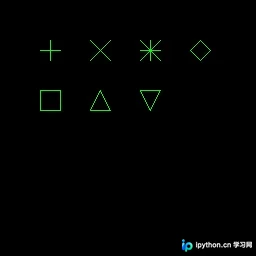
markerType取值说明
| 数值 | 宏定义 | 说明 |
|---|---|---|
| 0 | cv2.MARKER_CROSS | 十字线(横竖两根线) |
| 1 | cv2.MARKER_TILTED_CROSS | 交叉线(斜着两根线) |
| 2 | cv2.MARKER_STAR | 米字线(横竖加斜着共四根线) |
| 3 | cv2.MARKER_DIAMOND | 旋转45度的正方形 |
| 4 | cv2.MARKER_SQUARE | 正方形 |
| 5 | cv2.MARKER_TRIANGLE_UP | 尖角向上的三角形 |
| 6 | cv2.MARKER_TRIANGLE_DOWN | 尖角向下的三角形 |
markerType示例
下面展示一个基础的画点程序示例。
# -*- coding: utf-8 -*-

import cv2
import numpy as np

if __name__ == '__main__':
    image = np.zeros((256, 256, 3), np.uint8)
    color = (0, 255, 0)
    cv2.drawMarker(image, (50, 50), color, markerType=0)
    cv2.drawMarker(image, (100, 50), color, markerType=1)
    cv2.drawMarker(image, (150, 50), color, markerType=2)
    cv2.drawMarker(image, (200, 50), color, markerType=3)
    cv2.drawMarker(image, (50, 100), color, markerType=4)
    cv2.drawMarker(image, (100, 100), color, markerType=5)
    cv2.drawMarker(image, (150, 100), color, markerType=6)
    cv2.namedWindow('marker_type', 1)
    cv2.imshow('marker_type', image)
    cv2.waitKey(0)
    cv2.destroyAllWindows()
需要特别注意,OpenCV在调用此类绘图函数后,原始image对象的内容会被直接修改。这意味着函数执行后,原始图像数据将丢失,除非在调用前额外保存一份原始图像的副本。在编写交互式绘图功能时,务必注意这一特性。
上述程序的执行结果如下。
利用鼠标回调函数交互式画点
例1,简单的例子
该示例与前述基础示例逻辑相同。
# -*- coding: utf-8 -*-

import cv2
import numpy as np

WIN_NAME = 'pick_points'


def onmouse_pick_points(event, x, y, flags, param):
    if event == cv2.EVENT_LBUTTONDOWN:
        print('x = %d, y = %d' % (x, y))
        cv2.drawMarker(param, (x, y), (0, 255, 0))


if __name__ == '__main__':
    image = np.zeros((256, 256, 3), np.uint8)
    cv2.namedWindow(WIN_NAME, 0)
    cv2.setMouseCallback(WIN_NAME, onmouse_pick_points, image)
    while True:
        cv2.imshow(WIN_NAME, image)
        key = cv2.waitKey(30)
        if key == 27:  # ESC
            break
    cv2.destroyAllWindows()
上述程序中有几个关键点需要注意:
- 在setMouseCallback()中,我们将image作为param参数传递。这意味着在鼠标回调函数onmouse_pick_points()中,param参数即指向image对象。由于Python中可变对象(如ndarray)的传递特性,在回调函数中对param进行的画点操作会直接反映在图像上,其效果类似于C++中的引用传递或C语言中的指针传递,确保回调函数内的修改能保留到函数外部。
- 程序需要一个无限循环来持续刷新图像显示。
- 无限循环的退出条件通过键盘输入控制。使用cv2.waitKey()获取按键信息,当检测到ESC键按下时,程序即可退出循环。
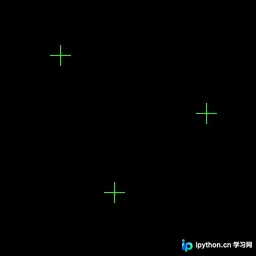
在此示例中,点击三次左键后,终端输出以下内容:
x = 60, y = 55
x = 206, y = 113
x = 114, y = 192
同时得到如下图像显示:
例2,删除功能
如果需要实现删除已绘制点的功能,逻辑将变得略微复杂。
如前所述,OpenCV在绘制点后,图像像素已被实际修改。仅依靠当前图像无法直接恢复原状。因此,为了实现删除功能,我们需要维护三部分内容:一张原始图像的备份、一张用于对外显示的图像,以及一个存储所有点坐标的列表。
每次执行删除操作后,我们使用原始图像重置对外显示的图像,然后将列表中剩余的所有点重新绘制到显示图像上,从而实现删除点的视觉效果。如果是增加点的操作,则无需重置图像,直接绘制即可。
实现代码如下:
上述代码中,左键点击实现增加点的操作,右键点击则依次删除后绘制的点。
# -*- coding: utf-8 -*-

import cv2
import numpy as np

WIN_NAME = 'pick_points'


class DrawPoints(object):
    def __init__(self, image, color,
                 marker_type=cv2.MARKER_CROSS,
                 marker_size=20,
                 thickness=1):
        """
        Initialization of class DrawPoints

        Parameters
        ----------
        image: ndarray
            source image. shape is [height, width, channels]
        color: tuple
            a tuple containing uint8 integers, designating B, G, R values,
            separately
        marker_type: int
            marker type, between [0, 6]
        marker_size: int
            marker size, >=1
        thickness: int
            line thickness, >=1
        """
        self.original_image = image
        self.image_for_show = image.copy()
        self.color = color
        self.marker_type = marker_type
        self.marker_size = marker_size
        self.thickness = thickness
        self.pts = []

    def append(self, x, y):
        """
        add a point to points list

        Parameters
        ----------
        x, y: int, int
            coordinate of a point
        """
        self.pts.append((x, y))

    def pop(self):
        """
        pop a point from points list
        """
        pt = ()
        if self.pts:
            pt = self.pts.pop()
        return pt

    def reset_image(self):
        """
        reset image_for_show using original image
        """
        self.image_for_show = self.original_image.copy()

    def draw(self):
        """
        draw points on image_for_show
        """
        for pt in self.pts:
            cv2.drawMarker(self.image_for_show, pt, color=self.color,
                           markerType=self.marker_type,
                           markerSize=self.marker_size,
                           thickness=self.thickness)


def onmouse_pick_points(event, x, y, flags, draw_pts):
    if event == cv2.EVENT_LBUTTONDOWN:
        print('add: x = %d, y = %d' % (x, y))
        draw_pts.append(x, y)
        draw_pts.draw()
    elif event == cv2.EVENT_RBUTTONDOWN:
        pt = draw_pts.pop()
        if pt:
            print('delete: x = %d, y = %d' % (pt[0], pt[1]))
            draw_pts.reset_image()
            draw_pts.draw()


if __name__ == '__main__':
    image = np.zeros((256, 256, 3), np.uint8)
    draw_pts = DrawPoints(image, (0, 255, 0))
    cv2.namedWindow(WIN_NAME, 0)
    cv2.setMouseCallback(WIN_NAME, onmouse_pick_points, draw_pts)
    while True:
        cv2.imshow(WIN_NAME, draw_pts.image_for_show)
        key = cv2.waitKey(30)
        if key == 27:  # ESC
            break
    cv2.destroyAllWindows()
终端输出如下:
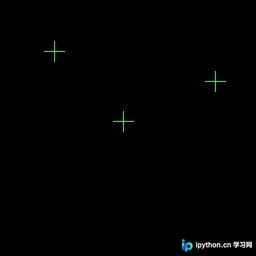
add: x = 54, y = 51 add: x = 215, y = 81 add: x = 123, y = 121 add: x = 57, y = 197 add: x = 168, y = 210 delete: x = 168, y = 210 delete: x = 57, y = 197
最终得到的结果如下:
总结
至此,关于Python OpenCV鼠标画点及cv2.drawMarker()函数的介绍已完成。更多相关OpenCV鼠标画点及cv2.drawMarker()内容,请搜索本站历史文章或继续浏览后续相关文章。希望大家今后多多支持本站!
本站声明
本文内容仅供参考,不代表本站观点。转载或引用请注明出处。如发现内容问题,请通过联系我们页面反馈。















