


Pygame实现监听鼠标示例详解

发布时间:2026-10-15 |
4人浏览过
本文详解如何使用Pygame监听鼠标活动,涵盖鼠标移动位置与偏移量获取、点击事件(按下与松开)的处理,以及通过pygame.mouse.get_pressed()实时获取三个按键状态。提供完整代码示例,帮助开发者实现鼠标交互功能。
Pygame如何捕捉鼠标的活动
初始化参数
import pygame, sys
from pygame.locals import *


def print_text(font, x, y, text, color=(0, 0, 0)):
    """打印字体函数"""
    img_text = font.render(text, True, color)
    screen.blit(img_text, (x, y))


pygame.init()
screen = pygame.display.set_mode((400, 400))
pygame.display.set_caption("监听鼠标活动")


while True:
    for event in pygame.event.get():
        if event.type == QUIT:
            pygame.quit()
            sys.exit()

    screen.fill((255, 255, 255))

    pygame.display.update()
鼠标移动
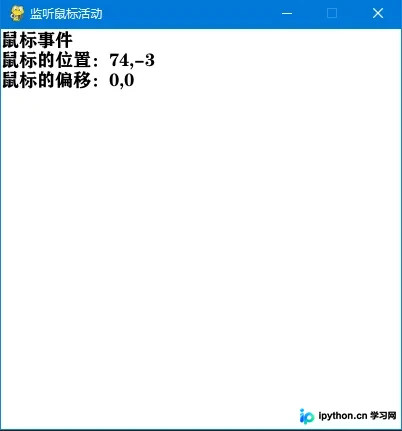
当event.type事件为MOUSEMOTION时,表示鼠标正在移动。此时可以通过event.pos获取当前鼠标的坐标位置,通过event.rel获取鼠标相对于上一帧的偏移量。
        	event.type == MOUSEMOTION:
            event.pos
            event.rel
我们将位置信息输出显示,并定义变量来存储鼠标的位置坐标以及鼠标的偏移量数据。
mouse_x = mouse_y = 0
move_x = move_y = 0
	print_text(font1, 0, 0, "鼠标事件")
    print_text(font1, 0, 20, "鼠标的位置:" + str(mouse_x) + "," + str(mouse_y))
    print_text(font1, 0, 40, "鼠标的偏移:" + str(move_x) + "," + str(move_y))
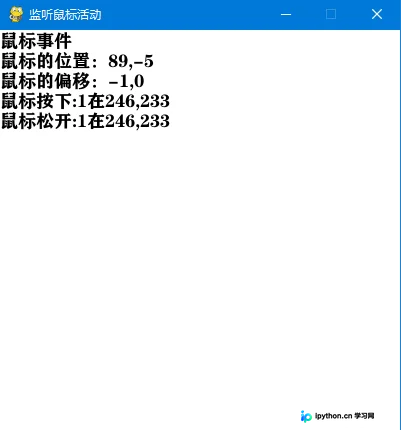
鼠标点击位置
MOUSEBUTTONDOWN和MOUSEBUTTONUP事件分别用于记录鼠标的按下和放开动作。
mouse_down = mouse_up = 0
mouse_down_x = mouse_down_y = 0
mouse_up_x = mouse_up_y = 0
输出鼠标位置及其对应的按钮状态。
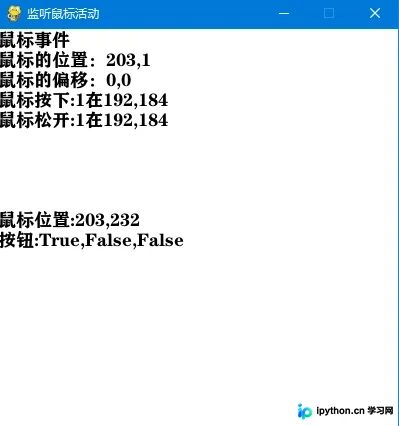
调用pygame.mouse.get_pressed()函数可以实时监听鼠标的左、中、右三个按键的状态。
    x, y = pygame.mouse.get_pos()
    print_text(font1, 0, 180, "鼠标位置:" + str(x) + "," + str(y))

    b1, b2, b3 = pygame.mouse.get_pressed()
    print_text(font1, 0, 200, "按钮:" + str(b1) + "," + str(b2) + "," + str(b3))
完整代码
import pygame, sys
from pygame.locals import *


def print_text(font, x, y, text, color=(0, 0, 0)):
    """打印字体函数"""
    img_text = font.render(text, True, color)
    screen.blit(img_text, (x, y))


pygame.init()
# 字体
font1 = pygame.font.SysFont("方正粗黑宋简体", 18)
# 鼠标的移动位置
mouse_x = mouse_y = 0
move_x = move_y = 0
mouse_down = mouse_up = 0
mouse_down_x = mouse_down_y = 0
mouse_up_x = mouse_up_y = 0
screen = pygame.display.set_mode((400, 400))
pygame.display.set_caption("监听鼠标活动")


while True:
    for event in pygame.event.get():
        if event.type == QUIT:
            pygame.quit()
            sys.exit()
        elif event.type == MOUSEMOTION:
            mouse_x, mouse_y = event.pos
            move_x, mouse_y = event.rel
        elif event.type == MOUSEBUTTONDOWN:
            mouse_down = event.button
            mouse_down_x, mouse_down_y = event.pos
        elif event.type == MOUSEBUTTONUP:
            mouse_up = event.button
            mouse_up_x, mouse_up_y = event.pos

    screen.fill((255, 255, 255))
    print_text(font1, 0, 0, "鼠标事件")
    print_text(font1, 0, 20, "鼠标的位置:" + str(mouse_x) + "," + str(mouse_y))
    print_text(font1, 0, 40, "鼠标的偏移:" + str(move_x) + "," + str(move_y))
    print_text(font1, 0, 60, "鼠标按下:" + str(mouse_down)
               + "在" + str(mouse_down_x) + "," + str(mouse_down_y))
    print_text(font1, 0, 80, "鼠标松开:" + str(mouse_up)
               + "在" + str(mouse_up_x) + "," + str(mouse_up_y))
    x, y = pygame.mouse.get_pos()
    print_text(font1, 0, 180, "鼠标位置:" + str(x) + "," + str(y))

    b1, b2, b3 = pygame.mouse.get_pressed()
    print_text(font1, 0, 200, "按钮:" + str(b1) + "," + str(b2) + "," + str(b3))
    pygame.display.update()
以上就是Pygame实现监听鼠标示例详解的详细内容,更多关于Pygame监听鼠标的资料请关注本站其它相关文章!
本站声明
本文内容仅供参考,不代表本站观点。转载或引用请注明出处。如发现内容问题,请通过联系我们页面反馈。















