


Python 制作子弹图

本文详细介绍如何使用 Python 的 Matplotlib 和 Seaborn 库绘制子弹图(Bullet Graph)。通过堆叠条形图表示性能范围,结合具体数值条与目标线,清晰展示实际表现与目标的对比。文章包含从基础构建到封装通用函数的完整代码示例,适用于绩效评估、预算分析等场景。
1、什么是子弹图
子弹图是一种约定俗成的数据可视化图表类型。
它利用长度或高度、位置以及颜色来编码数据,旨在将实际观测值与预设目标及性能区间进行对比展示。
首先,让我们直观地了解一下子弹图的大致形态。
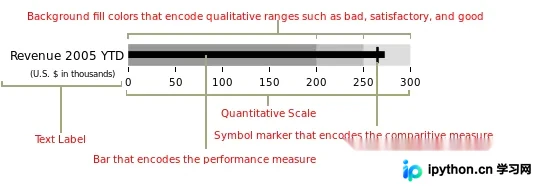
子弹图的核心特征在于包含一个主要度量值(例如年初至今的收入),并通过将其与一个或多个其他度量(如目标值)进行比较来丰富其含义。此外,它还在背景中展示了性能的定性范围,例如“差”、“满意”和“好”。这些定性范围以单一色调的不同强度显示,既方便色盲用户辨别,又能最大限度地限制仪表板上的颜色使用数量。
至此,我们已经了解了子弹图的应用场景及其绘制标准,接下来开始动手制作。
2、构建图表
基本思路是:使用堆叠条形图来表示各个性能范围,利用另一个较短的条形图表示具体数值,最后通过一条垂直线标记目标值。
由于需要组合多个组件图层,使用 Matplotlib 来实现这一过程会相对便捷。
import matplotlib.pyplot as plt
import seaborn as sns
from matplotlib.ticker import FuncFormatter

%matplotlib inline
在此过程中,我们还导入了 Seaborn,因为 Seaborn 提供了管理调色板的实用工具。利用这些功能比尝试手动复制颜色方案要容易得多。
生成调色板的主要原因在于,我们通常需要为不同的定性范围创建视觉上吸引人的配色方案,直接使用 Seaborn 来完成这一任务会方便很多。
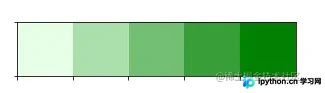
在下面的示例中,我们可以使用 palplot 便利函数来展示包含 5 种绿色色调的调色板。
sns.palplot(sns.light_palette("green", 5))
sns.palplot(sns.light_palette("purple",8, reverse=True))
接下来,以相反的顺序生成 8 种不同深浅的紫色。

现在我们已经掌握了设置调色板的方法,接下来让我们使用 Matplotlib,根据上述原则创建一个简单的子弹图。
首先,定义我们需要绘制的数值。
limits = [80, 100, 150]
data_to_plot = ("Example 1", 105, 120)
这一步将创建 3 个范围:0-80、81-100、101-150,并设置一个值为 105 的“示例”条以及一条目标线为 120。接下来,构建一个蓝色调色板:
palette = sns.color_palette("Blues_r", len(limits))
随后,构建表示范围的堆叠条形图:
fig, ax = plt.subplots()
ax.set_aspect('equal')
ax.set_yticks([1])
ax.set_yticklabels([data_to_plot[0]])

prev_limit = 0
for idx, lim in enumerate(limits):
    ax.barh([1], lim-prev_limit, left=prev_limit, height=15, color=palette[idx])
    prev_limit = lim

然后,我们可以添加一个较小的条形图来表示 105 的具体数值:
ax.barh([1], data_to_plot[1], color='black', height=5)

此时,图表已初见雏形。
最后一步是使用 axvline 添加目标标记线:
ax.axvline(data_to_plot[2], color="gray", ymin=0.10, ymax=0.9)

上面完成了子弹图的简单制作,但所有测试数值均为硬编码。下面我们将编写一段可以接受任意数值的通用代码。
3、最终代码
def bulletgraph(data=None, limits=None, labels=None, axis_label=None, title=None,
                size=(5, 3), palette=None, formatter=None, target_color="gray",
                bar_color="black", label_color="gray"):
    # Determine the max value for adjusting the bar height
    # Dividing by 10 seems to work pretty well
    h = limits[-1] / 10

    # Use the green palette as a sensible default
    if palette is None:
        palette = sns.light_palette("green", len(limits), reverse=False)

    # Must be able to handle one or many data sets via multiple subplots
    if len(data) == 1:
        fig, ax = plt.subplots(figsize=size, sharex=True)
    else:
        fig, axarr = plt.subplots(len(data), figsize=size, sharex=True)

    # Add each bullet graph bar to a subplot
    for idx, item in enumerate(data):

        # Get the axis from the array of axes returned when the plot is created
        if len(data) > 1:
            ax = axarr[idx]

        # Formatting to get rid of extra marking clutter
        ax.set_aspect('equal')
        ax.set_yticklabels([item[0]])
        ax.set_yticks([1])
        ax.spines['bottom'].set_visible(False)
        ax.spines['top'].set_visible(False)
        ax.spines['right'].set_visible(False)
        ax.spines['left'].set_visible(False)

        prev_limit = 0
        for idx2, lim in enumerate(limits):
            # Draw the bar
            ax.barh([1], lim - prev_limit, left=prev_limit, height=h,
                    color=palette[idx2])
            prev_limit = lim
        rects = ax.patches
        # The last item in the list is the value we're measuring
        # Draw the value we're measuring
        ax.barh([1], item[1], height=(h / 3), color=bar_color)

        # Need the ymin and max in order to make sure the target marker
        # fits
        ymin, ymax = ax.get_ylim()
        ax.vlines(
            item[2], ymin * .9, ymax * .9, linewidth=1.5, color=target_color)

    # Now make some labels
    if labels is not None:
        for rect, label in zip(rects, labels):
            height = rect.get_height()
            ax.text(
                rect.get_x() + rect.get_width() / 2,
                -height * .4,
                label,
                ha='center',
                va='bottom',
                color=label_color)
    if formatter:
        ax.xaxis.set_major_formatter(formatter)
    if axis_label:
        ax.set_xlabel(axis_label)
    if title:
        fig.suptitle(title, fontsize=14)
    fig.subplots_adjust(hspace=0)
虽然代码看起来较长,但实际上只是上述步骤的叠加,逻辑相对简单,此处不再重复说明。
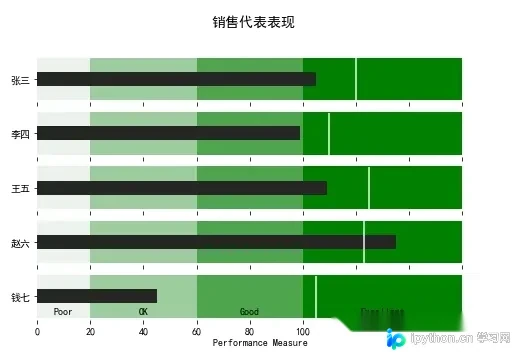
我们直接调用该函数查看效果:
data_to_plot2 = [("张三", 105, 120),
                 ("李四", 99, 110),
                 ("王五", 109, 125),
                 ("赵六", 135, 123),
                 ("钱七", 45, 105)]

bulletgraph(data_to_plot2, limits=[20, 60, 100, 160],
            labels=["Poor", "OK", "Good", "Excellent"], size=(8,5),
            axis_label="Performance Measure", label_color="black",
            bar_color="#252525", target_color='#f7f7f7',
            title="销售代表表现")
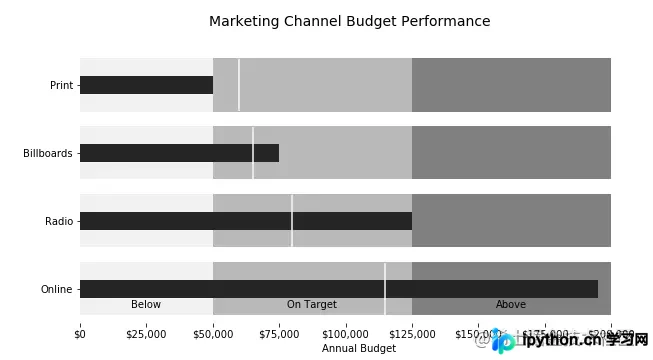
我们还可以进行一些优化,例如格式化 x 轴以更一致地显示信息。
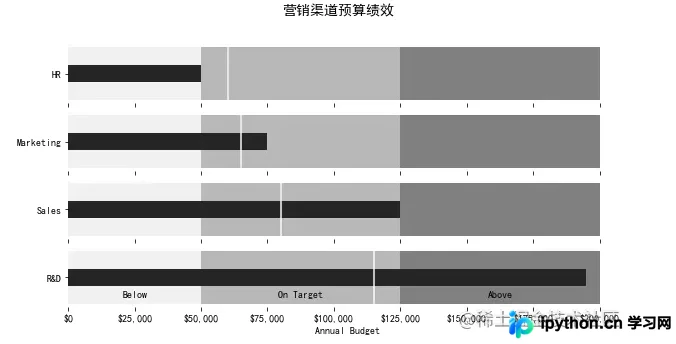
在下面的示例中,我们可以衡量一家假设公司的营销预算绩效。
def money(x, pos):
    'The two args are the value and tick position'
    return "${:,.0f}".format(x)

money_fmt = FuncFormatter(money)
data_to_plot3 = [("HR", 50000, 60000),
                 ("Marketing", 75000, 65000),
                 ("Sales", 125000, 80000),
                 ("R&D", 195000, 115000)]
palette = sns.light_palette("grey", 3, reverse=False)
bulletgraph(data_to_plot3, limits=[50000, 125000, 200000],
            labels=["Below", "On Target", "Above"], size=(10,5),
            axis_label="Annual Budget", label_color="black",
            bar_color="#252525", target_color='#f7f7f7', palette=palette,
            title="营销渠道预算绩效",
            formatter=money_fmt)
到此这篇关于 Python 制作子弹图的文章就介绍到这了,更多相关 Python 制作子弹图内容请搜索本站以前的文章或继续浏览下面的相关文章,希望大家以后多多支持本站!
本站声明
本文内容仅供参考,不代表本站观点。转载或引用请注明出处。如发现内容问题,请通过联系我们页面反馈。















