


Python数据可视化:matplotlib绘图库与常用图表详解

发布时间:2026-10-15 |
7人浏览过
本文详细介绍Python中matplotlib库的核心功能与常用图表绘制方法。涵盖条形图、直方图、折线图、散点图、饼图及箱线图的代码实现,解析plot函数参数与图像标注技巧,帮助开发者掌握数据可视化基础。
访问matplotlib官方文档获取最新资源:https://matplotlib.org/stable/users/index.html
matplotlib是Python中广泛使用的绘图库,支持生成多种统计图表,包括条形图、箱型图、折线图、散点图、饼图和直方图等。
一、条形图bar()
import matplotlib.pyplot as plt
from matplotlib.font_manager import FontProperties
font = FontProperties(fname=r'c:\windows\fonts\simsun.ttc')


# 修改背景为条纹
plt.style.use('ggplot')

classes = ['3班', '4班', '5班', '6班']

classes_index = range(len(classes))
print(list(classes_index))
# [0, 1, 2, 3]

student_amounts = [66, 55, 45, 70]

# 画布设置
fig = plt.figure()
# 1,1,1表示一张画布切割成1行1列共一张图的第1个;2,2,1表示一张画布切割成2行2列共4张图的第一个(左上角)
ax1 = fig.add_subplot(1, 1, 1)
ax1.bar(classes_index, student_amounts, align='center', color='darkblue')
ax1.xaxis.set_ticks_position('bottom')
ax1.yaxis.set_ticks_position('left')

plt.xticks(classes_index,
           classes,
           rotation=0,
           fontsize=13,
           fontproperties=font)
plt.xlabel('班级', fontproperties=font, fontsize=15)
plt.ylabel('学生人数', fontproperties=font, fontsize=15)
plt.title('班级-学生人数', fontproperties=font, fontsize=20)
# 保存图片,bbox_inches='tight'去掉图形四周的空白
# plt.savefig('classes_students.png', dpi=400, bbox_inches='tight')
plt.show()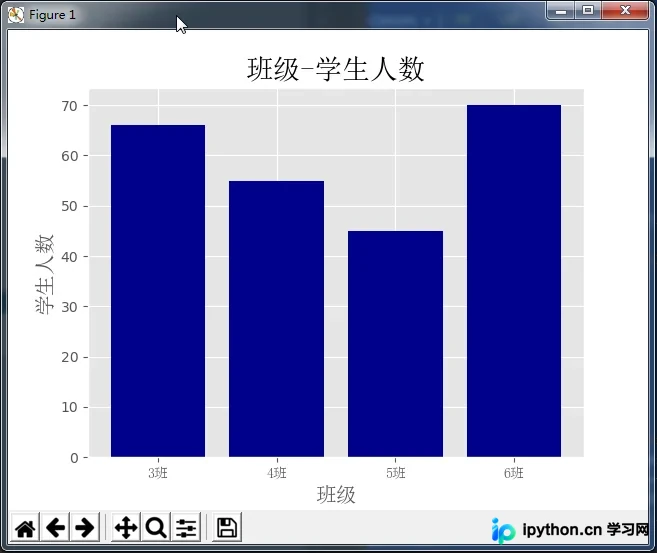
二、直方图
import numpy as np
import matplotlib.pyplot as plt
from matplotlib.font_manager import FontProperties
font = FontProperties(fname=r'c:\windows\fonts\simsun.ttc')

# 修改背景为条纹
plt.style.use('ggplot')
mu1, mu2, sigma = 50, 100, 10

# 构造均值为50的符合正态分布的数据
x1 = mu1 + sigma * np.random.randn(10000)
print(x1)
# [59.00855949 43.16272141 48.77109774 ... 57.94645859 54.70312714
#  58.94125528]

# 构造均值为100的符合正态分布的数据
x2 = mu2 + sigma * np.random.randn(10000)
print(x2)
# [115.19915511  82.09208214 110.88092454 ...  95.0872103  104.21549068
#  133.36025251]

fig = plt.figure()
ax1 = fig.add_subplot(121)
# bins=50表示每个变量的值分成50份,即会有50根柱子
ax1.hist(x1, bins=50, color='darkgreen')

ax2 = fig.add_subplot(122)
ax2.hist(x2, bins=50, color='orange')

fig.suptitle('两个正态分布', fontproperties=font, fontweight='bold', fontsize=15)
ax1.set_title('绿色的正态分布', fontproperties=font)
ax2.set_title('橙色的正态分布', fontproperties=font)
plt.show()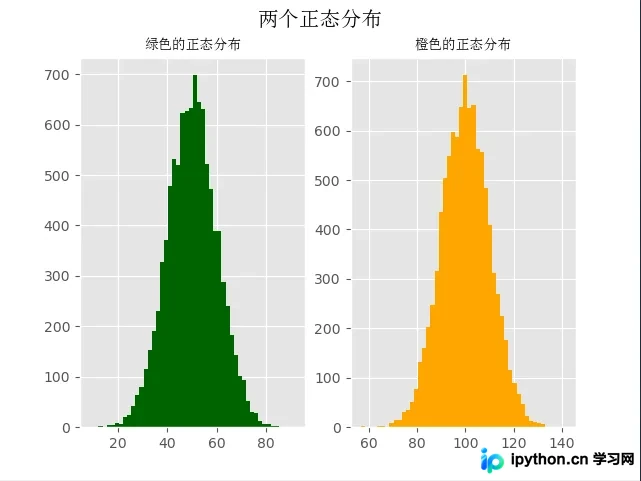
三、折线图
import numpy as np
from numpy.random import randn
import matplotlib.pyplot as plt
from matplotlib.font_manager import FontProperties
font = FontProperties(fname=r'c:\windows\fonts\simsun.ttc')

# 修改背景为条纹
plt.style.use('ggplot')

np.random.seed(1)

# 使用numpy的累加和,保证数据取值范围不会在(0,1)内波动
plot_data1 = randn(40).cumsum()
print(plot_data1)
# [ 1.62434536  1.01258895  0.4844172  -0.58855142  0.2768562  -2.02468249
#  -0.27987073 -1.04107763 -0.72203853 -0.97140891  0.49069903 -1.56944168
#  -1.89185888 -2.27591324 -1.1421438  -2.24203506 -2.41446327 -3.29232169
#  -3.25010794 -2.66729273 -3.76791191 -2.6231882  -1.72159748 -1.21910314
#  -0.31824719 -1.00197505 -1.12486527 -2.06063471 -2.32852279 -1.79816732
#  -2.48982807 -2.8865816  -3.5737543  -4.41895994 -5.09020607 -5.10287067
#  -6.22018102 -5.98576532 -4.32596314 -3.58391898]

plot_data2 = randn(40).cumsum()
plot_data3 = randn(40).cumsum()
plot_data4 = randn(40).cumsum()

plt.plot(plot_data1, marker='o', color='red', linestyle='-', label='红实线')
plt.plot(plot_data2, marker='x', color='orange', linestyle='--', label='橙虚线')
plt.plot(plot_data3, marker='*', color='yellow', linestyle='-.', label='黄点线')
plt.plot(plot_data4, marker='s', color='green', linestyle=':', label='绿点图')

# loc='best'给label自动选择最好的位置
plt.legend(loc='best', prop=font)
plt.show()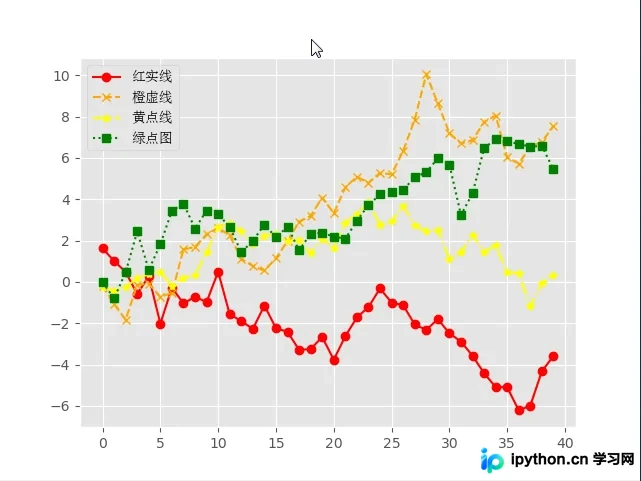
四、散点图+直线图
import numpy as np
from numpy.random import randn
import matplotlib.pyplot as plt
from matplotlib.font_manager import FontProperties
font = FontProperties(fname=r'c:\windows\fonts\simsun.ttc')

# 修改背景为条纹
plt.style.use('ggplot')

x = np.arange(1, 20, 1)
print(x)
# [ 1  2  3  4  5  6  7  8  9 10 11 12 13 14 15 16 17 18 19]

# 拟合一条水平散点线
np.random.seed(1)
y_linear = x + 10 * np.random.randn(19)
# print(y_linear)
# [ 17.24345364  -4.11756414  -2.28171752  -6.72968622  13.65407629
#  -17.01538697  24.44811764   0.38793099  12.19039096   7.50629625
#   25.62107937  -8.60140709   9.77582796  10.15945645  26.33769442
#    5.00108733  15.27571792   9.22141582  19.42213747]

# 拟合一条x²的散点线
y_quad = x**2 + 10 * np.random.randn(19)
print(y_quad)
# [  6.82815214  -7.00619177  20.4472371   25.01590721  30.02494339
#   45.00855949  42.16272141  62.77109774  71.64230566  97.3211192
#  126.30355467 137.08339248 165.03246473 189.128273   216.54794359
#  249.28753869 288.87335401 312.82689651 363.34415698]

# s是散点大小
fig = plt.figure()
ax1 = fig.add_subplot(121)
plt.scatter(x, y_linear, s=30, color='r', label='蓝点')
plt.scatter(x, y_quad, s=100, color='b', label='红点')

ax2 = fig.add_subplot(122)
plt.plot(x, y_linear, color='r')
plt.plot(x, y_quad, color='b')

# 限制x轴和y轴的范围取值
plt.xlim(min(x) - 1, max(x) + 1)
plt.ylim(min(y_quad) - 10, max(y_quad) + 10)
fig.suptitle('散点图+直线图', fontproperties=font, fontsize=20)
ax1.set_title('散点图', fontproperties=font)
ax1.legend(prop=font)
ax2.set_title('直线图', fontproperties=font)
plt.show()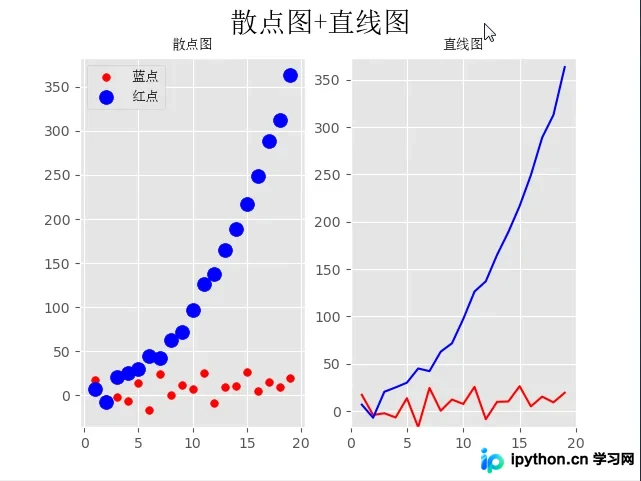
五、饼图
import numpy as np
import matplotlib.pyplot as plt
from pylab import mpl
from matplotlib.font_manager import FontProperties
font = FontProperties(fname=r'c:\windows\fonts\simsun.ttc')


mpl.rcParams['font.sans-serif'] = ['SimHei']

fig, ax = plt.subplots(subplot_kw=dict(aspect="equal"))

recipe = ['优', '良', '轻度污染', '中度污染', '重度污染', '严重污染', '缺']

data = [2, 49, 21, 9, 11, 6, 2]
colors = ['lime', 'yellow', 'darkorange', 'red', 'purple', 'maroon', 'grey']
wedges, texts, texts2 = ax.pie(data,
                               wedgeprops=dict(width=0.5),
                               startangle=40,
                               colors=colors,
                               autopct='%1.0f%%',
                               pctdistance=0.8)
plt.setp(texts2, size=14, weight="bold")

bbox_props = dict(boxstyle="square,pad=0.3", fc="w", ec="k", lw=0.72)
kw = dict(xycoords='data',
          textcoords='data',
          arrowprops=dict(arrowstyle="->"),
          bbox=None,
          zorder=0,
          va="center")

for i, p in enumerate(wedges):
    ang = (p.theta2 - p.theta1) / 2. + p.theta1
    y = np.sin(np.deg2rad(ang))
    x = np.cos(np.deg2rad(ang))
    horizontalalignment = {-1: "right", 1: "left"}[int(np.sign(x))]
    connectionstyle = "angle,angleA=0,angleB={}".format(ang)
    kw["arrowprops"].update({"connectionstyle": connectionstyle})
    ax.annotate(recipe[i],
                xy=(x, y),
                xytext=(1.25 * np.sign(x), 1.3 * y),
                size=16,
                horizontalalignment=horizontalalignment,
                fontproperties=font,
                **kw)

ax.set_title("饼图示例", fontproperties=font)

plt.show()
# plt.savefig('jiaopie2.png')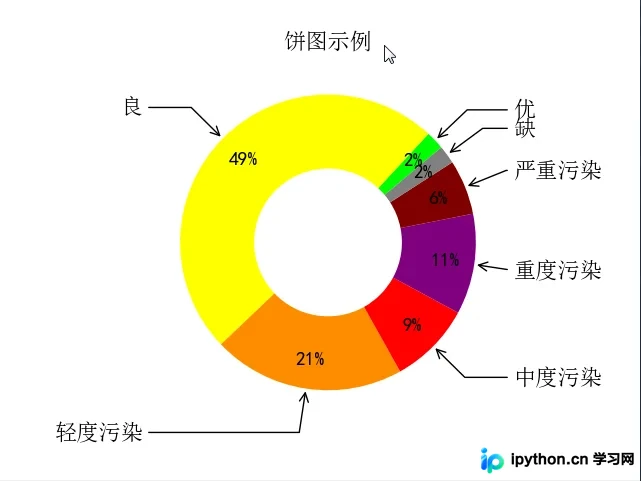
六、箱型图
箱型图(亦称盒须图、盒式图、盒状图或箱线图)用于展示一组数据的分布情况,在数据分析中常用于检测异常值。
箱型图包含以下关键数据指标:最大值、最小值、中位数、上四分位数(Q3)、下四分位数(Q1)以及异常值。
- 中位数:将一组数据平均分为两份,位于中间位置的数值。
- 上四分位数Q1:将序列平均分为四份,通常采用(n+1)/4进行计算。
- 下四分位数Q3:将序列平均分为四份,计算公式为(1+n)/4*3,例如6.75。
- 内限:即T形盒须所代表的范围,最大值区间为Q3+1.5IQR,最小值区间为Q1-1.5IQR(其中IQR=Q3-Q1)。
- 外限:即T形盒须所代表的范围,最大值区间为Q3+3IQR,最小值区间为Q1-3IQR(其中IQR=Q3-Q1)。
- 异常值:位于内限之外的为中度异常,位于外限之外的为极度异常。
import numpy as np
import matplotlib.pyplot as plt
import pandas as pd
from matplotlib.font_manager import FontProperties
font = FontProperties(fname=r'c:\windows\fonts\simsun.ttc')
df = pd.DataFrame(np.random.rand(10, 5), columns=['A', 'B', 'C', 'D', 'E'])
plt.figure(figsize=(10, 4))
# 创建图表、数据

f = df.boxplot(
    sym='o',  # 异常点形状,参考marker
    vert=True,  # 是否垂直
    whis=1.5,  # IQR,默认1.5,也可以设置区间比如[5,95],代表强制上下边缘为数据95%和5%位置
    patch_artist=True,  # 上下四分位框内是否填充,True为填充
    meanline=False,
    showmeans=True,  # 是否有均值线及其形状
    showbox=True,  # 是否显示箱线
    showcaps=True,  # 是否显示边缘线
    showfliers=True,  # 是否显示异常值
    notch=False,  # 中间箱体是否缺口
    return_type='dict'  # 返回类型为字典
)
plt.title('boxplot')

for box in f['boxes']:
    box.set(color='b', linewidth=1)  # 箱体边框颜色
    box.set(facecolor='b', alpha=0.5)  # 箱体内部填充颜色
for whisker in f['whiskers']:
    whisker.set(color='k', linewidth=0.5, linestyle='-')
for cap in f['caps']:
    cap.set(color='gray', linewidth=2)
for median in f['medians']:
    median.set(color='DarkBlue', linewidth=2)
for flier in f['fliers']:
    flier.set(marker='o', color='y', alpha=0.5)
# boxes, 箱线
# medians, 中位值的横线,
# whiskers, 从box到error bar之间的竖线.
# fliers, 异常值
# caps, error bar横线
# means, 均值的横线
plt.show()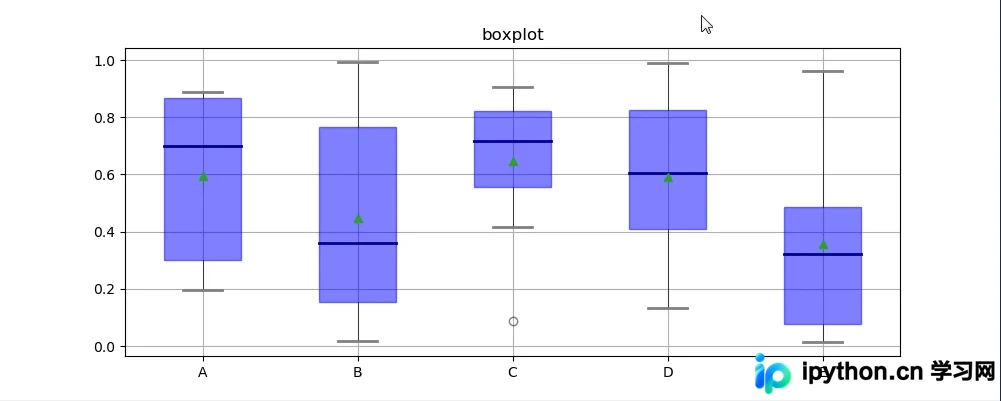
七、plot函数参数
- 线型linestyle:支持-、-.、--、..等样式。
- 点型marker:支持v、^、s、*、H、+、x、D、o等多种标记。
- 颜色color:支持b、g、r、y、k、w等颜色代码。
八、图像标注参数
- 设置图像标题:使用plt.title()。
- 设置x轴名称:使用plt.xlabel()。
- 设置y轴名称:使用plt.ylabel()。
- 设置X轴范围:使用plt.xlim()。
- 设置Y轴范围:使用plt.ylim()。
- 设置X轴刻度:使用plt.xticks()。
- 设置Y轴刻度:使用plt.yticks()。
- 设置曲线图例:使用plt.legend()。
九、Matplolib应用
import pandas as pd
import matplotlib.pyplot as plt
from matplotlib.font_manager import FontProperties
font = FontProperties(fname=r'c:\windows\fonts\simsun.ttc')


header_list = ['方程组', '函数', '导数', '微积分', '线性代数', '概率论', '统计学']
py3_df = pd.read_excel('py3.xlsx', header=None,   skiprows=[0, 1], names=header_list)
# 处理带有NaN的行
py3_df = py3_df.dropna(axis=0) #
print(py3_df)

# 自定义映射
map_dict = {
    '不会': 0,
    '了解': 1,
    '熟悉': 2,
    '使用过': 3,
}

for header in header_list:
    py3_df[header] = py3_df[header].map(map_dict)

unable_series = (py3_df == 0).sum(axis=0)
know_series = (py3_df == 1).sum(axis=0)
familiar_series = (py3_df == 2).sum(axis=0)
use_series = (py3_df == 3).sum(axis=0)

unable_label = '不会'
know_label = '了解'
familiar_label = '熟悉'
use_label = '使用过'
for i in range(len(header_list)):
    bottom = 0

    # 描绘不会的条形图
    plt.bar(x=header_list[i], height=unable_series[i],  width=0.60, color='r', label=unable_label)
    if unable_series[i] != 0:
        plt.text(header_list[i], bottom, s=unable_series[i],   ha='center', va='bottom', fontsize=15, color='white')
    bottom += unable_series[i]

    # 描绘了解的条形图
    plt.bar(x=header_list[i], height=know_series[i],  width=0.60, color='y', bottom=bottom, label=know_label)
    if know_series[i] != 0:
        plt.text(header_list[i], bottom, s=know_series[i],  ha='center', va='bottom', fontsize=15, color='white')
    bottom += know_series[i]

    # 描绘熟悉的条形图
    plt.bar(x=header_list[i], height=familiar_series[i],    width=0.60, color='g', bottom=bottom, label=familiar_label)
    if familiar_series[i] != 0:
        plt.text(header_list[i], bottom, s=familiar_series[i], ha='center', va='bottom', fontsize=15, color='white')
    bottom += familiar_series[i]

    # 描绘使用过的条形图
    plt.bar(x=header_list[i], height=use_series[i],  width=0.60, color='b', bottom=bottom, label=use_label)
    if use_series[i] != 0:
        plt.text(header_list[i], bottom, s=use_series[i], ha='center', va='bottom', fontsize=15, color='white')

    unable_label = know_label = familiar_label = use_label = ''

plt.xticks(header_list, fontproperties=font)
plt.ylabel('人数', fontproperties=font)
plt.title('Python3期数学摸底可视化', fontproperties=font)
plt.legend(prop=font, loc='upper left')
plt.show()
    方程组   函数   导数        微积分       线性代数  概率论  统计学
0   使用过  使用过   不会         不会         不会   不会   不会
1   使用过  使用过   了解         不会         不会   不会   不会
2   使用过  使用过   熟悉         不会         不会   不会   不会
3    熟悉   熟悉   熟悉         了解         了解   了解   了解
4   使用过  使用过  使用过        使用过        使用过  使用过  使用过
5   使用过  使用过  使用过         不会         不会   不会   了解
6    熟悉   熟悉   熟悉         熟悉         熟悉   熟悉   不会
7   使用过  使用过  使用过        使用过        使用过  使用过  使用过
8    熟悉   熟悉   熟悉         熟悉         熟悉  使用过  使用过
9    熟悉   熟悉  使用过         不会        使用过  使用过   不会
10  使用过  使用过   熟悉         熟悉         熟悉   熟悉   熟悉
11  使用过  使用过  使用过        使用过        使用过   不会   不会
12  使用过  使用过  使用过        使用过        使用过  使用过  使用过
13  使用过  使用过   了解         不会         不会   不会   不会
14  使用过  使用过  使用过        使用过        使用过   不会   不会
15  使用过  使用过   熟悉         不会         不会   不会   不会
16   熟悉   熟悉  使用过        使用过        使用过   不会   不会
17  使用过  使用过  使用过         了解         不会   不会   不会
18  使用过  使用过  使用过        使用过         熟悉   熟悉   熟悉
19  使用过  使用过  使用过         了解         不会   不会   不会
20  使用过  使用过  使用过        使用过        使用过  使用过  使用过
21  使用过  使用过  使用过        使用过        使用过  使用过  使用过
22  使用过  很了解   熟悉  了解一点,不会运用  了解一点,不会运用   了解   不会
23  使用过  使用过  使用过        使用过         熟悉  使用过   熟悉
24   熟悉   熟悉   熟悉        使用过         不会   不会   不会
25  使用过  使用过  使用过        使用过        使用过  使用过  使用过
26  使用过  使用过  使用过        使用过        使用过   不会   不会
27  使用过  使用过   不会         不会         不会   不会   不会
28  使用过  使用过  使用过        使用过        使用过  使用过   了解
29  使用过  使用过  使用过        使用过        使用过   了解   不会
30  使用过  使用过  使用过        使用过        使用过   不会   不会
31  使用过  使用过  使用过        使用过         不会  使用过  使用过
32   熟悉   熟悉  使用过        使用过        使用过   不会   不会
33  使用过  使用过  使用过        使用过         熟悉  使用过   熟悉
34   熟悉   熟悉   熟悉        使用过        使用过   熟悉   不会
35  使用过  使用过  使用过        使用过        使用过  使用过  使用过
36  使用过  使用过  使用过        使用过        使用过  使用过   了解
37  使用过  使用过  使用过        使用过        使用过   不会   不会
38  使用过  使用过  使用过         不会         不会   不会   不会
39  使用过  使用过   不会         不会         不会   不会   不会
40  使用过  使用过  使用过        使用过        使用过   不会   不会
41  使用过  使用过   熟悉         了解         了解   了解   不会
42  使用过  使用过  使用过         不会         不会   不会   不会
43   熟悉  使用过   了解         了解         不会   不会   不会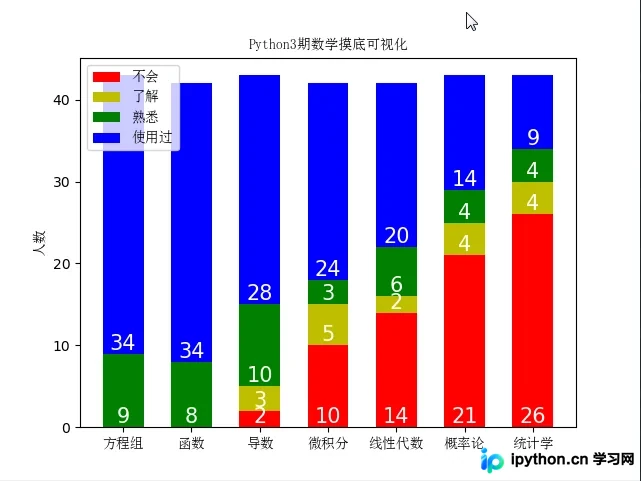
本文介绍了Python中数据可视化matplotlib库与绘图模块的基本应用。希望这些内容能对您的学习有所帮助,欢迎继续支持本站获取更多技术资源。
本站声明
本文内容仅供参考,不代表本站观点。转载或引用请注明出处。如发现内容问题,请通过联系我们页面反馈。















