


Python提效小工具:一键统计XMind测试用例数量(附源码)

发布时间:2026-10-16 |
5人浏览过
针对XMind缺乏内置用例统计功能的痛点,本文提供一款基于Python开发的提效小工具。该工具通过解析XMind文件,支持对单个或多个Sheet页的用例数量进行汇总统计。文章详细说明了P0、通过、失败及阻塞用例的图标标记规范,并附带完整Python源码及GUI操作指南,帮助测试人员快速量化工作量。
利用Python脚本读取并解析XMind文件,实现测试用例数量的自动化一键统计。
在实际测试工作中,XMind常被用于梳理测试点或编写用例。然而,XMind8版本未提供原生的用例统计功能,其他版本虽具备节点数量统计,却无法累计最终的有效用例数,这给测试工作量的评估带来了不便。
为解决上述问题,本文介绍一款基于Python开发的小工具,旨在实现针对同一份XMind文件中一个或多个Sheet页的用例数量统计功能。
一、源码
#!/usr/bin/env python
# -*- coding:utf-8 -*-
__author__ = 'zhongxintao'
import tkinter as tk
from tkinter import filedialog, messagebox
from xmindparser import xmind_to_dict
import xmind


class ParseXmind:
    def __init__(self, root):
        self.count = 0
        self.case_fail = 0
        self.case_success = 0
        self.case_block = 0
        self.case_priority = 0

        # total汇总用
        self.total_cases = 0
        self.total_success = 0
        self.total_fail = 0
        self.total_block = 0
        self.toal_case_priority = 0

        # 设置弹框标题、初始位置、默认大小
        root.title(u'xmind文件解析及用例统计工具')
        width = 760
        height = 600
        xscreen = root.winfo_screenwidth()
        yscreen = root.winfo_screenheight()
        xmiddle = (xscreen - width) / 2
        ymiddle = (yscreen - height) / 2
        root.geometry('%dx%d+%d+%d' % (width, height, xmiddle, ymiddle))

        # 设置2个Frame
        self.frm1 = tk.Frame(root)
        self.frm2 = tk.Frame(root)

        # 设置弹框布局
        self.frm1.grid(row=1, padx='20', pady='20')
        self.frm2.grid(row=2, padx='30', pady='30')

        self.but_upload = tk.Button(self.frm1, text=u'上传xmind文件', command=self.upload_files, bg='#dfdfdf')
        self.but_upload.grid(row=0, column=0, pady='10')
        self.text = tk.Text(self.frm1, width=55, height=10, bg='#f0f0f0')
        self.text.grid(row=1, column=0)
        self.but2 = tk.Button(self.frm2, text=u"开始统计", command=self.new_lines, bg='#dfdfdf')
        self.but2.grid(row=0, columnspan=6, pady='10')
        self.label_file = tk.Label(self.frm2, text=u"文件名", relief='groove', borderwidth='2', width=25,
                                   bg='#FFD0A2')
        self.label_file.grid(row=1, column=0)
        self.label_case = tk.Label(self.frm2, text=u"用例数", relief='groove', borderwidth='2', width=10,
                                   bg='#FFD0A2').grid(row=1, column=1)
        self.label_pass = tk.Label(self.frm2, text=u"成功", relief='groove', borderwidth='2', width=10,
                                   bg='#FFD0A2').grid(row=1, column=2)
        self.label_fail = tk.Label(self.frm2, text=u"失败", relief='groove', borderwidth='2', width=10,
                                   bg='#FFD0A2').grid(row=1, column=3)
        self.label_block = tk.Label(self.frm2, text=u"阻塞", relief='groove', borderwidth='2', width=10,
                                    bg='#FFD0A2').grid(row=1, column=4)
        self.label_case_priority = tk.Label(self.frm2, text="p0case", relief='groove', borderwidth='2',
                                            width=10, bg='#FFD0A2').grid(row=1, column=5)

    def count_case(self, li):
        """统计xmind中的用例数"""
        for i in range(len(li)):
            if li[i].__contains__('topics'):
                # 带topics标签表示有子标题,递归执行方法
                self.count_case(li[i]['topics'])
                # 不带topics表示无子标题,此级别即是用例
            else:
                # 有标记成功或失败时会有makers标签
                if li[i].__contains__('makers'):
                    for mark in li[i]['makers']:
                        # 成功
                        if mark == "symbol-right":
                            self.case_success += 1
                        # 失败
                        elif mark == "symbol-wrong":
                            self.case_fail += 1
                        # 阻塞
                        elif mark == "symbol-attention":
                            self.case_block += 1
                        # 优先级
                        elif mark == "priority-1":
                            self.case_priority += 1
                # 用例总数
                self.count += 1

    def new_line(self, filename, row_number):
        """用例统计表新增一行"""
        # sheets是一个list,可包含多sheet页
        sheets = xmind_to_dict(filename)  # 调用此方法,将xmind转成字典
        for sheet in sheets:
            print(sheet)
            # 字典的值sheet['topic']['topics']是一个list
            my_list = sheet['topic']['topics']
            print(my_list)
            self.count_case(my_list)

        # 插入一行统计数据
        lastname = filename.split('/')
        self.label_file = tk.Label(self.frm2, text=lastname[-1], relief='groove', borderwidth='2', width=25)
        self.label_file.grid(row=row_number, column=0)

        self.label_case = tk.Label(self.frm2, text=self.count, relief='groove', borderwidth='2', width=10)
        self.label_case.grid(row=row_number, column=1)
        self.label_pass = tk.Label(self.frm2, text=self.case_success, relief='groove', borderwidth='2',
                                   width=10)
        self.label_pass.grid(row=row_number, column=2)
        self.label_fail = tk.Label(self.frm2, text=self.case_fail, relief='groove', borderwidth='2', width=10)
        self.label_fail.grid(row=row_number, column=3)
        self.label_block = tk.Label(self.frm2, text=self.case_block, relief='groove', borderwidth='2', width=10)
        self.label_block.grid(row=row_number, column=4)
        self.label_case_priority = tk.Label(self.frm2, text=self.case_priority, relief='groove', borderwidth='2',
                                            width=10)
        self.label_case_priority.grid(row=row_number, column=5)
        self.total_cases += self.count
        self.total_success += self.case_success
        self.total_fail += self.case_fail
        self.total_block += self.case_block
        self.toal_case_priority += self.case_priority

    def new_lines(self):
        """用例统计表新增多行"""
        # 从text中获取所有行
        lines = self.text.get(1.0, tk.END)
        row_number = 2
        # 分隔成每行
        for line in lines.splitlines():
            if line == '':
                break
            print(line)
            self.new_line(line, row_number)
            row_number += 1

        # total汇总行
        self.label_file = tk.Label(self.frm2, text='total', relief='groove', borderwidth='2', width=25)
        self.label_file.grid(row=row_number, column=0)
        self.label_case = tk.Label(self.frm2, text=self.total_cases, relief='groove', borderwidth='2', width=10)
        self.label_case.grid(row=row_number, column=1)

        self.label_pass = tk.Label(self.frm2, text=self.total_success, relief='groove', borderwidth='2',
                                   width=10)
        self.label_pass.grid(row=row_number, column=2)
        self.label_fail = tk.Label(self.frm2, text=self.total_fail, relief='groove', borderwidth='2', width=10)
        self.label_fail.grid(row=row_number, column=3)
        self.label_block = tk.Label(self.frm2, text=self.total_block, relief='groove', borderwidth='2',
                                    width=10)
        self.label_block.grid(row=row_number, column=4)

        self.label_case_priority = tk.Label(self.frm2, text=self.toal_case_priority, relief='groove',
                                            borderwidth='2',
                                            width=10)
        self.label_case_priority.grid(row=row_number, column=5)

    def upload_files(self):
        """上传多个文件,并插入text中"""
        select_files = tk.filedialog.askopenfilenames(title=u"可选择1个或多个文件")
        for file in select_files:
            self.text.insert(tk.END, file + '\n')
            self.text.update()
if __name__ == '__main__':
    r = tk.Tk()
    ParseXmind(r)
    r.mainloop()
二、工具使用说明
1、在XMind文件中,需使用以下图标对用例进行分类标识:
标记表示P0级别用例:数字1
标记表示执行通过用例:绿色√
标记表示执行失败用例:红色×
标记表示执行阻塞用例:橙色!
2、执行代码
3、在弹出的窗口中点击【上传XMind文件】按钮
4、在弹出的窗口中点击【开始统计】按钮
三、实现效果
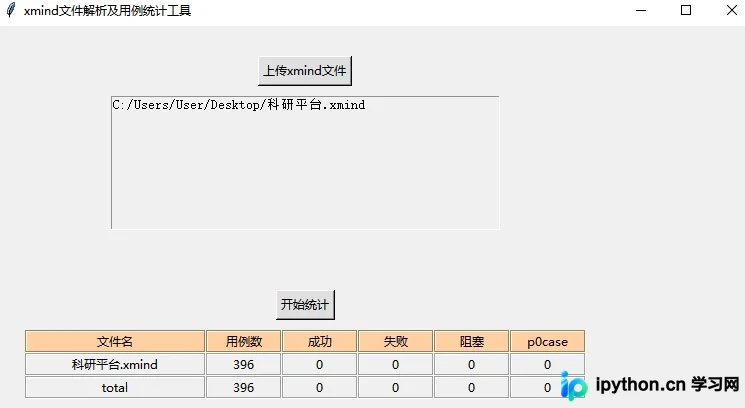
至此,关于Python提效小工具之统计XMind用例数量(源码)的介绍完毕。如需了解更多Python与XMind工具相关的内容,请搜索本站历史文章或继续浏览后续文章,感谢大家的支持!
本站声明
本文内容仅供参考,不代表本站观点。转载或引用请注明出处。如发现内容问题,请通过联系我们页面反馈。















