


Python使用Matplotlib绘制散点图并添加坐标标签

发布时间:2026-10-12 |
3人浏览过
本文介绍如何使用Python的Matplotlib库绘制分布点图,并通过遍历数据点为每个点添加包含横纵坐标的文本标签。示例代码展示了读取图像尺寸、绘制红色和绿色散点以及使用plt.text添加标签的具体实现,帮助开发者在可视化结果中直观展示数据点的坐标信息。
本文分享了一段Python调用Matplotlib库绘制分布点并添加标签的完整代码示例,供读者参考学习。
- 添加标签的目的
- 代码实现
- 运行截图
需求背景
前文已介绍如何根据图像尺寸作为坐标来绘制分布点图。后续接到新任务,在保存并发送图像后,发现图中点的坐标无法直接显示。因此需要为每个数据点添加标签(label),标签内容需包含该点的横坐标和纵坐标。
代码实现
import matplotlib.pyplot as plt
from numpy.random import rand
import numpy
import os
import cv2

#setting plt
plt.xlim(xmax=100,xmin=0)
plt.ylim(ymax=100,ymin=0)
plt.xlabel("height")
plt.ylabel("width")


path_1 = r'D:\zhangjichao\view\V7_scale_2\path_1'


x = []
y = []
files = os.listdir(path_1)
for f in files:
  img = cv2.imread(path_1 + '\\' + f)
  x.append(img.shape[0])
  y.append(img.shape[1])
plt.plot(x,y,'ro',color='red',label='path_1')

path_2 = r'D:\zhangjichao\view\V7_scale_2\path_2'

x = []
y = []
files = os.listdir(path_2)
for f in files:
  img = cv2.imread(path_2 + '\\' + f)
  x.append(img.shape[0])
  y.append(img.shape[1])
plt.plot(x,y,'ro',color='red',label='path_2')

path_3 = r'D:\zhangjichao\view\V7_scale_2\path_3'


x = []
y = []
files = os.listdir(path_3)
for f in files:
  img = cv2.imread(path_3 + '\\' + f)
  x.append(img.shape[0])
  y.append(img.shape[1])
plt.plot(x,y,'ro',color='red',label='path_3')

path_4 = r'D:\zhangjichao\view\V7_scale_2\path_4'

x = []
y = []
files = os.listdir(path_4)
for f in files:
  img = cv2.imread(path_4 + '\\' + f)
  x.append(img.shape[0])
  y.append(img.shape[1])
plt.plot(x,y,'ro',color='red',label='path_4')

yujing = r'D:\zhangjichao\view\V7_scale_2\xujing_org_scale_2'

x = []
y = []
files = os.listdir(yujing)
for f in files:
  img = cv2.imread(yujing + '\\' + f)
  x.append(img.shape[0])
  y.append(img.shape[1])
plt.plot(x,y,'ro',color='green' , label='xujing')
for i in range(1,len(x)):
  plt.text(x[i],y[i],str((x[i],y[i])), family='serif', style='italic', ha='right', wrap=True)

plt.legend(loc='upper center', shadow=True, fontsize='x-large')
plt.grid(True)


plt.show()
运行截图
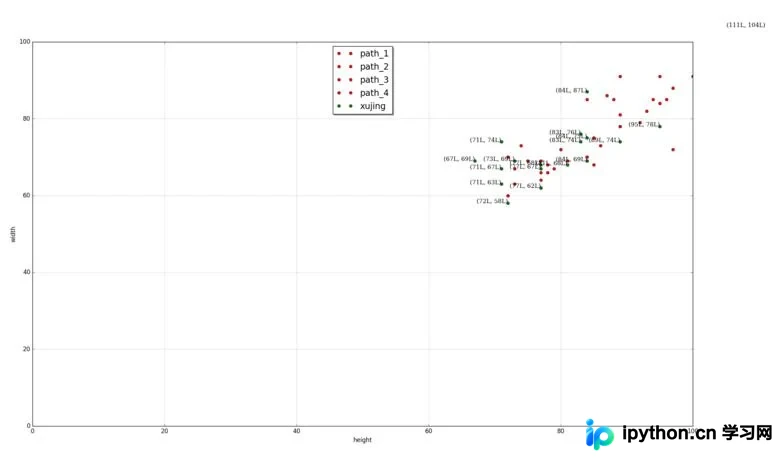
以上就是本文的全部内容,希望对大家的学习有所帮助,也希望大家多多支持本站。
本站声明
本文内容仅供参考,不代表本站观点。转载或引用请注明出处。如发现内容问题,请通过联系我们页面反馈。















