


使用PySide2将UI文件转换为Python并运行GUI程序

本文详细讲解如何利用PySide2将Qt Designer生成的.ui文件转换为Python脚本,并编写主程序加载该脚本以运行图形界面。重点区分了PySide2与PyQt5的工具差异,提供了从UI设计到代码生成的完整操作指南及运行示例。
PySide2与PyQt5的工具差异
在基于Qt进行Python GUI开发时,开发者常面临PySide2与PyQt5的选择。虽然两者API高度兼容,但在工具链上存在关键区别。若前序教程使用的是PyQt5,其对应的UI编译工具通常为pyuic;而在使用PySide2时,必须将工具名称更改为pyside2-uic.exe。这一差异直接决定了后续UI文件能否正确转换为Python代码。
将.ui文件转换为Python脚本
Qt Designer生成的界面文件(.ui)本质上是XML格式的数据,描述了窗口布局、控件属性及层级关系。为了在Python程序中调用这些界面,需要将其转换为Python类。
操作步骤
- 准备UI文件:确保已有一个设计好的.ui文件,例如
postman.ui。该文件定义了窗口大小、下拉框、输入框及按钮等元素。 - 执行转换:在开发环境中选中.ui文件,右键选择扩展工具
pyside2-uic(注意:务必使用PySide2专用的编译器,而非PyQt5的pyuic)。 - 生成脚本:工具会自动解析XML结构,生成对应的Python脚本文件。例如,
postman.ui会被转换为postman.py。
生成的Python脚本包含一个继承自object的类(如Ui_Dialog),其中实现了setupUi方法。该方法负责实例化所有UI控件(如QComboBox、QLineEdit、QPushButton等)并设置其几何属性、文本内容及信号槽连接。请注意,脚本头部通常包含警告信息,提示直接修改此文件可能导致重新编译时丢失更改,因此后续开发应通过修改UI文件或编写额外的逻辑代码来实现。
转换示例
<?xml version="1.0" encoding="UTF-8"?>
<ui version="4.0">
 <class>Dialog</class>
 <widget class="QDialog" name="Dialog">
  <property name="geometry">
   <rect>
    <x>0</x>
    <y>0</y>
    <width>948</width>
    <height>617</height>
   </rect>
  </property>
  <property name="windowTitle">
   <string>Dialog</string>
  </property>
  <widget class="QComboBox" name="comboBox">
   <property name="geometry">
    <rect>
     <x>70</x>
     <y>30</y>
     <width>81</width>
     <height>31</height>
    </rect>
   </property>
   <item>
    <property name="text">
     <string>GET</string>
    </property>
   </item>
   <item>
    <property name="text">
     <string>POST</string>
    </property>
   </item>
  </widget>
  <widget class="QLineEdit" name="lineEdit">
   <property name="geometry">
    <rect>
     <x>170</x>
     <y>30</y>
     <width>541</width>
     <height>31</height>
    </rect>
   </property>
  </widget>
  <widget class="QPushButton" name="pushButton">
   <property name="geometry">
    <rect>
     <x>740</x>
     <y>30</y>
     <width>151</width>
     <height>31</height>
    </rect>
   </property>
   <property name="text">
    <string>Send</string>
   </property>
  </widget>
  <widget class="QLabel" name="label">
   <property name="geometry">
    <rect>
     <x>70</x>
     <y>90</y>
     <width>72</width>
     <height>15</height>
    </rect>
   </property>
   <property name="text">
    <string>Params</string>
   </property>
  </widget>
  <widget class="QLabel" name="label_2">
   <property name="geometry">
    <rect>
     <x>160</x>
     <y>90</y>
     <width>121</width>
     <height>21</height>
    </rect>
   </property>
   <property name="text">
    <string>Headers</string>
   </property>
  </widget>
  <widget class="QTextEdit" name="textEdit">
   <property name="geometry">
    <rect>
     <x>70</x>
     <y>150</y>
     <width>821</width>
     <height>331</height>
    </rect>
   </property>
  </widget>
 </widget>
 <resources/>
 <connections/>
</ui>
转换后的Python代码示例如下:
# -*- coding: utf-8 -*-


################################################################################
## Form generated from reading UI file 'postman.ui'
##
## Created by: Qt User Interface Compiler version 5.15.2
##
## WARNING! All changes made in this file will be lost when recompiling UI file!
################################################################################


from PySide2.QtCore import *
from PySide2.QtGui import *
from PySide2.QtWidgets import *


class Ui_Dialog(object):
    def setupUi(self, Dialog):
        if not Dialog.objectName():
            Dialog.setObjectName(u"Dialog")
        Dialog.resize(948, 617)
        self.comboBox = QComboBox(Dialog)
        self.comboBox.addItem("")
        self.comboBox.addItem("")
        self.comboBox.setObjectName(u"comboBox")
        self.comboBox.setGeometry(QRect(70, 30, 81, 31))
        self.lineEdit = QLineEdit(Dialog)
        self.lineEdit.setObjectName(u"lineEdit")
        self.lineEdit.setGeometry(QRect(170, 30, 541, 31))
        self.pushButton = QPushButton(Dialog)
        self.pushButton.setObjectName(u"pushButton")
        self.pushButton.setGeometry(QRect(740, 30, 151, 31))
        self.label = QLabel(Dialog)
        self.label.setObjectName(u"label")
        self.label.setGeometry(QRect(70, 90, 72, 15))
        self.label_2 = QLabel(Dialog)
        self.label_2.setObjectName(u"label_2")
        self.label_2.setGeometry(QRect(160, 90, 121, 21))
        self.textEdit = QTextEdit(Dialog)
        self.textEdit.setObjectName(u"textEdit")
        self.textEdit.setGeometry(QRect(70, 150, 821, 331))


        self.retranslateUi(Dialog)


        QMetaObject.connectSlotsByName(Dialog)
    # setupUi


    def retranslateUi(self, Dialog):
        Dialog.setWindowTitle(QCoreApplication.translate("Dialog", u"Dialog", None))
        self.comboBox.setItemText(0, QCoreApplication.translate("Dialog", u"GET", None))
        self.comboBox.setItemText(1, QCoreApplication.translate("Dialog", u"POST", None))


        self.pushButton.setText(QCoreApplication.translate("Dialog", u"Send", None))
        self.label.setText(QCoreApplication.translate("Dialog", u"Params", None))
        self.label_2.setText(QCoreApplication.translate("Dialog", u"Headers", None))
    # retranslateUi
编写主程序运行GUI窗口
仅生成UI脚本是不够的,还需要一个主程序来实例化应用对象、加载UI类并显示窗口。通常将此运行脚本命名为run_postman.py。
运行代码示例
import sys
from PySide2.QtWidgets import QApplication, QMainWindow
from postman import Ui_Dialog


if __name__ == "__main__":
    # 创建一个Application对象
    app = QApplication(sys.argv)
    # 创建一个窗体对象
    MainWindow = QMainWindow()

    ui = Ui_Dialog()
    ui.setupUi(MainWindow)
    # 设置窗口显示
    MainWindow.show()
    sys.exit(app.exec_())
该主程序的关键步骤包括:
- 导入模块:从
PySide2.QtWidgets导入QApplication和QMainWindow,并导入之前生成的Ui_Dialog类。 - 初始化应用:创建
QApplication实例,传入sys.argv以处理命令行参数。 - 实例化窗口:创建
QMainWindow对象作为顶层窗口。 - 加载UI:实例化
Ui_Dialog,并调用其setupUi方法,将UI控件绑定到顶层窗口。 - 显示与退出:调用
MainWindow.show()显示窗口,并使用sys.exit(app.exec_())进入事件循环,确保程序正常运行直至关闭。
验证与结果
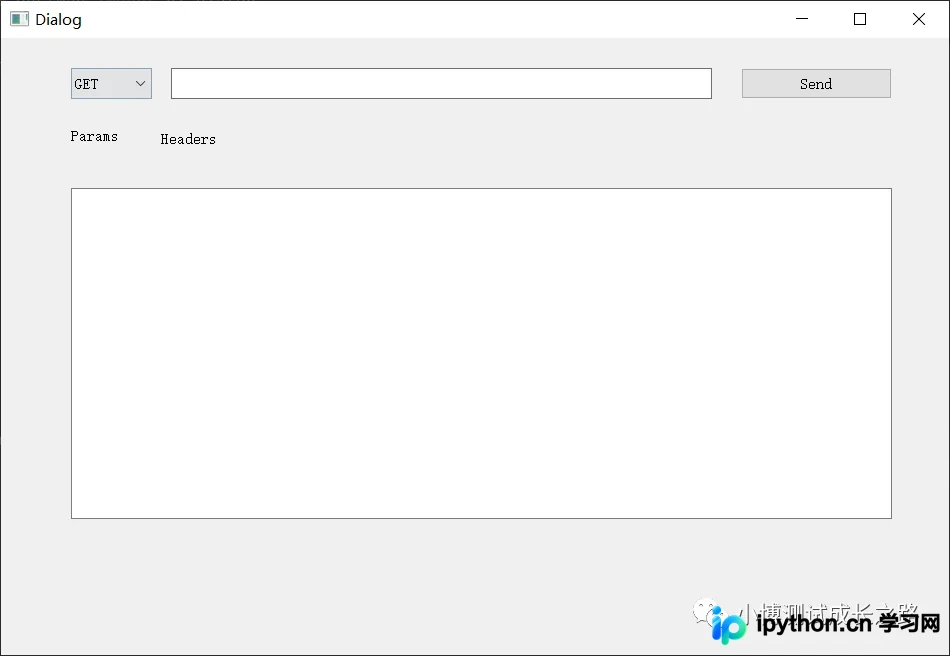
执行run_postman.py后,系统将弹出一个GUI窗口。该窗口包含一个下拉框(可选GET或POST)、一个文本输入框、一个“Send”按钮以及用于显示Params和Headers的文本区域。这标志着从UI设计到Python代码转换,再到GUI运行的完整流程已成功实现。
以上就是使用PySide2将UI文件转换为Python并运行GUI程序的详细内容,更多关于PySide2教程及Python GUI开发资料的关注本站其它相关文章!
本站声明
本文内容仅供参考,不代表本站观点。转载或引用请注明出处。如发现内容问题,请通过联系我们页面反馈。















