


使用JavaScript和Canvas实现扯网物理动画效果

利用JavaScript和HTML5 Canvas技术,可以通过简单的物理模型模拟出逼真的布料或扯网效果。本文将带你深入了解其背后的点与约束原理,并展示包含重力、鼠标交互及撕裂效果的完整可运行代码。
演示效果
在支持现代浏览器的环境中打开以下Demo,你可以看到一张悬挂的“网”。尝试用鼠标左键拖拽网格,观察其弹性反应;若快速划过或点击,部分线条可能会断裂,呈现真实的物理撕裂感。
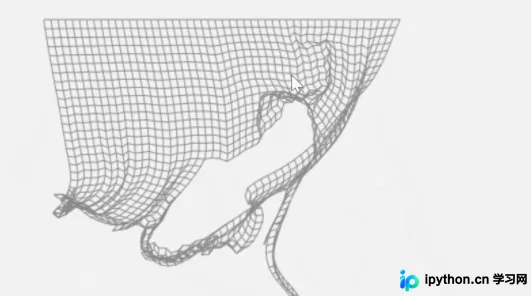
核心技术原理
该效果并非依赖复杂的第三方游戏引擎,而是基于简单的质点弹簧系统(Verlet Integration)实现。其核心逻辑包括:
- 顶点(Point):每个节点包含当前坐标$(x, y)$、上一帧坐标$(px, py)$以及速度属性。通过计算当前坐标与上一帧坐标的差值来隐式处理速度,无需直接存储速度向量。
- 约束(Constraint):连接两个顶点的“边”。每帧都会检查两点间距离,如果超过预设阈值则施加力使其恢复原长。若拉伸幅度超过临界值(如撕裂距离),则断开约束。
- 迭代求解:为了解决位置冲突(避免穿透或过拉伸),通常在一帧内对约束进行多次迭代求解,从而提高物理模拟的稳定性。
环境准备与代码实现
我们需要创建一个HTML文件,引入必要的CSS样式来控制画布布局,并通过JavaScript编写物理逻辑。以下是分步代码解析。
第1步:配置页面结构与基础样式
首先,设置页面背景、隐藏滚动条,并为Canvas容器及相关UI元素定义样式。这部分代码用于确保动画区域居中显示,并提供简单的关闭信息提示的功能。
* {
    margin: 0;
    overflow: hidden;
    -webkit-user-select: none;
    -moz-user-select: none;
    -ms-user-select: none;
    -o-user-select: none;
    user-select: none;
}
body {
    background: #F2F2F2;
}
#c {
    display: block;
    margin: 20px auto 0;
}
其余CSS用于美化提示信息框、按钮及链接颜色,具体样式代码如下:
#info {
    position: absolute;
    left: -1px;
    top: -1px;
    width: auto;
    max-width: 420px;
    height: auto;
    background: #f2f2f2;
    border-bottom-right-radius: 10px;
    border:1px solid #333;
}
#top {
    background: #fff;
    width: 100%;
    height: auto;
    position: relative;
    border-bottom: 1px solid #eee;
}
p {
    font-family: Arial, sans-serif;
    color: #666;
    text-align: justify;
    font-size: 16px;
    margin: 10px 16px;
}
/* ... 省略其他辅助样式 ... */
#site {
    float: left;
    margin: 10px;
    color: #ff9900;
  border-bottom: 1px dashed #ccc;
  padding-bottom:3px
}
#site:hover {
    color: #ffaa11;
}
第2步:初始化Canvas与全局变量
定义物理参数,如重力加速度、网格尺寸、间距、鼠标影响范围等。同时初始化Canvas上下文和鼠标状态对象。
// settings
var physics_accuracy  = 3,
    mouse_influence   = 20,
    mouse_cut         = 5,
    gravity           = 1200,
    cloth_height      = 30,
    cloth_width       = 50,
    start_y           = 20,
    spacing           = 7,
    tear_distance     = 60;

var canvas, ctx, cloth;
var mouse = {
    down: false,
    button: 1,
    x: 0, y: 0,
    px: 0, py: 0
};
第3步:构建顶点类 Point
Point 类是物理模拟的基本单元。它负责更新自身位置(应用重力和惯性)、绘制连接线以及解除约束。
var Point = function (x, y) {
    this.x      = x;
    this.y      = y;
    this.px     = x; // previous x
    this.py     = y; // previous y
    this.vx     = 0;
    this.vy     = 0;
    this.pin_x  = null;
    this.pin_y  = null;
    this.constraints = [];
};

Point.prototype.update = function (delta) {
    // 鼠标交互逻辑:拖拽或切割
    if (mouse.down) {
        var diff_x = this.x - mouse.x,
            diff_y = this.y - mouse.y,
            dist = Math.sqrt(diff_x * diff_x + diff_y * diff_y);
        if (mouse.button == 1) {
            if (dist < mouse_influence) {
                // 拖拽效果
                this.px = this.x - (mouse.x - mouse.px) * 1.8;
                this.py = this.y - (mouse.y - mouse.py) * 1.8;
            }
        } else if (dist < mouse_cut) {
            // 切割效果:移除所有关联约束
            this.constraints = [];
        }
    }
    // 应用重力
    this.add_force(0, gravity);

    delta *= delta;
    // Verlet积分计算新位置
    nx = this.x + ((this.x - this.px) * .99) + ((this.vx / 2) * delta);
    ny = this.y + ((this.y - this.py) * .99) + ((this.vy / 2) * delta);

    this.px = this.x;
    this.py = this.y;
    this.x = nx;
    this.y = ny;
    this.vy = this.vx = 0;
};

Point.prototype.draw = function () {
    if (!this.constraints.length) return;
    var i = this.constraints.length;
    while (i--) this.constraints[i].draw();
};

// 其他方法:resolve_constraints, attach, remove_constraint, add_force, pin...
第4步:构建约束类 Constraint
Constraint 类负责维护两个点之间的距离。它在每一帧被调用以纠正位置偏差,并根据拉伸程度判断是否断裂。
var Constraint = function (p1, p2) {
    this.p1     = p1;
    this.p2     = p2;
    this.length = spacing;
};

Constraint.prototype.resolve = function () {
    var diff_x  = this.p1.x - this.p2.x,
        diff_y  = this.p1.y - this.p2.y,
        dist    = Math.sqrt(diff_x * diff_x + diff_y * diff_y),
        diff    = (this.length - dist) / dist;

    // 如果拉伸距离超过设定值,则断开连接
    if (dist > tear_distance) this.p1.remove_constraint(this);

    // 调整位置以保持距离
    var px = diff_x * diff * 0.5;
    var py = diff_y * diff * 0.5;
    this.p1.x += px;
    this.p1.y += py;
    this.p2.x -= px;
    this.p2.y -= py;
};

Constraint.prototype.draw = function () {
    ctx.moveTo(this.p1.x, this.p1.y);
    ctx.lineTo(this.p2.x, this.p2.y);
};
第5步:生成布料网格 Cloth
Cloth 类根据设定的宽度和高度,创建二维数组结构的点阵,并将相邻点连接起来。第一行的点会被固定(pin),模拟悬挂效果。
var Cloth = function () {
    this.points = [];
    var start_x = canvas.width / 2 - cloth_width * spacing / 2;

    for (var y = 0; y <= cloth_height; y++) {
        for (var x = 0; x <= cloth_width; x++) {
            var p = new Point(start_x + x * spacing, start_y + y * spacing);

            // 向左连接
            x != 0 && p.attach(this.points[this.points.length - 1]);
            // 顶部点固定
            y == 0 && p.pin(p.x, p.y);
            // 向上连接
            y != 0 && p.attach(this.points[x + (y - 1) * (cloth_width + 1)])

            this.points.push(p);
        }
    }
};

Cloth.prototype.update = function () {
    // 多次迭代以提高稳定性
    var i = physics_accuracy;
    while (i--) {
        var p = this.points.length;
        while (p--) this.points[p].resolve_constraints();
    }
    // 更新所有点的位置
    i = this.points.length;
    while (i--) this.points[i].update(.016);
};

Cloth.prototype.draw = function () {
    ctx.beginPath();
    var i = cloth.points.length;
    while (i--) cloth.points[i].draw();
    ctx.stroke();
};
第6步:主循环与事件绑定
最后,封装启动函数,绑定鼠标事件监听器,并使用 requestAnimationFrame 启动渲染循环。
function start() {
    // 鼠标按下
    canvas.onmousedown = function (e) {
        mouse.button  = e.which;
        mouse.px      = mouse.x;
        mouse.py      = mouse.y;
        var rect      = canvas.getBoundingClientRect();
        mouse.x       = e.clientX - rect.left,
        mouse.y       = e.clientY - rect.top,
        mouse.down    = true;
        e.preventDefault();
    };
    // 鼠标释放
    canvas.onmouseup = function (e) {
        mouse.down = false;
        e.preventDefault();
    };
    // 鼠标移动
    canvas.onmousemove = function (e) {
        mouse.px  = mouse.x;
        mouse.py  = mouse.y;
        var rect  = canvas.getBoundingClientRect();
        mouse.x   = e.clientX - rect.left,
        mouse.y   = e.clientY - rect.top,
        e.preventDefault();
    };
    // 禁用右键菜单
    canvas.oncontextmenu = function (e) {
        e.preventDefault();
    };

    boundsx = canvas.width - 1;
    boundsy = canvas.height - 1;
    ctx.strokeStyle = '#888';

    cloth = new Cloth();
    update();
}

function update() {
    ctx.clearRect(0, 0, canvas.width, canvas.height);
    cloth.update();
    cloth.draw();
    window.requestAnimFrame(update);
}

window.onload = function () {
    canvas  = document.getElementById('c');
    ctx     = canvas.getContext('2d');
    canvas.width  = 560;
    canvas.height = 350;
    start();
};
总结
通过上述代码,我们实现了一个轻量级的物理模拟系统。关键点在于理解Verlet积分如何简化运动计算,以及如何通过迭代约束求解来解决刚体/柔体的位置冲突。调整 gravity、spacing 和 tear_distance 等参数,即可得到不同的视觉效果。
以上就是JavaScript Canvas实现扯网物理动画代码详解的详细内容,更多关于JavaScript扯网动画效果内容请搜索本站以前的文章或继续浏览下面的相关文章希望大家以后多多支持本站!
本站声明
本文内容仅供参考,不代表本站观点。转载或引用请注明出处。如发现内容问题,请通过联系我们页面反馈。















