


Python构建桌面AI聊天软件实战指南

本文演示如何使用Python的tkinter库创建桌面聊天界面,结合本地自定义回复规则文件与第三方自然语言接口,快速搭建具备基础问答能力的AI分身程序。涵盖环境准备、界面布局、消息分发、接口调用与规则加载的全流程,并提供可直接运行的优化源码。
一、目标与运行效果
本方案旨在解决开发者在本地环境下快速验证AI对话交互的需求。通过Tkinter绘制图形界面,结合按键触发与滚动更新,实现类聊天软件的基础体验。首次运行后自动生成本地规则配置文件,支持用户按需添加专属回复内容,后续结合在线接口即可看到完整的分色对话流。
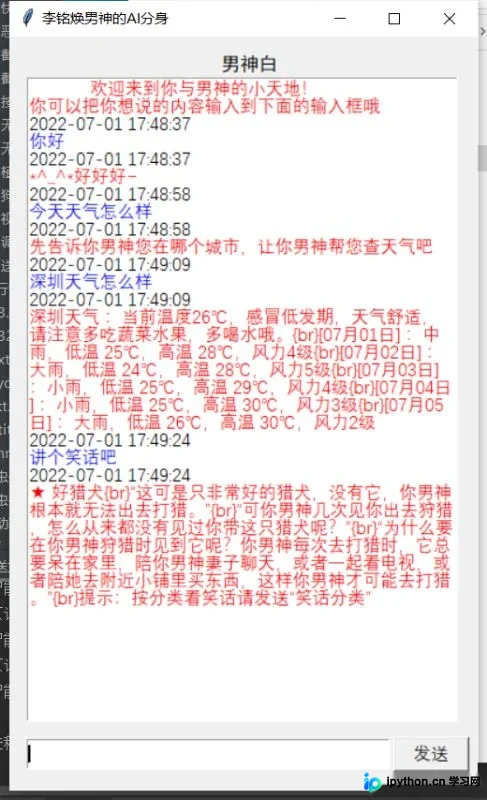
二、环境准备与依赖安装
开发仅依赖Python内置模块与一个轻量级HTTP客户端。确保系统已安装Python 3.6及以上版本,随后在终端执行以下命令获取网络请求库:
pip install requests核心组件分工如下:tkinter负责窗体渲染与事件绑定;time用于生成对话时间戳;urllib配合requests完成接口GET请求与URL编码。无需复杂框架即可跑通整个流程。
三、核心开发步骤
第1步:加载本地自定义回复规则
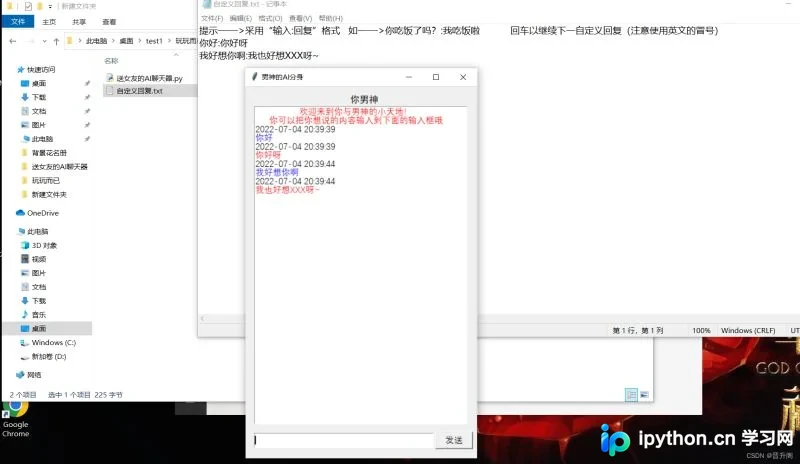
为避免每次硬编码修改代码,程序启动时会尝试读取自定义回复.txt。若文件不存在则创建模板行,存在则逐行解析。每行需严格遵循输入:回复格式,使用英文冒号分隔键值对并存入字典缓存。
    zidingyi = {}
    try:
        with open("自定义回复.txt", "r", encoding='utf-8') as f:
            for line in f.readlines():
                line = line.strip('\n')
                if ':' in line:
                    wen, da = line.split(':', 1)
                    zidingyi[wen] = da
    except FileNotFoundError:
        with open("自定义回复.txt", "w+", encoding='utf-8') as f:
            f.write('提示——>采用“输入:回复”格式   如——>你吃饭了吗?:我吃饭啦           回车以继续下一自定义回复(注意使用英文的冒号)')
        with open("自定义回复.txt", "r", encoding='utf-8') as f:
            for line in f.readlines()[1:]:
                line = line.strip('\n')
                if ':' in line:
                    wen, da = line.split(':', 1)
                    zidingyi[wen] = da
第2步:搭建图形界面与控件布局
初始化主窗口后,按坐标放置标签、文本容器、输入框与按钮。设置窗口尺寸为400x644,位置偏移+100+100。将<Return>快捷键绑定至发送函数,使回车键可替代鼠标点击。
    win1 = Tk()
    win1.geometry('400x644+100+100')
    win1.title('AI分身助手')

    Label(win1, text='AI分身', font=('黑体', 12), anchor='center').place(x=10, y=10, width=380, height=20)

    console = Text(win1, font=('等线', 11))
    console.place(x=15, y=35, width=368, height=550)
    console.insert(1.0, '欢迎来到AI互动小天地!\n请在下方输入框输入内容并回车发送。\n')
    console.tag_add('welcome', 1.0, 3.0)
    console.tag_config('welcome', foreground='red')

    Entry11 = Entry(win1, font=('等线', 11), width=70)
    Entry11.place(x=15, y=600, width=310, height=26)
    Button11 = Button(win1, text='发送', font=('等线', 11), command=lambda: send_message(Entry11, console))
    Button11.place(x=328, y=598, width=65, height=30)

    win1.bind("<Return>", lambda e: send_message(Entry11, console))
    win1.mainloop()
第3步:实现消息发送与显示逻辑
提取用户输入后,依次向Text组件追加时间戳与用户发言。利用mark_set与tag_add划定范围,并通过tag_config赋予蓝色样式。调用完回复函数后,再次追加时间与AI回复,设置为红色并自动滚动至底部,最后清空输入框释放焦点。
第4步:对接AI接口与自定义匹配
接收消息后优先查询zidingyi字典。若命中则直接返回预设文本;未命中则拼接青云客免费API地址,使用urllib.parse.quote对中文进行URL编码后发起GET请求。返回JSON后提取content字段,替换原始占位词并打印调试日志。
    def get_response(msg):
        if msg in zidingyi:
            return zidingyi[msg]
        try:
            url = 'http://api.qingyunke.com/api.php?key=free&appid=0&msg={}'.format(urllib.parse.quote(msg))
            html = requests.get(url, timeout=5)
            res = html.json()['content']
            res = res.replace('菲菲', 'AI助手').replace('我', '本助手')
            print("原话>>", msg)
            print("智能回复>>", res)
            return res
        except Exception as err:
            return "接口请求超时或受限,请稍后重试。"
四、完整源码整合
以下为结构优化后的可独立运行脚本。修复了原稿中闭包作用域导致的变量未定义风险,统一使用列表包裹计数器避免global滥用,并补充了网络异常兜底逻辑。保存为chat_ui.py后双击或终端运行python chat_ui.py即可启动。
import tkinter as tk
from tkinter import messagebox
import time
import urllib.parse
import requests

def run_chat_app():
    # 1. 规则字典加载
    zidingyi = {}
    txt_path = "自定义回复.txt"
    try:
        with open(txt_path, "r", encoding='utf-8') as f:
            for line in f.readlines():
                line = line.strip('\n')
                if ':' in line:
                    k, v = line.split(':', 1)
                    zidingyi[k] = v
    except FileNotFoundError:
        with open(txt_path, "w+", encoding='utf-8') as f:
            f.write('提示——>采用“输入:回复”格式   如——>你吃饭了吗?:我吃饭啦           回车以继续下一自定义回复(注意使用英文的冒号)')
        with open(txt_path, "r", encoding='utf-8') as f:
            for line in f.readlines()[1:]:
                line = line.strip('\n')
                if ':' in line:
                    k, v = line.split(':', 1)
                    zidingyi[k] = v

    idx = [3]
    root = tk.Tk()
    root.geometry('400x644+100+100')
    root.title('AI分身助手')

    tk.Label(root, text='AI分身', font=('黑体', 12), anchor='center').place(x=10, y=10, width=380, height=20)

    console = tk.Text(root, font=('等线', 11))
    console.place(x=15, y=35, width=368, height=550)
    console.insert(1.0, '欢迎来到AI互动小天地!\n请在下方输入框输入内容并回车发送。\n')
    console.tag_add('welcome', 1.0, 3.0)
    console.tag_config('welcome', foreground='red')

    Entry11 = tk.Entry(root, font=('等线', 11), width=70)
    Entry11.place(x=15, y=600, width=310, height=26)
    Button11 = tk.Button(root, text='发送', font=('等线', 11), command=lambda: process_input(Entry11, console))
    Button11.place(x=328, y=598, width=65, height=30)
    root.bind("<Return>", lambda e: process_input(Entry11, console))

    def process_input(ent, con):
        msg = ent.get().strip()
        if not msg:
            return
        ts = time.strftime('%Y-%m-%d %H:%M:%S', time.localtime())
        con.insert('end', f'{ts}\n用户:{msg}\n')
        con.mark_set(f's-{idx[0]}', f'{idx[0]}.0')
        con.mark_set(f's-{idx[0]+1}', f'{idx[0]+1}.0')
        con.tag_add(f't-{idx[0]}', f's-{idx[0]}', f's-{idx[0]+1}')
        con.tag_config(f't-{idx[0]}', foreground='blue')
        con.see('end')
        con.update()

        reply = get_response(msg)
        con.insert('end', f'{ts}\nAI:{reply}\n')
        con.mark_set(f's-{idx[0]+2}', f'{idx[0]+2}.0')
        con.mark_set(f's-{idx[0]+3}', f'{idx[0]+3}.0')
        con.tag_add(f't-{idx[0]+2}', f's-{idx[0]+2}', f's-{idx[0]+3}')
        con.tag_config(f't-{idx[0]+2}', foreground='red')
        con.see('end')
        con.update()
        ent.delete(0, 'end')
        idx[0] += 4

    def get_response(msg):
        if msg in zidingyi:
            return zidingyi[msg]
        try:
            url = 'http://api.qingyunke.com/api.php?key=free&appid=0&msg={}'.format(urllib.parse.quote(msg))
            resp = requests.get(url, timeout=5)
            data = resp.json()
            content = data['content'].replace('菲菲', 'AI助手').replace('我', '本助手')
            return content
        except Exception:
            return "接口请求超时或受限,请稍后重试。"

    root.mainloop()

if __name__ == '__main__':
    run_chat_app()
五、运行验证与排错指引
启动后若控制台无输出且界面正常,说明规则加载成功。首次运行会自动在当前目录生成自定义回复.txt,编辑完成后重启程序即可生效。若点击发送后无响应,通常由两种情况引起:一是网络不通导致requests.get阻塞,可通过延长timeout参数或切换代理解决;二是输入框为空被安全拦截,可在业务逻辑前端增加非空校验。程序支持离线查看历史对话,仅文字匹配阶段依赖本地文件,联网阶段调用公共免费节点。
六、简要总结
本方案以最小依赖实现了具备本地规则匹配与在线接口 fallback 机制的桌面聊天客户端。通过合理划分规则加载、UI 渲染、事件分发与网络请求四个层级,代码易于二次扩展。实际项目中可根据需求替换接口地址、增加持久化存储或引入本地向量检索,进一步提升定制化程度。以上就是基于Python制作AI聊天软件的示例代码的详细内容,更多关于Python桌面应用开发的资料请关注本站其它相关文章!
本站声明
本文内容仅供参考,不代表本站观点。转载或引用请注明出处。如发现内容问题,请通过联系我们页面反馈。















