


原生 JavaScript 实现图片轮播切换:原理与代码详解

发布时间:2026-10-13 |
1人浏览过
使用原生JavaScript实现图片切换或轮播功能,无需依赖jQuery等第三方库。本文将深入解析如何通过构造函数封装DOM操作、缓动动画及事件监听,提供一套完整且可复用的图片滑动切换解决方案。
效果展示
图片切换组件的主要效果是通过左右按钮控制一组图片或内容项进行平滑滑动。具体视觉表现如下:
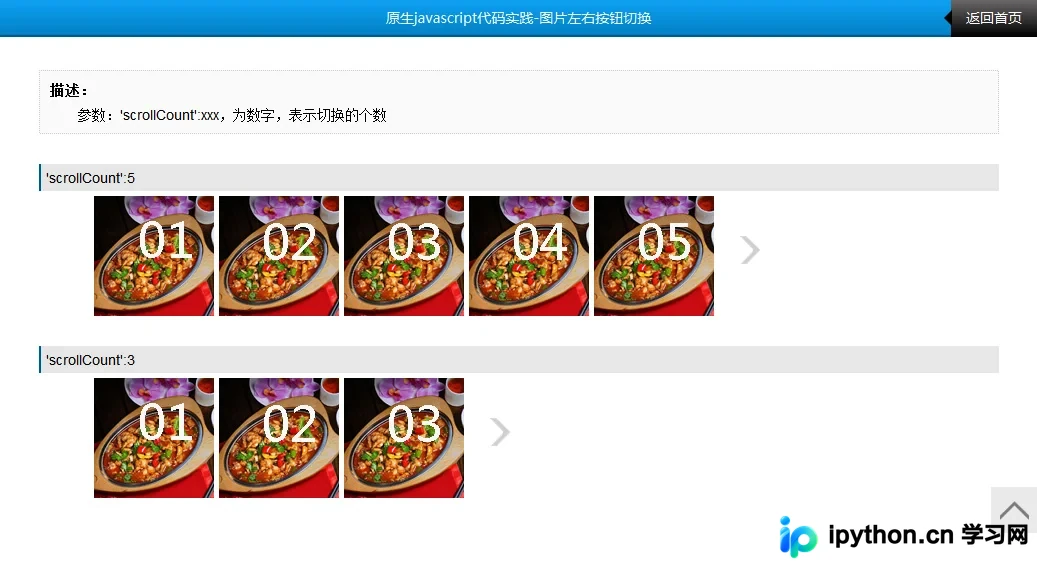
核心原理分析
该方案基于面向对象思想,将切换逻辑封装为 LGY_picSwitch 类。其核心机制包括以下三个部分:
- DOM结构映射:通过配置的外层ID和特定类名(如
.gy_picSwitch_listWrap),自动获取容器、列表项及左右按钮节点。 - 运动算法:利用
setInterval定时器实现缓动动画。每次计算当前位置与目标位置的距离,按比例缩小移动步长,直到距离小于阈值时停止,并触发回调。 - 状态管理:维护当前索引
nIndex和最大页数nScollLen,根据索引变化动态显示/隐藏前后按钮,防止越界操作。
HTML结构要求
为了实现脚本的准确定位,HTML必须遵循特定的嵌套结构。外层容器需指定唯一ID,内部包含前后导航按钮和包裹图片列表的区块。类名 gy_picSwitch_prev、gy_picSwitch_next 和 gy_picSwitch_listWrap 不可随意更改,否则无法识别节点。
<!-- 外部容器,ID可自定义,此处为示例 -->
<div id="gy_picSwitch02">
  <!-- 左箭头按钮 -->
  <span class="gy_picSwitch_prev"></span>

  <!-- 右箭头按钮 -->
  <span class="gy_picSwitch_next"></span>

  <!-- 图片列表容器 -->
  <div class="gy_picSwitch_listWrap">
    <ul>
      <li><img src="images/pic01.jpg" alt="pic1"></li>
      <li><img src="images/pic02.jpg" alt="pic2"></li>
      <li><img src="images/pic03.jpg" alt="pic3"></li>
      <!-- 更多图片项... -->
    </ul>
  </div>
</div>
JavaScript 完整实现
以下是核心 JS 代码,包含了辅助方法(如 getNodeByClassname)、CSS 读写工具以及核心的运动函数 moveFn。
function LGY_picSwitch(option){
    // 1. 初始化核心节点
    this.oWrap = this.getId(option.wrapID); // 最外层元素
    this.olistWrap = this.getNodeByClassname(this.oWrap,'gy_picSwitch_listWrap')[0];
    this.oUl = this.olistWrap.getElementsByTagName('ul')[0];
    this.oBtnPrev = this.getNodeByClassname(this.oWrap,'gy_picSwitch_prev')[0];
    this.oBtnNext = this.getNodeByClassname(this.oWrap,'gy_picSwitch_next')[0];

    // 2. 计算参数
    this.nLen = this.oUl.getElementsByTagName('li').length; // 图片总数
    this.nScollCount = option.scrollCount; // 每次滚动的数量
    this.nScollLen = Math.ceil(this.nLen/option.scrollCount); // 切换判断的最大值(总页数)
    this.nSwitchWidth = 0; // 每次切换移动的距离,在init中动态获取
    this.nIndex = 0; // 切换图片的当前索引
    this.timer = null; // 切换图片的引值

    // 3. 启动实例
    this.int();
}

LGY_picSwitch.prototype = {
    // 辅助:ID获取
    getId:function(id){
        return document.getElementById(id);
    },

    // 辅助:按类名获取元素数组
    getNodeByClassname:function(parent,classname){
        var classElements = new Array();
        var els = parent.getElementsByTagName('*');
        var elsLen = els.length;
        var pattern = new RegExp("(^|\\s)"+classname+"(\\s|$)");
        for (i = 0, j = 0; i < elsLen; i++) {
            if ( pattern.test(els[i].className) ) {
                classElements[j] = els[i];
                j++;
            }
        }
        return classElements;
    },

    // 辅助:获取计算后的CSS样式
    getCss:function(node,value){
        return node.currentStyle?node.currentStyle[value]:getComputedStyle(node,null)[value];
    },

    // 辅助:批量设置CSS
    setCss:function(node,val){
        for(var v in val){
            node.style.cssText += ';'+ v +':'+val[v];
        }
    },

    /**
     * 核心:缓动动画函数
     * @param {HTMLElement} node - 要移动的元素
     * @param {String} value - CSS属性名,如 'marginLeft'
     * @param {Number} targetValue - 目标像素值
     * @param {Function} callback - 动画结束回调
     */
    moveFn:function(node,value,targetValue,callback){
        var _that = this;
        clearInterval(this.timer);
        this.timer = setInterval(function(){
            var val = parseFloat(_that.getCss(node,value));
            // 计算速度:距离除以8,产生缓冲效果
            var speed = ( targetValue- val )/8;
            // 向上取整或向下取整,避免速度小数导致的跳动
            speed = speed>0?Math.ceil(speed):Math.floor(speed);

            if(speed == 0){
                clearInterval(_that.timer);
                callback&&callback();
            } else{
                node.style[value] = ( val + speed ) +'px';
            }
        },20);
    },

    // 执行图片切换
    picChange:function(){
        this.moveFn(this.oUl,'marginLeft',-this.nIndex*this.nSwitchWidth);
    },

    // 阻止事件冒泡
    cancelBubble:function(e){
        e.stopPropagation?e.stopPropagation():e.cancelBubble = true;
    },

    // 控制按钮显隐
    btnIsShow:function(){
        this.setCss(this.oBtnNext,{'display':'block'});
        this.setCss(this.oBtnPrev,{'display':'block'});

        if( this.nIndex == 0 ) this.setCss(this.oBtnPrev,{'display':'none'});
        if( this.nIndex ==(this.nScollLen-1) ) this.setCss(this.oBtnNext,{'display':'none'});
    },

    // 绑定上一页按钮
    btnPrev:function(){
        var _that = this;
        this.oBtnPrev.onclick = function(e){
            var e = e || window.event;
            _that.cancelBubble(e);
            if(_that.nIndex != 0 ) {
                _that.nIndex--;
                _that.picChange();
                _that.btnIsShow();
            }
        }
    },

    // 绑定下一页按钮
    btnNext:function(){
        var _that = this;
        this.oBtnNext.onclick = function(e){
            var e = e || window.event;
            _that.cancelBubble(e);
            if(_that.nIndex != (_that.nScollLen-1) ) {
                _that.nIndex++;
                _that.picChange();
                _that.btnIsShow();
            }
        }
    },

    // 初始化工具函数
    int:function(){
        // 动态获取单个项目宽度,用于计算总偏移量
        var oLi = this.oUl.getElementsByTagName('li')[0],
            oLi_w = oLi.offsetWidth + parseInt(this.getCss(oLi,'marginLeft')) + parseInt(this.getCss(oLi,'marginRight'));

        // 每次切换移动的总宽度 = 单个宽度 * 每页显示数量
        this.nSwitchWidth = oLi_w*this.nScollCount;

        // 初始化按钮状态
        this.btnIsShow();
        // 绑定左右按钮点击事件
        this.btnPrev();
        this.btnNext();
    }
}
使用指南
在实际页面中引入上述脚本后,只需实例化即可启用功能。你需要提供两个关键参数:
wrapID:外部容器的id属性值。scrollCount:每一屏展示的图片数量(整数)。
实例化代码示例:
// 页面加载完成后执行
new LGY_picSwitch({
    'wrapID':'gy_picSwitch02', // 对应HTML中的ID
    'scrollCount':5           // 每页滚动5张图片
});
注意事项
- CSS布局:
ul需要设置为white-space: nowrap;或通过float排列子元素,确保水平对齐。gy_picSwitch_listWrap通常需要设置overflow: hidden;来裁剪超出部分的图片。 - 兼容性:代码中使用了
currentStyle处理 IE 低版本的样式获取,同时兼容标准getComputedStyle。 - 图片尺寸:建议所有
li内的图片高度一致,否则可能导致对齐问题。
本站声明
本文内容仅供参考,不代表本站观点。转载或引用请注明出处。如发现内容问题,请通过联系我们页面反馈。















