



很多人在 WPF 里做 DataGrid 编辑时,第一反应是直接在界面代码里写事件,但这样很快就会把显示逻辑、编辑逻辑和数据更新揉在一起。本文换一种更适合长期维护的做法:用一个主窗口展示列表、一个编辑窗口处理修改,再通过命令和属性通知把数据回写到界面。读完后,你可以判断一套最基础的 MVVM 编辑链路应该由哪些部分组成,以及每一段代码各自解决什么问题。
先搭出只读列表:主窗口中的 DataGrid
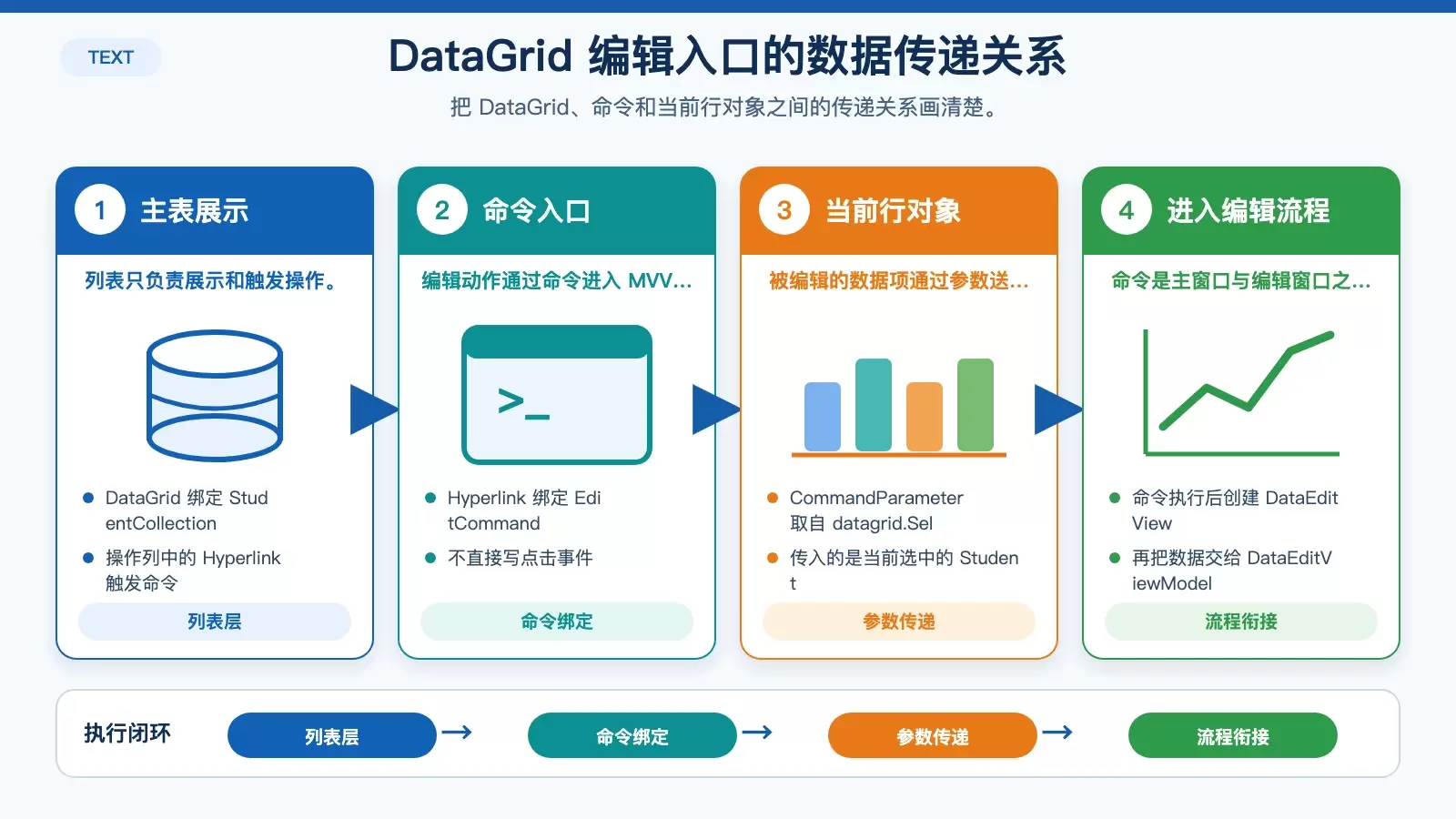
这个示例的入口是一个主窗口 MainWindow。它负责显示学生列表,并在每一行提供一个“编辑”入口。这里的关键点有两个:
ItemsSource绑定到StudentCollection,列表数据由 ViewModel 提供。IsReadOnly="True"让 DataGrid 只承担展示职责,实际修改放到单独窗口中处理。
主窗口布局如下:
MainWindow.xaml
<Window x:Class="WPFDataGridEditDemo.MainWindow"
        xmlns="http://schemas.microsoft.com/winfx/2006/xaml/presentation"
        xmlns:x="http://schemas.microsoft.com/winfx/2006/xaml"
        xmlns:d="http://schemas.microsoft.com/expression/blend/2008"
        xmlns:mc="http://schemas.openxmlformats.org/markup-compatibility/2006"
        xmlns:local="clr-namespace:WPFDataGridEditDemo"
        mc:Ignorable="d"
        Title="MainWindow" Height="450" Width="800">
    <Grid>
        <DataGrid x:Name="datagrid" ItemsSource="{Binding StudentCollection,Mode=TwoWay,UpdateSourceTrigger=PropertyChanged}" AutoGenerateColumns="False"
          CanUserAddRows="False" VerticalScrollBarVisibility="Hidden" IsReadOnly="True" Margin="20">
            <DataGrid.Columns>
                <DataGridTextColumn Header="学号" Width="60" Binding="{Binding ID}"/>
                <DataGridTextColumn Header="姓名" Width="*" Binding="{Binding Name}"/>
                <DataGridTemplateColumn Header="操作" Width="120">
                    <DataGridTemplateColumn.CellTemplate>
                        <DataTemplate>
                            <StackPanel Orientation="Horizontal">
                                <TextBlock Margin="0,0,5,0">
                                    <Hyperlink Command="{Binding EditCommand}" CommandParameter="{Binding ElementName=datagrid,Path=SelectedItem}">编辑</Hyperlink>
                                </TextBlock>
                            </StackPanel>
                        </DataTemplate>
                    </DataGridTemplateColumn.CellTemplate>
                </DataGridTemplateColumn>
            </DataGrid.Columns>
        </DataGrid>
    </Grid>
</Window>
这一段里最值得注意的是操作列中的 Hyperlink。它没有直接绑定点击事件,而是把操作交给 EditCommand,并通过 CommandParameter 把当前选中项传进去。这正是 MVVM 的基本思路:界面触发动作,具体处理交给命令。
编辑窗口怎么接住数据
既然主窗口只负责展示,那么编辑动作就需要一个独立的窗口来承接。示例里使用的是 DataEditView,界面中放了一个用于编辑姓名的 TextBox,以及一个保存按钮。
DataEditView.xaml
<Window x:Class="WPFDataGridEditDemo.Views.DataEditView"
        xmlns="http://schemas.microsoft.com/winfx/2006/xaml/presentation"
        xmlns:x="http://schemas.microsoft.com/winfx/2006/xaml"
        xmlns:d="http://schemas.microsoft.com/expression/blend/2008"
        xmlns:mc="http://schemas.openxmlformats.org/markup-compatibility/2006"
        xmlns:local="clr-namespace:WPFDataGridEditDemo.Views"
        mc:Ignorable="d"
        Title="DataEditView" Height="450" Width="800">
    <Grid>
        <Border>
            <Grid Background="Transparent">
                <TabControl BorderThickness="0" Margin="0,5">
                    <TabItem Header="学生信息" FontSize="12">
                        <Grid>
                            <Grid.ColumnDefinitions>
                                <ColumnDefinition/>
                                <ColumnDefinition Width="1.6*"/>
                            </Grid.ColumnDefinitions>
                            <Grid>
                                <Grid.RowDefinitions>
                                    <RowDefinition Height="40"/>
                                    <RowDefinition/>
                                </Grid.RowDefinitions>
                                <TextBlock Text="姓名" Margin="18,0" VerticalAlignment="Center"/>
                            </Grid>
                            <Grid Grid.Column="1">
                                <Grid.RowDefinitions>
                                    <RowDefinition Height="40"/>
                                    <RowDefinition/>
                                </Grid.RowDefinitions>
                                <TextBox Grid.Row="0" Text="{Binding Name}" Height="23" VerticalContentAlignment="Center" Width="220"/>
                                <Button Grid.Row="6" Content="保存"  Width="88" Height="28" HorizontalAlignment="Right" VerticalAlignment="Bottom" Margin="10"
                                CommandParameter="{Binding .,RelativeSource={RelativeSource AncestorType=Window}}" Background="LightBlue" Command="{Binding Sa veCommand}" />
                            </Grid>
                        </Grid>
                    </TabItem>
                </TabControl>
            </Grid>
        </Border>
    </Grid>
</Window>
这里的设计重点不是界面复杂度,而是“窗口本身不直接改主列表数据”。编辑窗口只接收一份可编辑数据,并在用户点击保存后返回结果。这样可以把“编辑过程”和“最终回写”拆开,逻辑更清楚。
实现 MVVM 的两个基础件:命令和数据模型
命令对象:把点击动作变成可绑定逻辑
为了让按钮、超链接等控件通过绑定触发操作,先定义一个简单的 CommandBase,实现 ICommand 接口:
public class CommandBase : ICommand
{
    public event EventHandler CanExecuteChanged;

    public bool CanExecute(object parameter)
    {
        return true;
    }

    public void Execute(object parameter)
    {
        DoExecute?.Invoke(parameter);
    }

    public Action<object> DoExecute { get; set; }
}
这个写法很适合入门理解:CanExecute 统一返回 true,表示命令始终可执行;真正的业务逻辑则放在 DoExecute 里。这样主窗口和编辑窗口都可以复用同一种命令封装方式。
数据模型:让属性变化自动刷新界面
列表中的每一行都是一个 Student 对象。为了保证修改后 DataGrid 能立即刷新,这个类实现了 INotifyPropertyChanged:
public class Student : INotifyPropertyChanged
{
    public event PropertyChangedEventHandler PropertyChanged;

    public void NotifyChanged([CallerMemberName] string propName = "")
    {
        PropertyChanged?.Invoke(this, new PropertyChangedEventArgs(propName));
    }

    private int id;
    private string name;

    public int ID
    {
        get => id;
        set
        {
            id = value;
            NotifyChanged();
        }
    }

    public string Name
    {
        get => name;
        set
        {
            name = value;
            NotifyChanged();
        }
    }

    private CommandBase editCommand;

    public CommandBase EditCommand
    {
        get
        {
            if (editCommand == null)
            {
                editCommand = new CommandBase();
                editCommand.DoExecute = new Action<object>(obj => {
                   //预留
                });
            }
            return editCommand;
        }
    }
}
这里有两个核心点:
ID和Name在set中调用NotifyChanged(),所以属性一旦被修改,绑定它们的界面元素就会收到更新通知。EditCommand放在单条数据对象里,意味着每一行都可以独立触发编辑动作。
主窗口 ViewModel 如何把列表绑定起来
接下来是主窗口对应的 ViewModel。它提供 StudentCollection,供 DataGrid 直接绑定:
public class MainWindowViewModel : INotifyPropertyChanged
{
    public event PropertyChangedEventHandler PropertyChanged;

    public void RaiseChanged([CallerMemberName] string propertyName = "")
    {
        PropertyChanged?.Invoke(this, new PropertyChangedEventArgs(propertyName));
    }

    private ObservableCollection<Student> studentCollection = new ObservableCollection<Student>();

    public ObservableCollection<Student> StudentCollection
    {
        get => this.studentCollection;
        set
        {
            studentCollection = value;
            this.RaiseChanged();
        }
    }
}
ObservableCollection<Student> 的作用是处理“集合本身发生变化”这件事,比如新增、删除列表项;而 Student 的 INotifyPropertyChanged 负责“单个对象属性变化”。两者配合,才构成完整的数据刷新机制。
在 MainWindow 构造函数里,再把这个 ViewModel 挂到窗口上,并加入测试数据:
public partial class MainWindow : Window
{
    public MainWindow()
    {
        InitializeComponent();

        var mainviewmodel = new MainWindowViewModel();

        mainviewmodel.StudentCollection.Add(new Model.Student() { ID = 1, Name = "标签111111" });
        mainviewmodel.StudentCollection.Add(new Model.Student() { ID = 2, Name = "标签222222" });

        this.DataContext = mainviewmodel;
    }
}
到这里,DataGrid 已经能正确显示列表,接下来只差真正的编辑链路。
编辑功能的完整闭环:打开窗口、保存、回写数据
先准备编辑窗口的 ViewModel
编辑窗口同样需要自己的 ViewModel,用来承接当前要修改的数据,并提供保存命令:
public class DataEditViewModel : INotifyPropertyChanged
{
    public event PropertyChangedEventHandler PropertyChanged;

    public void RaiseChanged([CallerMemberName] string propName = "")
    {
        PropertyChanged?.Invoke(this, new PropertyChangedEventArgs(propName));
    }

    private int id;
    private string name;

    public int Num
    {
        get => id;
        set
        {
            id = value;
            RaiseChanged();
        }
    }

    public string Name
    {
        get => name;
        set
        {
            name = value;
            RaiseChanged();
        }
    }

    private CommandBase sa veCommand;
    public CommandBase Sa veCommand
    {
        get
        {
            if (sa veCommand == null)
            {
                sa veCommand = new CommandBase();
                sa veCommand.DoExecute = new Action<object>(obj => {
                    var window = obj as Window;

                    if (window != null)
                        window.DialogResult = true;
                });
            }

            return sa veCommand;
        }
    }
}
这个保存命令做的事情并不多:它只是把当前窗口的 DialogResult 设为 true。真正的数据落回主列表,是在编辑窗口关闭之后完成的。这样的职责拆分比较清晰,也方便以后加校验逻辑。
再补全 Student 中的编辑命令
最后,把前面 Student 类里预留的 EditCommand 补全,就能串起完整流程:
public CommandBase EditCommand
{
    get
    {
        if (editCommand == null)
        {
            editCommand = new CommandBase();
            editCommand.DoExecute = new Action<object>(obj => {
                var connectData = obj as Student;
                DataEditView dataEditView = new DataEditView();
                DataEditViewModel dataEditViewModel = new DataEditViewModel();
                dataEditViewModel.Num = connectData.ID;
                dataEditViewModel.Name = connectData.Name;
                dataEditView.DataContext = dataEditViewModel;

                if(dataEditView.ShowDialog() == true)
                {
                    connectData.ID = dataEditViewModel.Num;
                    connectData.Name = dataEditViewModel.Name;
                }
            });
        }
        return editCommand;
    }
}
这段代码完成了 4 个关键动作:
- 拿到当前被点击的
Student对象。 - 创建
DataEditView和DataEditViewModel。 - 把原始数据复制到编辑 ViewModel,供窗口修改。
- 当
ShowDialog()返回true时,再把修改结果写回原对象。
因为 connectData.ID 和 connectData.Name 的属性设置器内部会调用通知方法,所以回写完成后,DataGrid 会自动刷新显示内容,不需要手动重新绑定。
这个实现为什么能生效,关键在这三层配合
从结果上看,这个示例实现的是“点击 DataGrid 中的编辑链接,弹出窗口修改数据,保存后列表立即更新”。而从机制上看,它依赖的是下面三层配合:
- 界面层:通过
Binding和Command把用户操作交给 ViewModel 或命令对象。 - 数据层:通过
ObservableCollection<Student>维护列表,通过INotifyPropertyChanged维护单项刷新。 - 交互层:通过模态窗口
ShowDialog()接收编辑结果,再决定是否回写。
如果你正在做入门级 WPF 项目,这种写法的好处很直接:不用第三方框架,也能把“列表展示”“弹窗编辑”“数据通知”这三件事分清楚。后续无论你要增加字段、做校验,还是把编辑窗口改成更复杂的表单,都可以沿着同一结构继续扩展。















