


pygame游戏开发教程:实现游戏开始前的介绍界面

发布时间:2026-10-13 |
5人浏览过
本文详解如何在pygame游戏中添加开场介绍功能。通过定义game_intro函数,利用while循环控制初始界面显示,结合pygame.font模块渲染标题文字,并处理QUIT事件以支持正常退出。代码展示了完整的初始化流程、图像加载及碰撞检测逻辑,帮助开发者快速构建游戏启动画面。
本节内容属于pygame游戏开发系列的第九部分,旨在为读者提供具体的实现方案与参考代码。
在正式进入游戏主循环之前,需要预先定义一个专门的函数,用于展示游戏的介绍或欢迎界面。
def game_intro():
  intro = True
  while intro:
    for event in pygame.event.get():
      print(event)
      if event.type == pygame.QUIT:
        pygame.quit()
        quit()
    gameDisplay.fill(white)
    largeText = pygame.font.Font('freesansbold.ttf',115)
    TextSurf, TextRect = text_objects('A bit Racey', largeText)
    TextRect.center = ((display_width/2),(display_height/2))
    gameDisplay.blit(TextSurf, TextRect)
    pygame.display.update()
    clock.tick(15)
以下是实现该功能所需的完整源代码:
import pygame
import time
import random

pygame.init()

white = (255,255,255)
black = (0,0,0)

car_width = 100

display_width = 800
display_height = 600


gameDisplay = pygame.display.set_mode( (display_width,display_height) )
pygame.display.set_caption('A bit Racey')
clock = pygame.time.Clock()

carImg = pygame.image.load('car.png')

def things_dodged(count):
  font = pygame.font.SysFont(None, 25)
  text = font.render("Dodged:"+str(count), True, black)
  gameDisplay.blit(text,(0,0))

def things(thingx, thingy, thingw, thingh, color):
  pygame.draw.rect(gameDisplay, color, [thingx, thingy, thingw, thingh])


def car(x, y):
  gameDisplay.blit(carImg, (x,y))


def text_objects(text, font):
  textSurface = font.render(text, True, black)
  return textSurface, textSurface.get_rect()

def message_diaplay(text):
  largeText = pygame.font.Font('freesansbold.ttf',115)
  TextSurf, TextRect = text_objects(text, largeText)
  TextRect.center = ((display_width/2),(display_height/2))
  gameDisplay.blit(TextSurf, TextRect)
  pygame.display.update()
  time.sleep(2)
  game_loop()

def crash():
  message_diaplay('You Crashed')

def game_intro():
  intro = True
  while intro:
    for event in pygame.event.get():
      print(event)
      if event.type == pygame.QUIT:
        pygame.quit()
        quit()
    gameDisplay.fill(white)
    largeText = pygame.font.Font('freesansbold.ttf',115)
    TextSurf, TextRect = text_objects('A bit Racey', largeText)
    TextRect.center = ((display_width/2),(display_height/2))
    gameDisplay.blit(TextSurf, TextRect)
    pygame.display.update()
    clock.tick(15)

def game_loop():
  x = display_width * 0.45
  y = display_height * 0.8
  x_change = 0

  dodged = 0

  gameExit = False

  thing_startx = random.randrange(0, display_width)
  thing_starty = -600
  thing_speed = 7
  thing_width = 100
  thing_height = 100

  while not gameExit:
    for event in pygame.event.get():
      if event.type == pygame.QUIT:
        pygame.quit()
        quit()
      if event.type == pygame.KEYDOWN:
        if event.key == pygame.K_LEFT:
          x_change = -5
        elif event.key == pygame.K_RIGHT:
          x_change = 5
      if event.type == pygame.KEYUP:
        if event.key == pygame.K_LEFT or event.key == pygame.K_RIGHT:
          x_change = 0
      print(event)
    x += x_change
    gameDisplay.fill(white)

    things(thing_startx, thing_starty, thing_width, thing_height, black)
    thing_starty += thing_speed

    car(x,y)
    things_dodged(dodged)
    if x > display_width - car_width or x < 0:
      gameExit = True
    if thing_starty > display_height:
      thing_starty = 0 - thing_height
      thing_startx = random.randrange(0, display_width)
      dodged += 1
      thing_speed += 1
      thing_width += (dodged * 1.2)
    if y < thing_starty + thing_height:
      print('y crossover')
      if x > thing_startx and x < thing_startx + thing_width or x + car_width > thing_startx and x + car_width < thing_startx + thing_width:
        print('x crossover')
        crash()
    pygame.display.update()
    clock.tick(60)
#crash()
game_intro()
game_loop()
pygame.quit()
quit()
运行程序后,界面显示效果如下:
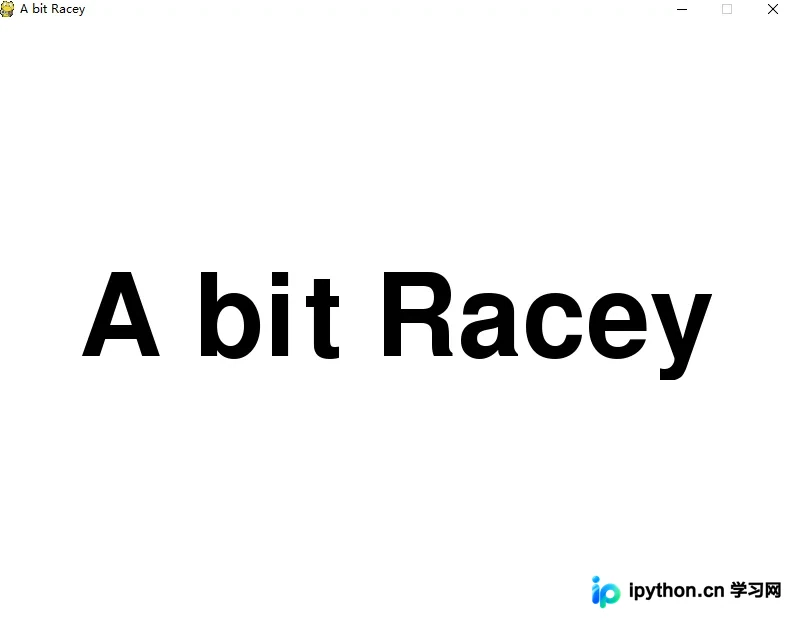
以上就是本次pygame游戏开发教程的全部内容,希望这些示例代码能对您的学习过程有所帮助,同时也欢迎持续关注本站以获取更多技术更新。
本站声明
本文内容仅供参考,不代表本站观点。转载或引用请注明出处。如发现内容问题,请通过联系我们页面反馈。















