


Python skimage实现灰度图像彩色化:RGB缩放与HSV色调映射详解

发布时间:2026-10-13 |
5人浏览过
本文介绍利用Python skimage库对灰度图像进行彩色化的两种核心方法。第一种通过RGB通道乘以不同系数实现简单染色,如红色或黄色;第二种基于HSV色彩空间,通过调整色调(Hue)实现更丰富的色彩渐变与复古风格效果。文章提供完整代码示例,适用于图像增强、区域高亮及视觉美化场景。
基于RGB缩放的灰度图像染色
本节展示如何将灰度图像转换为带有红色和黄色调的彩色图像。
# 1.将灰度图像转换为RGB图像
image = color.gray2rgb(grayscale_image)
# 2.保留红色分量和黄色分量
red_multiplier = [1, 0, 0]
yellow_multiplier = [1, 1, 0]
# 3.显示图像
fig, (ax1, ax2) = plt.subplots(ncols=2, figsize=(8, 4),
                sharex=True, sharey=True)
ax1.imshow(red_multiplier * image)
ax2.imshow(yellow_multiplier * image)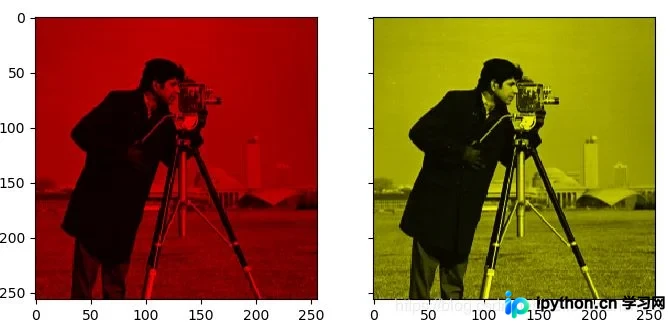
基于HSV色彩空间的色调映射
在HSV色彩空间中,色调(Hue)值的范围通常定义为0到1,代表不同的颜色循环。
hue_gradient = np.linspace(0, 1)
# print(hue_gradient.shape) # output:(50,)
hsv = np.ones(shape=(1, len(hue_gradient), 3), dtype=float)
hsv[:, :, 0] = hue_gradient

all_hues = color.hsv2rgb(hsv)

fig, ax = plt.subplots(figsize=(5, 2))
# Set image extent so hues go from 0 to 1 and the image is a nice aspect ratio.
ax.imshow(all_hues, extent=(0, 1, 0, 0.2))
ax.set_axis_off()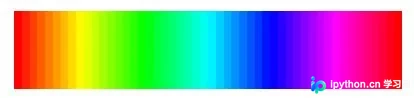
多色调灰度图像处理示例
通过调整HSV空间中的色调参数,可以将灰度图像映射为多种不同的颜色效果。
hue_rotations = np.linspace(0, 1, 6)

fig, axes = plt.subplots(nrows=2, ncols=3, sharex=True, sharey=True)

for ax, hue in zip(axes.flat, hue_rotations):
  # Turn down the saturation to give it that vintage look.
  tinted_image = colorize(image, hue, saturation=0.3)
  ax.imshow(tinted_image, vmin=0, vmax=1)
  ax.set_axis_off()
fig.tight_layout()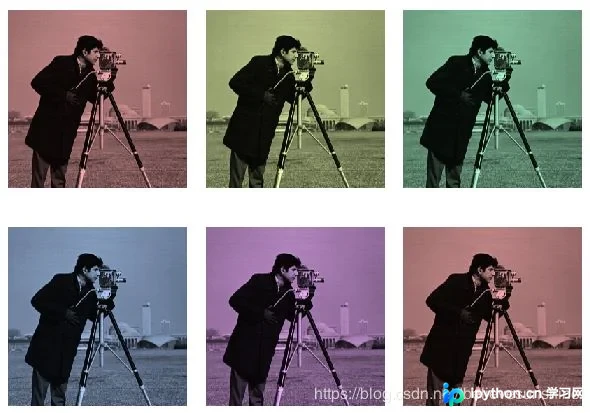
完整实现代码
以下是实现上述灰度图像染色功能的完整Python代码示例。
"""
=========================
Tinting gray-scale images
=========================

It can be useful to artificially tint an image with some color, either to
highlight particular regions of an image or maybe just to liven up a grayscale
image. This example demonstrates image-tinting by scaling RGB values and by
adjusting colors in the HSV color-space.

In 2D, color images are often represented in RGB---3 layers of 2D arrays, where
the 3 layers represent (R)ed, (G)reen and (B)lue channels of the image. The
simplest way of getting a tinted image is to set each RGB channel to the
grayscale image scaled by a different multiplier for each channel. For example,
multiplying the green and blue channels by 0 leaves only the red channel and
produces a bright red image. Similarly, zeroing-out the blue channel leaves
only the red and green channels, which combine to form yellow.
"""

import matplotlib.pyplot as plt
from skimage import data
from skimage import color
from skimage import img_as_float

grayscale_image = img_as_float(data.camera()[::2, ::2])
image = color.gray2rgb(grayscale_image)

red_multiplier = [1, 0, 0]
yellow_multiplier = [1, 1, 0]

fig, (ax1, ax2) = plt.subplots(ncols=2, figsize=(8, 4),
                sharex=True, sharey=True)
ax1.imshow(red_multiplier * image)
ax2.imshow(yellow_multiplier * image)

######################################################################
# In many cases, dealing with RGB values may not be ideal. Because of that,
# there are many other `color spaces`_ in which you can represent a color
# image. One popular color space is called HSV, which represents hue (~the
# color), saturation (~colorfulness), and value (~brightness). For example, a
# color (hue) might be green, but its saturation is how intense that green is
# ---where olive is on the low end and neon on the high end.
#
# In some implementations, the hue in HSV goes from 0 to 360, since hues wrap
# around in a circle. In scikit-image, however, hues are float values from 0
# to 1, so that hue, saturation, and value all share the same scale.
#
# .. _color spaces:
#   https://en.wikipedia.org/wiki/List_of_color_spaces_and_their_uses
#
# Below, we plot a linear gradient in the hue, with the saturation and value
# turned all the way up:
import numpy as np

hue_gradient = np.linspace(0, 1)
# print(hue_gradient.shape) # output:(50,)
hsv = np.ones(shape=(1, len(hue_gradient), 3), dtype=float)
hsv[:, :, 0] = hue_gradient

all_hues = color.hsv2rgb(hsv)

fig, ax = plt.subplots(figsize=(5, 2))
# Set image extent so hues go from 0 to 1 and the image is a nice aspect ratio.
ax.imshow(all_hues, extent=(0, 1, 0, 0.2))
ax.set_axis_off()

######################################################################
# Notice how the colors at the far left and far right are the same. That
# reflects the fact that the hues wrap around like the color wheel (see HSV_
# for more info).
#
# .. _HSV: https://en.wikipedia.org/wiki/HSL_and_HSV
#
# Now, let's create a little utility function to take an RGB image and:
#
# 1. Transform the RGB image to HSV 2. Set the hue and saturation 3.
# Transform the HSV image back to RGB


def colorize(image, hue, saturation=1):
  """ Add color of the given hue to an RGB image.

  By default, set the saturation to 1 so that the colors pop!
  """
  hsv = color.rgb2hsv(image)
  hsv[:, :, 1] = saturation
  hsv[:, :, 0] = hue
  return color.hsv2rgb(hsv)


######################################################################
# Notice that we need to bump up the saturation; images with zero saturation
# are grayscale, so we need to a non-zero value to actually see the color
# we've set.
#
# Using the function above, we plot six images with a linear gradient in the
# hue and a non-zero saturation:

hue_rotations = np.linspace(0, 1, 6)

fig, axes = plt.subplots(nrows=2, ncols=3, sharex=True, sharey=True)

for ax, hue in zip(axes.flat, hue_rotations):
  # Turn down the saturation to give it that vintage look.
  tinted_image = colorize(image, hue, saturation=0.3)
  ax.imshow(tinted_image, vmin=0, vmax=1)
  ax.set_axis_off()
fig.tight_layout()

######################################################################
# You can combine this tinting effect with numpy slicing and fancy-indexing
# to selectively tint your images. In the example below, we set the hue of
# some rectangles using slicing and scale the RGB values of some pixels found
# by thresholding. In practice, you might want to define a region for tinting
# based on segmentation results or blob detection methods.

from skimage.filters import rank

# Square regions defined as slices over the first two dimensions.
top_left = (slice(100),) * 2
bottom_right = (slice(-100, None),) * 2

sliced_image = image.copy()
sliced_image[top_left] = colorize(image[top_left], 0.82, saturation=0.5)
sliced_image[bottom_right] = colorize(image[bottom_right], 0.5, saturation=0.5)

# Create a mask selecting regions with interesting texture.
noisy = rank.entropy(grayscale_image, np.ones((9, 9)))
textured_regions = noisy > 4
# Note that using `colorize` here is a bit more difficult, since `rgb2hsv`
# expects an RGB image (height x width x channel), but fancy-indexing returns
# a set of RGB pixels (# pixels x channel).
masked_image = image.copy()
masked_image[textured_regions, :] *= red_multiplier

fig, (ax1, ax2) = plt.subplots(ncols=2, nrows=1, figsize=(8, 4),
                sharex=True, sharey=True)
ax1.imshow(sliced_image)
ax2.imshow(masked_image)

plt.show()

######################################################################
# For coloring multiple regions, you may also be interested in
# `skimage.color.label2rgb http://scikit-
# image.org/docs/0.9.x/api/skimage.color.html#label2rgb`_.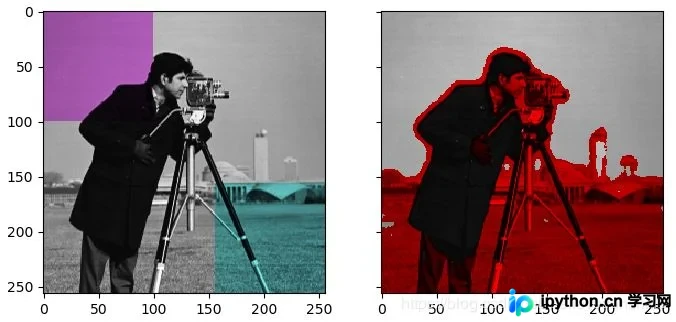
至此,关于使用Python skimage库对灰度图像进行染色的方法示例介绍完毕。如需了解更多相关技术内容,建议查阅本站过往文章或继续阅读后续章节,感谢支持!
本站声明
本文内容仅供参考,不代表本站观点。转载或引用请注明出处。如发现内容问题,请通过联系我们页面反馈。















