


Python matplotlib图例放在外侧保存时显示不完整问题解决

在使用Python matplotlib保存矢量图时,若将图例置于图形外侧,常因savefig()默认的边界框(bbox)未包含图例而导致保存图像显示不完整。本文详细解析该问题的原理,并提供两种解决方案:一是通过subplots_adjust()调整子图边距将图例移入保存区域;二是利用savefig()的bbox_inches='tight'参数自动扩大边界框以包含图例。此外还介绍了pad_inches和bbox_extra_artists参数的用法,确保所有元素完整保存。
问题现象与原理分析
此前曾提到,在使用特定代码保存矢量图时,放置在图形外部的图例往往会出现显示不全的情况:
import numpy as np
import matplotlib.pyplot as plt
fig, ax = plt.subplots()
x1 = np.random.uniform(-10, 10, size=20)
x2 = np.random.uniform(-10, 10, size=20)
#print(x1)
#print(x2)
number = []
x11 = []
x12 = []
for i in range(20):
  number.append(i+1)
  x11.append(i+1)
  x12.append(i+1)
plt.figure(1)
# you can specify the marker size two ways directly:
plt.plot(number, x1, 'bo', markersize=20,label='a') # blue circle with size 20
plt.plot(number, x2, 'ro', ms=10,label='b') # ms is just an alias for markersize

lgnd=plt.legend(bbox_to_anchor=(1.05, 1), loc=2, borderaxespad=0,numpoints=1,fontsize=10)
lgnd.legendHandles[0]._legmarker.set_markersize(16)
lgnd.legendHandles[1]._legmarker.set_markersize(10)

plt.show()

fig.savefig('scatter.png',dpi=600)
保存为scatter.png后的效果如下:
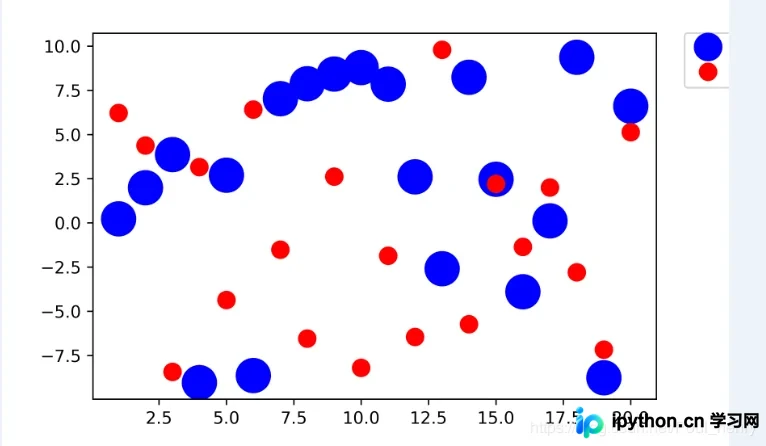
从图中可以看出,位于图像右上方的图例仅左侧部分被显示出来。
造成这一现象的原因十分简单:调用savefig()函数保存矢量图时,系统会通过一个边界框(bounding box,简称bbox)来界定保存范围,仅保存落入该框内的图像内容。如果图例没有完全落入这个边界框内,自然就无法被保存下来。
理解了这一原理后,解决起来就相对容易了。
这里主要涉及两种解决思路:
1. 对于那些未完全落入边界框的图像元素,通过移动它们的位置,使其完全落入框内,这样边界框截取出的图像就是完整的(即把图像移入bbox中);
2. 改变边界框的大小,使其完全包含该图像,特别是那些经常落在边界框外侧的图例(即将bbox扩大以完全包含图像)。
下面分别介绍基于这两种思路解决该问题的两种具体方法:
方法一:调整子图边距
1. 利用subplots_adjust()函数
在官方文档中可以了解到,subplots_adjust()函数的作用是调整子图布局,它包含6个参数。其中left、right、bottom、top四个参数分别用于调整子图的左、右、下、上边界位置,另外两个参数wspace和hspace则分别用于调整子图之间的左右间距和上下间距。
其默认数值分别为:
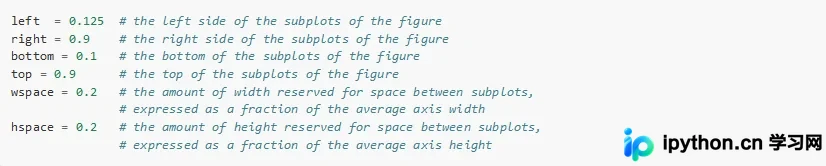
以上述图形为例,既然图例右侧没有显示,我们可以调整subplots_adjust()函数的right参数,使其位置稍微向左移动。将right参数的默认值0.9改为0.8,即可得到一个完整的图例:
import numpy as np
import matplotlib.pyplot as plt
fig, ax = plt.subplots()
x1 = np.random.uniform(-10, 10, size=20)
x2 = np.random.uniform(-10, 10, size=20)
#print(x1)
#print(x2)
number = []
x11 = []
x12 = []
for i in range(20):
  number.append(i+1)
  x11.append(i+1)
  x12.append(i+1)
plt.figure(1)
# you can specify the marker size two ways directly:
plt.plot(number, x1, 'bo', markersize=20,label='a') # blue circle with size 20
plt.plot(number, x2, 'ro', ms=10,label='b') # ms is just an alias for markersize

lgnd=plt.legend(bbox_to_anchor=(1.05, 1), loc=2, borderaxespad=0,numpoints=1,fontsize=10)
lgnd.legendHandles[0]._legmarker.set_markersize(16)
lgnd.legendHandles[1]._legmarker.set_markersize(10)

fig.subplots_adjust(right=0.8)

plt.show()

fig.savefig('scatter1.png',dpi=600)
保存为scatter1.png后,与scatter.png的对比效果如下:
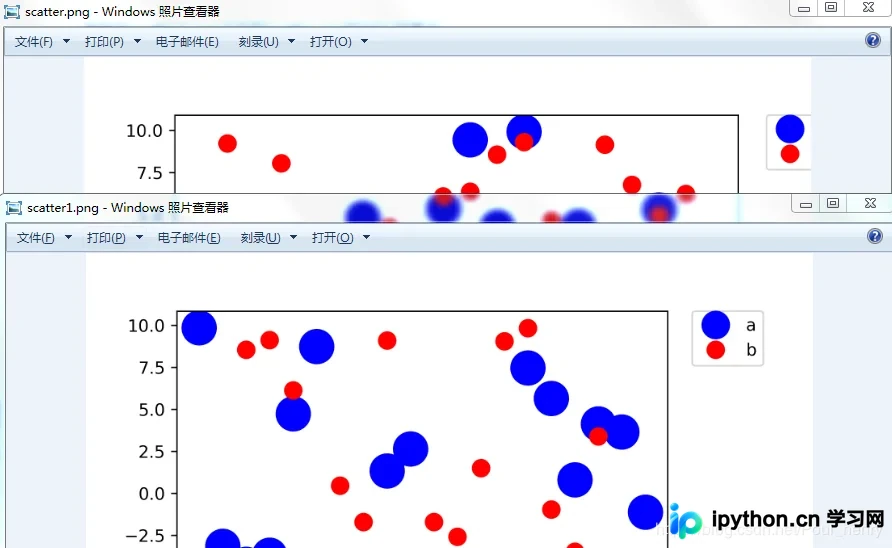
可以看到,此时scatter1.png中的图例显示完整,这是通过将图像右侧边界向左移动,使整体包含在保存的图像范围中来实现的。
同理,若legend位于图像下方,使用savefig()保存时也会出现不完整的情况。这时需要修改subplots_adjust()函数的bottom参数,使其向上移动,从而被包含在截取图像进行保存的框(即下文提到的bbox)中。
import numpy as np
import matplotlib.pyplot as plt
fig, ax = plt.subplots()
x1 = np.random.uniform(-10, 10, size=20)
x2 = np.random.uniform(-10, 10, size=20)
#print(x1)
#print(x2)
number = []
x11 = []
x12 = []
for i in range(20):
  number.append(i+1)
  x11.append(i+1)
  x12.append(i+1)
plt.figure(1)
# you can specify the marker size two ways directly:
plt.plot(number, x1, 'bo', markersize=20,label='a') # blue circle with size 20
plt.plot(number, x2, 'ro', ms=10,label='b') # ms is just an alias for markersize

lgnd=plt.legend(bbox_to_anchor=(0.4, -0.1), loc=2, borderaxespad=0,numpoints=1,fontsize=10)
lgnd.legendHandles[0]._legmarker.set_markersize(16)
lgnd.legendHandles[1]._legmarker.set_markersize(10)

plt.show()
fig.savefig('scatter#1.png',dpi=600)
由于subplots_adjust()中默认的bottom值为0.1,因此添加fig.subplots_adjust(bottom=0.2),使其底部上移,修改后的代码为:
import numpy as np
import matplotlib.pyplot as plt
fig, ax = plt.subplots()
x1 = np.random.uniform(-10, 10, size=20)
x2 = np.random.uniform(-10, 10, size=20)
#print(x1)
#print(x2)
number = []
x11 = []
x12 = []
for i in range(20):
  number.append(i+1)
  x11.append(i+1)
  x12.append(i+1)
plt.figure(1)
# you can specify the marker size two ways directly:
plt.plot(number, x1, 'bo', markersize=20,label='a') # blue circle with size 20
plt.plot(number, x2, 'ro', ms=10,label='b') # ms is just an alias for markersize

lgnd=plt.legend(bbox_to_anchor=(0.4, -0.1), loc=2, borderaxespad=0,numpoints=1,fontsize=10)
lgnd.legendHandles[0]._legmarker.set_markersize(16)
lgnd.legendHandles[1]._legmarker.set_markersize(10)

fig.subplots_adjust(bottom=0.2)

plt.show()
fig.savefig('scatter#1.png',dpi=600)
效果对比如下:
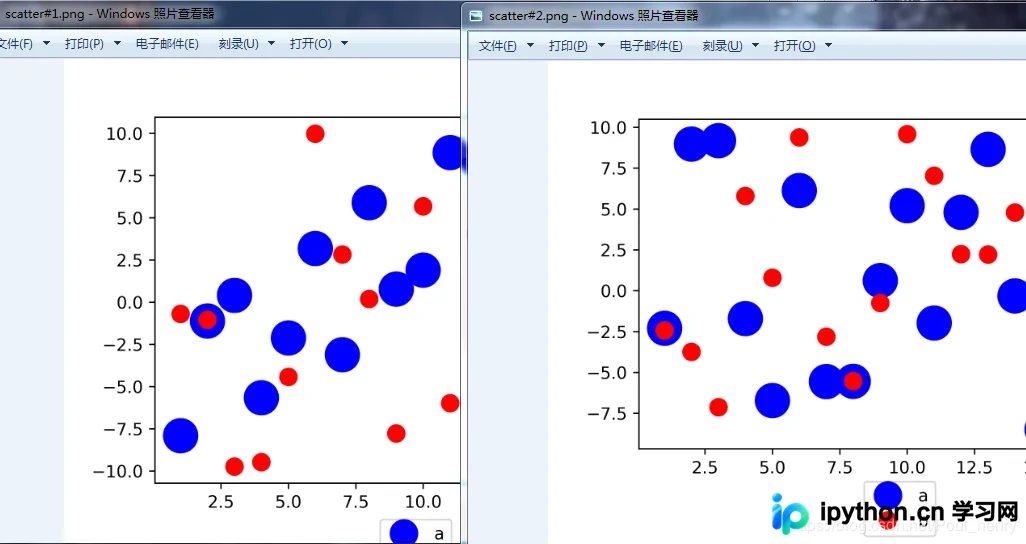
图例legend在其他位置的情况同理处理。
方法二:扩大保存边界框
2. 利用savefig()函数
上一篇文章中提到,使用savefig()函数中的fname、dpi、format三个参数可以保存矢量图。现在我们可以利用该函数中的另一个参数bbox_inches,将
未保存到图中的图例包含进来。
下图展示了bbox_inches参数的作用,即调整图的边界框(bounding box):

可以看到,当bbox_inches设置为'tight'时,它会计算出距离该图像较紧(tight)的边界框bbox,并将选中框中的图像保存。
这里的“较紧边界框”应指完全包含该图像的一个矩形,但与图像之间保留一定的填充距离。这与最小边界框(Minimum bounding box)在概念上有一定区别,单位同样是英寸(inch)。
这样图例就会被bbox包含进去,进而被成功保存。
完整代码如下:
import numpy as np
import matplotlib.pyplot as plt
fig, ax = plt.subplots()
x1 = np.random.uniform(-10, 10, size=20)
x2 = np.random.uniform(-10, 10, size=20)
#print(x1)
#print(x2)
number = []
x11 = []
x12 = []
for i in range(20):
  number.append(i+1)
  x11.append(i+1)
  x12.append(i+1)
plt.figure(1)
# you can specify the marker size two ways directly:
plt.plot(number, x1, 'bo', markersize=20,label='a') # blue circle with size 20
plt.plot(number, x2, 'ro', ms=10,label='b') # ms is just an alias for markersize

lgnd=plt.legend(bbox_to_anchor=(1.05, 1), loc=2, borderaxespad=0,numpoints=1,fontsize=10)
lgnd.legendHandles[0]._legmarker.set_markersize(16)
lgnd.legendHandles[1]._legmarker.set_markersize(10)

#fig.subplots_adjust(right=0.8)

plt.show()

fig.savefig('scatter2.png',dpi=600,bbox_inches='tight')
保存为scatter2.png,下面是scatter.png、scatter1.png、scatter2.png三张图的对比:
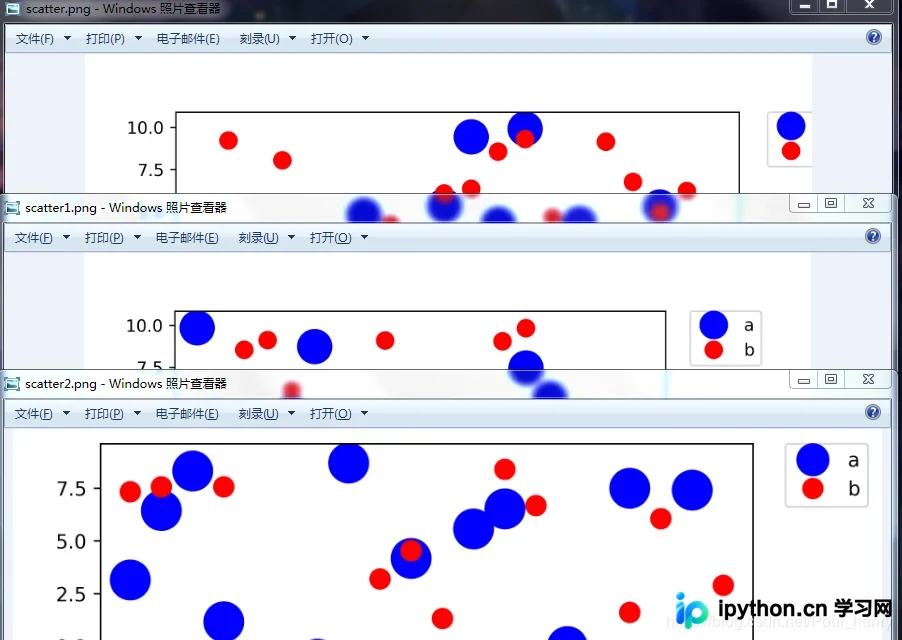
可以看到,scatter1.png(即第1种方法)的思想是将图像右侧边界向左移动,截取该图用以保存的bbox未变;而scatter2.png(即第2种方法)的思想是直接将截取该图用以保存的bbox扩大为整个图像,将其全部包括。
其他相关参数说明
注:savefig()还有两个参数需要说明
其中一个是pad_inches,它的作用是在前面的bbox_inches为'tight'时,调整图像和bbox之间的填充距离。这里不需要特别设置,选择默认值即可。

个人认为,如果将pad_inches参数设置为0(即pad_inches=0),截取图进行保存的bbox就是最小边界框(minimum bounding box)。
另外一个是bbox_extra_artists,它的作用是在计算图像的bbox时,将其他元素也包含进去。

这里举个例子,如果在图像左侧再加一个文本框text,保存图像时希望该文本框包含在bbox中,则可以使用该参数bbox_extra_artists将text包含进去(实际使用中,即使未使用bbox_extra_artists,保存的图像也包含该text):
import numpy as np
import matplotlib.pyplot as plt
fig, ax = plt.subplots()
x1 = np.random.uniform(-10, 10, size=20)
x2 = np.random.uniform(-10, 10, size=20)
#print(x1)
#print(x2)
number = []
x11 = []
x12 = []
for i in range(20):
  number.append(i+1)
  x11.append(i+1)
  x12.append(i+1)
plt.figure(1)
# you can specify the marker size two ways directly:
plt.plot(number, x1, 'bo', markersize=20,label='a') # blue circle with size 20
plt.plot(number, x2, 'ro', ms=10,label='b') # ms is just an alias for markersize

lgnd=plt.legend(bbox_to_anchor=(1.05, 1), loc=2, borderaxespad=0,numpoints=1,fontsize=10)
lgnd.legendHandles[0]._legmarker.set_markersize(16)
lgnd.legendHandles[1]._legmarker.set_markersize(10)

text = ax.text(-0.3,1, "test", transform=ax.transAxes)

#fig.subplots_adjust(right=0.8)
plt.show()
fig.savefig('scatter3.png',dpi=600, bbox_extra_artists=(lgnd,text),bbox_inches='tight')
显示效果如下:
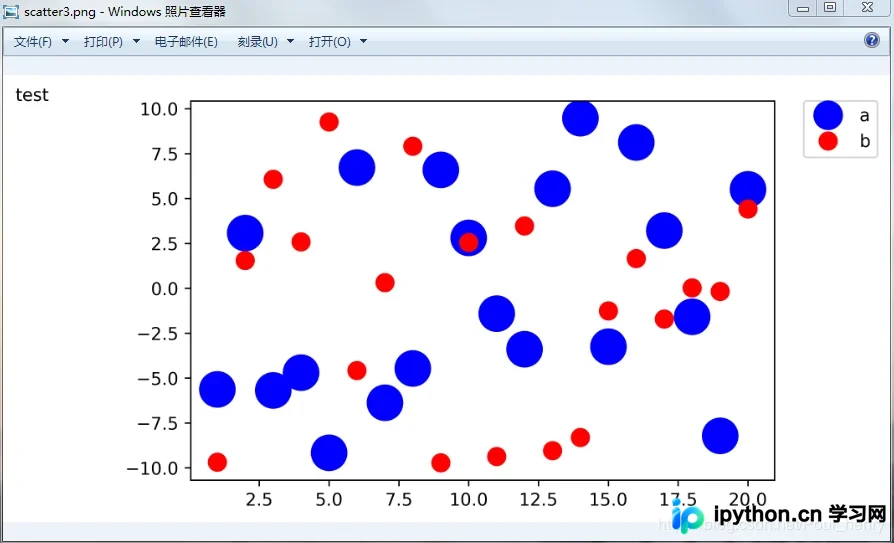
为防止有的元素没有被包含在bbox中,可以考虑使用该参数
到此这篇关于Python matplotlib图例放在外侧保存时显示不完整问题解决的文章就介绍到这了,更多相关matplotlib外侧保存显示不完整内容请搜索本站以前的文章或继续浏览下面的相关文章,希望大家以后多多支持本站!
本站声明
本文内容仅供参考,不代表本站观点。转载或引用请注明出处。如发现内容问题,请通过联系我们页面反馈。















