


Python利用Pillow和Openpyxl将图片转换为Excel像素画

发布时间:2026-10-14 |
5人浏览过
本文介绍如何使用Python将图片转换为Excel像素画。通过Pillow库读取图片RGB颜色值,结合Openpyxl库写入单元格背景色,实现图像到电子表格的转换。文章提供了progressbar进度条的使用、命令行参数解析及文件验证逻辑,并给出了完整的源码示例和运行注意事项,帮助开发者快速掌握这一趣味编程技巧。
像素画制作原理与依赖库
像素画制作

实现该功能主要依赖以下Python库:
进度条显示模块:progressbar
pip install progressbar -i http://mirrors.aliyun.com/pypi/simple/ --trusted-host mirrors.aliyun.com
Excel文件操作库:openpyxl
pip install openpyxl -i http://mirrors.aliyun.com/pypi/simple/ --trusted-host mirrors.aliyun.com
环境配置与运行指南
使用方法说明:
项目目录结构如下:

执行步骤:
首先切换到包含程序文件 img2excel_user.py 的目录,然后执行以下命令:
python img2excel_user.py 图片地址 excel保存地址(要加上excel名字)
具体调用示例如下:
python img2excel_user.py D:\myPythonProgram\img2excel\3.jpg D:\myPythonProgram\img2excel\3.xlsx
注意事项:
进入子目录的命令为:cd .\文件夹名

若源图片尺寸过大,生成的Excel文件可能无法打开,因此请确保输入图片大小适中:

核心代码实现与解析
完整源代码如下:
# -*- coding: utf-8 -*-

from PIL import Image
import openpyxl
import openpyxl.styles
from openpyxl.styles import PatternFill
from openpyxl.utils import get_column_letter
from progressbar import *

def RGB_to_Hex(rgb):
 """
 RGB颜色转换成16进制颜色
 :param rgb:
 :return:
 """
 RGB = rgb.split(',') # 将RGB格式划分开来
 color = ''
 for i in RGB:
 num = int(i)
 # 将R、G、B分别转化为16进制拼接转换并大写 hex() 函数用于将10进制整数转换成16进制,以字符串形式表示
 color += str(hex(num))[-2:].replace('x', '0').upper()
 return color

def img2excel(img_path,excelout_path):
 """
 图片转换成excel
 :param img_path: 图片地址
 :param excelout_path: excel保存地址
 :return:
 """
 img_src = Image.open(img_path)
 #宽高
 img_width=img_src.size[0]
 img_height=img_src.size[1]
 print("图片宽%s,高%s"%(img_width,img_height))
 # 类型
 # print(img_src.mode)
 if img_src.mode != "RGB":
 img_src = img_src.convert('RGB')

 str_strlist = img_src.load()
 wb=openpyxl.Workbook()
 wb.save(excelout_path)
 wb=openpyxl.load_workbook(excelout_path)
 sheet=wb["Sheet"]
 sheet.title="img2excel"
 cell_width = 1.0
 cell_height = cell_width * (2.2862 / 0.3612)
 print("正在疯狂生成excel,请耐心等待...")
 #进度条
 widgets=['进度:',Percentage(),'',Bar('#'),'',Timer(),' ', ETA(), ' ']
 pb=ProgressBar(widgets=widgets)
 for w in pb(range(img_width)):
 for h in range(img_height):
 data = str_strlist[w,h]
 # 把元组rgb颜色变成字符串,转换成16进制颜色(1,2,3)-->'1,2,3'
 color=str(data).replace("(","").replace(")","")
 #16进制的颜色,不带前面#号的,要#自己拼接到color前面即可
 color=RGB_to_Hex(color)
 # 设置填充颜色为color,solid参数表示填充实色
 fille=PatternFill("solid",fgColor=color)
 sheet.cell(h+1,w+1).fill=fille
 print("生成完成,正在设置单元格格式...")
 for i in range(1, sheet.max_row+1):
 sheet.row_dimensions[i].height=cell_height
 for i in range(1, sheet.max_column+1):
 sheet.column_dimensions[get_column_letter(i)].width = cell_width
 print('格式设置完成,正在保存excel...')
 wb.save(excelout_path)
 img_src.close()
 print("保存excel成功!请打开[%s]查看"%excelout_path)


if __name__=='__main__':
 import sys,os
 if len(sys.argv)!=3:
 print("请输入图片地址和excel保存的地址\n"
 "例如命令行输入 python img2excel_user.py D:/result.png D:/outExcel.xlsx")
 sys.exit(0)
 else:
 img_virify=['.jpg','.png','.gif','.bmp','.jpeg','.jpe','.jfif']
 excel_virify=['.xlsx','.xlsm','.xltx','.xltm']

 # 图片地址
 img_path=sys.argv[1]
 # excel保存地址
 excelout_path=sys.argv[2]

 endName=os.path.splitext(img_path)
 if endName[1] not in img_virify:
 print("请选择支持的图片类型",img_virify)
 sys.exit(0)

 endName_excel=os.path.splitext(excelout_path)
 if endName_excel[1] not in excel_virify:
 print("excel 格式不支持,请选择支持的格式",excel_virify)
 sys.exit(0)
 img2excel(r""+img_path+"",excelout_path)
执行方式:

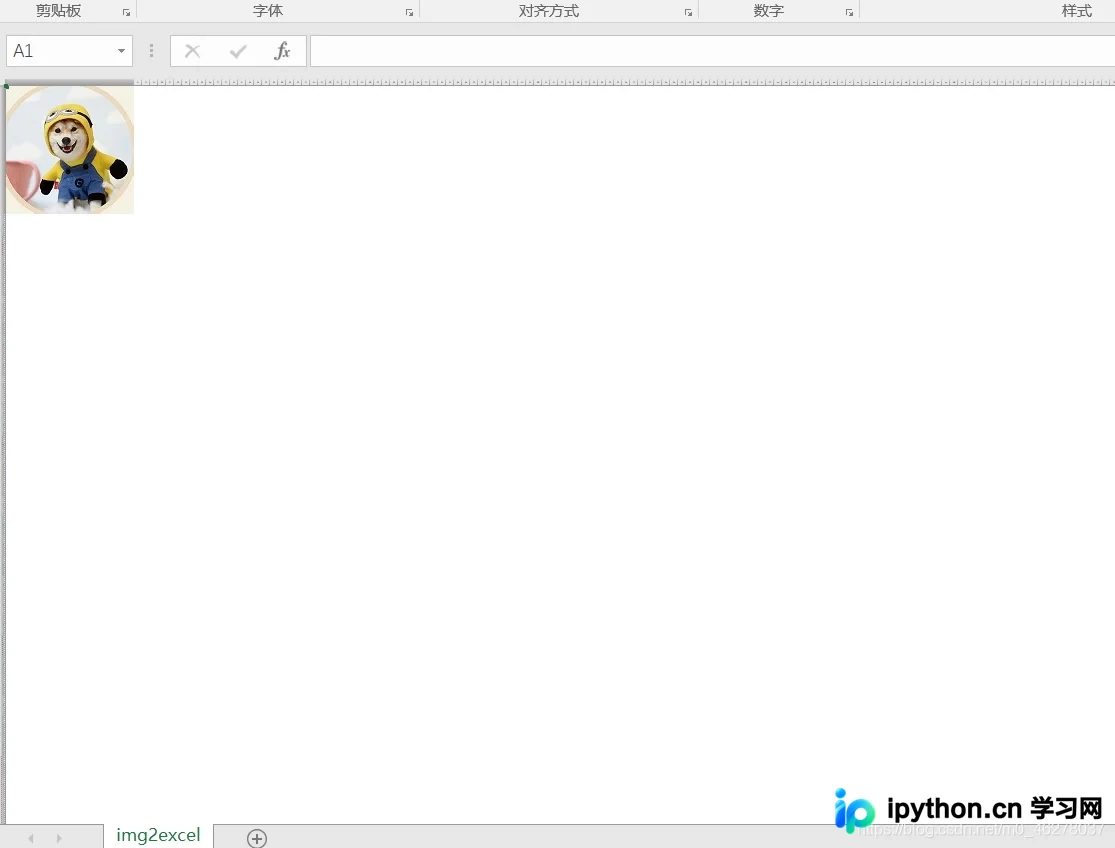
原始图片示例:

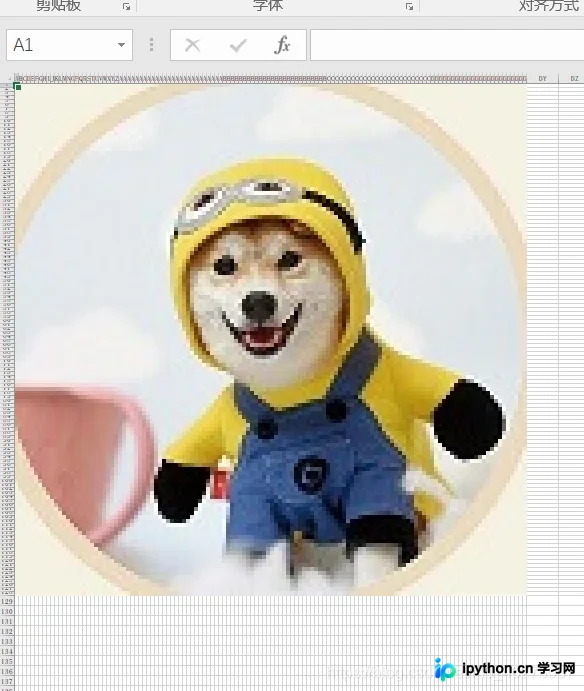
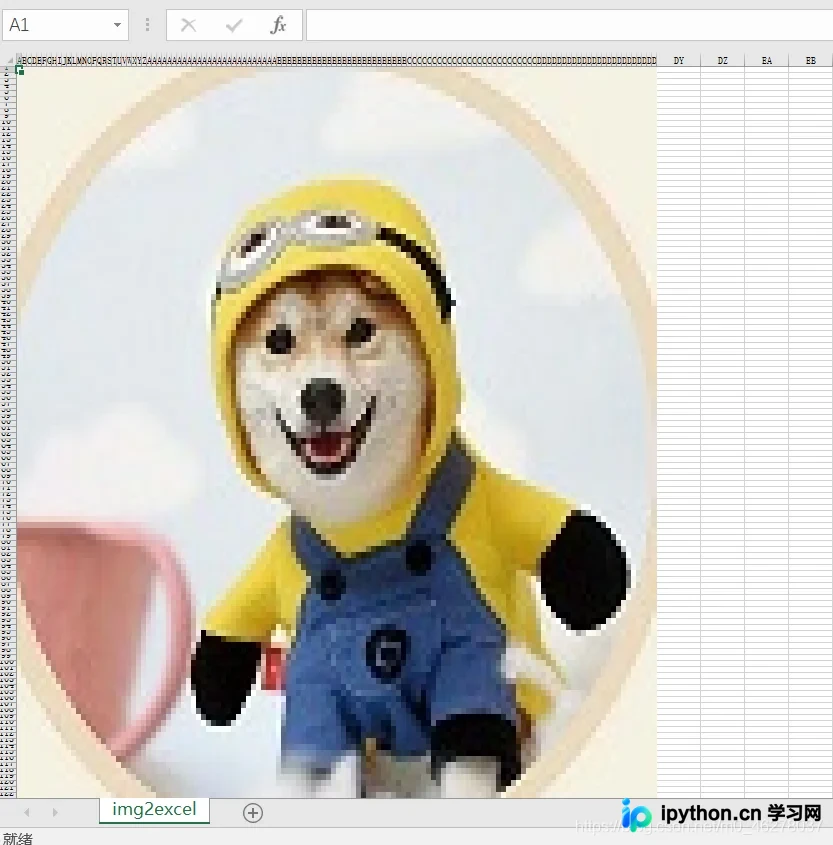
生成的Excel像素画效果:
总结
总结
至此,关于利用Python读取图片颜色值并生成Excel像素画的教程已结束。如需了解更多相关Python技术内容,欢迎查阅本站往期文章或继续浏览后续章节,感谢支持!
本站声明
本文内容仅供参考,不代表本站观点。转载或引用请注明出处。如发现内容问题,请通过联系我们页面反馈。















