


Python Matplotlib绘图详解:折线、散点、直方图与饼图实战

发布时间:2026-10-16 |
4人浏览过
本文详细介绍Python中Matplotlib库的基础绘图方法,涵盖折线图、散点图、直方图、条形图及饼图的实现。通过具体代码示例,讲解plot、scatter、hist、bar和pie等核心函数的参数用法与可视化技巧,帮助开发者快速掌握数据可视化技能。
1.引入matpltlib库
matplotlib是一款优秀的python数据可视化工具库。在使用matpltlib进行绘图时,首先需要导入该库,加载其中的pyplot模块并将其别名为plt,随后即可调用plot函数进行绘图操作。
import matplotlib.pyplot as plt #plt是引入模块的别名
2.pyplot基础图标函数总结
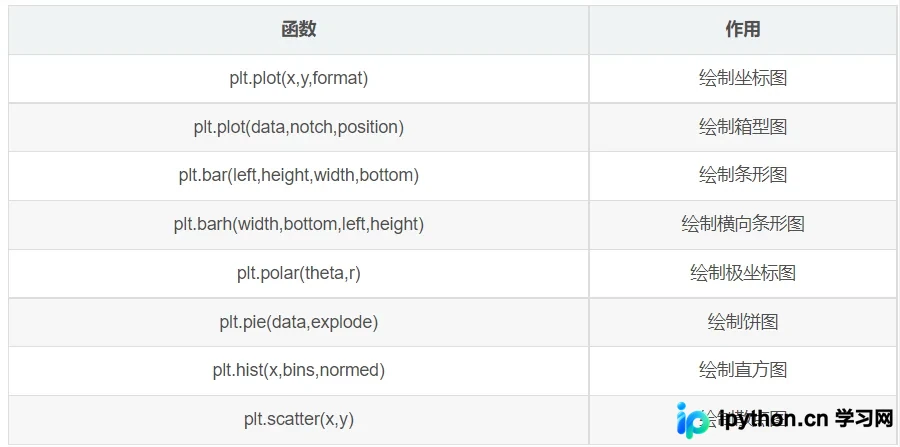
3.plot函数画图语法规则
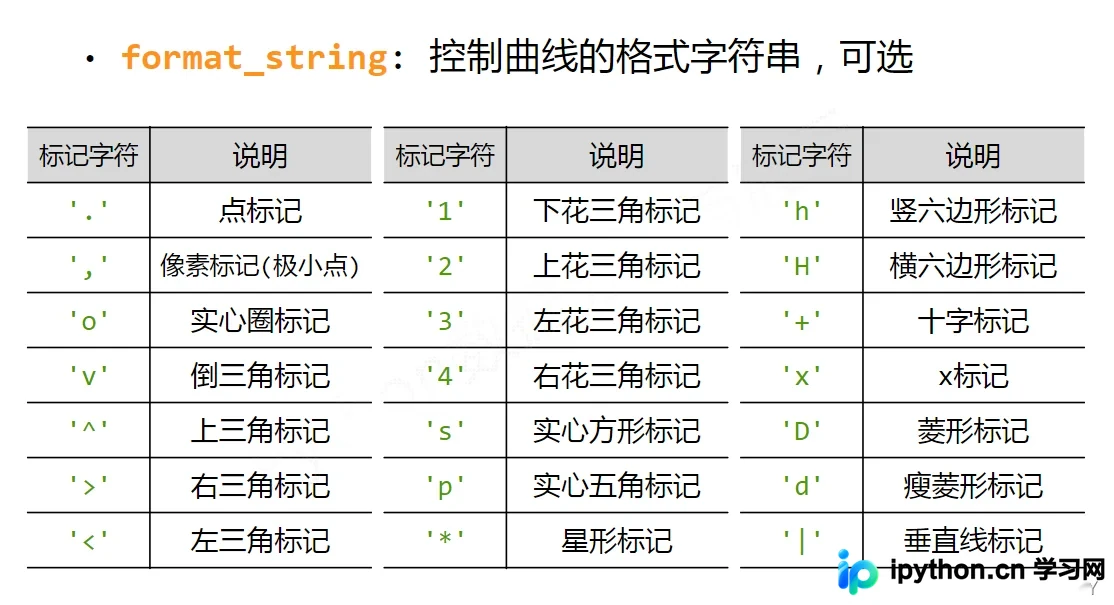
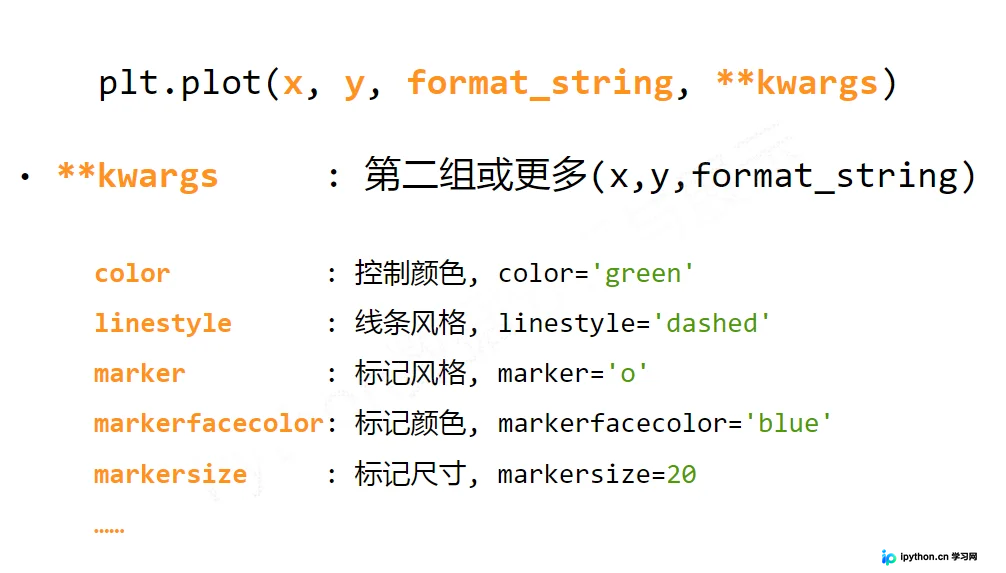
plot函数的参数格式为:plot([x],y,[format],**kwargs)
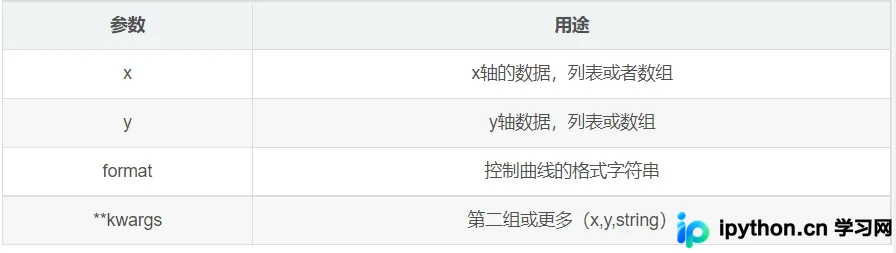
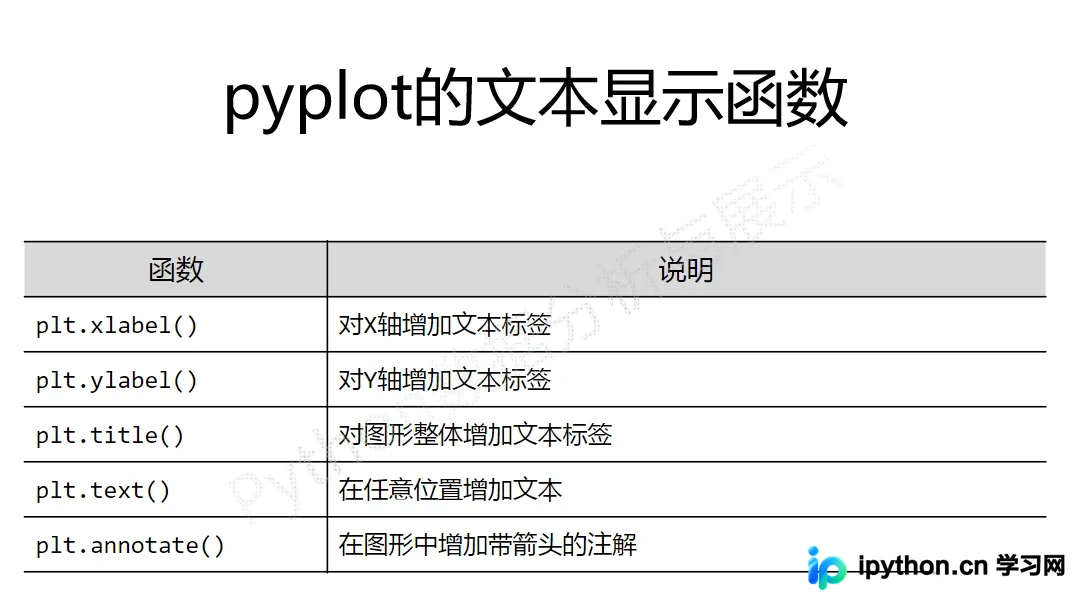
由于涉及的语法细节较多,此处选取部分MOOC课程中的示例图片进行展示说明。
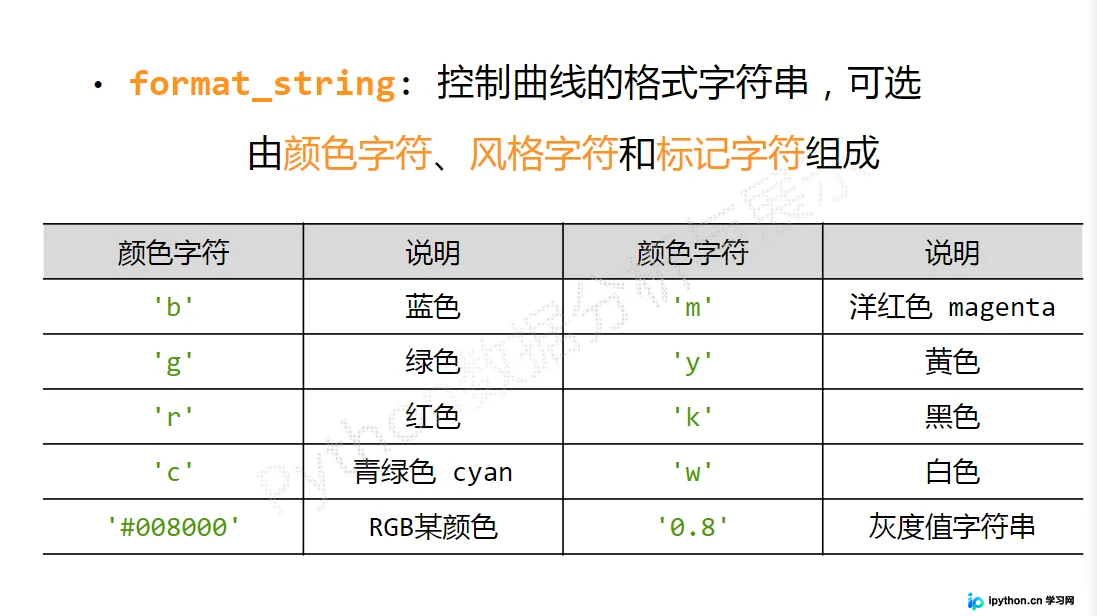
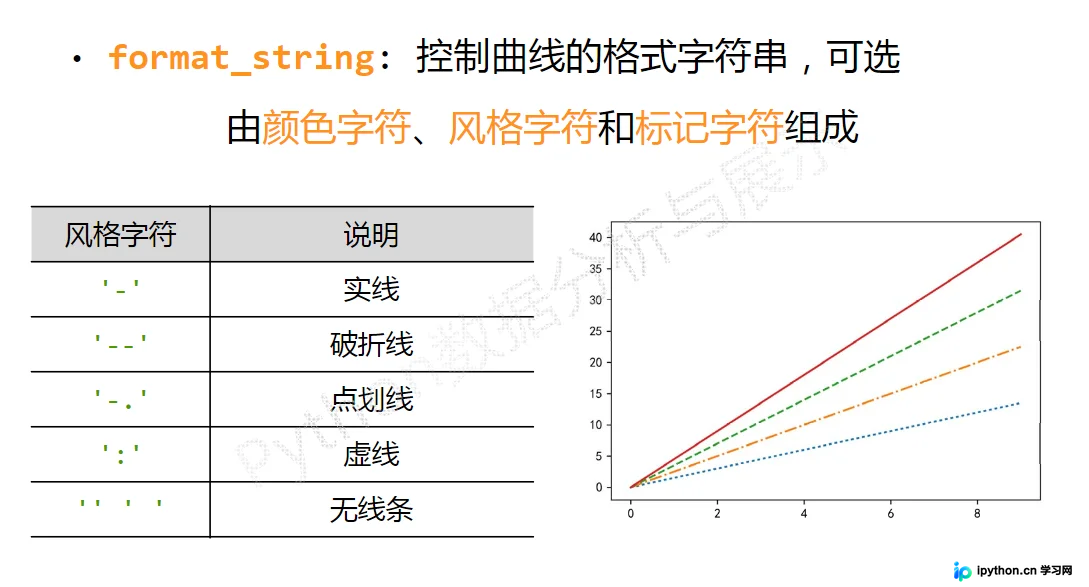
4.折线图
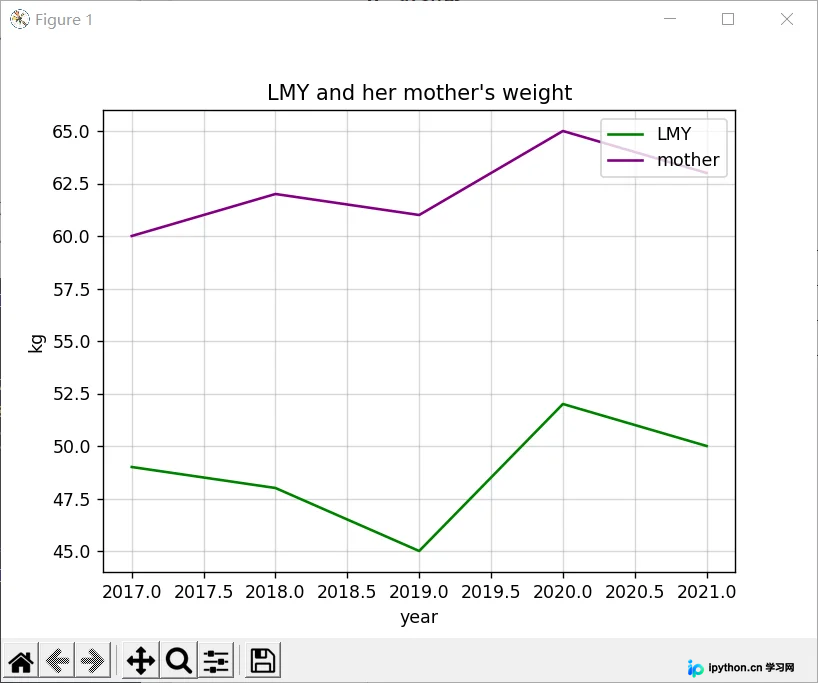
from matplotlib import pyplot as plt
#生成数据
#横坐标数据从2017到2022,第三个参数可控制步长,可写可不写
x = range(2017, 2022)
#y对应纵坐标的值
y1 = [49, 48, 45, 52, 50]
y2 = [60, 62, 61, 65, 63]
#生成图形
plt.title("LMY and her mother's weight")
plt.xlabel('year')
plt.ylabel('kg')
plt.plot(x, y1, color='green', label='LMY')
plt.plot(x, y2, color='purple', label='mother')
plt.grid(alpha=0.5)
plt.legend(loc='upper right')
#显示图形
plt.show()
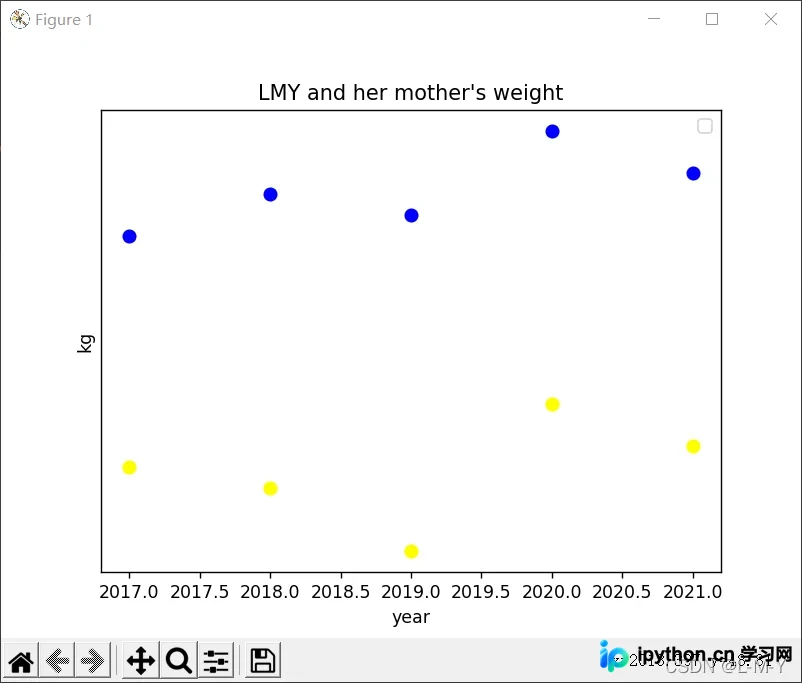
4.散点图
from matplotlib import pyplot as plt
import numpy as np

# 生成数据
# 横坐标数据从2017到2022,第三个参数可控制步长,可写可不写
x = range(2017, 2022)
# y对应纵坐标的值
y1 = [49, 48, 45, 52, 50]
y2 = [60, 62, 61, 65, 63]
# 生成图形
plt.title("LMY and her mother's weight")
plt.xlabel('year')
plt.ylabel('kg')
# 点的大小
area = np.pi*4**2
plt.scatter(x, y1, s=area, c='yellow', alpha=1)
plt.scatter(x, y2, s=area, c='blue', alpha=1)
plt.legend()
plt.yticks(())
plt.show()
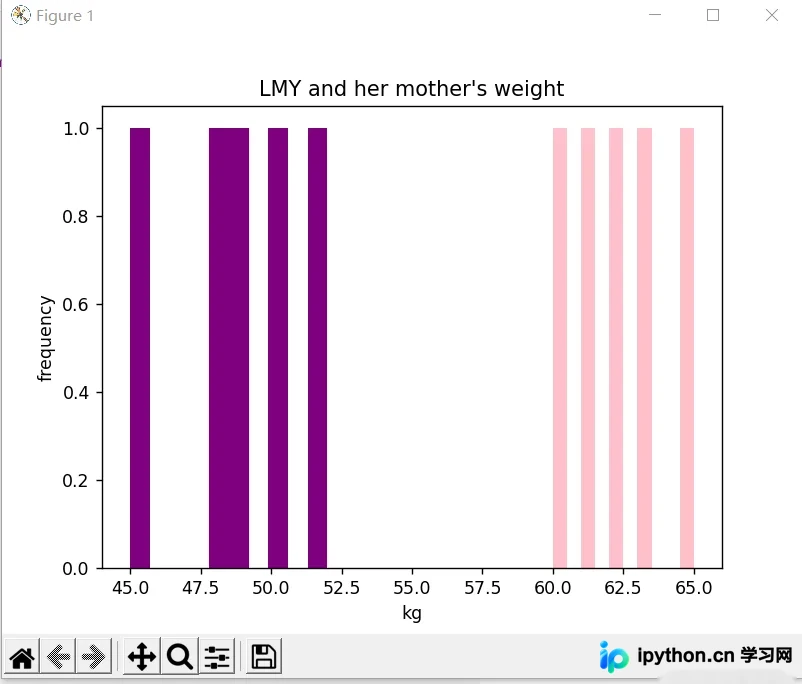
5.直方图
from matplotlib import pyplot as plt
import numpy as np

# 生成数据
# 横坐标数据从2017到2022,第三个参数可控制步长,可写可不写
x = [2017, 2018, 2019, 2020, 2021]
# y对应纵坐标的值
y1 = [49, 48, 45, 52, 50]
y2 = [60, 62, 61, 65, 63]
# 生成图形
plt.title("LMY and her mother's weight")
plt.ylabel('frequency')
plt.xlabel('kg')
# 点的大小
plt.hist(y1, bottom=None, color='purple')
plt.hist(y2, bottom=None, color='pink')
plt.show()

# n, bins, patches = plt.hist(arr, bins=50, normed=1, facecolor='green', alpha=0.75)
'''
arr:需要计算直方图的一维数组
bins:直方图的柱数,可选项,默认为10
normed:是否将得到的直方图向量归一化,默认为0
facecolor:直方图颜色
alpha:透明度
'''
6.条形图
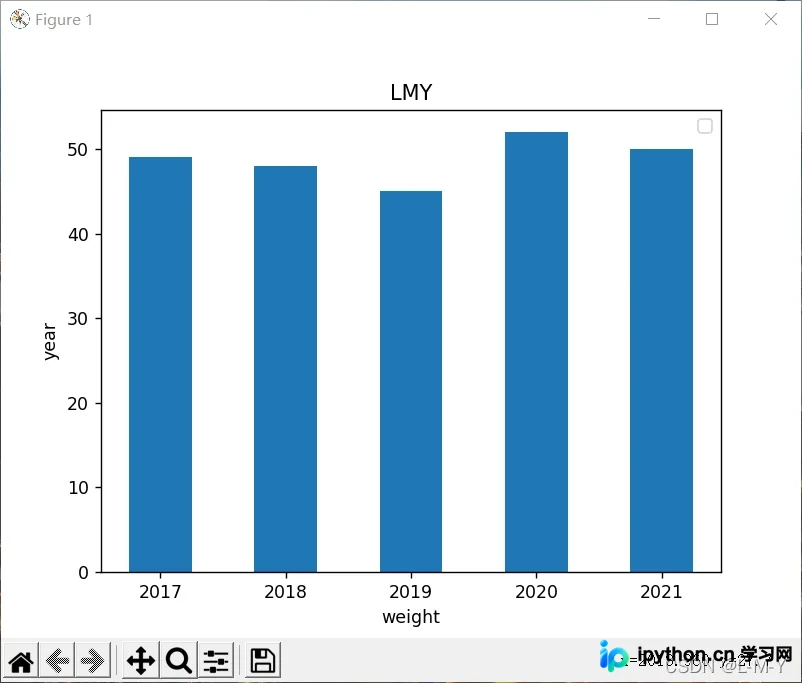
纵向
from matplotlib import pyplot as plt
import numpy as np

arr = np.arange(2017, 2022)
x = [49, 48, 45, 52, 50]  # x轴
y = [2017, 2018, 2019, 2020, 2021]
rect = plt.bar(arr, x, width=0.5)
plt.title('LMY')
plt.xlabel('weight')
plt.ylabel('year')
plt.legend()

plt.show()
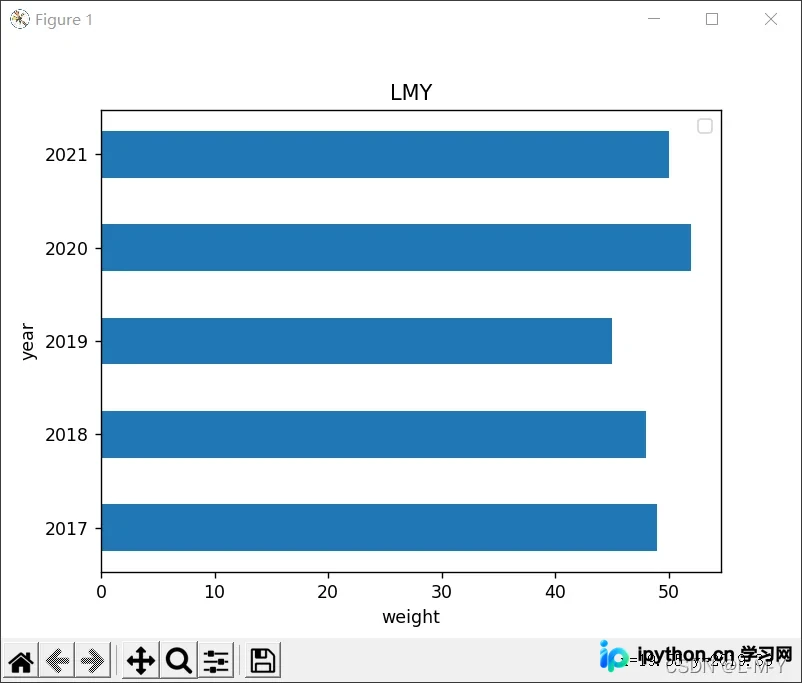
横向
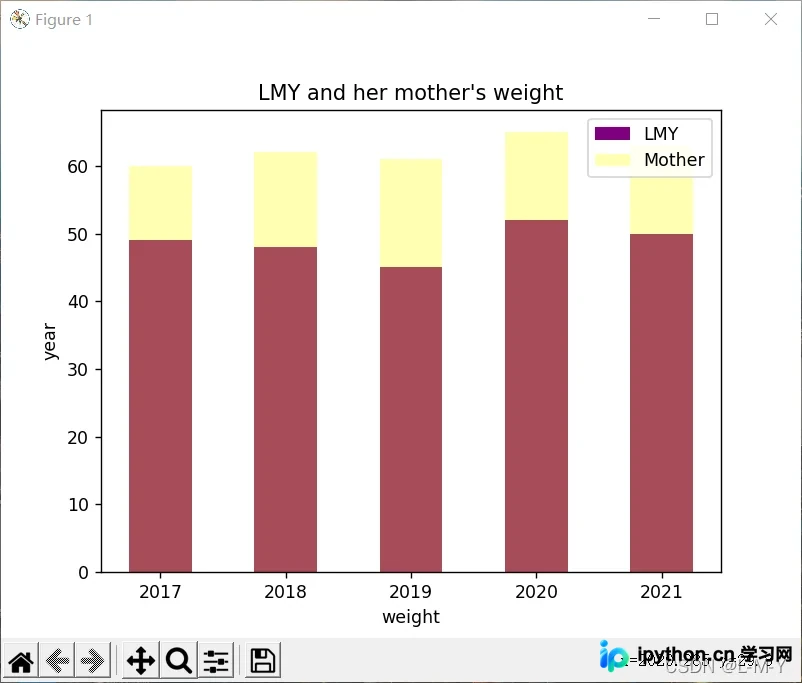
多条
from matplotlib import pyplot as plt
import numpy as np

arr = np.arange(2017, 2022)
x1 = [49, 48, 45, 52, 50]  # x轴
x2 = [60, 62, 61, 65, 63]
y = [2017, 2018, 2019, 2020, 2021]
rects1 = plt.bar(arr, x1, 0.5, color='purple', label='LMY')
rects2 = plt.bar(arr, x2, 0.5, color='yellow', label='Mother', alpha=0.3)
plt.title("LMY and her mother's weight")
plt.xlabel('weight')
plt.ylabel('year')
plt.legend()

plt.show()
7.饼图
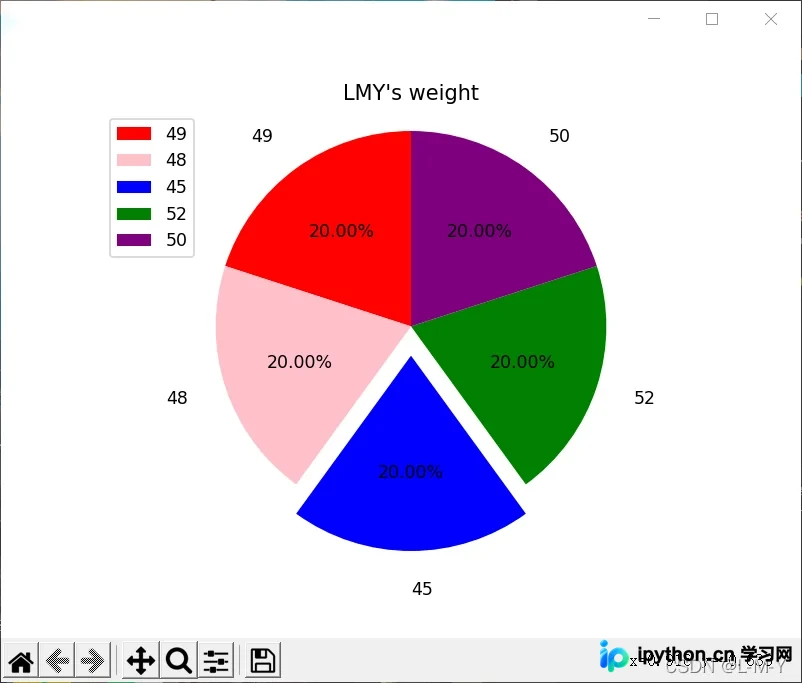
from matplotlib import patches, pyplot as plt
import numpy as np

label_list = ['49', '48', '45', '52', '50']
size = [20, 20, 20, 20, 20]
# 各部分的颜色
color = ['red', 'pink', 'blue', 'green', 'purple']
explode = [0, 0, 0.15, 0, 0]

patches, l_text, p_text = plt.pie(size, explode=explode, colors=color, labels=label_list,
                                  labeldistance=1.2, autopct="%1.2f%%", shadow=False, startangle=90, pctdistance=0.6)
plt.axis('equal')
plt.title("LMY's weight")
plt.legend(loc='upper left')
plt.show()
至此,关于Python Matplotlib各类绘图的文章介绍完毕。如需了解更多相关绘图内容,欢迎搜索本站历史文章或继续阅读后续文章,感谢大家的支持!
本站声明
本文内容仅供参考,不代表本站观点。转载或引用请注明出处。如发现内容问题,请通过联系我们页面反馈。















