


Python Matplotlib散点图绘制实战:从二维到三维

发布时间:2026-10-15 |
4人浏览过
本文详细介绍Python中使用Matplotlib绘制散点图的方法。涵盖二维散点图的核心参数如颜色、大小及图例设置,并提供完整的代码示例。此外,还展示了如何绘制三维散点图,通过具体案例解析坐标生成与视图设置,帮助开发者快速掌握数据可视化技巧。
Python二维散点图绘制基础
直接展示实现代码。
import matplotlib.pyplot as plt
import numpy as np
# 1. 首先是导入包,创建数据
n = 10
x = np.random.rand(n) * 2# 随机产生10个0~2之间的x坐标
y = np.random.rand(n) * 2# 随机产生10个0~2之间的y坐标
# 2.创建一张figure
fig = plt.figure(1)
# 3. 设置颜色 color 值【可选参数,即可填可不填】,方式有几种
# colors = np.random.rand(n) # 随机产生10个0~1之间的颜色值,或者
colors = ['r', 'g', 'y', 'b', 'r', 'c', 'g', 'b', 'k', 'm']  # 可设置随机数取
# 4. 设置点的面积大小 area 值 【可选参数】
area = 20*np.arange(1, n+1)
# 5. 设置点的边界线宽度 【可选参数】
widths = np.arange(n)# 0-9的数字
# 6. 正式绘制散点图:scatter
plt.scatter(x, y, s=area, c=colors, linewidths=widths, alpha=0.5, marker='o')
# 7. 设置轴标签:xlabel、ylabel
#设置X轴标签
plt.xlabel('X坐标')
#设置Y轴标签
plt.ylabel('Y坐标')
# 8. 设置图标题:title
plt.title('test绘图函数')
# 9. 设置轴的上下限显示值:xlim、ylim
# 设置横轴的上下限值
plt.xlim(-0.5, 2.5)
# 设置纵轴的上下限值
plt.ylim(-0.5, 2.5)
# 10. 设置轴的刻度值:xticks、yticks
# 设置横轴精准刻度
plt.xticks(np.arange(np.min(x)-0.2, np.max(x)+0.2, step=0.3))
# 设置纵轴精准刻度
plt.yticks(np.arange(np.min(y)-0.2, np.max(y)+0.2, step=0.3))
# 也可按照xlim和ylim来设置
# 设置横轴精准刻度
plt.xticks(np.arange(-0.5, 2.5, step=0.5))
# 设置纵轴精准刻度
plt.yticks(np.arange(-0.5, 2.5, step=0.5))

# 11. 在图中某些点上(位置)显示标签:annotate
# plt.annotate("(" + str(round(x[2], 2)) + ", " + str(round(y[2], 2)) + ")", xy=(x[2], y[2]), fontsize=10, xycoords='data')# 或者
plt.annotate("({0},{1})".format(round(x[2],2), round(y[2],2)), xy=(x[2], y[2]), fontsize=10, xycoords='data')
# xycoords='data' 以data值为基准
# 设置字体大小为 10
# 12. 在图中某些位置显示文本:text
plt.text(round(x[6],2), round(y[6],2), "good point", fontdict={'size': 10, 'color': 'red'})  # fontdict设置文本字体
# Add text to the axes.
# 13. 设置显示中文
plt.rcParams['font.sans-serif']=['SimHei'] #用来正常显示中文标签
plt.rcParams['axes.unicode_minus']=False #用来正常显示负号
# 14. 设置legend,【注意,'绘图测试':一定要是可迭代格式,例如元组或者列表,要不然只会显示第一个字符,也就是legend会显示不全】
plt.legend(['绘图测试'], loc=2, fontsize=10)
# plt.legend(['绘图测试'], loc='upper left', markerscale = 0.5, fontsize = 10) #这个也可
# markerscale:The relative size of legend markers compared with the originally drawn ones.
# 15. 保存图片 savefig
plt.savefig('test_xx.png', dpi=200, bbox_inches='tight', transparent=False)
# dpi: The resolution in dots per inch,设置分辨率,用于改变清晰度
# If *True*, the axes patches will all be transparent
# 16. 显示图片 show
plt.show()
scatter函数的主要参数说明如下:
def scatter(self, x, y, s=None, c=None, marker=None, cmap=None, norm=None,
                vmin=None, vmax=None, alpha=None, linewidths=None,
                verts=None, edgecolors=None,
                **kwargs):
        """
        A scatter plot of *y* vs *x* with varying marker size and/or color.
        Parameters
        ----------
        x, y : array_like, shape (n, )
            The data positions.
        s : scalar or array_like, shape (n, ), optional
            The marker size in points**2.
            Default is ``rcParams['lines.markersize'] ** 2``.
        c : color, sequence, or sequence of color, optional, default: 'b'
            The marker color. Possible values:
            - A single color format string.
            - A sequence of color specifications of length n.
            - A sequence of n numbers to be mapped to colors using *cmap* and
              *norm*.
            - A 2-D array in which the rows are RGB or RGBA.
            Note that *c* should not be a single numeric RGB or RGBA sequence
            because that is indistinguishable from an array of values to be
            colormapped. If you want to specify the same RGB or RGBA value for
            all points, use a 2-D array with a single row.
        marker : `~matplotlib.markers.MarkerStyle`, optional, default: 'o'
            The marker style. *marker* can be either an instance of the class
            or the text shorthand for a particular marker.
            See `~matplotlib.markers` for more information marker styles.
        cmap : `~matplotlib.colors.Colormap`, optional, default: None
            A `.Colormap` instance or registered colormap name. *cmap* is only
            used if *c* is an array of floats. If ``None``, defaults to rc
            ``image.cmap``.
        alpha : scalar, optional, default: None
            The alpha blending value, between 0 (transparent) and 1 (opaque).
        linewidths : scalar or array_like, optional, default: None
            The linewidth of the marker edges. Note: The default *edgecolors*
            is 'face'. You may want to change this as well.
            If *None*, defaults to rcParams ``lines.linewidth``.
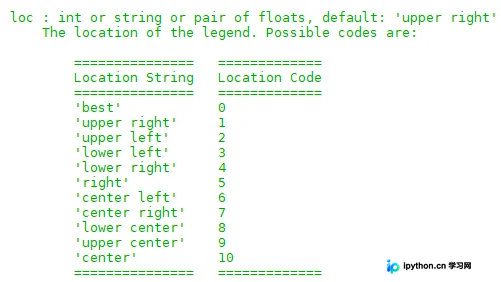
配置图例时需注意,传入的标签字符串必须为可迭代对象(如列表或元组),否则仅会显示第一个字符,导致图例显示不完整。
plt.legend(['绘图测试'], loc=2, fontsize = 10)
# plt.legend(['绘图测试'], loc='upper left', markerscale = 0.5, fontsize = 10) #这个也可
#  markerscale:The relative size of legend markers compared with the originally drawn ones.
其中loc参数对应的可选值如下:
执行上述代码后的运行结果如下图所示。
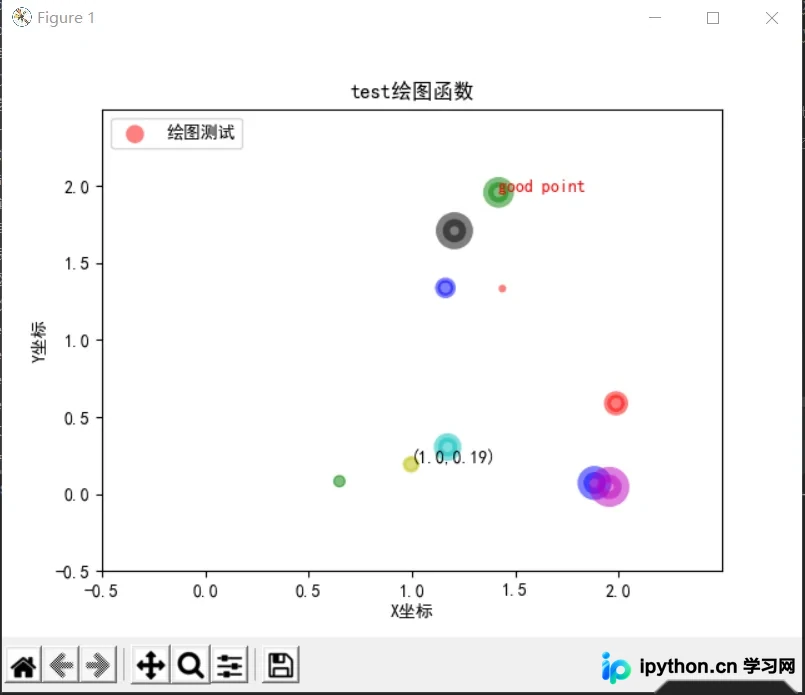
补充说明部分。
Python三维散点图实现示例
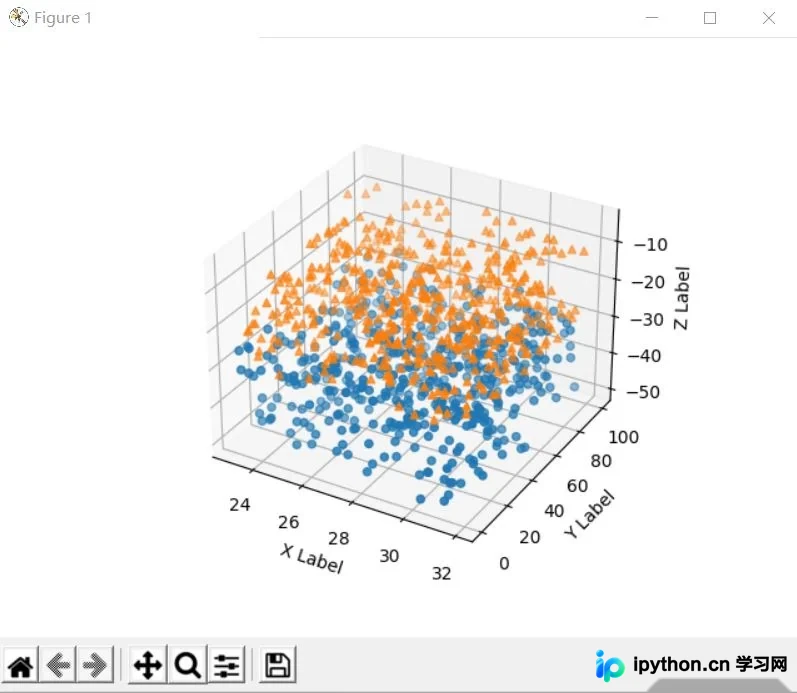
除了二维散点图,Python同样支持绘制三维散点图,相关示例代码如下。
import matplotlib.pyplot as plt
from mpl_toolkits.mplot3d import Axes3D
import numpy as np

# 随机种子
np.random.seed(1)


def randrange(n, vmin, vmax):
    '''
    使数据分布均匀(vmin, vmax).
    '''
    return (vmax - vmin)*np.random.rand(n) + vmin

fig = plt.figure()
ax = fig.add_subplot(111, projection='3d')  # 可进行多图绘制

n = 500

# 对于每一组样式和范围设置,在由x在[23,32]、y在[0,100]、
# z在[zlow,zhigh]中定义的框中绘制n个随机点
for m, zlow, zhigh in [('o', -50, -25), ('^', -30, -5)]:
    xs = randrange(n, 23, 32)
    ys = randrange(n, 0, 100)
    zs = randrange(n, zlow, zhigh)
    ax.scatter(xs, ys, zs, marker=m)  # 绘图

# X、Y、Z的标签
ax.set_xlabel('X Label')
ax.set_ylabel('Y Label')
ax.set_zlabel('Z Label')

plt.show()
该代码的执行输出结果如下。
关于Python绘制散点图的教程至此结束,如需了解更多Python散点图相关内容,欢迎查阅本站往期文章或继续阅读后续章节,感谢大家的支持。
本站声明
本文内容仅供参考,不代表本站观点。转载或引用请注明出处。如发现内容问题,请通过联系我们页面反馈。















