Python PyQt5计算器实战:打造专业级桌面应用

深入讲解如何使用 Python 和 PyQt5 构建专业级桌面计算器应用。本文涵盖 MVC 架构解耦、QGridLayout 网格布局管理、Decimal 高精度运算状态机、键盘事件监听以及专业级 QSS 视觉打磨,提供完整可直接运行的工程代码与详细步骤。
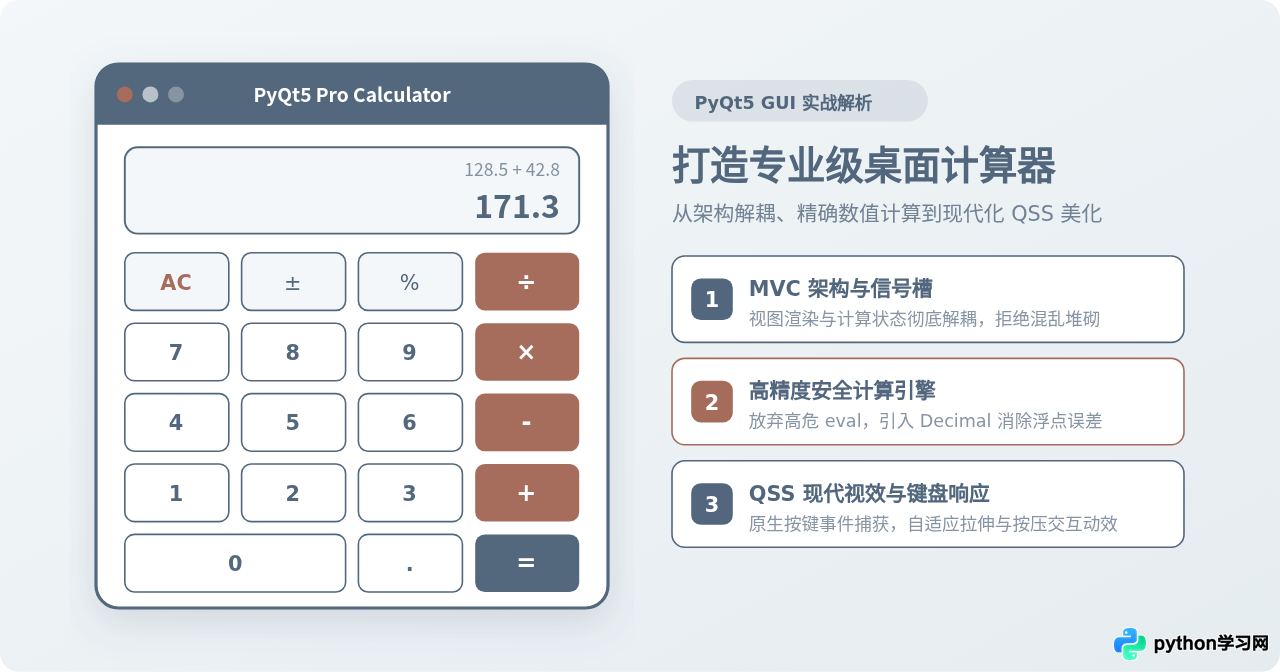
eval() 粗暴求值。这种入门玩具在面对浮点数精度偏差(如 0.1 + 0.2 = 0.30000000000000004)、连续运算符输入、高分屏模糊和除以零崩溃时会瞬间瓦解。本文将以严谨的工程思维,采用 PyQt5 框架构建一款具备状态机解耦、高精度 Decimal 运算引擎、QGridLayout 响应式布局、全键盘事件拦截与现代 QSS 视觉打磨的专业级桌面计算器。
一、专业级桌面计算器的设计指标与核心考量
衡量一个桌面计算器是否达到“专业级”,不在于界面堆砌了多少功能,而在于交互的防呆性、计算的精准度以及代码架构的可维护性。我们在动手编码前,必须明确以下四条核心技术基线:
- 严禁使用原生
eval()执行用户输入:eval()不仅存在执行任意恶意 Python 脚本的安全隐患,更无法精细控制词法解析与语法容错。 - 使用
decimal.Decimal替代 IEEE 754 浮点数:二进制浮点精度缺陷在金融与日常计算中是不可接受的,计算模型层必须基于定点高精度算术。 - UI 视图与业务计算模型彻底解耦:遵循 MVC 架构思想,界面按钮只负责收集意图与渲染显示,计算状态由状态机独立裁决,便于单元测试。
- 完备的外设交互与界面适配:支持数字小键盘与主键盘全快捷键映射,窗口尺寸自适应拉伸,并在高清显示屏上保持清晰锐利的矢量边缘。
二、系统架构与信号槽通信模型
在 PyQt5 应用开发中,信号(Signal)与槽(Slot)是实现松耦合组件通信的核心纽带。我们将计算器划分为三大职责明确的分层:
- 视图层 (View):继承自
QMainWindow或QWidget,管理QLineEdit显示屏幕和QGridLayout按钮矩阵,负责截获按键事件并向外发射标准化信号。 - 控制器与防呆层 (Controller):对用户输入进行规整(Sanitization),例如连续键入小数点、连按不同运算符时的替换处理,以及除零拦截。
- 计算模型层 (Model):维护操作数缓存寄存器(Operand A、Operand B)、挂起的操作符(Pending Operator)以及计算完成状态标志。
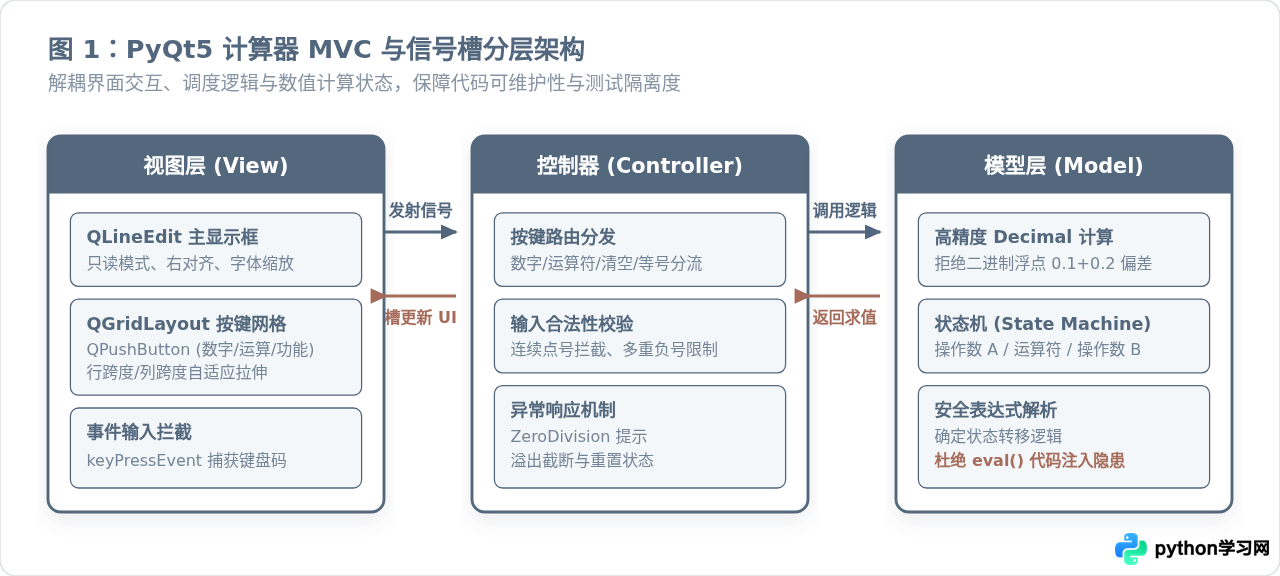
如图 1 所示,用户的每一次键盘敲击或鼠标单击都不会直接操作计算结果。视图层发出携带按键文本或语义的信号,控制器将信号传递至模型层状态机,模型层更新内部状态并返回格式化后的显示字符串,最后回调槽函数刷新 QLineEdit 显示框。这种单向数据流与清晰的响应闭环,使整个软件无论处于何种复杂输入状态,都不会发生内存泄露或未捕获异常。
三、核心计算引擎与状态机运转流程
计算器的本质是一个有限状态机(Finite State Machine, FSM)。它在任意时刻都处于明确的状态:接收第一操作数、等待第二操作数、正在输入第二操作数、或展示求值结果。
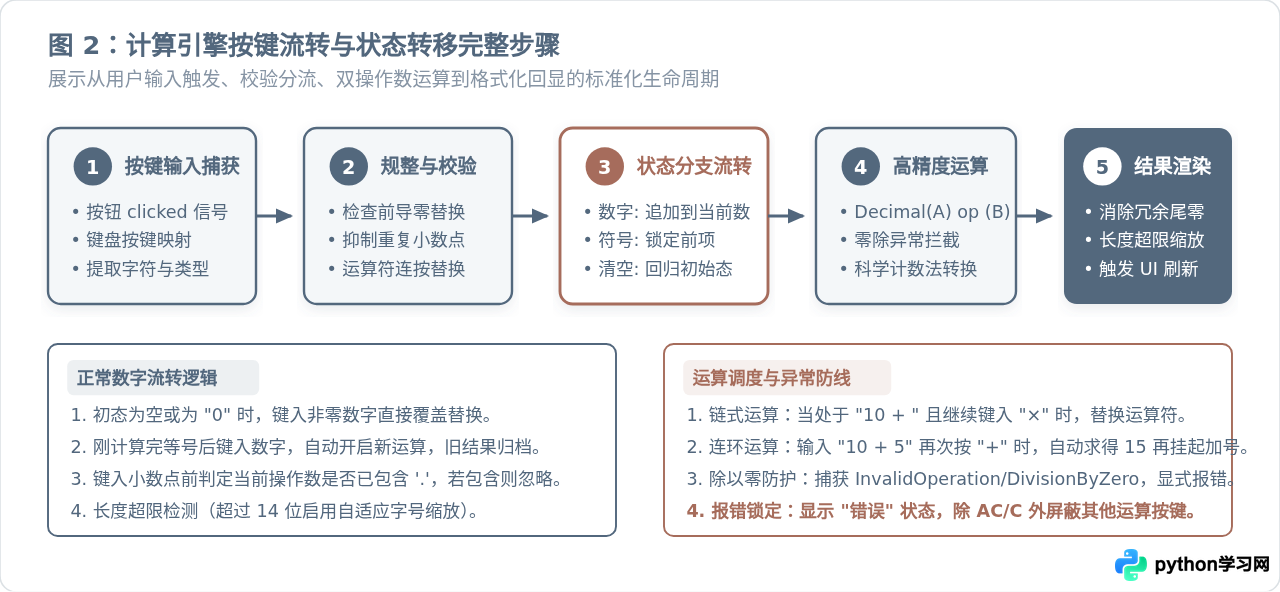
按照图 2 的流转步骤,计算引擎执行时需要特别关注四个边界场景:
- 前导零与小数点防呆:当前屏幕为 "0" 时,若键入 "5",屏幕直接替换为 "5";若键入 ".",则变为 "0."。若当前已存在小数点,再次按下 "." 必须直接忽略。
- 运算符覆盖更新:若用户先按了 "+" 紧接着又按了 "×",系统不能当作语法错误,而应平滑将当前挂起的运算动词更新为乘法。
- 连续链式求值:用户依次键入 "12" -> "+" -> "8" -> "×" 时,按下 "×" 的瞬间,系统必须先自动结算出 "20",再以 "20" 作为第一操作数挂起乘号。
- 结果态重置:当用户按下 "=" 显示出计算结果后,如果紧接着输入新数字,应自动重置屏幕并开始新的计算;如果紧接着输入运算符,则以当前计算结果继续后续运算。
四、QGridLayout 网格布局与坐标映射
桌面应用必须能够适应不同操作系统的窗口缩放规则。PyQt5 提供了功能强大的 QGridLayout。它将窗体划分为行与列的栅格体系,支持单个控件跨越多行或多列(RowSpan / ColSpan)。
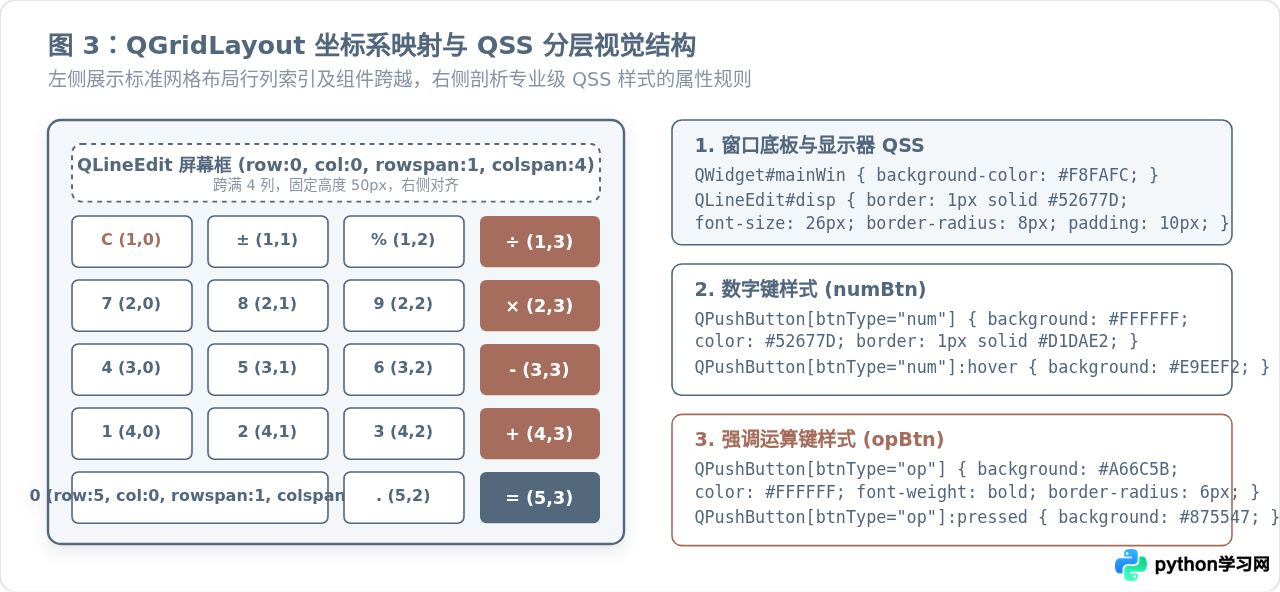
在图 3 的坐标规划中,我们将屏幕设计为 6 行 4 列的网格:
- 第 0 行:显示区域,占据第 0 行第 0 列,设置跨 1 行 4 列(
layout.addWidget(display, 0, 0, 1, 4))。 - 第 1 至 4 行:标准 4 列功能键与数字键,依次填充
C、±、%、÷、7-9、4-6、1-3等。 - 第 5 行:数字键 "0" 占据
row=5, col=0并跨越两列(colspan=2),小数点位于(5, 2),等号键位于(5, 3)。
五、完整的工程级可运行代码
以下给出该专业计算器的完整 Python 源码。代码严格依照模块化原则组织,集成了 CalculatorEngine(模型层)、CalculatorUI(视图与控制器层),并内置高分屏缩放适配与全键盘映射逻辑。
import sys
from decimal import Decimal, InvalidOperation, getcontext
from PyQt5.QtCore import Qt
from PyQt5.QtWidgets import (
    QApplication, QWidget, QVBoxLayout, QGridLayout,
    QLineEdit, QPushButton, QSizePolicy
)

# 设置高精度计算上下文(保留28位精度)
getcontext().prec = 28

class CalculatorEngine:
    """高精度计算引擎与状态机"""
    def __init__(self):
        self.reset()

    def reset(self):
        self.current_operand = "0"
        self.stored_operand = None
        self.pending_operator = None
        self.waiting_for_next_operand = False
        self.has_error = False

    def input_digit(self, digit: str) -> str:
        if self.has_error or self.waiting_for_next_operand:
            self.current_operand = digit
            self.waiting_for_next_operand = False
            self.has_error = False
        else:
            if self.current_operand == "0":
                self.current_operand = digit
            else:
                if len(self.current_operand) < 16:  # 限制输入位宽
                    self.current_operand += digit
        return self.current_operand

    def input_decimal_point(self) -> str:
        if self.has_error or self.waiting_for_next_operand:
            self.current_operand = "0."
            self.waiting_for_next_operand = False
            self.has_error = False
            return self.current_operand

        if "." not in self.current_operand:
            self.current_operand += "."
        return self.current_operand

    def toggle_sign(self) -> str:
        if self.has_error or self.current_operand == "0":
            return self.current_operand
        if self.current_operand.startswith("-"):
            self.current_operand = self.current_operand[1:]
        else:
            self.current_operand = "-" + self.current_operand
        return self.current_operand

    def input_percentage(self) -> str:
        if self.has_error:
            return self.current_operand
        try:
            val = Decimal(self.current_operand) / Decimal(100)
            self.current_operand = self._format_decimal(val)
        except (InvalidOperation, Exception):
            self.has_error = True
            self.current_operand = "错误"
        return self.current_operand

    def apply_operator(self, operator: str) -> str:
        if self.has_error:
            return self.current_operand

        if self.pending_operator and not self.waiting_for_next_operand:
            # 连续链式运算
            self.calculate_result()

        try:
            self.stored_operand = Decimal(self.current_operand)
            self.pending_operator = operator
            self.waiting_for_next_operand = True
        except (InvalidOperation, ValueError):
            self.has_error = True
            self.current_operand = "错误"

        return self.current_operand

    def calculate_result(self) -> str:
        if self.has_error or self.pending_operator is None or self.stored_operand is None:
            return self.current_operand

        try:
            op_b = Decimal(self.current_operand)
            op_a = self.stored_operand

            if self.pending_operator == "+":
                result = op_a + op_b
            elif self.pending_operator == "-":
                result = op_a - op_b
            elif self.pending_operator == "×":
                result = op_a * op_b
            elif self.pending_operator == "÷":
                if op_b == 0:
                    self.has_error = True
                    self.current_operand = "除数不能为零"
                    self.pending_operator = None
                    self.stored_operand = None
                    return self.current_operand
                result = op_a / op_b
            else:
                result = op_b

            self.current_operand = self._format_decimal(result)
            self.stored_operand = None
            self.pending_operator = None
            self.waiting_for_next_operand = True
        except (InvalidOperation, ZeroDivisionError, Exception):
            self.has_error = True
            self.current_operand = "错误"
            self.stored_operand = None
            self.pending_operator = None

        return self.current_operand

    def _format_decimal(self, d: Decimal) -> str:
        # 消除冗余小数末尾零与过长科学计数格式
        s = format(d, 'f')
        if "." in s:
            s = s.rstrip("0").rstrip(".")
        if len(s) > 16:
            s = f"{d:.8E}"
        return s if s else "0"


class CalculatorUI(QWidget):
    """专业计算器界面视图与控制器"""
    def __init__(self):
        super().__init__()
        self.engine = CalculatorEngine()
        self.init_ui()

    def init_ui(self):
        self.setWindowTitle("PyQt5 专业计算器")
        self.setFixedSize(360, 480)
        self.setStyleSheet(self._load_qss())

        main_layout = QVBoxLayout()
        main_layout.setContentsMargins(18, 20, 18, 20)
        main_layout.setSpacing(14)

        # 显示屏
        self.display = QLineEdit("0")
        self.display.setObjectName("display")
        self.display.setReadOnly(True)
        self.display.setAlignment(Qt.AlignRight)
        self.display.setFixedHeight(64)
        main_layout.addWidget(self.display)

        # 键盘网格布局
        grid_layout = QGridLayout()
        grid_layout.setSpacing(10)

        # 按钮配置矩阵: (文本, 行, 列, 行跨度, 列跨度, 属性类型)
        button_specs = [
            ("AC", 0, 0, 1, 1, "action"),
            ("±",  0, 1, 1, 1, "action"),
            ("%",  0, 2, 1, 1, "action"),
            ("÷",  0, 3, 1, 1, "operator"),

            ("7",  1, 0, 1, 1, "number"),
            ("8",  1, 1, 1, 1, "number"),
            ("9",  1, 2, 1, 1, "number"),
            ("×",  1, 3, 1, 1, "operator"),

            ("4",  2, 0, 1, 1, "number"),
            ("5",  2, 1, 1, 1, "number"),
            ("6",  2, 2, 1, 1, "number"),
            ("-",  2, 3, 1, 1, "operator"),

            ("1",  3, 0, 1, 1, "number"),
            ("2",  3, 1, 1, 1, "number"),
            ("3",  3, 2, 1, 1, "number"),
            ("+",  3, 3, 1, 1, "operator"),

            ("0",  4, 0, 1, 2, "number"),
            (".",  4, 2, 1, 1, "number"),
            ("=",  4, 3, 1, 1, "equals")
        ]

        for text, row, col, rspan, cspan, btype in button_specs:
            btn = QPushButton(text)
            btn.setProperty("btnType", btype)
            btn.setSizePolicy(QSizePolicy.Expanding, QSizePolicy.Expanding)
            btn.clicked.connect(lambda checked, t=text: self.on_button_clicked(t))
            grid_layout.addWidget(btn, row, col, rspan, cspan)

        main_layout.addLayout(grid_layout)
        self.setLayout(main_layout)

    def on_button_clicked(self, text: str):
        if text.isdigit():
            val = self.engine.input_digit(text)
        elif text == ".":
            val = self.engine.input_decimal_point()
        elif text == "AC":
            self.engine.reset()
            val = "0"
        elif text == "±":
            val = self.engine.toggle_sign()
        elif text == "%":
            val = self.engine.input_percentage()
        elif text in ["+", "-", "×", "÷"]:
            val = self.engine.apply_operator(text)
        elif text == "=":
            val = self.engine.calculate_result()
        else:
            val = self.display.text()

        self.display.setText(val)

    def keyPressEvent(self, event):
        """物理键盘事件无缝监听"""
        key = event.key()
        text = event.text()

        if Qt.Key_0 <= key <= Qt.Key_9:
            self.on_button_clicked(text)
        elif key in (Qt.Key_Period, Qt.Key_Comma):
            self.on_button_clicked(".")
        elif key == Qt.Key_Plus:
            self.on_button_clicked("+")
        elif key == Qt.Key_Minus:
            self.on_button_clicked("-")
        elif key == Qt.Key_Asterisk:
            self.on_button_clicked("×")
        elif key == Qt.Key_Slash:
            self.on_button_clicked("÷")
        elif key in (Qt.Key_Enter, Qt.Key_Return, Qt.Key_Equal):
            self.on_button_clicked("=")
        elif key in (Qt.Key_Escape, Qt.Key_Delete, Qt.Key_Backspace):
            self.on_button_clicked("AC")
        elif key == Qt.Key_Percent:
            self.on_button_clicked("%")
        else:
            super().keyPressEvent(event)

    def _load_qss(self) -> str:
        return """
        QWidget {
            background-color: #F8FAFC;
            font-family: -apple-system, BlinkMacSystemFont, "PingFang SC", "Microsoft YaHei", sans-serif;
        }
        QLineEdit#display {
            background-color: #FFFFFF;
            color: #52677D;
            border: 2px solid #52677D;
            border-radius: 8px;
            padding: 8px 14px;
            font-size: 28px;
            font-weight: bold;
        }
        QPushButton {
            border-radius: 8px;
            font-size: 18px;
            font-weight: 500;
            border: 1px solid #D5DEE5;
        }
        QPushButton[btnType="number"] {
            background-color: #FFFFFF;
            color: #52677D;
        }
        QPushButton[btnType="number"]:hover {
            background-color: #EDF2F6;
        }
        QPushButton[btnType="number"]:pressed {
            background-color: #DDE5EC;
        }
        QPushButton[btnType="action"] {
            background-color: #F1F4F7;
            color: #52677D;
            font-weight: 600;
        }
        QPushButton[btnType="action"]:hover {
            background-color: #E2E8EE;
        }
        QPushButton[btnType="operator"] {
            background-color: #A66C5B;
            color: #FFFFFF;
            font-size: 20px;
            font-weight: bold;
            border: none;
        }
        QPushButton[btnType="operator"]:hover {
            background-color: #B57967;
        }
        QPushButton[btnType="operator"]:pressed {
            background-color: #8E594A;
        }
        QPushButton[btnType="equals"] {
            background-color: #52677D;
            color: #FFFFFF;
            font-size: 22px;
            font-weight: bold;
            border: none;
        }
        QPushButton[btnType="equals"]:hover {
            background-color: #5F7790;
        }
        QPushButton[btnType="equals"]:pressed {
            background-color: #435467;
        }
        """

if __name__ == "__main__":
    # 开启高分屏缩放适配
    QApplication.setAttribute(Qt.AA_EnableHighDpiScaling, True)
    QApplication.setAttribute(Qt.AA_UseHighDpiPixmaps, True)

    app = QApplication(sys.argv)
    calc = CalculatorUI()
    calc.show()
    sys.exit(app.exec_())
六、QSS 视觉打磨与细节交互优化
一个优秀的桌面应用,视觉反馈应当符合人类的直觉预期。在上述代码中,我们借助 Qt 强大的 动态属性(Dynamic Property) 与 QSS(Qt Style Sheets) 实现了层级分明的视觉表现:
- 动态属性选择器:使用
btn.setProperty("btnType", "operator")给不同职能的按键打标签,在 QSS 中使用QPushButton[btnType="operator"]针对性设置背景与文字颜色,避免了给每个按键单独写死样式的冗余代码。 - 三态触控反馈:每个按钮均完整定义了标准态、
:hover悬浮态和:pressed按压态。按压时背景加深 10%-15%,赋予按键清晰的物理按压顿挫感。 - 物理键盘事件无缝融合:在
keyPressEvent()中,将键盘的Return、Enter绑定至等号计算,将Backspace、Escape绑定至清零,真正做到键鼠无缝协同。
七、工程复盘与全景特性对照
为了帮助读者建立桌面应用开发的工程全局观,下表和全景图对比了玩具级脚本与工业级标准在各个关键环节的技术决策差异:
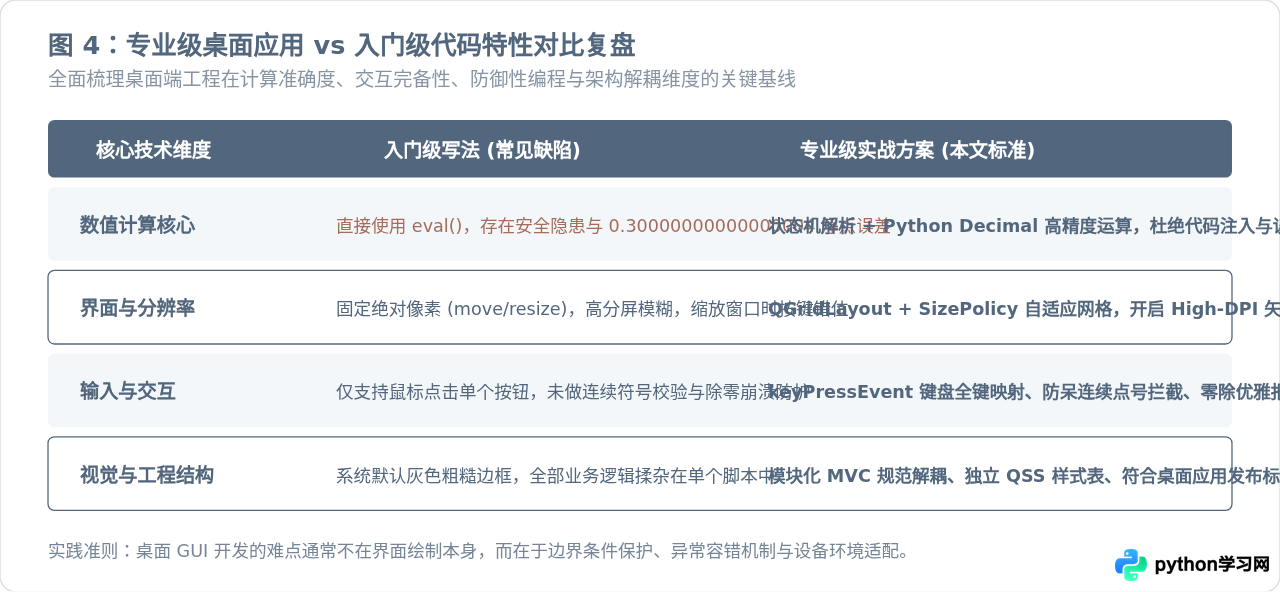
| 技术环节 | 常见入门实现 | 专业级工程方案(本文推荐) | 收益与原因 |
|---|---|---|---|
| 数值精度 | 二进制原生 float | decimal.Decimal + 精度上下文 |
消除 0.1+0.2 等微小尾数误差,满足严谨计算场景 |
| 计算安全 | 直接调用 eval() |
自研有限状态机 (FSM) 词法调度 | 杜绝任意命令执行风险,避免未知格式抛出未捕获崩溃 |
| 屏幕适配 | 固定绝对坐标 setGeometry |
QGridLayout + AA_EnableHighDpiScaling |
跨 Windows/macOS/Linux 高分屏自适应,字体与边框不模糊 |
| 人机交互 | 仅支持鼠标点选 | 全功能按键映射 + keyPressEvent 捕获 |
支持双手盲打输入,提升日常办公连续操作效率 |
PyInstaller 执行单文件打包:pyinstaller -w -F --name "ProCalculator" main.py。其中的 -w 参数用于隐藏控制台黑框,确保纯粹的桌面原生体验。
本站声明
本文内容仅供参考,不代表本站观点。转载或引用请注明出处。如发现内容问题,请通过联系我们页面反馈。