


Pygame游戏开发:实现鼠标悬停高亮的游戏菜单按钮

发布时间:2026-10-11 |
3人浏览过
在Pygame游戏开发中,为游戏菜单添加鼠标悬停高亮效果能显著提升用户体验。本文通过获取鼠标实时坐标并判断其是否位于按钮矩形区域内,动态切换按钮颜色,实现视觉反馈。文章提供了完整的Pygame初始化、事件监听及游戏循环代码,帮助开发者快速构建具有交互性的游戏启动界面。
实现鼠标悬停高亮的核心逻辑
要实现按钮在鼠标悬停时变色,关键在于实时获取鼠标位置,并将其与按钮的坐标范围进行比对。在Pygame中,可以通过 pygame.mouse.get_pos() 获取当前鼠标的 (x, y) 坐标。假设按钮的左上角坐标为 (150, 450),宽度为 100,高度为 50,则判断逻辑如下:
- X轴范围判断: 鼠标X坐标必须大于按钮左边界(150),且小于右边界(150 + 100)。
- Y轴范围判断: 鼠标Y坐标必须大于按钮上边界(450),且小于下边界(450 + 50)。
当鼠标同时满足上述两个条件时,说明鼠标位于按钮区域内,此时应绘制高亮颜色的矩形;否则,绘制普通颜色的矩形。
# 获取鼠标位置
mouse = pygame.mouse.get_pos()

# 判断鼠标是否在第一个按钮区域内 (x: 150-250, y: 450-500)
if 150 + 100 > mouse[0] > 150 and 450 + 50 > mouse[1] > 450:
    pygame.draw.rect(gameDisplay, bright_green, (150, 450, 100, 50))
else:
    pygame.draw.rect(gameDisplay, green, (150, 450, 100, 50))

# 判断鼠标是否在第二个按钮区域内 (x: 550-650, y: 450-500)
if 550 + 100 > mouse[0] > 550 and 450 + 50 > mouse[1] > 450:
    pygame.draw.rect(gameDisplay, bright_red, (550, 450, 100, 50))
else:
    pygame.draw.rect(gameDisplay, red, (550, 450, 100, 50))
完整的Pygame游戏菜单实现
以下代码整合了Pygame初始化、颜色定义、按钮绘制逻辑以及游戏主循环。该示例创建了一个简单的赛车游戏启动界面,包含“开始游戏”和“退出游戏”两个按钮,并实现了鼠标悬停变色效果。
import pygame
import time
import random

# 初始化Pygame
pygame.init()

# 定义颜色
white = (255, 255, 255)
black = (0, 0, 0)
gray = (128, 128, 128)
red = (200, 0, 0)
green = (0, 200, 0)
bright_red = (255, 0, 0)
bright_green = (0, 255, 0)
blue = (0, 0, 255)

# 设置窗口参数
car_width = 100
display_width = 800
display_height = 600

gameDisplay = pygame.display.set_mode((display_width, display_height))
pygame.display.set_caption('A bit Racey')
clock = pygame.time.Clock()

# 加载资源
carImg = pygame.image.load('car.png')

def things_dodged(count):
    font = pygame.font.SysFont(None, 25)
    text = font.render("Dodged:" + str(count), True, black)
    gameDisplay.blit(text, (0, 0))

def things(thingx, thingy, thingw, thingh, color):
    pygame.draw.rect(gameDisplay, color, [thingx, thingy, thingw, thingh])

def car(x, y):
    gameDisplay.blit(carImg, (x, y))

def text_objects(text, font):
    textSurface = font.render(text, True, black)
    return textSurface, textSurface.get_rect()

def message_display(text):
    largeText = pygame.font.Font('freesansbold.ttf', 115)
    TextSurf, TextRect = text_objects(text, largeText)
    TextRect.center = ((display_width / 2), (display_height / 2))
    gameDisplay.blit(TextSurf, TextRect)
    pygame.display.update()
    time.sleep(2)
    game_loop()

def crash():
    message_display('You Crashed')

def game_intro():
    intro = True
    while intro:
        for event in pygame.event.get():
            print(event)
            if event.type == pygame.QUIT:
                pygame.quit()
                quit()

        gameDisplay.fill(white)
        largeText = pygame.font.Font('freesansbold.ttf', 115)
        TextSurf, TextRect = text_objects('A bit Racey', largeText)
        TextRect.center = ((display_width / 2), (display_height / 2))
        gameDisplay.blit(TextSurf, TextRect)

        # 获取鼠标位置
        mouse = pygame.mouse.get_pos()

        # 绘制第一个按钮(绿色)
        if 150 + 100 > mouse[0] > 150 and 450 + 50 > mouse[1] > 450:
            pygame.draw.rect(gameDisplay, bright_green, (150, 450, 100, 50))
        else:
            pygame.draw.rect(gameDisplay, green, (150, 450, 100, 50))

        # 绘制第二个按钮(红色)
        if 550 + 100 > mouse[0] > 550 and 450 + 50 > mouse[1] > 450:
            pygame.draw.rect(gameDisplay, bright_red, (550, 450, 100, 50))
        else:
            pygame.draw.rect(gameDisplay, red, (550, 450, 100, 50))

        pygame.display.update()
        clock.tick(15)

def game_loop():
    x = display_width * 0.45
    y = display_height * 0.8
    x_change = 0
    dodged = 0
    gameExit = False

    thing_startx = random.randrange(0, display_width)
    thing_starty = -600
    thing_speed = 7
    thing_width = 100
    thing_height = 100

    while not gameExit:
        for event in pygame.event.get():
            if event.type == pygame.QUIT:
                pygame.quit()
                quit()
            if event.type == pygame.KEYDOWN:
                if event.key == pygame.K_LEFT:
                    x_change = -5
                elif event.key == pygame.K_RIGHT:
                    x_change = 5
            if event.type == pygame.KEYUP:
                if event.key == pygame.K_LEFT or event.key == pygame.K_RIGHT:
                    x_change = 0
            print(event)

        x += x_change
        gameDisplay.fill(white)

        things(thing_startx, thing_starty, thing_width, thing_height, black)
        thing_starty += thing_speed

        car(x, y)
        things_dodged(dodged)

        if x > display_width - car_width or x < 0:
            gameExit = True
        if thing_starty > display_height:
            thing_starty = 0 - thing_height
            thing_startx = random.randrange(0, display_width)
            dodged += 1
            thing_speed += 1
            thing_width += (dodged * 1.2)
        if y < thing_starty + thing_height:
            print('y crossover')
            if x > thing_startx and x < thing_startx + thing_width or x + car_width > thing_startx and x + car_width < thing_startx + thing_width:
                print('x crossover')
                crash()
        pygame.display.update()
        clock.tick(60)

# 启动游戏
game_intro()
game_loop()
pygame.quit()
quit()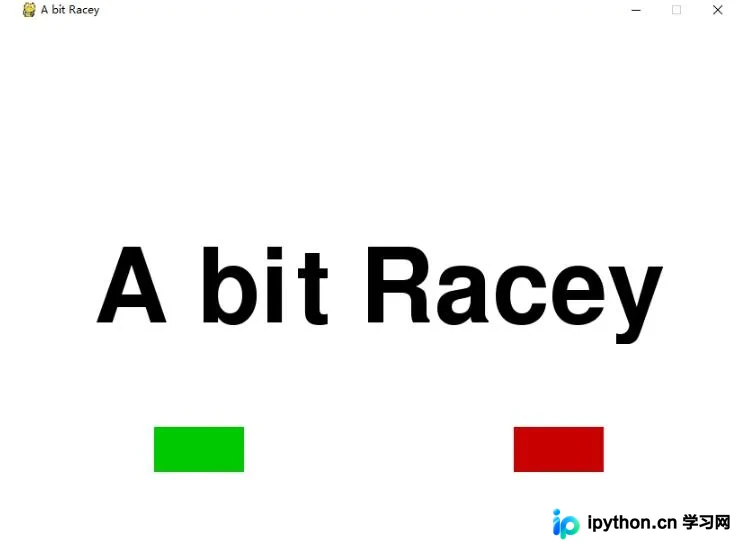
总结
通过上述代码,我们实现了在Pygame中根据鼠标位置动态改变按钮颜色的功能。这种方法不仅提升了游戏的交互性,也为后续添加点击事件(如开始游戏、退出游戏)奠定了基础。开发者可以根据实际需求调整按钮的坐标、大小和颜色,以适配不同的游戏界面设计。
以上就是Pygame游戏之旅 添加游戏界面按键图形的详细内容,更多关于Pygame游戏开发、鼠标交互技巧的资料请关注本站其它相关文章!
本站声明
本文内容仅供参考,不代表本站观点。转载或引用请注明出处。如发现内容问题,请通过联系我们页面反馈。















