


Django实现登录验证码生成与验证完整教程

本文详细介绍如何在Django项目中集成验证码功能,涵盖环境配置、核心代码实现及前后端交互。通过Pillow库生成图形验证码,结合jQuery实现点击刷新,有效防止机器人恶意注册、密码爆破及论坛灌水。包含完整的视图逻辑、URL配置及模板代码,帮助开发者快速构建安全的用户登录系统。
环境准备
所需开发环境如下:Python 3.52版本,PyCharm 5.05集成开发环境,以及Pillow图像处理库。
验证码工具包存放于项目目录下的 /utils/check_code 路径中。
验证码的作用
主要用途之一是防止恶意破解密码。系统通过拦截程序或机器人自动尝试密码的行为来提升安全性。为优化用户体验,仅在用户输入错误后才会触发验证码验证。
其次是防止论坛灌水。常见的“顶帖机”程序会无限制刷新页面,导致论坛充斥垃圾信息。例如在百度贴吧中,新用户或刚关注的贴吧发帖时会立即出现验证码,以此限制无限制的刷帖行为。
此外,验证码能有效防止恶意批量注册账号,避免程序或机器人无限制地创建用户账户。
最后,验证码可用于防止网络投票刷票行为,许多投票类网站均采用此机制。
2.验证码的原理
验证码由服务器端生成后发送给客户端,并以图像格式展示。客户端用户提交所见的验证码内容,服务器接收后进行比对。若比对失败,则禁止登录或注册;若比对成功,则跳转至相应界面。
实现
核心功能包括生成验证码图片以及支持点击刷新。
代码:
注意:需配置 setting.py 文件,并创建对应的数据库。
/utils/check_code
#!/usr/bin/env python
# -*- coding:utf-8 -*-

import random
from PIL import Image, ImageDraw, ImageFont, ImageFilter
_letter_cases = "abcdefghjkmnpqrstuvwxy" # 小写字母,去除可能干扰的i,l,o,z
_upper_cases = _letter_cases.upper() # 大写字母
_numbers = ''.join(map(str, range(3, 10))) # 数字
init_chars = ''.join((_letter_cases, _upper_cases, _numbers))
def create_validate_code(size=(120, 30),
       chars=init_chars,
       img_type="GIF",
       mode="RGB",
       bg_color=(238,99,99),
       fg_color=(0, 0, 255),
       font_size=18,
       font_type="Monaco.ttf",
       length=4,
       draw_lines=True,
       n_line=(1, 2),
       draw_points=True,
       point_chance=2):
 """
 @todo: 生成验证码图片
 @param size: 图片的大小,格式(宽,高),默认为(120, 30)
 @param chars: 允许的字符集合,格式字符串
 @param img_type: 图片保存的格式,默认为GIF,可选的为GIF,JPEG,TIFF,PNG
 @param mode: 图片模式,默认为RGB
 @param bg_color: 背景颜色,默认为白色
 @param fg_color: 前景色,验证码字符颜色,默认为蓝色#0000FF
 @param font_size: 验证码字体大小
 @param font_type: 验证码字体,默认为 ae_AlArabiya.ttf
 @param length: 验证码字符个数
 @param draw_lines: 是否划干扰线
 @param n_lines: 干扰线的条数范围,格式元组,默认为(1, 2),只有draw_lines为True时有效
 @param draw_points: 是否画干扰点
 @param point_chance: 干扰点出现的概率,大小范围[0, 100]
 @return: [0]: PIL Image实例
 @return: [1]: 验证码图片中的字符串
 """
 width, height = size # 宽高
 # 创建图形
 img = Image.new(mode, size, bg_color)
 draw = ImageDraw.Draw(img) # 创建画笔
 def get_chars():
  """生成给定长度的字符串,返回列表格式"""
  return random.sample(chars, length)
 def create_lines():
  """绘制干扰线"""
  line_num = random.randint(*n_line) # 干扰线条数
  for i in range(line_num):
   # 起始点
   begin = (random.randint(0, size[0]), random.randint(0, size[1]))
   # 结束点
   end = (random.randint(0, size[0]), random.randint(0, size[1]))
   draw.line([begin, end], fill=(0, 0, 0))
 def create_points():
  """绘制干扰点"""
  chance = min(100, max(0, int(point_chance))) # 大小限制在[0, 100]
  for w in range(width):
   for h in range(height):
    tmp = random.randint(0, 100)
    if tmp > 100 - chance:
     draw.point((w, h), fill=(0, 0, 0))
 def create_strs():
  """绘制验证码字符"""
  c_chars = get_chars()
  strs = ' %s ' % ' '.join(c_chars) # 每个字符前后以空格隔开
  font = ImageFont.truetype(font_type, font_size)
  font_width, font_height = font.getsize(strs)

  draw.text(((width - font_width) / 3, (height - font_height) / 3),
     strs, font=font, fill=fg_color)

  return ''.join(c_chars)
 if draw_lines:
  create_lines()
 if draw_points:
  create_points()
 strs = create_strs()
 # 图形扭曲参数
 params = [1 - float(random.randint(1, 2)) / 100,
    0,
    0,
    0,
    1 - float(random.randint(1, 10)) / 100,
    float(random.randint(1, 2)) / 500,
    0.001,
    float(random.randint(1, 2)) / 500
    ]
 img = img.transform(size, Image.PERSPECTIVE, params) # 创建扭曲
 img = img.filter(ImageFilter.EDGE_ENHANCE_MORE) # 滤镜,边界加强(阈值更大)
 return img, strs
urls.py
from django.conf.urls import url
from django.contrib import admin
from web import views
urlpatterns = [
 url(r'^admin/', admin.site.urls),
 url(r'^yzhome.html',views.yz_home ),
 url(r'^yanzheng.html',views.yanzheng ),
]
views.py
from django.shortcuts import render
from django.shortcuts import HttpResponse
from utils.check_code import create_validate_code
from django.shortcuts import redirect
from io import BytesIO
# Create your views here.

def yz_home(requset):
 if requset.method=='GET':
  return render(requset,'yz_home.html')
 else:
  return HttpResponse('ok')
def yanzheng(requset):
 f=BytesIO()
 img,code=create_validate_code()
 requset.session['check_code']=code
 img.save(f,'PNG')
 return HttpResponse(f.getvalue())
/templates/yz_home.html
<!DOCTYPE html>
<html lang="en">
<head>
 <meta charset="UTF-8">
 <title>验证码</title>
</head>
<body>
<form action="yz_home.html" method="POST">
<div> 用户名:<input type="text" placeholder="用户名" name="username"></div>
<div>密码:<input type="password" placeholder="密码" name="pwa"></div>
<div>验证码:<input type="text" name="yzm"></div>
<img src="/yanzheng.html" onclick="shuaxin(this);">
<div><input type="submit" value="确认"></div>
 <script src="/static/js/jquery-1.12.4.js">
 </script>
 <script>
  function shuaxin(ths){
{#    ths.src = ths.src + "?"#}
   var i =$(ths).prop("src")
    $(ths).prop("src",i+"?")
  }
 </script>
</form>
</body>
</html>
效果图
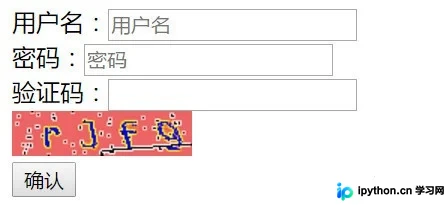
知识点总结:
<img src="/yanzheng.html" onclick="shuaxin(this);">
 <script>
  function shuaxin(ths){
   ths.src = ths.src + "?"
  }
 </script>
=
<img src="/yanzheng.html" onclick="shuaxin(this);">
 <script src="/static/js/jquery-1.12.4.js">
 </script>
 <script>
  function shuaxin(ths){
   var i =$(ths).prop("src")
    $(ths).prop("src",i+"?")

  }
 </script>
jQueryObject.prop( propertyName [, value ] ) 方法用于设置或返回指定属性 propertyName 的值。若指定了 value 参数,则将属性设置为该值;若未指定 value 参数,则返回当前属性值。
总结
以上就是本文关于Django生成登录验证码代码分享的详细内容,希望对大家有所帮助。感兴趣的朋友可以继续查阅本站其他相关专题,如有不足之处,欢迎留言指出。感谢朋友们对本站的支持!
本站声明
本文内容仅供参考,不代表本站观点。转载或引用请注明出处。如发现内容问题,请通过联系我们页面反馈。















