


Python给图片添加文字或图片水印的代码教程

本教程详细讲解如何使用 Python 及 Pillow 库为图片添加文字水印与图片水印,深入解析 RGBA 图层透明度合成原理,提供完整可运行的代码实现与常见报错解决方案。
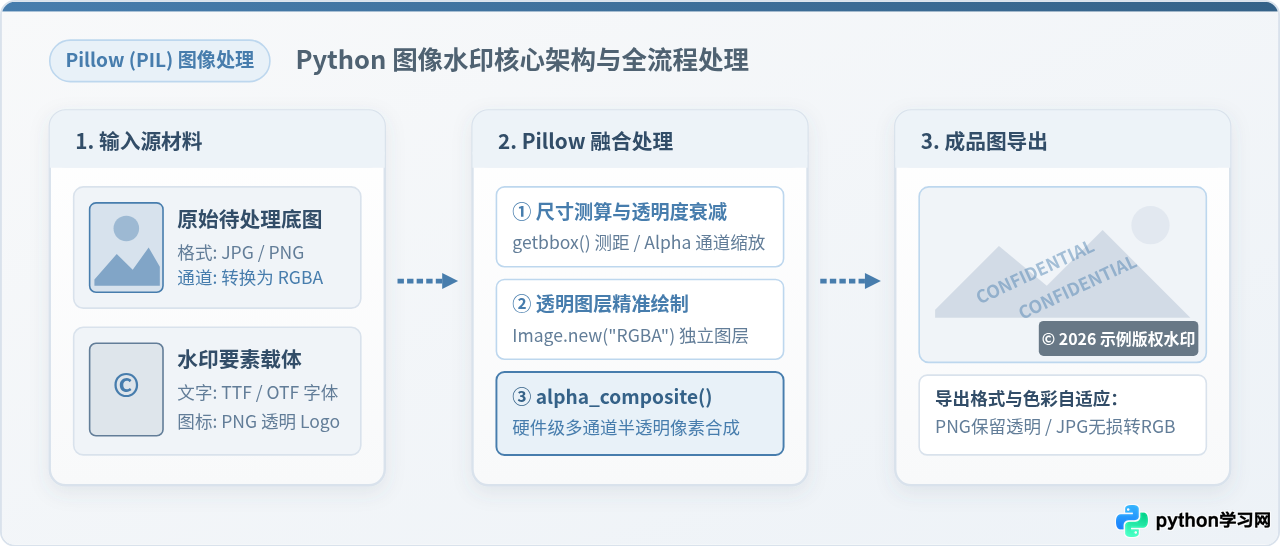
在 Python 中为图片添加水印,最稳定且标准的解决方案是使用图像库 Pillow(PIL Fork)。给图片加水印的核心本质是基于 Alpha 通道的图层合成(Alpha Blending):保持底图不变,构建一个与底图等尺寸的纯透明 RGBA 图层,在此图层上绘制文字或贴入调整过透明度的 Logo,最后使用 Image.alpha_composite() 将两个图层自然融合并保存输出。本文将按实际开发步骤,讲解文字水印、图片水印及全屏平铺水印的代码实现与细节避坑。
一、底层原理:RGBA 与 Alpha Composite 图层合成机制
给图片添加半透明水印,必须掌握色彩通道的基本规则。普通数码照片或网络图片通常是 RGB 模式(包含红、绿、蓝三个 8 位颜色通道,共 24 位),并不包含透明度信息。如果直接在 RGB 模式的底图上用画笔写字,字体颜色会直接覆盖底图原有像素,无法呈现半透明质感。
为了实现可调节透明度的优雅效果,必须引入 Alpha 通道(第 4 个通道),将模式切换为 RGBA。Alpha 取值范围为 0 到 255,其中 0 代表完全透明,255 代表完全不透明。水印合成的具体分层机制如下图所示:
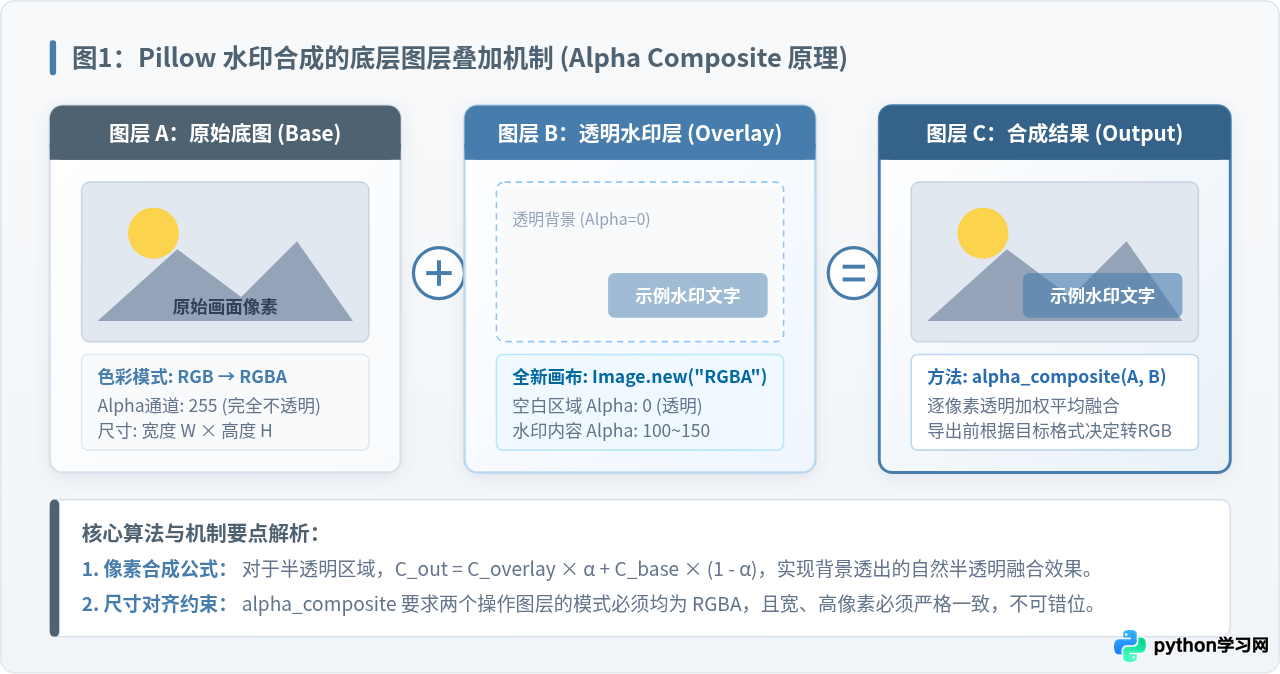
在图层叠加运算中,合成后的每一个像素颜色值由公式 C_out = C_overlay × α + C_base × (1 - α) 算出。这样原图纹理能够均匀穿透水印层,既保留了版权标识的清晰辨识度,又不会硬生生盖死底图的画面细节。
二、准备工作与环境依赖安装
本教程仅依赖 Python 官方推荐的图像处理库 Pillow。在终端或命令行运行以下命令完成安装:
pip install pillow安装后即可在代码中导入核心模块:
from PIL import Image, ImageDraw, ImageFont, ImageOps三、实现文字水印:计算坐标与绘制半透明文字
添加文字水印的标准处理流程分为 4 步:加载原图并纠正方向、加载中文字体并测算尺寸、在透明图层上绘制指定 Alpha 值的文本、执行双图层像素级融合。完整执行流水线如下图所示:
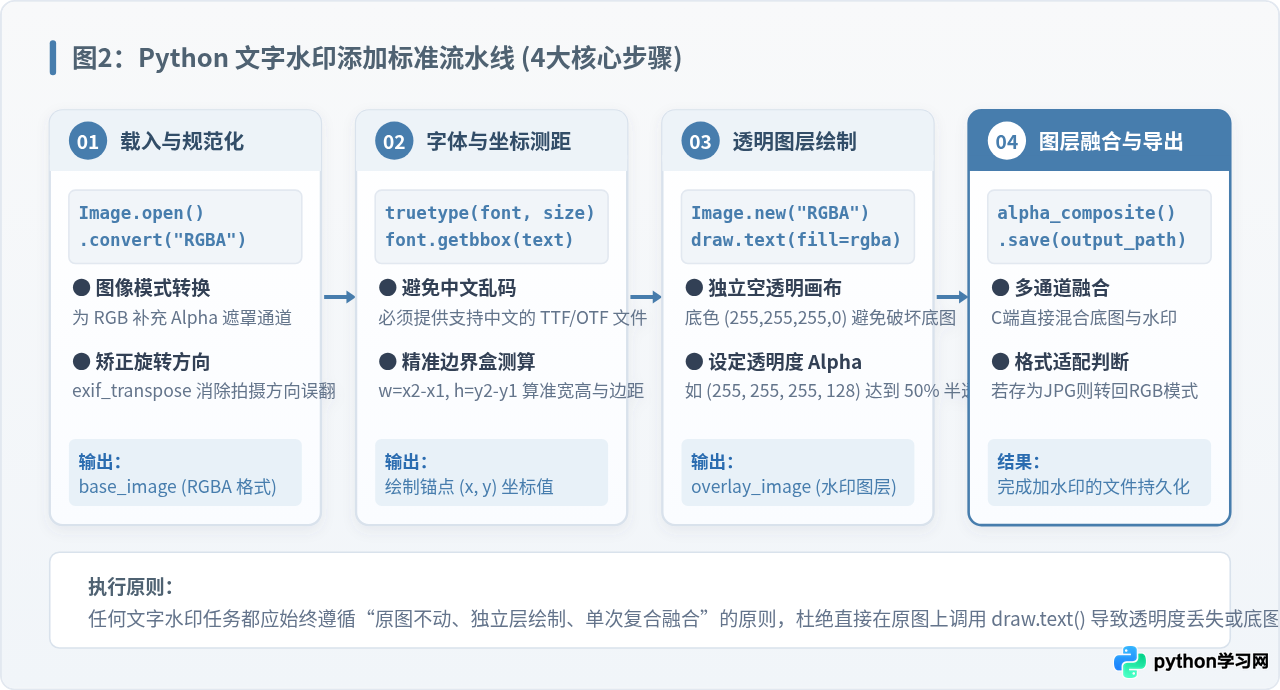
1. 关键细节:为什么使用 getbbox() 测算文字尺寸
在 Pillow 10.0 及以上版本中,旧版本的 font.getsize() 方法已被彻底移除。现在必须统一使用 font.getbbox(text) 方法。该方法返回文字的外接包围盒四元组 (left, top, right, bottom),文字的实际宽度为 right - left,高度为 bottom - top。这一数值是计算文字居中或右下角边距的精确依据。
2. 文字水印完整可运行代码
下面是一个工业级健全的文字水印封装函数。函数支持自动检测不同操作系统下的常见中文字体、自适应九宫格对齐位置(支持右下、居中、左上等),并能在导出 JPG 时自动去除透明通道,防止抛出错误:
import os
from PIL import Image, ImageDraw, ImageFont, ImageOps

def get_system_chinese_font():
    # 探测系统常用中文字体路径,避免中文字符显示为方块豆腐块
    candidates = [
        "/System/Library/Fonts/PingFang.ttc",           # macOS 苹方
        "/System/Library/Fonts/STHeiti Light.ttc",      # macOS 华文黑体
        "C:\Windows\Fonts\msyh.ttc",                 # Windows 微软雅黑
        "C:\Windows\Fonts\simhei.ttf",               # Windows 黑体
        "/usr/share/fonts/truetype/wqy/wqy-zenhei.ttc", # Linux 文泉驿正黑
    ]
    for p in candidates:
        if os.path.exists(p):
            return p
    return None

def add_text_watermark(
    image_path: str,
    output_path: str,
    text: str,
    font_path: str = None,
    font_size: int = 36,
    opacity: int = 128,  # 0 ~ 255,128 约为 50% 透明度
    color_rgb: tuple = (255, 255, 255),
    position: str = "bottom-right",
    margin: int = 24
):
    # 1. 打开原图并通过 ImageOps.exif_transpose 纠正拍摄翻转
    with Image.open(image_path) as raw_img:
        base_img = ImageOps.exif_transpose(raw_img).convert("RGBA")

    w, h = base_img.size

    # 2. 载入指定字体或系统默认中文字体
    if font_path is None:
        font_path = get_system_chinese_font()

    if font_path and os.path.exists(font_path):
        font = ImageFont.truetype(font_path, font_size)
    else:
        # 系统无字体时降级使用默认字体(注意默认字体通常不支持汉字)
        font = ImageFont.load_default()

    # 3. 使用 getbbox 计算文字真实边界尺寸
    bbox = font.getbbox(text)
    text_w = bbox[2] - bbox[0]
    text_h = bbox[3] - bbox[1]

    # 4. 根据方位计算锚点坐标
    if position == "bottom-right":
        x = w - text_w - margin
        y = h - text_h - margin
    elif position == "bottom-left":
        x = margin
        y = h - text_h - margin
    elif position == "top-left":
        x = margin
        y = margin
    elif position == "top-right":
        x = w - text_w - margin
        y = margin
    elif position == "center":
        x = (w - text_w) // 2
        y = (h - text_h) // 2
    else:
        x = w - text_w - margin
        y = h - text_h - margin

    # 5. 创建同尺寸全透明图层并绘制文本
    watermark_layer = Image.new("RGBA", (w, h), (255, 255, 255, 0))
    draw = ImageDraw.Draw(watermark_layer)
    fill_color = (color_rgb[0], color_rgb[1], color_rgb[2], int(opacity))
    draw.text((x, y), text, font=font, fill=fill_color)

    # 6. 使用 alpha_composite 将文字层合并至原图
    result = Image.alpha_composite(base_img, watermark_layer)

    # 7. 导出保存(若输出格式为 JPG,剔除 Alpha 通道转为 RGB)
    ext = os.path.splitext(output_path)[1].lower()
    if ext in (".jpg", ".jpeg"):
        result = result.convert("RGB")
        result.save(output_path, quality=95)
    else:
        result.save(output_path)
四、实现图片水印:Logo 等比缩放与透明通道衰减
图片水印(如网站 Logo 图标)通常是一张自带透明背景的 PNG 图。在贴合到底图前,需要解决两个关键问题:
- 比例自适应:Logo 必须按底图尺寸等比例缩放(通常宽度不超过底图的 15%~25%),不可因原始像素过大撑破画面。
- 透明度调节:很多 Logo 自身像素是完全不透明的(Alpha=255),直接贴上会破坏底图观感。我们需要提取其 Alpha 遮罩通道,对其乘上透明度系数(例如 0.4)后再贴合。
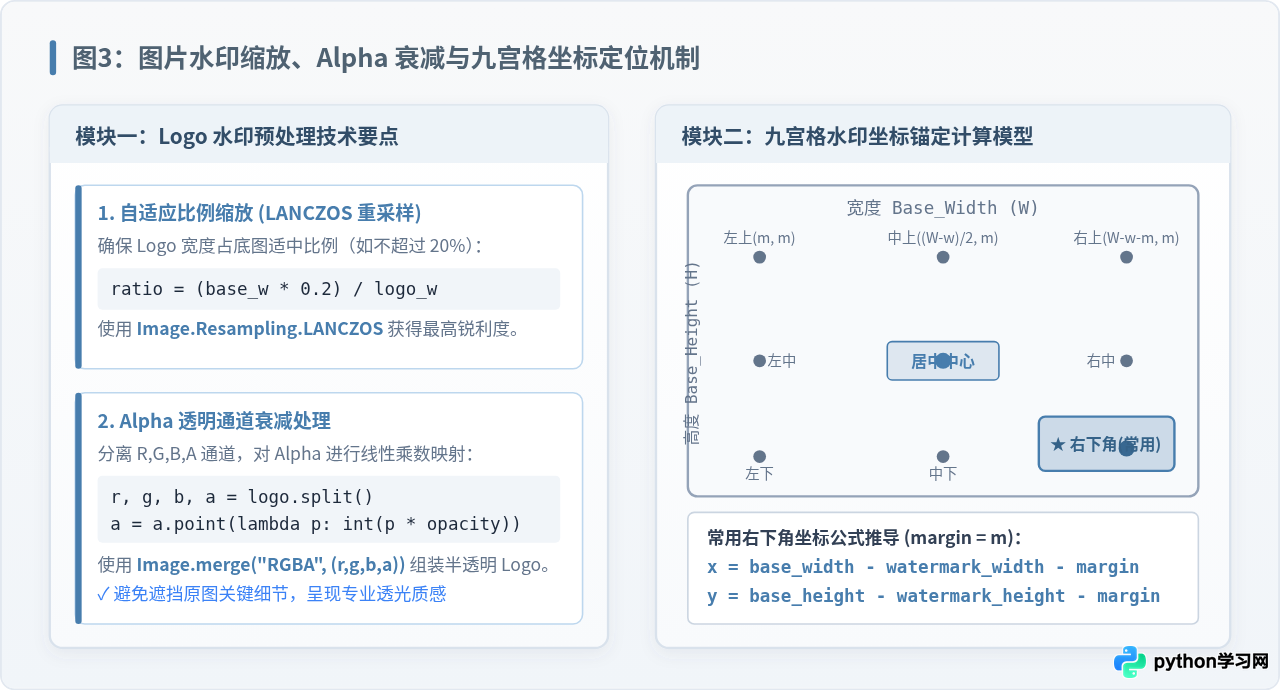
图片水印完整可运行代码
以下函数实现了 Logo 的高质量缩放(LANCZOS 重采样)、通道透明度动态计算与九宫格坐标贴合:
def add_image_watermark(
    image_path: str,
    watermark_path: str,
    output_path: str,
    scale_ratio: float = 0.2,   # 水印占底图宽度的比例,0.2 代表 20%
    opacity: float = 0.5,       # 0.0 ~ 1.0,0.5 代表 50% 不透明度
    position: str = "bottom-right",
    margin: int = 24
):
    # 1. 打开底图与水印图,均转为 RGBA 模式
    with Image.open(image_path) as raw_base:
        base_img = ImageOps.exif_transpose(raw_base).convert("RGBA")
    with Image.open(watermark_path) as raw_logo:
        logo_img = raw_logo.convert("RGBA")

    base_w, base_h = base_img.size
    logo_orig_w, logo_orig_h = logo_img.size

    # 2. 计算缩放目标尺寸并执行 LANCZOS 高质量重采样
    target_logo_w = int(base_w * scale_ratio)
    target_logo_h = int((target_logo_w / logo_orig_w) * logo_orig_h)
    resized_logo = logo_img.resize((target_logo_w, target_logo_h), Image.Resampling.LANCZOS)

    # 3. 调节水印的 Alpha 透明通道
    r, g, b, a = resized_logo.split()
    a = a.point(lambda p: int(p * opacity))
    semi_logo = Image.merge("RGBA", (r, g, b, a))

    # 4. 根据参数计算九宫格贴合坐标
    if position == "bottom-right":
        pos_x = base_w - target_logo_w - margin
        pos_y = base_h - target_logo_h - margin
    elif position == "bottom-left":
        pos_x = margin
        pos_y = base_h - target_logo_h - margin
    elif position == "top-left":
        pos_x = margin
        pos_y = margin
    elif position == "top-right":
        pos_x = base_w - target_logo_w - margin
        pos_y = margin
    elif position == "center":
        pos_x = (base_w - target_logo_w) // 2
        pos_y = (base_h - target_logo_h) // 2
    else:
        pos_x = base_w - target_logo_w - margin
        pos_y = base_h - target_logo_h - margin

    # 5. 构建全画幅透明图层并执行像素级融合
    overlay = Image.new("RGBA", (base_w, base_h), (255, 255, 255, 0))
    overlay.paste(semi_logo, (pos_x, pos_y), mask=semi_logo)
    result = Image.alpha_composite(base_img, overlay)

    # 6. 保存导出
    ext = os.path.splitext(output_path)[1].lower()
    if ext in (".jpg", ".jpeg"):
        result = result.convert("RGB")
        result.save(output_path, quality=95)
    else:
        result.save(output_path)
五、进阶场景:全屏倾斜平铺防盗水印
单角文字或小 Logo 容易被截图工具直接裁剪抹除。在合同附件、内部资料、版权样张或证件照片等防盗场景中,往往需要倾斜 30° 或 45° 的全屏密铺文字水印。
实现原理是:先在一块适应文字的小画布上绘制一行半透明文字,调用 rotate(angle, expand=True) 对其进行无裁切旋转,接着计算带有行间距和列间距的步长,以双层 for 循环在整个透明图层上密集贴合,最后一次性与原图进行 alpha_composite 融合。
def add_tiled_text_watermark(
    image_path: str,
    output_path: str,
    text: str,
    font_path: str = None,
    font_size: int = 24,
    opacity: int = 60,   # 全屏平铺时建议透明度调低(40~80)
    angle: float = 30,   # 倾斜角度
    step_x: int = 200,   # 水平平铺间距
    step_y: int = 150    # 垂直平铺间距
):
    with Image.open(image_path) as raw_base:
        base_img = ImageOps.exif_transpose(raw_base).convert("RGBA")

    base_w, base_h = base_img.size

    if font_path is None:
        font_path = get_system_chinese_font()
    font = ImageFont.truetype(font_path, font_size) if (font_path and os.path.exists(font_path)) else ImageFont.load_default()

    # 1. 测算单块文字并创建贴合尺寸的图块
    bbox = font.getbbox(text)
    tw, th = bbox[2] - bbox[0], bbox[3] - bbox[1]
    text_block = Image.new("RGBA", (tw + 20, th + 20), (255, 255, 255, 0))
    d = ImageDraw.Draw(text_block)
    d.text((10, 10), text, font=font, fill=(128, 128, 128, opacity))

    # 2. 旋转文字图块,expand=True 保证旋转后四角文字不被裁切
    rotated_block = text_block.rotate(angle, expand=True, resample=Image.Resampling.BICUBIC)
    bw, bh = rotated_block.size

    # 3. 双层循环在整张底图上密铺
    overlay = Image.new("RGBA", (base_w, base_h), (255, 255, 255, 0))
    for y in range(0, base_h, step_y):
        for x in range(0, base_w, step_x):
            overlay.paste(rotated_block, (x, y), mask=rotated_block)

    result = Image.alpha_composite(base_img, overlay)

    ext = os.path.splitext(output_path)[1].lower()
    if ext in (".jpg", ".jpeg"):
        result = result.convert("RGB")
        result.save(output_path, quality=95)
    else:
        result.save(output_path)
六、选型对比与开发避坑指南
为了在业务中根据实际需求快速做出架构与代码选型,以下梳理了三种方案的差异指标,并总结了四项常见高频报错的对策:
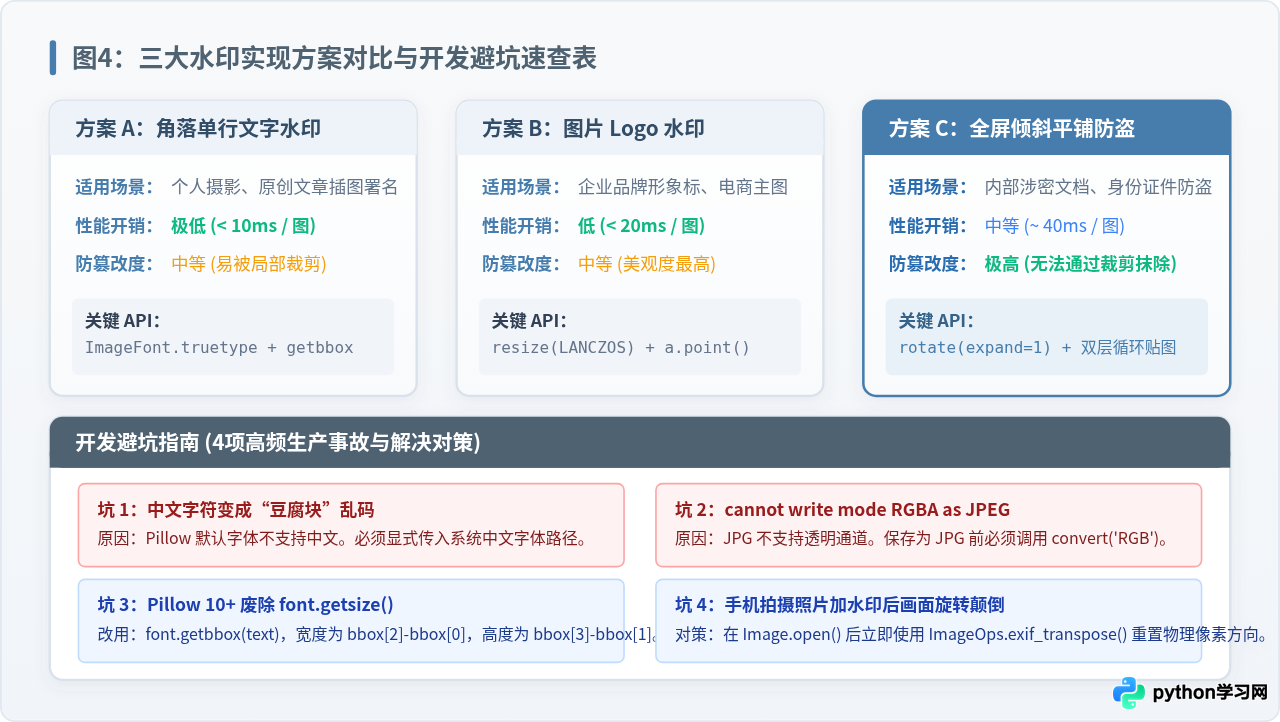
- OSError: cannot write mode RGBA as JPEG:JPEG 格式只支持 RGB 3 通道。保存
.jpg文件前,必须调用img.convert("RGB")。 - 中文字符渲染为方框“豆腐块”:Pillow 默认字体只包含基础 ASCII 码。必须通过
ImageFont.truetype()显式指定系统中文字体(如msyh.ttc或PingFang.ttc)。 - AttributeError: 'FreeTypeFont' object has no attribute 'getsize':Pillow 10.0+ 已废弃
getsize,请迁移至font.getbbox(text)。 - 手机拍摄竖图加完水印后横向颠倒:数码相机与手机拍摄的相片常带有 EXIF Orientation 标记。在
Image.open()后必须立即调用ImageOps.exif_transpose(image)还原真实的物理像素阵列。
七、总结
使用 Python 给图片添加水印的工业级核心逻辑是:原图不动、独立透明层绘制、统一 Alpha 复合融合。通过封装上述的 add_text_watermark、add_image_watermark 和 add_tiled_text_watermark 函数,开发者可以灵活应对摄影署名、企业商标盖章及证件平铺防盗等各种业务场景。在日常批处理任务中,结合 os.walk 或 pathlib.Path 遍历目标目录,即可高效完成成千上万张图片的自动化打标工作。
本站声明
本文内容仅供参考,不代表本站观点。转载或引用请注明出处。如发现内容问题,请通过联系我们页面反馈。















